We’ve all been there—you grab your fitness tracker, ready to crush those daily steps, and suddenly the only thing moving is the logo, frozen in place like it’s auditioning for a drama. Your fitness tracker might get stuck on the logo screen because of software glitches, a failed update, or just a plain old battery issue. You’re definitely not the only one. Tons of brands and models have this annoying problem.
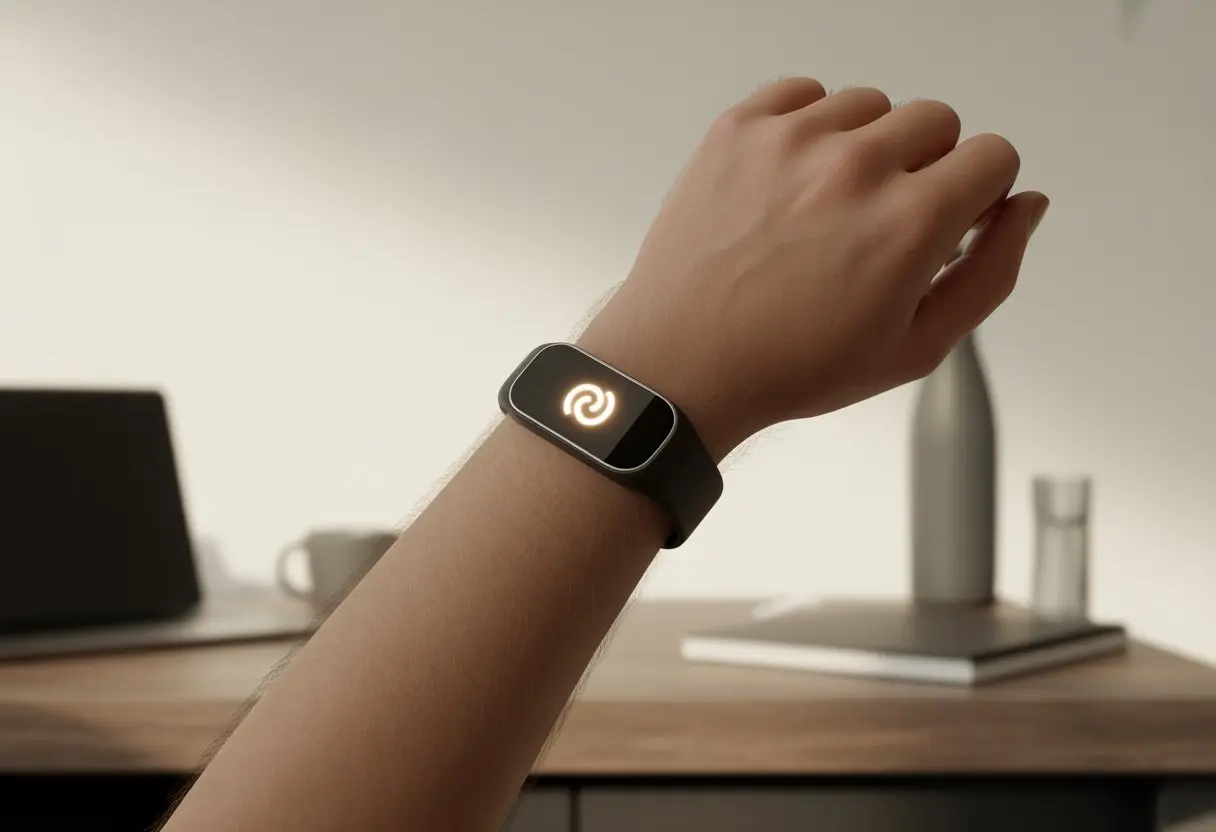
Instead of tracking your heart rate, you’re stuck watching the logo, hoping for any sign of life. Maybe you’re wondering if your device is calling it quits or just needs some tech CPR. Don’t worry, you’re not alone.
Let’s dig into why this happens and how you can snap your tracker out of its trance—no magic required.
Common Reasons Your Fitness Tracker Gets Stuck on the Logo Screen
You stare at your fitness tracker logo, hoping it’ll load already. Usually, when your smartwatch freezes on the logo, something inside its tiny digital brain has gone sideways.
Let’s break down the usual suspects so you can save your steps (and sanity).
Software Glitches
Sometimes, fitness trackers act like they’re haunted—by bad code, mostly. Software glitches are little hiccups that freeze the watch.
Maybe you’ve got too many apps running. Maybe the memory’s full. Or maybe some random bug just decided today’s the day for drama.
Usually, you can clear these up by forcing a restart or doing a hard reset. Sometimes a factory reset is the only thing that works, which wipes everything and sets it up like new.
For Fitbit Sense folks, pressing and holding the back button for about 8 seconds until the logo disappears has helped, as mentioned on this Fitbit forum.
Failed Updates
Fitness trackers love staying up to date, but updates don’t always go smoothly. If an update fails—maybe you lost power, the Wi-Fi dropped, or just had rotten luck—the watch can get stuck on its logo, staring into the void.
Failed updates often happen when you try to install new software and something interrupts the process. Usually, retrying the update or resetting the device can fix it.
If your watch is stuck after a failed firmware update, you’ll need to follow the steps for your specific device to force a restart or factory reset. Folks have run into this with the Fitbit Sense.
Low Battery Issues
Sometimes, your smartwatch just needs a nap—or a good charge. If the battery is super low or dead, it might not boot past the logo.
It’s basically your watch’s way of saying, “Feed me power!” Make sure the tracker is charged properly.
If you try restarting it with a very low battery, it might look stuck on the logo, but it just doesn’t have enough juice. Plug it in and let it charge for at least 30 minutes.
If it still won’t start, there could be a hardware problem, but often a good charge does the trick.
How to Perform a Restart When Your Tracker Freezes
Tech gadgets sure know how to make us sweat, and not just from running. Even a frozen fitness tracker usually just needs a little button magic or charging trick to start working again.
Basic Restart Steps
Don’t panic—most trackers love a good restart. First, grab the charging cable and plug your tracker in, even if it seems completely lifeless.
The charger can work wonders by giving the device a boost. For most models, press and hold the main or side button for about 10 seconds.
Some trackers want you to hold the button until you feel a vibration or see a reboot screen. If yours is stubborn, keep holding for as long as 20 seconds—just don’t let your thumb cramp.
If that doesn’t work, try turning Bluetooth off and on, or restart your phone. Some folks have luck holding the button until vibration or plugging in and using the Fitbit app.
Basically, plug it in, hold the button, and hope for the best. If it doesn’t work, repeat and maybe promise your tracker a firmware update soon.
Hard Reset vs. Soft Reset
There are two resets in the fitness tracker world: the gentle nudge (soft reset) and the full-on tough love (hard reset). A soft reset just restarts the tracker without losing your data—honestly, that’s the one we all prefer.
A hard reset erases everything and restores factory settings. It’s like cleaning out your fridge before moving—sometimes you just have to do it, even if you’d rather not.
Most trackers let you choose a hard reset from the settings menu, or if things are really bad, you might need to do a special button combo. Only go for this if you’ve backed up anything important, since it wipes everything and you’ll have to set it up again.
Addressing the Infamous Boot Loop (Yes, It’s As Annoying As It Sounds)
Nothing’s more frustrating than seeing your fitness tracker stuck on its logo, refusing to do anything no matter how long you hold the button. When this happens, your device has probably entered the dreaded boot loop.
What is a Boot Loop?
A boot loop happens when your device can’t get past the loading screen. It keeps restarting, never making it to the main screen.
It’s like being stuck in a never-ending warm-up—lots of motion, zero progress. This usually kicks in after a failed update, an app crash, or sometimes just because your tracker felt like being difficult.
The system keeps trying to load, fails, and tries again. You’re basically stuck in limbo, and not the fun kind.
A boot loop isn’t the same as a freeze or a dead battery—it’s more dramatic and relentless. If you want to see others suffering through it, check out the Fitbit Sense stuck in a boot loop.
Telltale Signs of Endless Looping
Not sure if your tracker’s in a boot loop? Here’s what usually gives it away:
- The logo appears, hangs out for a bit, then the screen goes black.
- A moment later, the logo shows up again, and the cycle repeats.
- Buttons, swipes, and even recharging don’t help.
Honestly, it’s pretty obvious. Sometimes you’ll get a buzz or vibration during the loop, just to tease you.
By this point, your tracker isn’t tracking anything, and your patience is running thin. If you’ve reset it and it still circles back to the logo, you’re officially in boot loop territory.
Devices like the Fitbit Sense stuck in a boot loop prove you’re not alone.
Escaping the Boot Loop Trap
So, how do you actually stop the loop and get back to counting steps?
Start with a hard reboot: hold down the main button (usually 10-15 seconds) until you see something different.
Sometimes, this snaps the device back to life. If not, you may need to factory reset the tracker, which erases your settings and data.
The steps vary by brand, so double-check for your device. Make sure it’s fully charged before trying a reset, just in case low power is making things worse.
Some users swear by repeating the reset 10-20 times (yeah, that’s a real suggestion)—see this guide on dealing with a startup loop.
If nothing works, it might be time to call customer support. Sometimes you’ve just got to let the experts handle it.
It’s Not Just You: Brand-Specific Quirks
Some fitness trackers are just more stubborn than others. We’ve all dealt with brand-specific quirks, so let’s be honest—sometimes these trackers just want to rebel.
Garmin’s Blue Triangle of Death
If you own a Garmin, you know the blue triangle isn’t a sign of power. It’s more like a warning that your device has entered “nap mode”—and doesn’t plan to wake up soon.
When you see that triangle, the tracker usually gets stuck during startup. It’s basically thinking about life while you lose valuable steps.
The usual reasons are software glitches or failed updates. Sometimes, it’s just bad luck.
Fixes:
- Hold the power button for 15 seconds for a forced restart.
- If that doesn’t work, try a soft reset or connect to a computer to reload the firmware.
Garmin even has a name for this—the Blue Triangle of Death. It’s dreaded, it’s common, and it loves to test your patience.
Apple Watch Logo Lock-Ups
Apple Watches sometimes just freeze up and show that shiny white Apple logo. It’s like your wrist is saying, “Nope, not today.” Usually, this annoying boot loop pops up after an update or a random crash.
Yelling at your watch won’t fix it, though. The best fixes are:
- Force restart by pressing both the side button and the Digital Crown until the logo pops up again.
- If nothing happens, try unpairing and re-pairing your watch with your iPhone.
- Sometimes, checking Health app sync or network settings helps. People in online forums mention this a lot.
You could also try deleting and reinstalling the Fitness app. Honestly, it feels a bit like a tech superstition. Sometimes it works, and sometimes your Apple Watch just wants a nap.
When Software Updates Attack (And How to Survive Them)
We’ve all tapped “Update Now” hoping for smarter, faster fitness tracking. Instead, we sometimes get stuck staring at a glowing logo—suddenly our tracker is just a fancy paperweight. What actually goes wrong here, and how do we not lose our minds (or our step count)?
Interrupted Software Update Troubles
A software update can go south if it’s interrupted at the worst moment. If your tracker loses power, disconnects from Wi-Fi, or just decides to act up, it might get stuck on the logo. It’s like the device is napping and refuses to wake up for anything less than breakfast in bed.
This happens a lot after updates, especially if you unplugged the charger too soon or tried to use the device during the update. Some users say their Fitbit Versa freezes on the logo right after updating—basically, it’s like sleeping through the alarm. Don’t bother shaking it; that never works.
Try a hard reboot or factory reset to snap it out of the funk. For many models, hold down the button for about 8 seconds until the screen goes black. If it doesn’t work the first time, try again, or get ready to call tech support. Stuck updates don’t always mean your tracker is toast; sometimes it just needs a little tough love.
Making Sure Updates Complete Successfully
Next time, let’s avoid the drama. Before installing any update, make sure your tracker’s at least 50% charged and, if you can, plug it in. No tracker wants to pass out halfway through a big update.
Stable Wi-Fi or Bluetooth is a must. If you lose signal mid-update, things usually go sideways. Keep your phone close to the tracker, and don’t wander off to scroll through memes.
Let the update finish before pressing buttons or trying to sync. Patience is your friend here. If things still get weird, hold down the buttons for a hard reboot or, if needed, do a factory reset—just like the Fitbit Versa’s rescue routine. That gives your tracker a fighting chance to come back to life, instead of sulking behind the logo.
Unfreezing with Factory Reset (Last Resort)
Sometimes, a fitness tracker gets so stuck on the logo screen that nothing else works. If all else fails, a factory reset is your last shot. But don’t rush—make sure you save anything important before you go nuclear.
Backing Up Your Data Before Resetting
First, back up anything you care about. Most trackers store steps, workouts, and sleep data in the cloud or in an account linked to the app. Sync your device with your phone or computer before resetting, or you could lose all those hard-earned stats.
Some apps sync automatically, but double-checking never hurts. If your tracker uses a brand’s app, look for a Sync Now button in the settings. Hit it to lock in your progress.
Still not sure it’s synced? Log into your account on a computer to check. Make sure your recent activity, even that late-night fridge run, shows up in your history. Trust but verify, right?
How to Factory Reset Safely
Now comes the fun part: resetting the tracker without making things worse. Most trackers use a special button combo—like a secret handshake. Usually, you’ll hold the power button and maybe another side button for 10-15 seconds until the logo appears (again!). Each device is a little different, so check the official guide or a Fitbit reset tutorial.
Quick tip: keep the device plugged in. Sometimes it pretends to be frozen because the battery’s low. If the reset doesn’t work, try plugging it into a computer or wall charger while pressing the reset buttons.
After resetting, reconnect your device to the app or your account. With a bit of luck, all your backed-up data will come back—as if your tracker just needed a quick reboot to remember everything.
When to Call for Backup: Getting Support
Sometimes, no matter what you do, your fitness tracker just won’t move past that logo screen. That’s when you need to call in the pros and use your computer or email for backup.
Contacting the Manufacturer
We all love working gadgets, but when they freeze, it’s time to reach out for help. Most brands like Apple, Garmin, and Fitbit have dedicated support pages online. You can pick from live chat, phone calls, or online forms.
Have your tracker, serial number, and proof of purchase handy. Support agents will get to the point faster if you’re prepared.
If you prefer calling, get ready for hold music. But if you’re already at your computer, online chat or forms might be faster and less painful.
Sharing Error Details via Email
If you want a record of the problem, email works well. Most companies have a support email address, and sending detailed info can speed things along.
Keep your email simple and clear. Include the model name, a screenshot of the stuck logo, your computer’s operating system, what you’ve already tried, and the exact error. Big files send better from a computer, unless you enjoy watching a slow progress bar.
Sometimes, adding a short timeline of the issue helps tech support spot patterns. The more info you give, the less back-and-forth you’ll deal with—and the sooner you’ll get back to tracking your “sort of a jog” days.
Prevention Tips: Keep Your Fitness Tracker Running Happily
If you want to avoid logo-screen freezes, stay proactive about updates, watch your battery, and be careful with GPS and navigation. A few good habits go a long way.
Updating Regularly (But Not Recklessly)
Updating your tracker’s software feels a bit like going to the dentist—you know you should, but you might put it off. Updates usually fix bugs and add features, which is great. But if you update the second a new version drops, you might run into glitches or bugs.
It’s smart to skim the update notes before installing. If they mention fixes for your model or GPS upgrades, go for it. Otherwise, wait a few days and check forums for any horror stories.
Pro tip:
- Keep automatic updates off and install only when you know it’s safe.
- Restart the tracker after updating to help it settle in.
Watching for Battery Health
You wouldn’t run a marathon after skipping breakfast, right? Don’t make your tracker run on a dying battery. Batteries that barely hold a charge or die quickly can cause logo-screen problems. Low battery often means the device can’t boot or finish updates.
To keep your battery happy:
- Don’t leave the tracker in direct sunlight or a hot car.
- Only use the charger that came with it.
- Don’t always let the battery hit zero—charge it before it’s totally dead.
If your tracker feels slow, gets hot, or needs charging twice a day, maybe it’s time for a new battery or a chat with tech support.
Navigation and GPS usually work well—until your tracker freezes right in the middle of a run and just won’t move. Sometimes, when you update the software, the location services or satellite settings glitch out, and suddenly you’re stuck staring at the logo screen.
So, what can you do to avoid that headache?
- Always close any fitness apps before you unplug or reset your tracker.
- Make sure you’ve turned off GPS and navigation features before you update or restart.
- If your last run or ride crashed, try deleting that last saved activity in the app.
Taking a few moments for these steps can really save your tracker from the next GPS meltdown. And if things still go off the rails, you can usually reset the device by holding down the power button for 30 seconds—at least, that’s what some folks in the Garmin forums recommend.

From a young age, I have always had a big interest in technology, and this blog is an extension of that interest. Through this blog, I hope to provide others with all of the information they need regarding tech options to consider, and things such as compatibility. Some of the different items I will be discussing include headphones, smartwatches, and how to fix common issues.
- Which Smartwatch Can Make Calls Without Phone | User Guide - October 29, 2026
- Fitbit Charge 2: Specifications, Features & Price - October 29, 2026
- Samsung Galaxy Watch 42mm Versus 46mm Compared - October 28, 2026
Related Posts: