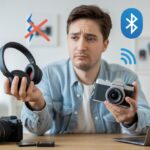
Isn’t it fun when our favorite fitness trackers promise to do more than just count steps, but then suddenly act like controlling the camera is beneath them? We’ve all tried to snap that perfect group photo, only for our wrist gadget to ignore us, leaving us waving at it like we’re flagging down a bus. If your fitness tracker isn’t controlling the camera, it’s usually because of compatibility issues, connection problems, or missing features it never had to begin with.

Fitness tracking and camera remote control sound like a tech dream team, but reality doesn’t always play along. Sometimes, a bug, a broken app, or a missing feature leaves us stuck.
We’ll try to untangle the mystery—and maybe save you from doing plank selfies with your elbows. Let’s poke around and see why these gadgets drop the ball and what we can actually do about it.
How Fitness Trackers Control Cameras
Fitness trackers have gotten smarter, letting us snap photos from across the room like secret agents—minus the tuxedo. But making this work depends on a few things: how we connect our devices, what apps and permissions we use, and whether our tracker is even compatible with our camera-loving gadgets.
Bluetooth Pairing Requirements
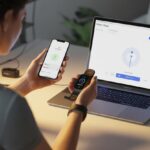
Before we can pretend we’re in a spy movie, our fitness tracker and phone need to be best friends—over Bluetooth. Bluetooth pairing is the handshake that gets everything rolling.
Pairing usually means:
- Turning on Bluetooth on both devices (yeah, it’s basic, but easy to forget).
- Opening the companion app for the tracker.
- Following a bunch of prompts that sometimes feel more complicated than building IKEA furniture.
If the connection drops or errors pop up, re-pairing (unpair, then pair again) usually helps.
Sometimes, wireless sensors in trackers don’t play nice if another Bluetooth device is hogging attention—like headphones that won’t stop auto-connecting. Disconnecting those can give the tracker a fair shot.
App Integrations and Permissions
Once paired, it’s all about the apps. Most trackers use a mobile app to link the watch to our phone’s camera.
On Apple Watch, we launch the camera remote app right on the watch. Android trackers and some Samsung smartwatches often need you to download a special Camera Controller app.
Permissions are the secret sauce. If the app can’t access the camera, all the fancy tech is useless.
We need to:
- Go into our phone’s settings.
- Grant camera access to the watch app.
- Sometimes, we have to allow notifications and Bluetooth too.
If our tracker can’t control the camera, permissions are often to blame—right up there with forgetting to turn off airplane mode.
Supported Devices and Compatibility
Not all fitness trackers, phones, or apps speak the same language. Some just refuse to cooperate.
Apple Watch works best with iPhones. Many Android trackers (like Samsung Galaxy Watches) pair with Android phones and use special apps to talk to the camera.
Trying a cross-brand setup? That gets tricky fast. Dreaming of using an Apple Watch with an Android phone as a camera remote? You’ll need to adjust those dreams—or maybe pick up a new gadget.
Double-check the device compatibility list on app pages or the manufacturer’s site before you start connecting things. If your device isn’t listed, you might just be out of luck, no matter how many times you yell at Bluetooth.
Common Reasons Your Fitness Tracker Is Not Controlling the Camera
Tech troubles can turn a quick selfie into a science experiment. When our fitness tracker decides to sit out on camera duty, it’s usually about connection problems, outdated software, wrong settings, or missing camera functions.
Connection Issues
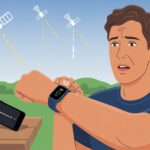
Our fitness tracker needs a solid Bluetooth handshake with the phone to boss around the camera. If it drops the connection, even for a second, our big photo moment disappears faster than our motivation for Monday morning runs.
Check if the devices are actually connected via Bluetooth and not just pretending. Sometimes, they look joined but aren’t speaking at all.
Restarting both devices or toggling Bluetooth often shakes out the gremlins. Nearby wireless gadgets, overloaded Wi-Fi, and even microwaves can mess with the signal.
If nothing works, try forgetting the device on your phone and pairing it again from scratch. It’s like rebooting a relationship—sometimes you just need a fresh start.
Outdated Software or App
We all see those software update reminders and ignore them, right? But skipping updates can mean your tracker can’t talk to the latest camera app.
Manufacturers push updates to help the hardware play nice with new app features. If the tracker app or your phone’s system is out of date, the camera remote feature might stop working.
Apple Watch users, for example, saw this after an iOS update broke the camera remote.
To avoid getting stuck, update both the tracker firmware and the camera app. Check for updates in the app store and the tracker’s companion app.
After updating, restarting everything doesn’t hurt—maybe yell, “It’s for science!” for good luck.
Incorrect Settings on Phone
Camera dreams crash hard if we’ve got the wrong settings. If the phone’s camera permissions aren’t given to the tracker app, nothing happens when you tap the remote button—except maybe your own disappointed reflection.
Make sure camera control is enabled in the phone’s settings. Usually, it’s under settings > app permissions > camera, and check the tracker app is allowed.
iPhone users might also need to check accessibility settings for Camera Control.
Sometimes, you need to open the camera app first on the phone. If you use a third-party camera or video app, it has to support remote control. Switching back to the stock camera app often helps.
Not every fitness tracker gets VIP access to your phone’s camera. Some entry-level bands just don’t have the right software or hardware for this trick.
If your tracker’s manual didn’t brag about a camera control feature, it’s not turning into a remote anytime soon.
Even if the tracker supports it, certain phones or operating systems can block the feature, especially after updates. The feature disappeared for some users after a recent update, as seen in Apple Watch discussions.
Double-check the model, its official features, and whether your phone’s firmware supports remote shooting. Sometimes, a quick search on the tracker brand’s support site reveals you accidentally bought a glorified step counter.
Troubleshooting Steps to Fix Camera Control Problems
When our fitness tracker refuses to play nice with the camera, we go from motivated athletes to grumpy tech detectives pretty fast. Usually, getting things working again means tackling a few spots where connections or settings go rogue.
Re-establish Bluetooth Connection
Bluetooth can be moody, can’t it? If your tracker isn’t playing nice with your phone or tablet, turn Bluetooth off and back on again on both devices.
Next, forget the device in Bluetooth settings and pair it again. On iPhones, go to Settings > Bluetooth, tap the info button next to the tracker, and hit “Forget This Device.”
Restarting both your fitness tracker and your paired device—whether it’s a laptop, Android phone, or that ancient computer you keep around—can work wonders.
If Bluetooth still acts up, try moving away from crowded areas with lots of wireless signals. On a Mac or Microsoft laptop, make sure Bluetooth is enabled and not blocked by airplane mode or privacy settings.
A fresh pairing often forces things to sync and gets the camera controls working again.
Update Apps and Firmware
When did you last update anything? Be honest. Out-of-date apps or firmware can easily break camera control.
On iPhones and Android, open your app store and check for updates. Update the camera app and the companion app for your fitness tracker.
Some trackers need you to update their firmware via an app. Dig into the app settings—usually under “Device,” “About,” or “Firmware”—and look for an update button.
Don’t forget your computer. If you’re controlling the camera via a Mac or a Microsoft laptop, install the latest OS updates too.
Developers fix bugs all the time, and sometimes it’s just old code stopping that perfect selfie.
Check App Permissions on Mobile
Most of us tap “Allow” on permissions like we’re swiping away spam, but sometimes permissions change or get revoked.
If your fitness tracker app doesn’t have access to the camera or Bluetooth, it’s not going to do much.
On iPhone, go to Settings > Privacy & Security > Camera and make sure the app is toggled on. Do the same for Bluetooth.
Android hides these options a bit deeper. Go to Settings > Apps, find your tracker or camera app, and tap Permissions.
Both Camera and Bluetooth should be “Allowed.” It’s wild how quickly things work again when you open the right doors.
Try a Different Camera App
Sometimes it’s not the tracker or the device—it’s the app itself. If your usual camera app is acting up or just stuck, try another one.
For iPhone users, even the official Camera Remote can go blank after updates, as a bunch of Apple Watch owners have noticed in discussion forums.
Switching to another camera app might restore control. On Android or laptops with webcam tools, there are plenty of camera apps to try.
Download one, pair your tracker, and see what happens. If it suddenly works, the original camera app is probably the problem.
This move can save you hours of troubleshooting and button mashing.
Device Compatibility and Limitations
Not all fitness trackers play nice with phone cameras—some are just picky. Whether your tracker can snap selfies or leaves you fumbling with a timer depends a lot on your gadgets, the brand you chose, and which features you actually have.
Supported Phones and Operating Systems
Let’s be honest, some phones just get all the perks. Most camera control features on fitness trackers work best with newer Android and iOS devices.
If we’re still hanging on to an older phone, or using something like a Mac, camera control probably won’t show up at all.
Usually, we need a recent smartphone with Bluetooth and the latest software updates. Android users need at least Android 7 for most features. Apple fans need an iPhone with a current iOS version.
Trying to control a camera on a Mac or office computer from a tracker? That’s just not going to happen. These features are for phones, not desktops or printers.
Quick heads up: check the app listing or manual for compatible devices before blaming the tracker for bad photos.
Camera Control on Smartwatches
Smartwatches really shine when it comes to remote camera tricks. The Apple Watch lets us see the camera view, focus, and snap a picture right from our wrist.
This feature comes built-in, so there’s no need to chase down third-party apps (unless we’re into that sort of thing).
Android smartwatches might make us download extra apps for the same perks. Some just let us trigger the shutter, but we don’t get a live preview.
Imagine posing with friends, tapping the watch, and hoping for the best—sometimes we just get a photo of half a face.
Plain fitness trackers rarely offer fancy camera controls. If we feel left out during group selfies, at least now we know why.
For more details, check out this guide about using smartwatches as camera remotes.
Feature Differences by Brand
Every brand tries to stand out, but that means features can be all over the place.
Apple Watch works smoothly with iPhones. We get live previews, countdowns, and even zoom.
Many Android devices paired with basic trackers (like iTech or budget models) might only offer a tap-to-snap feature—no live view, no extras.
Table: Camera Controls by Brand
| Brand | Preview | Shutter | Countdown | Zoom | App Needed |
|---|---|---|---|---|---|
| Apple Watch | Yes | Yes | Yes | Yes | No |
| Android Watch | Maybe | Yes | Maybe | No | Sometimes |
| Fitness Trackers (Generic) | No | Yes | No | No | Sometimes |
Not all trackers are created equal—some wish they were smartwatches, but for now, we might just get basic shutter control.
Always check the brand specifics to see if our device can nail the group photo, or if we’re stuck with another pocket shot.
Alternative Methods to Take a Photo With a Fitness Tracker
If our fitness tracker refuses to play photographer, we don’t have to give up on hands-free selfies.
There are a few tricks—and maybe some laughs—waiting for us as we chase the perfect shot.
Third-Party Apps
Some fitness trackers won’t help out unless we bring in some backup. That’s where third-party apps come in.
A bunch of apps let us use our phone’s camera with a little help from our wearable. For example, Android and iOS apps can let our tracker act as a remote shutter.
Some brands like Mi Band want us to install the Zepp Life app before camera control appears. The catch? Not all these apps work well, so we might spend more time testing than taking photos.
It’s smart to check the app’s reviews first. We want something that won’t ask for weird permissions or send practice selfies to every email in our contacts. With luck, we’ll find an app that lets us snap pics with just a tap.
Using Voice Assistants
Who hasn’t wanted to play secret agent and command a gadget to snap a photo? If our tracker can call up a voice assistant like Google Assistant or Siri, we’re in luck.
We just raise our wrist and say, “Take a photo,” and our phone scrambles to obey—hopefully without dialing our mom instead.
Not every tracker supports this, and some microphones only seem to work when it’s inconvenient. But if our device is compatible, it’s a pretty slick way to take hands-free shots.
We’ll need to set up our account and check permissions first. While our tracker won’t open websites or write emails, it can still help us snap photos the techy way.
Manual Triggers and Workarounds
When tech lets us down, a little DIY goes a long way. We can use physical buttons or volume controls as a camera trigger on many phones.
Some folks map the phone’s volume button to the camera shutter, then use a paired Bluetooth device (like a headset or some trackers) to send a volume signal and snap a pic.
It’s a bit like a Rube Goldberg machine for selfies, but hey, it works.
We can also buy tripods with remote shutters that connect via Bluetooth. They’re cheap, don’t care what tracker we wear, and skip all the app headaches.
Creativity is key here—sometimes we just need to experiment to find what works best.
Related Features Beyond Camera Control
Fitness trackers might take a break from camera duty, but they still pack plenty of cool tricks.
Let’s see what else these wrist gadgets can do and how they fit into our daily tech routine.
Using Fitness Trackers for Exercise Metrics
We count on fitness trackers for more than just steps. These wrist buddies use built-in sensors and GPS to map runs, log bike rides, and track our pace.
If we want to know our distance, most trackers show real-time stats on our wrists.
They’re also handy for health basics. Most models track heart rate, calories, and even sleep.
Some can connect straight to exercise equipment like treadmills, giving us stats with no complicated setup.
Suddenly, we know more about our workouts than we ever planned. Who doesn’t want to brag about that “epic pace” on a casual jog?
Integrations With Other Devices
Fitness trackers like to make friends. Many connect to other gadgets at home or the gym.
Some link with game systems for family dance-offs or virtual runs.
Certain models pair with smart home gear—lights, projectors, or home cinema setups. Some even try to work with payment systems, cash registers, or printers.
Before we get too excited, it’s worth checking if our tracker supports a particular device. Sometimes, it just plays favorites.
Notifications and Remote Control Functions
Fitness trackers do more than crunch numbers—they love buzzing our wrists with notifications.
We can check messages, emails, and reminders without pulling out our phone mid-workout.
Many models offer remote control options. We can pause music, skip tracks, or answer calls with a tap.
Some even let us run presentations, dim lights, or adjust a projector for meetings or movie nights.
If our tracker skips camera control, that’s fine. With all these other remote tricks, we’ll barely notice—unless we try to take a selfie during a sprint and end up with a blurry surprise.
Conclusion
Here we are, wrestling with our fitness tracking gadgets and still chasing that perfect gym selfie.
We buy the latest electronics and hope they’ll work together like a dream team, but let’s be honest—they often act like strangers at a party.
If your fitness tracker refuses to cooperate with camera control, a few things might be going wrong.
- Bluetooth conniptions: Sometimes, our devices just need to talk it out.
- App tantrums: The camera control app on your watch can be buggy. Restarting helps, but sometimes it just won’t listen—kind of like us after a tough cardio session. You might want to check out tips from others running into the same issue with their Apple Watch camera control app.
- Settings mayhem: Permissions, background app refresh, or outdated software can trip us up.
Let’s be real—consumer electronics, even the fancy ones, sometimes just need a quick nap (restart).
Turning things off and on again still solves half our problems, doesn’t it?
Fitness tracking devices promise a lot, but even the smartest gadgets get tech hiccups.
Maybe someday syncing up our fitness and camera goals will be as smooth as our best treadmill run… but until then, we’ll just keep troubleshooting.

From a young age, I have always had a big interest in technology, and this blog is an extension of that interest. Through this blog, I hope to provide others with all of the information they need regarding tech options to consider, and things such as compatibility. Some of the different items I will be discussing include headphones, smartwatches, and how to fix common issues.
- Best Smartwatch For Messaging And Phone Calls - November 2, 2026
- Samsung Galaxy Watch 4 Bluetooth Versus LTE – Which Model Is Right For You? - November 1, 2026
- What Are The Best Whoop Alternatives? - November 1, 2026
Related Posts: