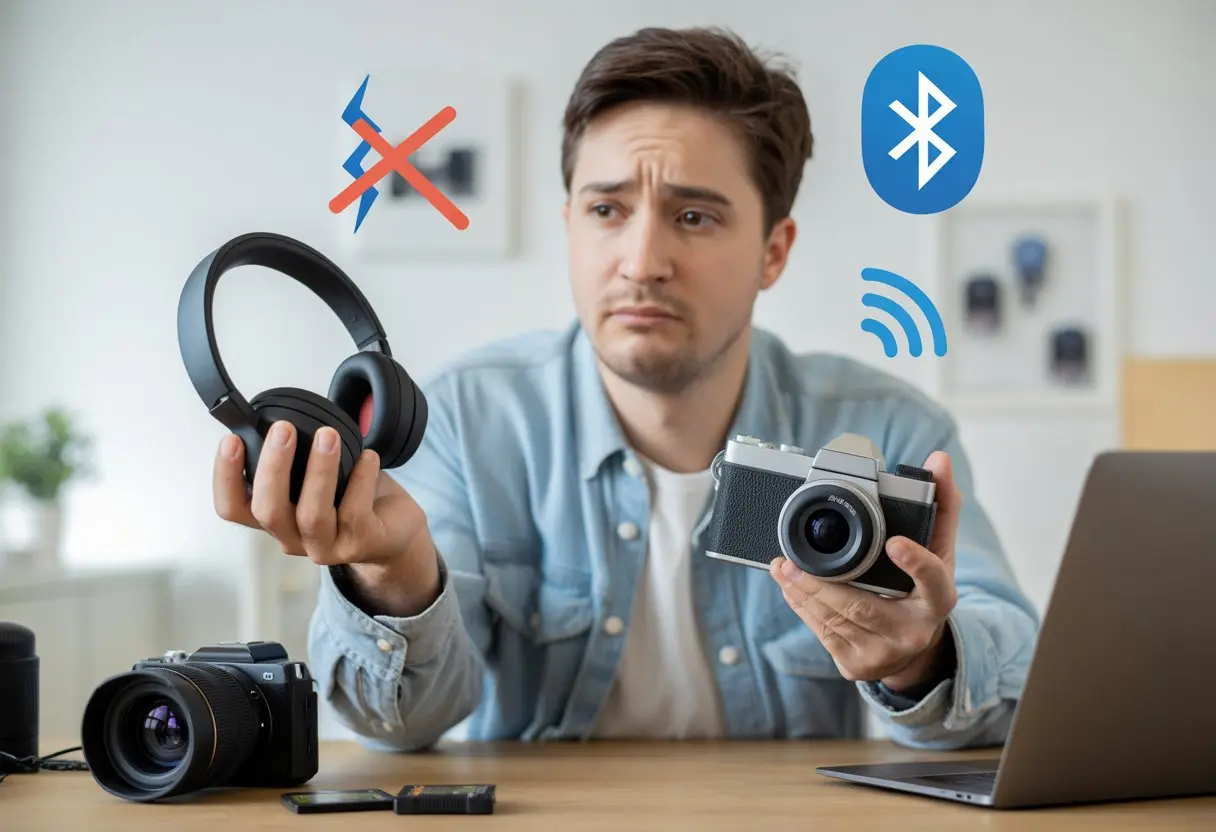
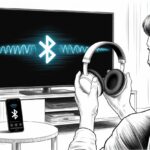
We’ve all been there—excited to ditch those messy headphone wires, only to find our shiny Bluetooth headphones stubbornly silent when we try to use them with our camera.
Bluetooth headphones usually don’t work with cameras because most cameras don’t support Bluetooth audio connections for recording or playback. It’s like our cameras and headphones just can’t agree on a secret handshake.
We buy awesome gadgets and expect them to be friends, but our cameras are stuck in the past, still looking for AUX cables while our headphones are living in the wireless future.
That awkward moment when we realize we can’t eavesdrop on our video takes using Bluetooth is right up there with accidentally leaving the lens cap on.
Let’s dig into why this happens and whether there’s any hope for our favorite gear to actually work together.
Our headphones and cameras deserve a better relationship, and honestly, our sanity could use the help too.
Understanding Bluetooth Compatibility
Some Bluetooth headphones just refuse to play nice with cameras, no matter how many times we try to pair them.
It usually comes down to the kind of Bluetooth tech hiding inside our gadgets and what language they speak with each other.
Standard Bluetooth Profiles
When it comes to Bluetooth, not all signals are created equal.
Our headphones and cameras use Bluetooth profiles, which are like special skill sets.
Headphones need the A2DP profile for streaming audio, but most cameras don’t come equipped with this—they’re usually built for keyboard, mouse, or maybe even a remote shutter!
Here’s a quick peek at what’s floating around:
Profile
Used For
A2DP
Streaming high-quality audio (headphones)
HSP/HFP
Headsets, hands-free calling (phones/cars)
HID
Keyboards, mice (input devices)
Cameras focus on connecting to remotes or phones for image transfer.
Audio? Not a top priority.
So our poor headphones are left searching for a dance partner that just isn’t on the floor.
That’s why our attempts at pairing often end in disappointment and silence.
Device Classes and Limitations
Bluetooth devices have their own social clubs, called classes, which decide who gets to talk to whom and how far.
For example, Class 1 can chat up to 100 meters, but most headphones and cameras are Class 2, happy in their cozy 10-meter bubble.
But here’s the fun part: Compatibility isn’t just about distance, but also purpose.
Cameras and headphones are like two guests at a party who want to dance, but one brought jazz shoes and the other roller skates.
Even with the same Bluetooth version, not all devices support every function.
Many cameras either skip audio features or limit them to avoid lossy audio compression, which means no glorious headphone music for us.
So, we end up with fancy headphones and cameras that stare awkwardly at each other from across the Bluetooth ballroom, unable to connect for more than a quick handshake.
Common Reasons Bluetooth Headphones Fail to Connect With Cameras
Bluetooth headphones and cameras often feel like they’re living in separate tech worlds.
Getting them to play nice can be surprisingly tricky.
The main reasons usually come down to missing features, tech “language barriers,” or just good old-fashioned outdated hardware.
Camera Lacks Bluetooth Audio Support
A lot of cameras brag about having Bluetooth, but what they don’t tell us is that this is often not the kind of Bluetooth we need for headphones.
Most cameras use their Bluetooth connection for things like transferring photos or connecting a smartphone app—audio streaming is left out of the party.
When our camera doesn’t have Bluetooth audio support, no matter how many times we pair or reset, nothing is going to happen.
We could stare at connection screens all day, but headphones want audio, and the camera is just offering files.
Sadly, this means our dreams of wireless audio monitoring are dashed—unless the manufacturer specifically lists support for “Bluetooth headphones” or “Bluetooth audio output,” we’re out of luck.
Headphones and Cameras Speak Different Bluetooth Languages
Bluetooth might sound like a universal friendship language, but in reality, there are a bunch of different “dialects”—called protocols or profiles.
Headphones want Advanced Audio Distribution Profile (A2DP) to play music and sound.
However, many cameras don’t even know what A2DP is, focusing instead on protocols for file transfer or remote control.
If our headphones are trying to chit-chat about music and our camera is babbling about image transfers, the conversation just goes nowhere.
Without the right Bluetooth audio profiles on both sides, the connection fails, and our headphones just sit there in silent protest.
The lack of matching “languages” isn’t a bug, it’s just mismatched priorities by the companies who make these gadgets.
Old School Cameras vs. New School Gadgets
Let’s be honest: some cameras are older than the memes we still laugh at.
These “vintage” models came out before Bluetooth headphones danced onto the scene, so naturally, they don’t have the hardware or software to handle wireless audio.
Even if we’re using headphones that deserve their own pop song, an old camera can’t keep up with newer Bluetooth standards.
Compatibility issues pop up, often because the camera relies on totally different tech, like wired microphones or headphones.
When old gadgets and new tech get together, sometimes all we get is awkward silence—and maybe a LinkedIn invitation to upgrade.
Here’s a quick breakdown:
Camera Type
Bluetooth Support
Headphone Compatibility
Modern (post-2020)
Sometimes
Occasionally
Mid-range (2015-2020)
Rarely
Mostly No
Older (pre-2015)
Nope
No way
Until our cameras get with the times, we may have to rely on wired solutions or hope future cameras let us ditch the cables for good.
Pairing Your Bluetooth Headphones With Your Camera: A Comedy of Errors
Sometimes, getting Bluetooth headphones to work with a camera can feel like trying to bake a cake without a recipe.
Buttons get pushed, settings get changed, but nothing seems to work like it should.
Wrong Pairing Mode Blues
Every Bluetooth device has its own “personality,” and our headphones are no different.
Sometimes, we hold down the power button for two seconds and nothing happens.
Other times, we hold it too long and they start blinking like a disco ball.
We think we have them in pairing mode, but nope—they’re just waiting for the next dance.
If our headphones aren’t in the right pairing mode, our camera will never find them.
This is like inviting someone to a party in the wrong house.
Some cameras, especially mirrorless or older models, just aren’t set up for Bluetooth headphone connections at all.
This means we can push buttons all day but still not get any music or audio out of the camera.
Our chances go from slim to none.
Pairing Process Steps (And Where It Goes Wrong)
Let’s break it down, step by step, and see where we usually trip up:
We turn on Bluetooth on both the camera and headphones.
We search for devices on the camera.
We stare at the list, hoping to see our headphones pop up.
Usually, nothing shows up.
Or, we see “Unknown Device” and cross our fingers.
We click it. It fails. We sigh.
If the battery is low, it won’t work at all—Bluetooth needs enough juice to make the connection, as explained in this article on low battery problems.
Some cameras simply don’t support connecting to Bluetooth headphones for live audio.
They’ll pair with phones, remotes, or even printers—but not our trusty earbuds.
It’s like bringing the right plug to the wrong outlet.
If we see error messages or the pairing just keeps failing, chances are the camera wasn’t designed for Bluetooth headphones at all.
We can try again, but sometimes we’re just chasing a connection that was never meant to be.
What To Do When Your Camera Refuses To Listen
Sometimes our camera acts like it has a mind of its own, especially when we try to pair it with Bluetooth headphones.
Figuring out what’s wrong feels like detective work, but there are clear steps we can take before blaming the headphones.
Manually Checking Audio Output Settings
Let’s not pretend our camera is a mind reader.
Just because we want sound to come from our Bluetooth headphones does not mean the camera agrees.
We have to look into the camera’s audio settings and make sure it knows where to send its precious audio.
Usually, there’s a menu called “Audio Output” or “Sound Settings.”
If our camera is new, we may need to dig through digital menus to find this.
Once there, we need to select our Bluetooth headphones as the output device.
Sometimes it helps to restart the camera after picking the right output.
If the headphones aren’t showing up, it might just mean the camera and headphones aren’t paired or connected.
Let’s not forget, some cameras simply won’t support Bluetooth audio at all!
Always check the manual or the manufacturer’s website if the camera is stubborn.
Update or Reinstall Camera Firmware
Our camera’s software might act like it’s living in the past.
That’s why checking for firmware updates is like giving our camera a little brain upgrade.
New firmware can fix weird bugs that keep our headphones from working, and some updates might actually add Bluetooth audio support that wasn’t there before.
To update, let’s connect our camera to Wi-Fi if it supports it, or grab a USB cable and visit the support website for downloads.
Most update instructions are pretty clear, but we should follow them step by step—nobody wants a bricked camera.
If an update doesn’t help or makes things worse, reinstalling firmware can bring it back to life.
Just make sure the camera doesn’t run out of battery halfway through, unless we want a fancy paperweight.
When Bluetooth just laughs at our misery, external audio recorders come to the rescue.
These pocket-sized devices capture sound directly from our Bluetooth headphones or a wired mic—no camera wizardry needed.
Most recorders are plug-and-play: we turn them on, hit record, and get crisp audio.
Later, we sync the sound with our video using simple editing software.
No time machines required, just a little patience and a solid clap at the start for syncing.
This method is especially great if our camera’s audio input is as outdated as dial-up internet.
It can also help us avoid the random pops and disconnects that haunt Bluetooth recordings.
If we’re serious about good sound, an external recorder might just be the trusty sidekick we need.
Platform-Specific Troubleshooting for Bluetooth Headphones and Cameras
Bluetooth headphones can really test our patience, especially when they start acting up with camera apps. Android and Windows 10 both have their own quirks that make this more complicated than it should be.
Connecting on Android Devices
Android doesn’t always make things easy. Sometimes, even when we connect our Bluetooth headphones, audio stubbornly comes out of the phone’s speaker. When that happens, it’s worth checking if the Wyze app (or whatever camera app we’re using) actually supports Bluetooth audio streaming. Not every app does, honestly.
Steps to try first:
Connect headphones before opening the camera app.
Check the app’s sound settings to see if you can switch audio output.
Restart the app.
If nothing changes, just restart the phone. It’s basic, but it works more often than we’d like to admit.
Bluetooth can also act up if we wander too far from the phone, let the battery run low, or try to multitask through walls. Distance and interference will kill the connection in a heartbeat. If you want more advice, check out this Wyze forum discussion about Android and Bluetooth headphone issues.
Windows 10 Camera Settings and Headphone Compatibility
Windows 10 doesn’t always play nice with Bluetooth headphones either. Sometimes, apps just refuse to send audio to wireless headphones, no matter what we do. Windows tries to keep things organized, but the rules don’t always make sense.
Quick checklist for Windows 10:
Check that Windows connects to the headphones before opening the camera app.
Right-click the speaker icon, pick “Open Sound settings,” and set the output to the Bluetooth device.
If the app’s being difficult, try running it as an administrator or poke around for its own audio settings.
Test your headphones with other apps to figure out if the camera app is the problem.
If you’re still stuck, the app and Bluetooth audio might just not get along, as folks mention in this support thread about Windows 10 audio problems. Sometimes, all we can do is file a bug report and hope for the best.
The Unsung Heroes: Keep Your Drivers and Firmware Up To Date
When Bluetooth headphones refuse to work with a camera, we usually blame the headphones or the camera’s Bluetooth. But honestly, outdated drivers or forgotten firmware updates are often the real culprits.
Updating Bluetooth Drivers
We might think drivers are just boring files running in the background, but they’re the glue keeping our devices on speaking terms. If our Bluetooth headphones and camera don’t get along, old Bluetooth drivers might be the ones causing trouble.
It helps to check and update Bluetooth drivers using Device Manager or the manufacturer’s website. Updating drivers is an easy way to fix connection issues without buying new stuff.
Keeping drivers current helps everything work together, cuts down on dropouts, and helps with stronger Bluetooth connections. Ignoring updates is like skipping oil changes—eventually, something’s going to give.
Tips for Bluetooth Driver Updates:
Check for updates every month or so.
Restart the device after updating.
Stick with official drivers. The sketchy ones aren’t worth it.
Camera Firmware: The Forgotten Update
Most of us treat camera firmware updates like flossing—important, but easy to ignore. Skipping firmware updates can invite Bluetooth chaos.
Firmware runs things inside the camera, telling it how to connect and play nice with Bluetooth headphones. Old firmware might not recognize new headphone models or security changes.
To avoid weird glitches and stubborn pairing issues, check your camera manufacturer’s support page for updates. A quick download and install can make a world of difference.
Steps for better Bluetooth with firmware:
Visit the camera’s support site.
Download the latest firmware.
Follow the update instructions (don’t sweat the progress bar).
Restart everything and try pairing again.
Alternative Solutions When All Else Fails
If Bluetooth just won’t cooperate, there are still a couple of classic tricks we can try. Sometimes, the old ways work best, even if they feel a bit outdated.
Old-Fashioned Wired Workarounds
When wireless headphones refuse to play nice with the camera, it’s time to grab that old reliable: the wired headphone. You know, the one tangled at the bottom of the drawer.
Most cameras still have a 3.5mm jack, so plugging in is usually easy. No Bluetooth lag, no weird errors, and no battery dying halfway through recording.
If the camera doesn’t have a headphone jack, we’ll need an adapter—USB-C or Lightning to 3.5mm, depending on the device. Not glamorous, but it works, and sometimes that’s all we need.
Sometimes, after fighting with headphones for way too long, you just have to give in and use the camera’s built-in mic. Is it perfect? Not really. But hey, it beats yelling at your gear in front of strangers.
Most modern cameras actually come with better microphones than you’d expect. They handle a pretty wide range of sounds. Sure, you might hear more background noise—like that neighbor’s dog that never seems to stop barking—but at least you’ll have some audio to work with.
You can try a few simple tricks to help out the sound. Maybe film in a quieter spot, speak a little louder, or even toss a soft cloth nearby to cut down on echoes. Just don’t cover the mic by accident. Some people really like those little foam covers—”dead cats,” they call them—to help with wind or the occasional bump.
If you’re feeling extra frustrated, just grab your phone and record the audio separately. Later, you can sync it up when you edit. It’s not high-tech, but it works. Even if your headphones refuse to cooperate, at least the recording doesn’t have to stop.
Hi, my name is Garrett Jones, and I am a tech enthusiast. I enjoy researching the new tech that has been released, and have a vast knowledge of the best tech to purchase.
From a young age, I have always had a big interest in technology, and this blog is an extension of that interest. Through this blog, I hope to provide others with all of the information they need regarding tech options to consider, and things such as compatibility. Some of the different items I will be discussing include headphones, smartwatches, and how to fix common issues.