You know that feeling—you’re jamming out with your Bluetooth headphones, then suddenly, silence. All because of a firmware update. Most of the time, our Bluetooth headphones stop working after an update because the new firmware brings along software bugs, pairing headaches, or just makes the headphones incompatible with our phone or laptop. It almost feels like the headphones just decided to quit on us for fun.
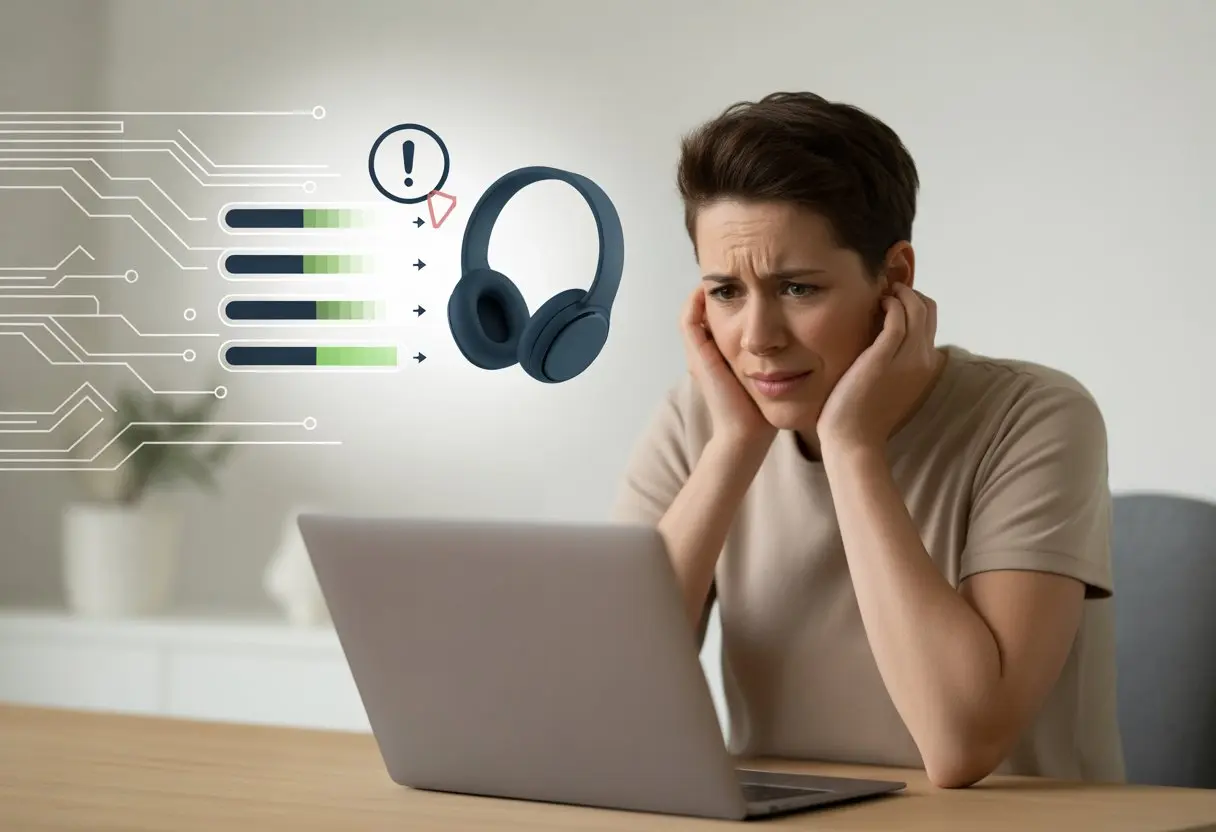
It’s honestly maddening. We wanted better performance, not a scavenger hunt for solutions. Suddenly, our music’s gone, podcasts freeze, calls drop, and we’re left with nothing but questions and maybe a headache. Do our devices have a secret vendetta, or is it just bad luck with every update?
Why Bluetooth Headphones Stop Working After a Firmware Update
We update our headphones’ firmware, expecting things to improve. But then, bluetooth gremlins sneak in. Suddenly, headphones that worked fine yesterday won’t pair, audio drops, or they just become expensive earmuffs.
Common Issues Caused by Updates
After an update, our headphones can act like they don’t recognize us anymore. We see connection problems, audio stutters, and failed pairings—even after a dozen tries.
Sometimes, we get sound but the microphone goes silent. Or maybe the headphones show up in our device list but refuse to actually connect. To make things weirder, updates can reset drivers or settings, especially on Windows, as shown in this user’s story.
Old problems can come back too, like laggy audio or devices randomly disconnecting. Occasionally, our headphones start acting like they’re paired with someone else’s phone. At this point, it’s a battle of patience—us versus the headphones.
How Firmware Versions Affect Bluetooth Connections
Firmware updates don’t always play nice. When we update, we hand our headphones a new playbook. If that playbook doesn’t match what our phone or laptop expects, things get messy.
Sometimes, newer firmware drops support for older bluetooth profiles. Or it tweaks how headphones handle multipoint connections, breaking setups that worked before.
Updates might fix one thing and break something else—just to keep life interesting. If the firmware and our device’s bluetooth version don’t match up, features might disappear or the connection turns flaky. Newer firmware often focuses on the latest tech, so pairing with older devices becomes a headache.
The Role of Bluetooth Stacks in Connectivity
Our computers and phones use something called a “bluetooth stack.” This software helps them communicate with bluetooth devices. If our headphones’ firmware and the bluetooth stack aren’t on the same page, chaos usually follows.
Say our headphones get a fancy update, but our device’s bluetooth stack stays old. That mismatch leads to pairing failures, audio cutting out, or the microphone vanishing from the settings. Device updates, like new Windows drivers, can also mess with the bluetooth stack and confuse our headphones even more.
Each brand uses its own stack, so bugs or incompatibilities are almost inevitable. We’re basically on a ride where every twist could mean our headphones stop working until another update comes along. For more details, check out this Windows Bluetooth driver issue.
Diagnosing Connection Problems Post-Update
We’ve all hit that point—Bluetooth headphones working fine, then after a firmware update, nothing. Usually, it’s not a haunting. It’s something less dramatic. Time to put on our detective hats and figure out what’s really going on with these stubborn post-update issues.
Recognizing Symptoms Unique to Headphones
Let’s look at the classic signs that our headphones have betrayed us. We might notice:
- Audio stuttering, crackling, or dropping out
- Headphones connecting, then instantly disconnecting
- No sound at all, even though everything says “paired and ready”
If the headphone buttons stop responding or the lights act oddly (solid instead of blinking, or the other way around), our Bluetooth headset could be sending us cryptic messages.
These quirks usually show up right after an “update now.” If everything was fine before, the update’s probably the troublemaker. These troubleshooting tips for Bluetooth headset connection issues are good for narrowing things down.
Distinguishing Software and Hardware Issues
Is the problem with us or the gear? That’s always the question.
Software issues appear when settings change, drivers go haywire, or the update rewrites the rules. Signs include new settings we never touched, strange device names in Bluetooth menus, or needing to re-pair the headphones way too often.
Hardware issues look like broken buttons, charging problems, or headphones that won’t power on at all. If the headphones work with another device, our phone or computer might be the problem.
Try pairing the headphones to something else. If they work, our phone or computer needs fixing. If not, the headphones themselves might be done for. The relevance of compatibility and post-update problems is pretty clear.
Understanding Device Manager Alerts
Device Manager on Windows can actually help with Bluetooth headaches.
Open it up and look for yellow triangles near Bluetooth sections or the headset’s name. Those icons are like the “check engine” light—never good, but at least it’s a hint.
A warning means a missing, corrupted, or outdated driver. We can right-click the device, select “Update driver,” or uninstall and reinstall it. Sometimes Windows just needs a gentle reminder about how Bluetooth works.
If there’s no yellow triangle but the headset still doesn’t connect, toggling Bluetooth off and on, or disabling and re-enabling it in Device Manager, can sometimes jolt things back to life. The Microsoft Support page on fixing Bluetooth problems in Windows is actually pretty useful for step-by-step help.
Steps to Troubleshoot Your Bluetooth Headphones
Headphones acting up after a firmware update? Yeah, we know the struggle—frustration, random button pressing, maybe even a little pleading with the tech gods. Let’s jump into some fixes for pairing problems, Bluetooth adapter issues, and the mystery of missing audio or mics.
Re-Pairing With Devices
Sometimes, we just need to give our headphones a clean slate. Unpairing and re-pairing can fix weird connection problems because firmware updates can break old pairings. We should remove our headphones from our device’s Bluetooth list—a digital “see ya later” before we reconnect.
To re-pair, press the pairing button on the headphones (usually hold it until a light flashes). On our phone or computer, go to the Bluetooth menu and reconnect. If the Bluetooth menu is hiding, use the search feature or just poke around until it shows up.
If that doesn’t work, restart both the headphones and the device. It feels silly, but honestly, it works more often than we’d like to admit. Still stuck? Microsoft has some extra steps for Windows users.
Resetting Bluetooth Adapters
The Bluetooth adapter in our computer or phone acts like a traffic cop for wireless gadgets. After a firmware update, it might need a break or a gentle reset (not a literal one, please).
First, turn Bluetooth off for about 30 seconds, then back on. On computers, toggle the Bluetooth setting or use a physical switch if there is one. If things are still glitchy, restart the device—this resets the adapter too.
Another classic trick is to update the Bluetooth driver on a PC. Firmware updates sometimes mess up old drivers. We can use Device Manager or visit the manufacturer’s website to check for updates. It’s not glamorous, but it works. Need more guidance? Try this troubleshooter guide for Windows.
Checking Microphone and Audio Output
We expect our headphones to play sound and pick up our voices, but firmware updates can scramble those settings. It’s like the headphones forgot their job. Time to check the audio output and input settings.
On our phone or computer, go to audio controls. Make sure the output is set to our headphones and not something random like “Laptop Speakers 4000.” Sometimes, we’ll see both “Headphones” and “Headset”—choose “Headset” for microphone support.
For mic issues, run a quick test in the sound settings. Speak and see if the volume bar moves. If not, check for mute switches on the headphones or in the software. If nothing works, try disconnecting and reconnecting, or reinstalling the headphone’s app if there is one. If you can hear sound but the mic doesn’t work, don’t freak out—just double-check the settings or check this Bluetooth problems troubleshooting page.
Platform-Specific Fixes: Windows, Linux, and More
Bluetooth problems follow us everywhere—Windows, Linux, you name it. Each system has its own quirks and sometimes needs a special trick (or a bit of patience) to get our Bluetooth headphones back to doing what they’re supposed to: playing music, not just testing our patience.
Resolving Windows Connection Hiccups
Windows loves to break something with every update, and Bluetooth headphones are usually first in line. After updates like Windows 11’s 24H2 patch, loads of us suddenly deal with broken audio and lost Bluetooth connections. Our headphones just vanish, and our playlists mock us in silence.
Here’s what usually helps:
- Unpair and re-pair the headphones. Windows forgets its friends sometimes.
- Update or roll back the Bluetooth drivers using Device Manager.
- If a big update caused the problem, try uninstalling the recent update.
- Restart the computer. Yeah, we know, but it actually works more than we’d like to admit.
Always check the sound settings to be sure Windows still acknowledges headphones exist. Microsoft can act like they’ve never heard of them.
Solving Bluetooth Issues on Linux
We love Linux’s freedom—until Bluetooth throws a tantrum. It feels like every other week brings a new challenge. Open source gives us options, but connecting Bluetooth headphones can turn into a real puzzle.
Here’s what we usually do:
- Restart the Bluetooth service with
sudo systemctl restart bluetooth. - Delete and re-add the device using
bluetoothctl. It’s a little hacker-ish, but it works. - Install or update PulseAudio or PipeWire, depending on your distro.
- Double-check that your user account is in the Bluetooth group.
When things go wrong, at least a log file somewhere blames us, not the headphones. Linux really keeps us on our toes, especially on Monday mornings.
Dealing With Intel Bluetooth Drivers
If you’re on a laptop or PC with an Intel chip, Bluetooth drivers can get extra stubborn. Intel’s drivers sometimes get skipped during big Windows updates, and suddenly nothing connects. It’s enough to make you want to toss your laptop.
Try these steps:
- Download and install the latest Bluetooth driver from Intel’s website.
- Uninstall old drivers before installing new ones. Windows loves to hang onto leftovers.
- In Device Manager, right-click the Intel Bluetooth device and hit Update driver.
- Reboot and check that the device isn’t “mysteriously” disabled.
If it’s still not working, maybe a little extra troubleshooting—or just yelling at the screen—will help. Sometimes you’ve gotta vent.
Resolving Compatibility With Other Devices
Firmware updates can turn Bluetooth headphones into divas, especially when we try pairing them with our favorite gadgets. Whether it’s TV night, working on laptops, or syncing with wearables, things get complicated fast.
Pairing With TVs and Home Cinema Systems
You’re ready for movie night, popcorn in hand, but the headphones refuse to cooperate. TVs and home cinema systems usually hide the Bluetooth option deep in their settings. (Who designed these menus, anyway?) Always check if the TV’s Bluetooth option is on and discoverable.
If your headphones worked before the update but not after, you might have a compatibility issue. Some TVs keep a “remembered devices” list that needs a cleanup. Remove the old entry and add the headphones again like they’re brand new. Not every TV pairs with every Bluetooth device—sometimes they just don’t vibe.
Home cinema systems can get thrown off by firmware mismatches. Update the system itself if you can—sometimes fixing an update takes another update. If things still don’t work, Bluetooth transmitters can help bridge the gap.
Connecting to Laptops, Printers, and More
Laptops can be just as picky. After a firmware update, Windows might label headphones as an “other device” instead of an audio device, so you get no sound. This happens a lot with Bluetooth headphones showing up as other devices.
Try these fixes:
- Remove the headphones from your device list and re-pair them
- Update your laptop’s Bluetooth drivers
- Run the built-in Bluetooth troubleshooter
- Set the headphones as the default playback device in sound settings
Sometimes printers hog the Bluetooth connection, weirdly enough. Unplugging the printer can free things up. Some laptops let you prioritize devices—make headphones the main audio option if you can.
Integrating With Earbuds, Soundbars, and Wearables
If you use earbuds for a run or quick call, firmware updates might make them stubborn. Make sure they’re in pairing mode and blinking—otherwise, they’re just ignoring you.
Soundbars can be even more dramatic. You might need to reconnect using their apps or interface. Occasionally, just rebooting fixes it. Double-check which device the soundbar is trying to connect to, or you’ll end up blasting music through the house.
Wearables like smartwatches or fitness trackers can be finicky after updates, too. If a firmware update changes how they connect to headphones, check for updates on the wearable itself. Keeping everything up to date and restarting both devices usually solves it.
Product Support and Warranty Options
Sometimes a firmware update just wrecks your Bluetooth headphones, and patience only goes so far. If you’ve tried everything, it’s time to look at support, warranty, and the adventure of explaining it all to customer service.
Accessing Manufacturer Product Support
Start with the manufacturer’s official support. Head to their website, find your headphone model, and dig through troubleshooting guides or FAQs. Hopefully, someone there knows more than we do.
Most brands have pages for driver downloads, firmware, and step-by-step help. Look for live chat or support ticket options if you’re feeling patient—or desperate. Some even have real phone numbers, if you’re up for talking to a human.
When you contact support, list what you’ve already tried (like rebooting, reconnecting, or just cursing at the device). It helps them see you’re not totally lost.
Checking Warranty and Service Information
Before buying new headphones in frustration, check the warranty and service info. Most brands offer at least a one-year warranty, and that usually covers sudden audio silence after an update—not just dramatic disasters.
The fine print spells out what’s covered and what’s “user error.” If you kept your receipt (props if you did), you’ll need that and the serial number. Claims usually happen online or in the app if your headphones are fancy. Depending on the brand, you might get a repair, replacement, or refund.
Don’t wait too long—warranty periods disappear faster than a full battery when you forget to turn your headphones off.
Dealing With Brands Like JBL
JBL has its own quirks. If your JBL headphones turned into paperweights after an update, their online support is the best starting point. They post guides for firmware fixes and sometimes tools to roll back to older firmware if you’re feeling bold.
JBL handles warranty and replacement requests on their site. You’ll need proof of purchase and the product’s serial number. If chat or email isn’t working, some folks have luck calling—though sometimes you’ll end up on hold forever.
Check out JBL’s community forums, too. Other users might have already cracked the exact problem you’re facing.
Tips to Prevent Headphone Headaches After Firmware Updates
Let’s be real—nothing ruins a good Bluetooth audio session faster than a botched firmware update. If you want smooth sound, happy sleep headphone nights, and less drama, you’ve gotta be proactive.
Future-Proofing Your Bluetooth Audio
No crystal ball needed—just remember to check for updates before stuff breaks. Set reminders to see if your headphones or their apps have new updates.
Read the update notes before you hit “install.” Updates can improve sound or add features, but sometimes they just break things. If an update talks about audio quality or fixing connection drops, it’s probably safe. But if it’s full of vague “improvements,” or people online are complaining, maybe wait a bit.
Don’t forget to back up your settings. If your headphones let you save profiles or EQ settings, take screenshots or jot them down. If your bass boost disappears, you’ll get it back faster.
Safeguarding Against Pesky Connection Issues
It’s tough to enjoy music or use sleep headphones if you’re always shouting “Why won’t you connect?!” Keep both your headphones and device firmware up to date.
Sometimes updates reset Bluetooth settings, so you may need to re-pair or check audio settings. Here’s a quick checklist for when the connection ghosts you:
- Power cycle both the headphones and your device
- Forget and re-pair the device
- Watch for interference or signal blockages
- Make sure the headphones are charged
If nothing works, test the headphones with a different device. That’ll tell you fast if the problem’s with the headphones or your phone’s attitude.
Best Practices for Smooth Updates
A little caution really saves a lot of hassle. Always plug in or charge your headphones before you start an update. If your battery runs out halfway, you’ll probably end up with an expensive paperweight—nobody wants that.
Try to use a stable Wi-Fi connection instead of mobile data for updates. Spotty downloads can mess up the firmware and suddenly your Bluetooth audio sounds like static. That’s just frustrating.
Before you update, jot down any weird problems your headphones have. If something goes sideways after updating, you’ll have a list to compare and can actually tell support what’s wrong. Sites like SoundscapeHQ and SOUNDSIGHTR share fixes for common glitches, so maybe check those out too.
And seriously, don’t update your headphones right before a nap or a trip. Updates always seem to choose the worst possible time to fail—why risk it?

From a young age, I have always had a big interest in technology, and this blog is an extension of that interest. Through this blog, I hope to provide others with all of the information they need regarding tech options to consider, and things such as compatibility. Some of the different items I will be discussing include headphones, smartwatches, and how to fix common issues.
- Which Smartwatch Can Make Calls Without Phone | User Guide - October 29, 2026
- Fitbit Charge 2: Specifications, Features & Price - October 29, 2026
- Samsung Galaxy Watch 42mm Versus 46mm Compared - October 28, 2026
Related Posts: