We’ve all been there—lounging on the couch, snacks ready, and our Bluetooth headphones just refuse to connect to the TV. Suddenly, we start to wonder if technology really is out to get us, or if the TV just hates our choice in headphones.
Most of the time, Bluetooth headphones don’t pair with the TV because the TV doesn’t support Bluetooth audio, or the headphones and TV aren’t in pairing mode at the same time.
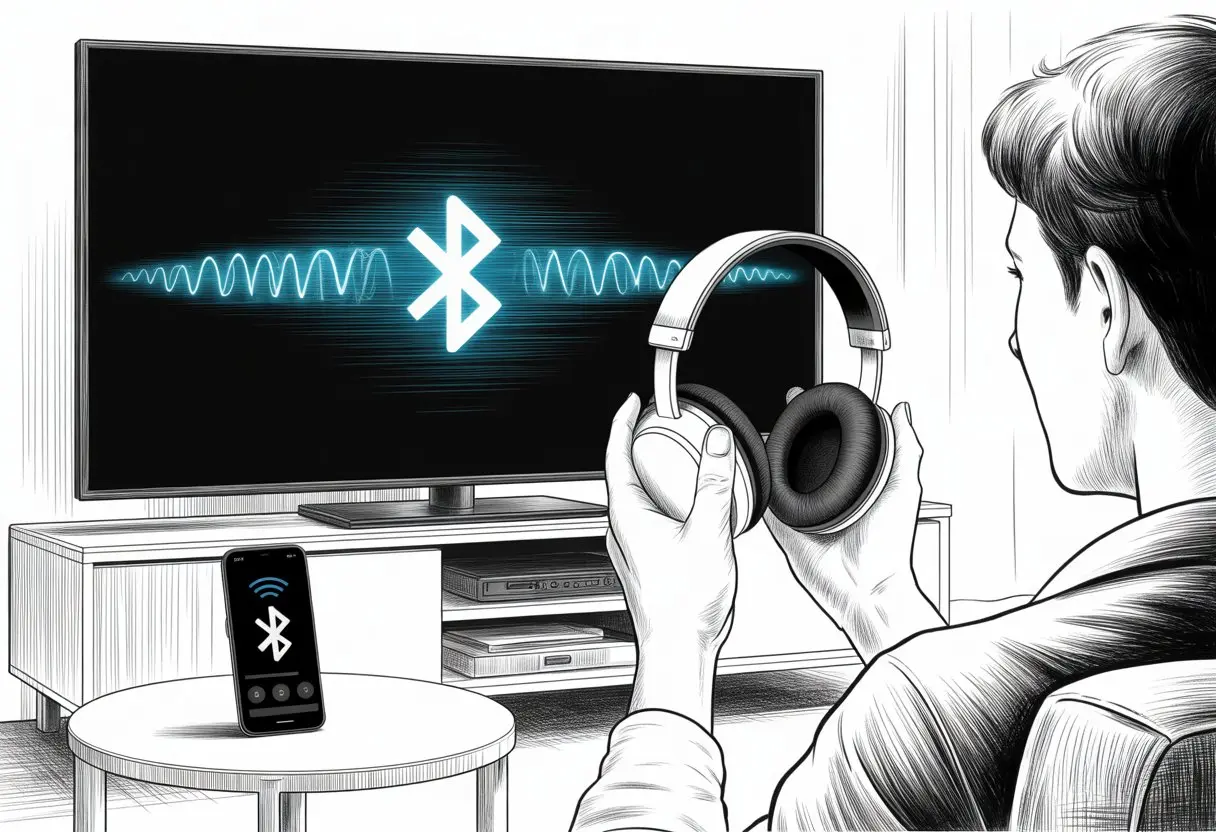
Sometimes restarting both devices or making sure our headphones are in the correct pairing mode actually fixes things. Other times, it feels like we need an engineering degree before we can finally hear sound in our ears instead of blasting it across the living room.
Not all headphones work with every TV, either, so we get plenty of practice in troubleshooting. Before we start blaming our devices or hunting for the TV’s “secret Bluetooth menu,” let’s dig into why this happens and what we can do about it.
It turns out we’re not alone in this weird little struggle for private TV audio. So, let’s get into it and see if we can finally end the silent standoff!
Understanding Bluetooth Functionality on Your TV
Trying to connect Bluetooth headphones to a TV can feel like solving a riddle. Understanding how our TV handles wireless headphones and what it supports can make things way less mysterious.
How TV Bluetooth Capabilities Work
Not every TV comes with built-in Bluetooth—wouldn’t that be great? For those that do, Bluetooth usually hides in the settings menu, often under “Sound Output” or “Bluetooth Speaker List”.
When we try to go wireless, the TV searches for available devices like headphones or soundbars. Sometimes, it doesn’t find anything, or it asks for a PIN, as if it’s keeping secrets from us.
That usually means something’s off with pairing mode, or maybe the headphone batteries are just done for the day. Connecting should be simple: turn on Bluetooth on both devices, set headphones to pairing mode, and pick them on the TV list.
If you’re connecting to a Samsung TV, you can find instructions here.
Types of Bluetooth Headphones Supported
Here’s where things get picky. Most modern TVs with Bluetooth support common Bluetooth headphones, but not every wireless headphone speaks the same Bluetooth “language” (profile).
TVs from Samsung or LG often use the A2DP profile, which handles stereo audio. Older or budget TVs might only recognize certain brands or types, so if you grabbed headphones at random during a late-night sale, it could be hit or miss.
Wireless earbuds, headsets, and even hearing aids might work, but always check if your TV’s Bluetooth feature mentions “headphone compatibility.” If your TV is more old-school, you can use an external Bluetooth transmitter to connect headphones.
It basically acts as a translator, so your headphones finally have someone to “talk” to.
Limitations of Built-In Bluetooth
Bluetooth on TVs isn’t exactly known for being social. Unlike our phones, TV Bluetooth connections usually support only one pair of wireless headphones at a time.
So, no late-night movie binge with your best friend unless you share an earbud like in those cheesy romance flicks. Audio delays—where the sound lags behind the lips—can sneak up and ruin the vibe.
TV Bluetooth might not use low-latency codecs. Some TVs don’t allow Bluetooth connections at all if you’re using certain streaming apps. Painful, but yeah, it happens.
Connections can drop if someone walks by, or if the TV and headphones are too far apart. Sometimes it feels like Bluetooth is just playing games with us.
If you want a guide to fixing common pairing problems, check here.
Compatibility: Are Your Headphones and TV Even Speaking the Same Language?
Pairing Bluetooth headphones with a TV isn’t always straightforward. Sometimes it feels like our gadgets are trying to communicate through smoke signals instead of Bluetooth.
Checking Headphone and TV Compatibility
Before blaming the TV for being stubborn, it’s smart to check if both devices even support the same kind of Bluetooth. Some Bluetooth headphones are only meant for phones or tablets, so when we try them with the TV, nothing happens.
To make sure both sides are compatible, look for “Bluetooth Audio” or “Bluetooth Headset” support in the TV manual or settings menu.
Here’s a quick checklist:
- Check the headphone type: Are they just for music, or do they support voice and video too?
- Look at the TV’s Bluetooth version: Older TVs might not get along with newer headphones.
- Pairing modes matter: Most headphones need to be in pairing mode before the TV can find them.
If your TV doesn’t have Bluetooth at all, you might need a workaround, like a Bluetooth transmitter for your TV. It plugs into the audio jack and sends the sound over Bluetooth.
Brand-Specific Quirks: Samsung, LG, and Others
Every TV maker seems to do things their own way, just to keep us guessing. Samsung TVs usually have a clear menu option to connect Bluetooth headphones, but some models might not support all Bluetooth devices.
If you have an LG TV, connecting headphones can sometimes mute the TV speakers automatically. You’ll need to disconnect them if you want sound back through the TV speakers.
Some TVs prefer their own accessories and ignore other brands, so you might have to try a few pairs before finding the right fit. When things get weird, resetting the Bluetooth connection or checking for software updates can help.
If nothing works, maybe that’s just a sign to take a snack break.
Mastering the Pairing Process
Getting Bluetooth headphones to sync with the TV can be a real puzzle. We need to make sure both the headphones and TV are in the right mode, and sometimes we even need extra gadgets to make it work.
Each step counts if we want to avoid tossing the remote across the room.
Activating Pairing Mode on Headphones
Let’s be honest—Bluetooth headphones can be as stubborn as a cat. To prep them, we have to put them into pairing mode.
Usually, this means pressing and holding the power button until we see a flashing light or hear a beep. Some headphones want us to hold down a Bluetooth button instead.
If your headphones are extra fancy (or just sneaky), they might need a double-tap combo. The manual isn’t just for show—sometimes it actually helps.
Keep the headphones near the TV and away from other Bluetooth devices. If your phone is sending out “connect” signals, your TV won’t stand a chance.
Make sure the batteries are charged—dead headphones won’t pair, no matter how much we wish they would.
Setting TV to Pairing Mode
Now it’s the TV’s turn. Most smart TVs hide the Bluetooth pairing option somewhere in the settings menu, usually between “Picture Mode” and “Why are my colors weird?”.
Here’s a cheat sheet:
- Open TV settings (grab the remote!)
- Go to “Bluetooth” or “Connection” options
- Select “Add Bluetooth Device” or “Pair New Device”
Once you find the list, your headphones should show up. If they don’t, well, time to start over!
Older TVs sometimes make this more complicated. If your TV says it has Bluetooth in the manual but you can’t find the menu, it might only connect to certain accessories or not support audio out.
In that case, a workaround might be needed. If pairing keeps failing, check out troubleshooting tips like those from a Bluetooth pairing guide.
No need to blame the headphones—sometimes the TV just wants some attention.
Pairing with a Bluetooth Transmitter
If your TV doesn’t come with Bluetooth, a Bluetooth transmitter can save the day. Just plug the transmitter into the TV’s audio output—usually a headphone jack, RCA port, or optical out.
The transmitter then sends out a Bluetooth signal, kind of like a mini radio station for your headphones. Most transmitters have a button for pairing.
Set both the transmitter and headphones in pairing mode at the same time, and they usually find each other faster than you find your lost remote.
Transmitter boxes are small and easy to hide. Some can pair with more than one set of headphones, turning movie night into a silent disco.
Just make sure to get a transmitter that matches your TV’s audio ports and supports your type of headphones. If you need extra help, guides like this one walk through the steps.
Honestly, a Bluetooth transmitter can make almost any TV feel new—no magic spells required.
Audio Settings That Sabotage Your Headphone Pairing
Before we blame our Bluetooth headphones and TVs for refusing to get along, let’s check if we tripped ourselves up with the wrong settings. Sometimes, it’s just a sneaky menu option that ruins the party between our gadgets.
Configuring TV Audio Output Correctly
If we want our Bluetooth headphones to actually connect, we need to set our TV’s audio output to the right spot.
Many TVs love defaulting to TV speakers instead of Bluetooth audio. That’s like RSVPing to a party and forgetting the address—nobody’s having fun.
It’s usually buried in the settings menu. Look for “Sound Output,” “Audio Output,” or “Speaker List.”
If possible, set this to “Bluetooth Audio” or something that sounds close. Every TV brand uses slightly different words, just to keep us guessing, but the idea is the same.
Some TVs let us use both TV speakers and Bluetooth at once, while others make us pick. If we choose the wrong one, our headphones get left out.
Resetting the connection can help too—sometimes gadgets just need a fresh start (more tips here)..
Dealing with TV Speakers and Soundbars
Trying to use a soundbar or turning on HDMI ARC while pairing Bluetooth headphones? That’s a recipe for chaos. Our TV just doesn’t like to share—it usually picks one output and ignores the rest.
If we try to run both a soundbar and headphones, the TV might just play favorites and pick whichever it feels like. Usually, it’s not going to warn us either.
To keep things simple, we should disconnect other audio devices, like ARC soundbars, before we pair our headphones. Some TVs let us switch between outputs, but others are stubborn and stick to just one.
If our TV keeps choosing the soundbar over our headphones, we can try unplugging the soundbar’s HDMI ARC cable or manually switching the audio output. Sometimes, a little bit of cable shuffling does the trick.
Here’s a quick checklist:
- Check if “TV speakers” are still on.
- Disable HDMI ARC or unplug the ARC device.
- Choose “Bluetooth Audio” or “Headphones” as the output.
A quick menu dive can save us a lot of hassle. Our headphones will thank us, and the living room will be a lot quieter—unless you want it loud, of course.
Troubleshooting Bluetooth Connection Issues
Sometimes our Bluetooth headphones just don’t want to cooperate with our TVs. We can try a few quick steps and hopefully avoid a tech meltdown.
Let’s always have a backup plan ready for movie night. Things can go sideways fast.
Simple Fixes for Common Problems
Let’s start simple. First, we need to turn on Bluetooth on both the TV and our headphones. It sounds silly, but even tech lovers forget that step now and then.
If the headphones aren’t showing up on the TV’s Bluetooth list, we should make sure we put them into pairing mode. Usually, holding the button for a few seconds does it—sometimes there’s a beep or a blinking light.
Here’s a checklist:
- Turn Bluetooth on (both devices)
- Put headphones in pairing mode (listen for beeps or watch for blinking)
- Check for other connected devices (maybe our headphones are already busy)
- Move closer—Bluetooth range isn’t amazing, and walls make it worse
Sometimes, just restarting everything works wonders. Sony support says that turning the TV and headphones off and on again can fix a surprising number of pairing issues.
Resetting Your Devices the Not-So-Technical Way
Tech should work for us, not the other way around. If things get weird, we can just reset both devices and save ourselves the headache.
Power off both the TV and headphones. Unplug the TV from the wall for a minute—let it cool off and forget its grudges. Then, power everything back up and try pairing again.
Sometimes, software updates or weird settings can sneak in and cause trouble. Resetting gives both the TV and headphones a fresh start, clearing out any glitches that might be lurking.
If the connection still acts up, resetting Bluetooth settings or checking for updates might be the move.
When All Else Fails: Wired Headphones
If nothing works, let’s not lose the whole evening to Bluetooth drama. Most TVs still have a headphone jack or another audio output. We can plug in wired headphones and skip the stress.
Sure, wires aren’t as cool, but they almost never let us down mid-show. If our TV doesn’t have a standard jack, some adapters let us connect to RCA or optical audio ports.
We might lose the freedom to roam around, but at least the sound keeps playing and we keep our sanity.
Audio Quality and Latency: Why Is There a Sound Delay?
Ever notice how the sound from our Bluetooth headphones sometimes lags behind the video? It’s almost like the audio is running to catch up.
This mostly happens because Bluetooth isn’t exactly speedy when it comes to moving audio from the TV to our headphones. Quality can take a hit, too.
Understanding Audio Lag
Audio lag, or latency, is that annoying delay between seeing something and actually hearing it. Bluetooth has to pack up the audio, send it through the air, and then unpack it for our ears.
Most of the lag comes from the TV squishing the audio into a smaller file, then the headphones stretching it back out. All this can take up to 300 milliseconds—long enough for someone on screen to finish talking before we hear it.
Some apps try to fix this by delaying the video, but not all do. That’s why sometimes things just don’t sync up. This guide explains Bluetooth latency, if you’re curious.
Improving Audio Quality
Bluetooth can also mess with audio quality. Some versions and codecs compress audio, making it sound a little flat or dull. It’s kind of like ordering pizza and getting a cracker with sauce—still food, but not what you wanted.
Newer Bluetooth versions (like 5.0) and better codecs (like aptX Low Latency) help with both lag and sound quality.
If we want better sound, here are a few ideas:
- Use headphones that support aptX Low Latency or similar codecs
- Sit closer to the TV—walls and furniture just get in the way
- Check the TV’s sound settings for an audio sync feature
- Go wired if the lag is driving us nuts
If you want to geek out, this article has more ways to handle Bluetooth audio delay. Sometimes, just upgrading our gear can make a world of difference—no magic needed.
Customizing Your Listening Experience
Getting Bluetooth headphones to work with our TV can make family movie night way more peaceful. But sometimes, getting the best sound means tweaking the volume and audio settings.
A little fine-tuning keeps our ears—and our nerves—happy.
Controlling Volume on Bluetooth Headphones
If we can’t control the volume, we’re just one jump scare away from waking up the whole house. Most Bluetooth headphones have their own volume buttons, so yes, we might need to use both the headphone and TV controls.
Not all TVs make this easy. Some let us control headphone volume with the TV remote, but others are stubborn and only let us use the headphone buttons.
For Samsung users, sometimes we can manage headphone volume from the settings menu, but it’s hit or miss.
It’s smart to check if both the TV and headphones adjust volume separately. If not, we might need to max out one and use the other to fine-tune—like a DJ at a silent disco.
Try setting both to medium, then adjust one at a time to see which one actually changes the sound. It’s not fancy, but it works.
Advanced Audio Settings for TV and Headphones
Okay, honest moment: a lot of us skip TV audio settings because we’re worried we’ll mess something up. But honestly, some of those settings can make a big difference.
Most TVs offer menus for things like balance, EQ, or even a “night mode.” That one squeezes loud and soft sounds into a more comfortable range so you don’t jump out of your seat.
Want to use both TV speakers and headphones at the same time? Maybe you’re going for a silent disco vibe, or just helping someone hear better. Some TVs let you do this, but not all. You’ll probably need to poke around the audio settings menu and look for options like “Multi-Output Audio” or “Bluetooth Audio Device List.”
EQ settings let you tweak bass, treble, or make voices clearer, so those action scenes don’t terrify your pets. If voices sound weirdly distant or muffled, try out “Dialogue Enhancer” if your TV has it.
Don’t worry about messing things up—just experiment. If it all goes sideways, you can always hit “Reset” and pretend you never touched a thing.

From a young age, I have always had a big interest in technology, and this blog is an extension of that interest. Through this blog, I hope to provide others with all of the information they need regarding tech options to consider, and things such as compatibility. Some of the different items I will be discussing include headphones, smartwatches, and how to fix common issues.
- How to Get Text Messages on Fitbit Versa 2 Android: Simple Guide for Users - October 13, 2026
- Why Doesn’t My Fitbit Record My Sleep? Quick Troubleshooting Guide - October 13, 2026
- How to Change Face on Fitbit Versa 2: Quick and Easy Guide - October 12, 2026
Related Posts: