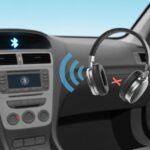
Let’s be real: everyone’s tried to crank up their favorite playlist in the car, only to discover their old stereo isn’t exactly Bluetooth-friendly. The world’s gone wireless, but our car speakers? They never got the memo. Good news, though: you can connect Bluetooth headphones to your car stereo for a private jam session on wheels—and you don’t need to be some tech genius to pull it off.
Maybe you want to rock out in peace, or you just need the kids’ cartoons to stay in their ears and not yours. Knowing how to do this is a lifesaver.
It’s not just about looking cool with gadgets; sometimes it’s about surviving those never-ending road trips or commutes without losing your mind.
If you’ve ever stared at a tangled mess of aux cables and sighed, this is for you. Let’s ditch the cord chaos and drag our car audio setup into the wireless age, one Bluetooth connection at a time.
Understanding Bluetooth and Car Audio
Getting Bluetooth headphones to play nicely with a car stereo can feel like a puzzle, but we can figure it out. We just need to know how Bluetooth works, which standards matter, and what’s actually going on inside our car’s audio system.
What Is Bluetooth and How Does It Work?
Bluetooth is a short-range wireless tech, kind of like a secret handshake between gadgets. It lets us link our phones, headphones, speakers, and car stereos—no cables needed.
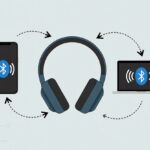
When we “pair” two devices, they basically agree to be buddies. We turn on Bluetooth on both, they spot each other, swap a code, and then they’re ready to share audio, files, or even contacts.
Bluetooth works best within about 30 feet. If you’ve got thick walls, lots of metal, or even a moody pet in the way, the signal might get weird. Still, it’s the go-to for car audio, hands-free calls, and blasting tunes without wires everywhere.
Bluetooth Standards and Profiles
Bluetooth isn’t just about flipping a switch. There are different versions and profiles, and not all of them “speak” the same way. Most of us see Bluetooth 4.0, 4.2, or 5.0. Each new version adds more speed, range, or battery life.
Profiles are like specialized languages for Bluetooth stuff. For car audio, the big one is A2DP (Advanced Audio Distribution Profile). That’s what streams music from your phone to a car stereo or headphones. For calls, there’s HFP (Hands-Free Profile).
If your gadgets don’t support the same profiles, they just won’t work together. For the best results, both your headphones and car stereo should support A2DP. If you want the nitty-gritty on Bluetooth car audio and codecs, check out Crutchfield’s Bluetooth protocols and codecs answered.
The Anatomy of a Car Stereo
Let’s take a peek at what’s actually inside a car stereo. The stereo (or head unit) is the brain behind all your car’s audio. It sends out radio, music, and calls to the speakers—or, if you’re lucky, to Bluetooth gadgets.
Modern car stereos are more than just knobs and buttons. Many have touchscreens, Bluetooth, AUX ports, USB, and sometimes even voice controls.
The audio output might go to built-in speakers, external amps, or, if you’re lucky, directly to Bluetooth devices.
Bluetooth connections usually get managed through the stereo’s menu. There’s often a Bluetooth settings page where you can start pairing mode and look for new devices. If your stereo is old-school, you might need a Bluetooth adapter or a special receiver. Sony Asia has a good Bluetooth car audio guide if you want more details.
Preparation Before Pairing
Before you get too hyped about your road trip playlist, let’s make sure your car stereo and Bluetooth headphones are actually ready to work together. If you miss a step, “pairing” turns into a real headache.
Checking Your Car Stereo Compatibility
First up, does your car stereo even have Bluetooth? Not all older cars do. Usually, you’ll spot a Bluetooth logo on the stereo or see it in the owner’s manual.
If your stereo doesn’t have Bluetooth, it’s not going to connect to your headphones. Some cars only offer hands-free calling—not music streaming—so check the menus or settings to see what’s actually possible.
For the mysterious menu buttons, hit “Settings,” look for “Bluetooth Connection,” and see what you find. You might need to hold down a Bluetooth button or dig through a few sub-menus. If you get stuck, here’s a quick guide that could help.
Bluetooth Headphones: Are They Up to the Task?
Don’t forget about your trusty Bluetooth headphones. Some are built for phones and tablets, but not every model wants to talk to a car stereo. Check if your headphones can connect to more than one device, or if they only play nice with phones.
If your headphones need pairing mode, hold the button until you see a blinking light. If things get stubborn, grab the manual—no shame in that.
Keep an eye on battery life, too. Dead headphones won’t help anyone. Some models need to be “discoverable” for pairing, so double-check the steps before you try to connect.
Updating Firmware and Settings
Sometimes, connection issues come from outdated firmware (that hidden code inside your gadgets). Updating firmware isn’t flashy, but it can fix a lot of Bluetooth headaches.
Car makers and headphone brands drop updates to squash bugs. You might need a USB stick, an app, or just some patience. Check the brand’s support site for updates.
After that, reset old pairings by removing them from the Bluetooth settings on both devices. Clearing out old connections gives you a clean slate. Don’t ignore the “forget device” option—it’s more helpful than it sounds! If you want more troubleshooting tips, this guide can help.
Different Ways to Connect Bluetooth Headphones
Let’s get into the fun stuff: actually sending your car stereo’s music to your Bluetooth headphones. There are a few ways to do this—some are straightforward, others need a little tinkering. No magic, just some patience and the right gear.
Pairing Directly With Built-In Bluetooth
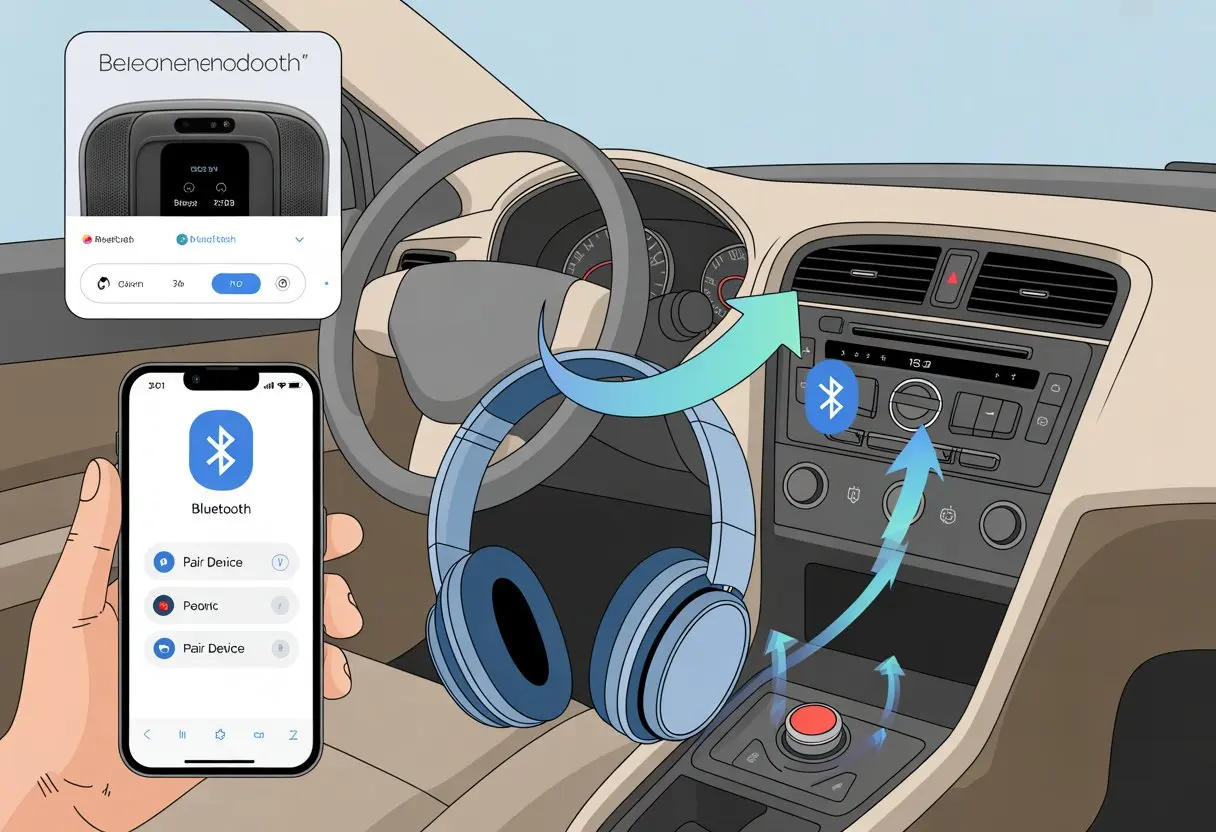
Some cars make things super easy. If your stereo has built-in Bluetooth, try pairing your headphones directly. Turn on the stereo’s Bluetooth mode (usually in Settings), put your headphones in pairing mode, and see if they spot each other.
A lot of stereos only want to pair with phones, not headphones, though. If your headphones don’t show up on the car stereo, that’s probably why. But if your car does support headphone pairing, you’ll find the option in the Bluetooth Connection settings.
You might use buttons or the touchscreen to walk through the steps, kind of like setting up a secret handshake. Just don’t expect every car stereo to play along.
Using a Bluetooth Adapter or Car Kit
If your car can’t pair directly, a Bluetooth adapter or car kit can save the day. Plug a Bluetooth audio adapter into the car’s audio output or aux out port. Some adapters use the USB port for power, so you don’t end up with a mess of wires.
Pair the adapter with your Bluetooth headphones, and it’ll send the stereo’s sound right into your ears. No complicated wiring or pro installation needed—if you can plug in a lamp, you can handle this. Just make sure the adapter transmits audio (not just receives it); some cheap ones only work one way.
Honestly, using an adapter is one of the simplest ways to get car audio into your Bluetooth headphones.
Connecting Via Audio Output or Aux Out
If you love plugging things in, the aux out port (or headphone jack) in your car is your friend. Many stereos have a 3.5mm aux out port. You can connect a wireless audio adaptor or Bluetooth transmitter to this.
Here’s how you do it:
- Plug the adapter into the aux out or audio output.
- Set it to transmit mode.
- Pair with your Bluetooth headphones.
It’s about as easy as plugging in a toaster—if toasters had Bluetooth. Sound quality depends on the adapter, so it’s worth picking one with decent reviews (and maybe a warranty, just in case).
Streaming Music Through Alternative Methods
Sometimes, your car stereo just won’t cooperate. If that’s the case, you can use your phone for music streaming. Play your music apps on your phone and send the sound straight to your Bluetooth headphones. No need for the car stereo at all.
It’s simple and doesn’t need extra hardware, but you won’t control music from the car’s buttons or see song info on the screen. If you use Android Auto or Apple CarPlay, things get trickier—those usually send sound only through the car speakers. Some folks on Reddit have found workarounds, like changing audio output settings on your phone after connecting with Android Auto. Sometimes it works, sometimes it needs a few tries, and sometimes it only works for calls.
So, using streaming apps and Bluetooth headphones is totally possible. Just don’t be surprised if you have to tap around and experiment a bit the first time.
Step-by-Step Guide: Pairing Bluetooth Headphones With a Car Stereo
Pairing Bluetooth headphones with your car stereo sounds pretty high-tech, but it’s usually not hard. Get your devices talking, follow a few steps, and try not to smash any buttons out of frustration.
Enabling Pairing Mode on Your Headphones
Alright, first things first—let’s get those Bluetooth headphones into pairing mode. That’s their way of waving and yelling, “Hey, pick me!” Usually, you just press and hold the main power or Bluetooth button until a light blinks blue or red. Some headphones even chime in with a robotic voice letting you know they’re ready.
If you get stuck, take a peek for a tiny label near the power button or flip through your headphone manual. Some fancier models want you to hold two buttons at once, so be ready to juggle.
Here’s a handy cheat sheet:
| Headphone Button Combo | Typical Action |
|---|---|
| Hold Power | Pairing mode (flashing light) |
| Hold Bluetooth Symbol Button | Pairing mode (voice prompt) |
| Hold Power + Volume Up | For the extra-fancy models |
Don’t skip this step—if you do, nothing’s going to connect and you’ll just sit there in silence, probably wondering what went wrong.
Activating Bluetooth on Your Car Stereo
Now, let’s wake up your car stereo’s Bluetooth function. Hit the HOME or MENU button on your car’s audio system—it’s the one that makes you feel like you’re launching a rocket. In the settings, look for “Bluetooth Connection” or “Pair New Device,” though the wording might change depending on your car’s brand.
Once you activate pairing mode, your car stereo pops up as visible to nearby Bluetooth devices. Sometimes there’s a spinning wheel or a beep. If you can’t find the Bluetooth option, maybe check the car manual—unless you’re the adventurous type who just presses every button.
Some stereos show a list of nearby devices, while others ask for a passcode (usually “0000” or “1234”) when you connect. If you’re new to this, guides like this car Bluetooth setup walkthrough can help.
Completing the Pairing Process
Now for the moment of truth. On your headphones—or your phone, if that’s how you’re rolling—pick the car stereo from the list of visible Bluetooth devices. Double-check the device name so you don’t accidentally connect to your neighbor’s ride.
Sometimes a code pops up on both devices. If it matches, just hit “OK” or “Pair.” You’ll probably hear a beep or see a flashing light, and that means you’re good to go.
If the connection flops, don’t stress. Try again, make sure both devices are in pairing mode, or clear out old device profiles if you’ve been a little too Bluetooth-happy in the past. For more details, check out guides like pairing Bluetooth devices with car audio.
Optimizing Your Listening Experience
Pairing is just the start. To really enjoy Bluetooth headphones in your car, you’ll want to tweak a few settings, keep your directions clear, and avoid those infuriating disconnects.
Adjusting Audio Settings for the Best Sound
Nobody wants their favorite song to sound like it’s playing from a tin can. Dive into your car stereo’s equalizer and mess around with the bass, mid, and treble until things sound right. Most cars and some headphones offer presets like “rock,” “pop,” or “classical”—those can be a quick fix.
Check your phone’s Bluetooth settings too. If you see an option for “HD audio” or “high quality audio,” flip that on. Keep your phone’s volume up (but not maxed) and then adjust the car’s volume to avoid distortion.
Don’t forget about bit rate. Higher bit rates usually mean cleaner sound over Bluetooth. If you stream music, set your apps to “high quality” so you’re not stuck with a watered-down version. For more tips, here’s a handy guide on improving Bluetooth audio quality in your car.
Quick Tips:
- Use the equalizer for custom sound
- Set apps and Bluetooth for highest quality
- Keep your device’s volume up but not maxed out to avoid distortion
Jamming out is great, but your car’s Bluetooth also handles calls and navigation. Nobody wants a phone call to blast out at full volume. Separate the volume levels for music, navigation, and hands-free calls—most car audio systems let you tweak these individually.
If navigation prompts keep butting in or arguing with your music, turn down the prompt volume or set the navigation voice to use the car speakers while your tunes stay in your headphones. That way, you won’t miss a turn or get startled by a sudden “Turn left!” over your favorite song.
Double-check your car’s settings for things like “navigation mix level” or “interrupt music for calls.” Tweak these so your music doesn’t get ruined, but you still hear what matters.
Troubleshooting Common Connection Woes
Sometimes Bluetooth acts up for no good reason. If your headphones won’t connect, start by toggling Bluetooth off and on—classic, but it works. If they’re still stubborn, unpair and re-pair them.
Getting static or dropouts? Move your phone closer to the car audio system or away from other wireless gadgets—microwaves are the worst. Update your headphones and phone firmware when you can.
If things get really weird, check if too many devices are paired to your car stereo. Delete old devices to give your system a fresh start. More advice lives in this guide to fixing Bluetooth music quality in your car.
Troubleshooting Checklist:
| Issue | What to Try |
|---|---|
| No Connection | Reboot devices, re-pair |
| Sound Quality Issues | Move phone closer, update |
| Dropped Connection | Remove extra paired devices |
Using Smartphones and Other Devices With Car Audio
Want to blast your favorite songs, binge podcasts, or sneak in a cat video (not while driving, please)? You’ve got a few ways to connect your gadgets to the car stereo—Android, iPhone, laptops, you name it.
Connecting Android and iPhone Devices
Android and iPhone users, you’re covered—pairing your phone to a car stereo is usually pretty painless. Just make sure Bluetooth is on. Find your car’s name in Bluetooth settings on your phone and tap to pair. Sometimes you’ll need a PIN, but it’s usually 0000 or 1234.
Once you’re paired, any audio—music, navigation, embarrassing voice memos—comes through the car speakers. Some newer cars even let you use touch controls to make calls or skip tracks. If things glitch, an unpair-and-repair often fixes it. For more help, check these steps for connecting Bluetooth to a car audio system.
Quick checklist:
- Turn Bluetooth on for both phone and car stereo
- Make the car stereo discoverable
- Select the car on your phone’s Bluetooth list
- Confirm or enter the PIN
- Test with some music
Streaming From Laptops, Tablets, and More
Want to stream from a laptop or tablet? Most modern ones have Bluetooth, so you can use the same pairing process as with phones.
Turn on Bluetooth on both devices, start pairing, and click the car stereo name when it appears. Suddenly, your “study beats” playlist is road-trip ready.
If your car stereo doesn’t have built-in Bluetooth, a Bluetooth transmitter can save the day. Plug the transmitter into the AUX port, pair it with your device, and you’re set. For more details, this guide on connecting headphones to car audio has a bunch of helpful tips.
If you can’t find an AUX port, dig around the glove compartment—or, in older cars, you might have to surrender and use a cassette adapter (yep, those still exist).
Popular Brands and Additional Accessories
We all want tech that just works, especially when we’re connecting Bluetooth headphones to the car stereo. With the right brands and some handy add-ons, you can dodge those Bluetooth headaches and enjoy your music or podcasts with no drama.
Samsung, Sony, and Other Compatible Gadgets
Certain names pop up everywhere, and not just because they want to. Samsung and Sony both make Bluetooth headphones and headsets that pair with car audio systems with barely any effort. If you’ve got a newer Samsung headset, just hold down a button and let your car’s Bluetooth connection handle the rest. Sony’s wireless headphones are another popular pick, mostly because the battery life is solid and the connection rarely drops.
Not into Samsung or Sony? No worries. Most Bluetooth car kits support headphones and speakers from brands like JBL, Bose, and Beats. As long as your headphones support standard Bluetooth profiles like A2DP or HFP, you’re set.
A good Bluetooth adapter can be a game changer. These little gadgets let even older car stereos join the wireless party. Some plug into the aux input, others use USB. You don’t need to ditch your favorite old car just to stream from the latest gadgets. If you get stuck, a quick search or YouTube video usually sorts things out—unless your cat walks across your phone.
Wireless Speaker Systems and Expansion Options
If your car already feels like a spaceship, maybe you want to go further. Wireless speaker systems and expansion kits can take things up a notch. It’s not just about upgrading headphones—sometimes you want the whole car grooving.
You can add a wireless speaker system that pairs with your phone or a dedicated Bluetooth car kit. Some let you link more than one device, so whoever yells “DJ!” first gets the aux. Portable Bluetooth speakers can even take over as backseat DJs for picnics or tailgates.
Expansion kits give you more flexibility, letting you hook up multiple gadgets. Maybe you want to connect a dash cam, GPS, or even your old MP3 player using a Bluetooth adapter. It’s all about turning your car into a rolling entertainment hub—just don’t forget to pay attention to the road.
When in doubt, check out guides for connecting Bluetooth to your car stereo to find the best setup for your ride.
Installation Tips and Best Practices
Getting Bluetooth headphones and your car stereo to play nice isn’t rocket science, but knowing your options helps. You can go the DIY route or call in the pros. Once everything’s set up, you’ve got more ways to play audio—USB ports, SD cards, whatever suits your style.
Professional vs. DIY Installation
When it comes to installation, we can either wrestle with wires ourselves or just hand the job off to someone who’s probably done this a hundred times. Professional installation saves us time and, honestly, maybe our sanity—especially if car dashboards look more like puzzles than anything else.
The pros tuck everything away neatly, hiding wires like grandma hides her embarrassing spoons. That’s a relief if you hate clutter.
If we decide to go the DIY route, we’ll need a few basic skills and a decent wiring harness, especially if we’re adding a Bluetooth receiver to an older car stereo. It’s important to actually read the instructions and double-check power sources.
Nobody wants to see smoke or, worse, sparks flying. Some devices also ask us to program settings in the car radio, which basically means pressing a few buttons and hoping for the best.
If you want a step-by-step process, there are guides out there—like this one on how to install Bluetooth in any car.
Using USB Ports and SD Cards for Audio Playback
Bluetooth headphones get all the hype, but honestly, a good old USB port or SD card can feel like a lifesaver in the car. I just toss some favorite tracks onto a flash drive or SD card, plug it right into the audio system, and boom—music’s on.
No need to mess with pairing or worry about batteries dying. Plus, I don’t have to deal with the awkward syncing process while someone’s waiting behind me.
Most newer cars come with USB ports these days. If you drive an older model, you can usually add one with an aftermarket stereo.
Some cars even support SD cards, which is kind of nice for mixing things up. So if Bluetooth starts acting up, these options are always there—and, honestly, they never demand a random firmware update when you least expect it.

From a young age, I have always had a big interest in technology, and this blog is an extension of that interest. Through this blog, I hope to provide others with all of the information they need regarding tech options to consider, and things such as compatibility. Some of the different items I will be discussing include headphones, smartwatches, and how to fix common issues.
- Why do my Bluetooth headphones not block outside sound? Sorry, They’re Not Mind Readers! - October 5, 2026
- How to Use a Smartwatch for Running Without Looking Like You’re Checking Your Stocks - October 4, 2026
- Best Bluetooth Headphones for Long Flights: Ears Happy, Neighbors Jealous - October 4, 2026
Related Posts: