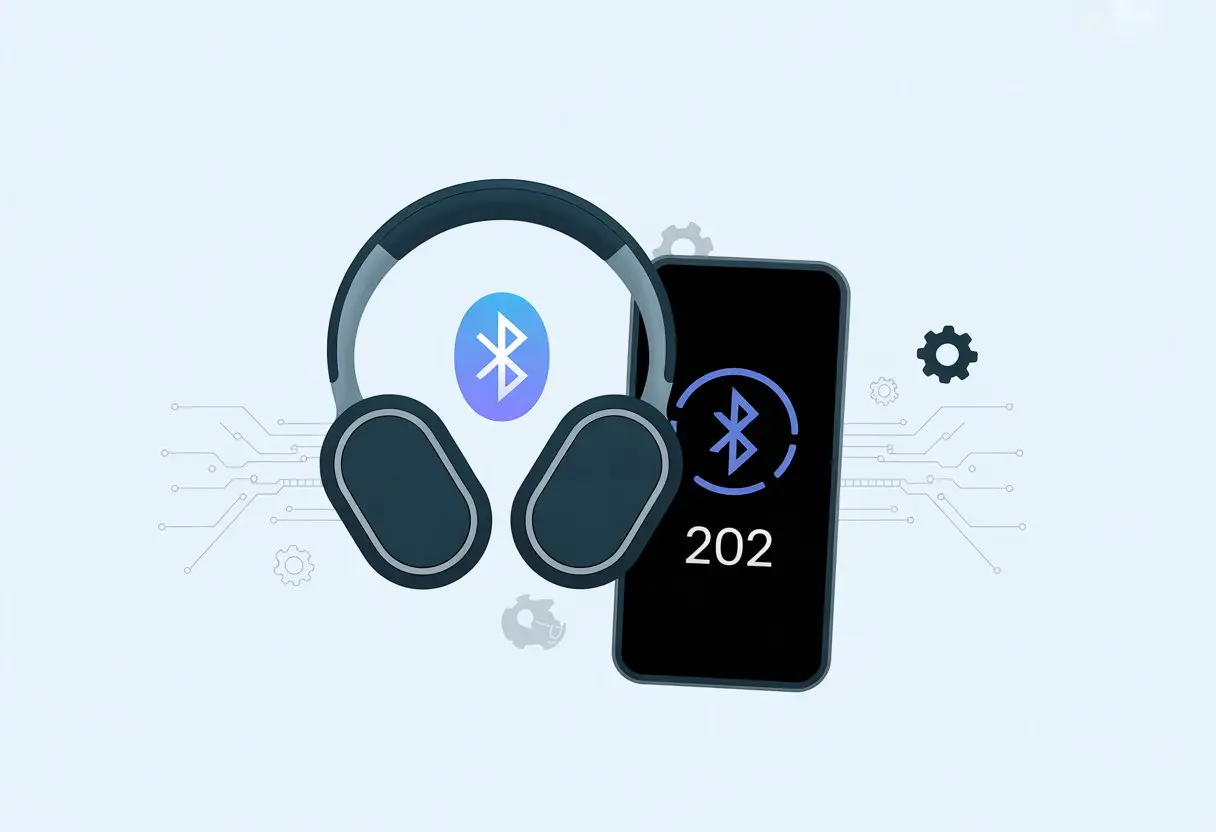
We’ve all been there—ready to jam out or hop on a call, and suddenly our Bluetooth headphones throw error code 202 at us. That’s enough to kill any vibe, right? The quickest fix for Bluetooth headphones error code 202 is to reset your headphones and remove them from your device’s Bluetooth list before pairing again.
Let’s be real—nobody enjoys digging through endless menus or hunting for a manual just to get their headphones working. We want music, not headaches.
Troubleshooting error code 202 isn’t rocket science. You just need a bit of patience and a few steps.
If your headphones still refuse to connect, try seeing if another device pairs with them or go through a detailed reset process, like the one for some Noise Buds models.
No need to stress—we’ll get through this together and get you back to your playlist or that call in no time.
Understanding Error Code 202 on Bluetooth Headphones
When Bluetooth headphones start acting up, error code 202 feels like one of those cryptic messages that just makes you sigh. This code usually pops up when you’re about to listen to music or join a call, or maybe just want to zone out on the bus.
Let’s try to make sense of what error code 202 actually means and how to spot it.
What Is Bluetooth Error Code 202?
Bluetooth error code 202 is a pretty common issue for lots of Bluetooth gadgets, especially headphones and headsets. When this code shows up, it means there’s trouble pairing or keeping a connection between your headphones and another Bluetooth device.
You’ll probably see this code during the first pairing or when you try to reconnect after a dropout.
Honestly, error 202 is like your Bluetooth saying, “Nope, not today.” It can hit any brand or model, so none of us are immune.
Common Causes of Bluetooth 202
A few sneaky culprits usually trigger error code 202. Device incompatibility is a big one—sometimes headphones and devices use different Bluetooth versions and just won’t cooperate. Interference from other signals (microwave ovens, anyone?) can mess with the connection too.
And sometimes, your phone or Windows thinks the headphones can display a pairing code, but they really can’t.
Recognizing the Symptoms
Error 202 doesn’t really hide. You’ll usually get a pop-up or message saying pairing failed or asking for a code that never appears on your headphones.
Your music cuts out, calls don’t go through, and suddenly you’re talking to yourself with no sound at all.
Sometimes, the connection works on one device but not another. Or maybe it fails right after you unlock your phone—like some kind of weird prank.
Before blaming your headphones or the universe, let’s try a few steps that fix most Bluetooth issues. Some are obvious, some not so much, and a few are easy to overlook (thanks, Airplane Mode).
Turn It Off and On Again—Seriously
Turning things off and on isn’t just an old IT joke—it actually works. We’ve all ignored this advice, only to try it later and be amazed when it fixes everything.
Start by turning off your headphones. Wait about 10 seconds, then switch them back on.
Do the same for your phone, tablet, or computer. Restarting both devices usually refreshes their Bluetooth connections and clears up those random glitches.
If nothing changes, try resetting your Bluetooth headphones completely. Most headphones reset if you hold the power button for up to fifteen seconds.
Open Bluetooth settings on your device and make sure Bluetooth is actually on (seriously, double-check). See if your headphones show up in the list of paired or available devices.
If they’re missing, try putting them in pairing mode (usually holding a button until a light flashes) and pair again.
It helps to forget or unpair any old Bluetooth devices you don’t use anymore. Too many connections can confuse your device and make it ignore your headphones.
Airplane Mode is great on planes but a nightmare for Bluetooth. When it’s on, all wireless connections—including Bluetooth—get shut off. Sometimes we forget it’s enabled and wonder why nothing works.
Check for a little airplane icon at the top of your phone or computer. If it’s there, open the quick settings and turn Airplane Mode off.
After that, make sure Bluetooth itself is switched back on.
Some devices let you turn Bluetooth on even with Airplane Mode, but honestly, it’s easier to just turn Airplane Mode off. This one step can fix a surprising number of stubborn Bluetooth problems.
Resolving Pairing Problems
https://www.youtube.com/watch?v=SnwZiULKe1U
Bluetooth pairing problems can turn your music dreams into awkward silence. But don’t toss your headphones out the window yet.
Try these tricks to charm your headphones and get rid of error code 202.
Activate Pairing Mode With Style
First up, you need your headphones to actually want to be found. Putting them in pairing mode is easy to skip but crucial.
Most headphones ask you to press and hold the power or Bluetooth button until a light flashes or you hear a sound. Some even give a polite little beep—almost like they’re saying, “Pick me!”
If nothing happens and your device can’t see the headphones, double-check that Bluetooth is on and visible. Sometimes, just rebooting both your headphones and device helps.
If your headphones act like they’re holding a grudge, it’s time to make your device “forget” them. Go into Bluetooth settings, select your headphones, and tap “Forget” or “Remove.”
Now, start fresh and make both devices find each other again. Make sure both your phone/computer and headphones have enough battery—low power can cause weird issues.
If error code 202 still won’t leave you alone, the Bluetooth cache could be the problem. Think of it as your device’s junk drawer—cluttered with old pairing attempts and random data.
On Android, go to Settings > Apps > Bluetooth > Storage > Clear Cache. For other systems, you might need to remove all paired devices, restart, and try pairing again.
Clearing the cache gives your headphones a clean slate. After that, pairing mode usually works like it should.
Bluetooth cache problems happen more often than you’d think, but fixing them is pretty straightforward. More on this at fixing Bluetooth pairing issues.
Diving Deeper: Device-Level Solutions
Bluetooth error code 202 can be stubborn, but you can take a few hands-on steps with your Windows devices. These cover driver fixes and using Device Manager to hunt down issues.
Update Your Bluetooth Driver (It’s Not That Scary)
Drivers sound intimidating, but really, your Bluetooth driver is just software that helps Windows talk to your headphones. If it’s old, things get weird.
Here’s what you do:
Hit the Windows key and type “Device Manager.”
Open it and find your “Bluetooth” list.
Right-click your Bluetooth adapter (maybe called “Intel Wireless Bluetooth”).
Select Update driver.
Click “Search automatically” and let Windows do its thing.
It doesn’t always work miracles, but updating the driver often helps Windows recognize your headphones again. If it asks to restart, just go for it.
Tame the Device Manager Jungle
Device Manager is a bit of a double-edged sword. It keeps tabs on every gadget inside our PC, including the all-important Bluetooth adapter.
Just wrangling these devices can sometimes fix error code 202. Here’s a trick that’s worked for me:
In Device Manager, right-click the Bluetooth adapter.
Click Disable device and count to five.
Right-click again and choose Enable device.
If a yellow triangle or “Unknown device” pops up, the hardware or driver is probably acting up. Sometimes, uninstalling the device and rebooting Windows helps it reinstall itself with a better attitude.
Don’t let Device Manager intimidate you—it might look wild, but it’s our digital turf.
Advanced Fixes and Settings
Bluetooth error codes have made plenty of us want to throw our headphones across the room. Sometimes, you’ll need to try a few extra steps, from swapping devices to taming power-saving settings.
Test Bluetooth Connectivity on Other Devices
I never trust my computer at first. Maybe the headphones are just picky?
Before we blame the PC, grab your phone or tablet and try pairing the same Bluetooth headphones. If they pair up and sound great elsewhere, the computer’s the troublemaker.
But if the headphones won’t connect to anything, you’re probably looking at a hardware problem. Look for a reset button or check the manufacturer’s guide for resetting Bluetooth accessories.
Sometimes, just holding the power button for ten seconds does the trick (and hey, a little wishful thinking never hurts).
If you can, test another set of headphones or speakers on your PC. It’s a quick way to see if the blame falls on the accessory or the computer.
Try a Bluetooth Troubleshooter Tool
Windows hides some helpful tools in its settings. There’s a Bluetooth troubleshooter that checks connections, drivers, and settings for us. You’ll find it here:
Settings
Update & Security
Troubleshoot > Additional troubleshooters
Pick Bluetooth and run it
This tool looks for missing drivers, weird Bluetooth profiles, or forgotten devices. Follow its steps, even if the warnings sound a bit too technical.
Modern computers love saving power, but sometimes they get carried away and put Bluetooth to sleep.
Let’s check for that:
Hit Win+X and open Device Manager
Expand Bluetooth
Right-click your adapter and choose Properties
Go to the Power Management tab, and uncheck “Allow the computer to turn off this device to save power”
While you’re at it, peek at any “Battery Saver” modes you might have on. Sometimes those cut Bluetooth off right in the middle of your playlist.
Turning off those aggressive settings keeps your headphones from getting kicked offline just to save a few minutes of battery. Why should Bluetooth connectivity have to suffer?
Tips for Preventing Future Bluetooth Headphones Errors
Dodging Bluetooth errors takes more than luck. The secret? Keep everything updated, stay within range, and—yes, really—read the manual.
Keep Firmware and Drivers Up to Date
Want fewer Bluetooth headaches? Hit “update” whenever you can.
Bluetooth headphones need fresh firmware to work well with your devices. Old software causes more error codes than you’d think.
Check for updates from the headphone maker every so often. That keeps your headphones compatible with new Bluetooth profiles, even the ones in Bluetooth 5.
Most brands have apps to make this painless. Think of it as a checkup for your headphones.
Don’t forget your computer and phone drivers. An outdated Bluetooth driver can turn your tunes into static.
It only takes a minute to check the support page or open Device Manager. Updated firmware and drivers are like noise-canceling for those annoying error messages.
Maintain a Safe Bluetooth Signal Range
Let’s be honest: we all wander around with headphones on. But walls, microwaves, and even your neighbor’s Wi-Fi can mess with the signal.
Bluetooth 5 helps with range, but obstacles still matter. A few tips:
Try to stay within 30 feet, or whatever the manual promises as the max range.
Avoid thick walls, metal shelves, and big appliances.
Cut down interference by turning off extra wireless gadgets.
A Bluetooth extender might help if your space is a wireless jungle. Staying in range keeps both your headphones and your patience in better shape.
Read the User Manual—Yes, Really
Nobody loves reading manuals, but sometimes that’s the only thing standing between you and a perfect connection.
The manual tells you what those blinking lights mean, how to pair, and which Bluetooth profiles your headphones support.
Some features need certain profiles. For example, you’ll need HFP for hands-free calls or A2DP for better sound. All that info is usually hiding in the back of the manual.
It’s not a thrilling read, but checking the manual before things go wrong can save you a ton of time.
If error code 202 ever comes back, you’ll know where to start.
When All Else Fails: Contact the Pros
Sometimes, no matter what you try, Bluetooth headphones or error codes just won’t budge. That’s when it’s time to call in the pros or think about a replacement.
Contacting Customer Support
Nobody loves calling customer support, but when every light blinks and you’ve tried every reset, it’s time to reach out.
Look up the headphone brand’s official support number or online help desk. Have your info ready—like exact Bluetooth error messages, device details, and what you’ve already tried.
This helps you avoid repeating yourself over and over.
Manufacturers usually have step-by-step guides, live chat, or even video walkthroughs for folks who’d rather not wait on hold. Some sites let you schedule a call-back or send detailed messages, which can save a lot of time.
If you want to do a little homework first, check out tips from others who’ve battled similar Bluetooth issues. Sometimes that makes your own support call a whole lot easier.
Warranty and Replacement Options
If our Bluetooth headphones are still under warranty, there’s hope for a no-cost or low-cost rescue.
We’ll need to dig up the receipt, warranty card, or maybe a store record—otherwise, the headphones’ tragic end might really be the end.
Most warranties cover hardware failures and stubborn Bluetooth issues that just won’t budge, even after all the usual troubleshooting steps.
Some brands ask us to ship our headphones in for inspection.
Others might send a replacement right away (honestly, fingers crossed for that).
Every brand has its own process, so it’s worth checking the manufacturer’s policy before getting your hopes up.
If we bought our headphones from a big retailer, they sometimes have their own return or exchange rules.
We should take a look at both the store’s and the manufacturer’s policies.
If the headphones are out of warranty, some service centers offer paid repair options.
At that point, though, maybe it’s time to start browsing for an upgrade instead of going down the repair rabbit hole.
Hi, my name is Garrett Jones, and I am a tech enthusiast. I enjoy researching the new tech that has been released, and have a vast knowledge of the best tech to purchase.
From a young age, I have always had a big interest in technology, and this blog is an extension of that interest. Through this blog, I hope to provide others with all of the information they need regarding tech options to consider, and things such as compatibility. Some of the different items I will be discussing include headphones, smartwatches, and how to fix common issues.