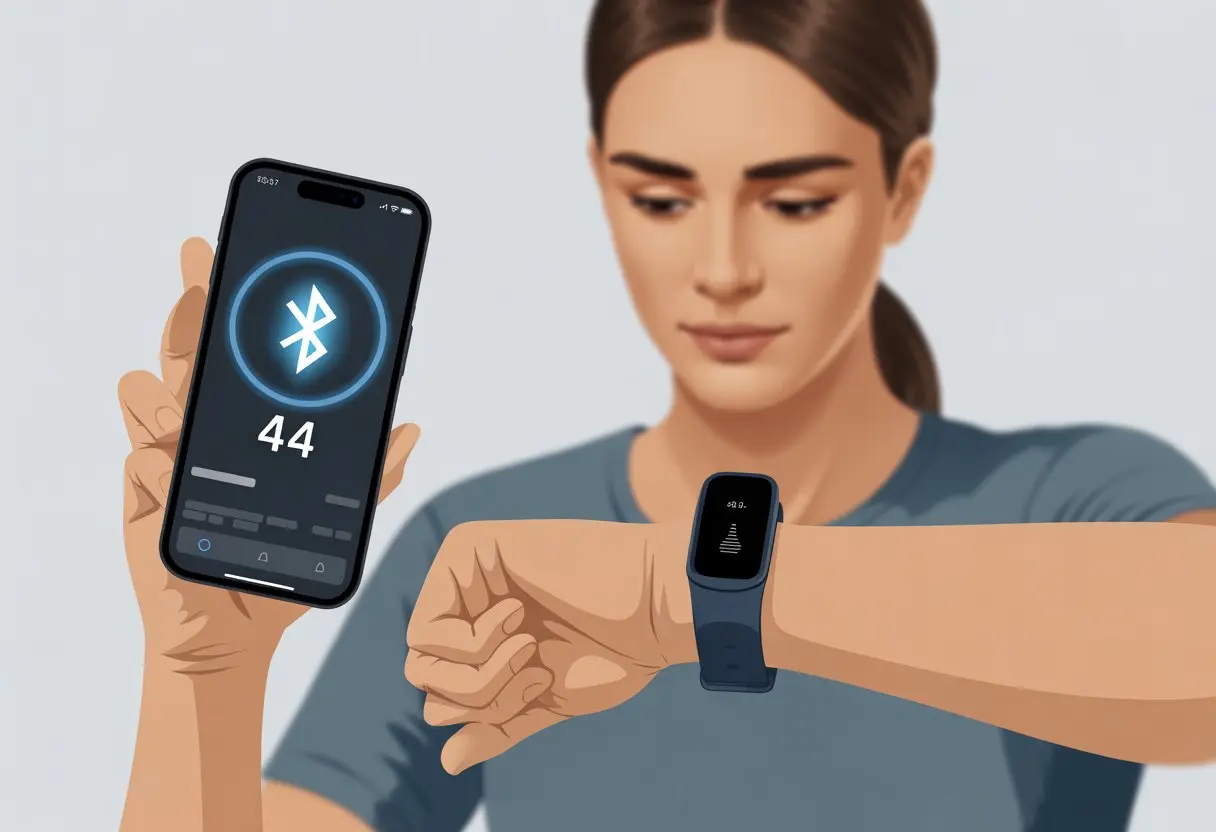
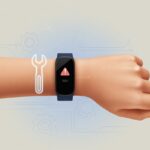
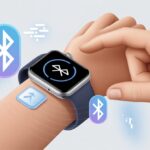
Ever had your fitness tracker flash “Bluetooth error code 44” right when you’re ready to hit the pavement? Yeah, us too. It’s like these devices know exactly when to throw a fit—usually when we’re feeling motivated.
The upside: fixing Bluetooth error code 44 is usually quick and painless. It just takes a few steps and a little patience.
We’ve all been there, standing around with phone in one hand, tracker in the other, silently begging them to cooperate. Before we start fantasizing about launching our tracker into a lake, let’s talk about what actually works. No tech jargon—just real fixes that’ll get your steps counting again. If we can do it, you absolutely can too.
Understanding Fitness Tracker Bluetooth Error Code 44
Bluetooth error code 44 can really mess with our fitness plans. If we know what it means and how it affects our devices, we’ll save ourselves some stress and maybe even a few gray hairs.
Lots of us have bumped into this issue on popular devices like Garmin and other smartwatches.
What Is Error Code 44?
Error code 44 pops up when our fitness tracker throws a Bluetooth tantrum and refuses to sync with our phone. This isn’t just some random number—it usually points to a failed attempt to make a secure Bluetooth connection.
If your tracker worked fine yesterday but now acts like you’re a stranger, error 44 is probably the reason.
For Garmin devices, error 44 has become pretty infamous. The device flashes the code when LiveTrack or syncing features suddenly stop working during a ride or run. People often report it happening out of nowhere, which makes us wonder if our gadgets have moods.
Garmin Edge series devices, like the Edge 1030 Plus, seem to attract error code 44 more than others. But it’s not just Garmin.
Other popular smartwatches and fitness trackers, from basic bands to fancier models, can also get hit—especially when Bluetooth starts acting weird.
While error 44 seems to love Garmin, it sometimes crashes the party on other wearables too. You’ll often notice it during device pairing, when trying to live-track, or after a software update that leaves your tracker feeling lost.
When error code 44 shows up, all our hard-earned steps, routes, and workouts might just disappear. Data won’t sync, notifications stop, and sometimes our achievements don’t even get counted.
It’s like running a 5K and only getting credit for walking to the mailbox.
With Garmin devices, losing LiveTrack means friends and family can’t follow our workout. They might even wonder if we’ve detoured to the donut shop.
Smartwatches might stop sending alerts, reminders, or even heart rate data. Suddenly, our wearable feels like a regular watch—minus the fun.
A Bluetooth error like code 44 doesn’t just slow us down—it can sideline our whole fitness routine until we sort it out.
Main Causes of Bluetooth Error Code 44
We all want a tracker that just works, but error code 44 keeps us sweating over tech instead of our workouts. So, why do our gadgets throw this code at us?
Internet Connection Woes: Wi-Fi and LTE Handoffs
Ever notice your tracker giving up right as you leave Wi-Fi for LTE? That’s the culprit.
When we move from our home Wi-Fi to mobile data, our devices sometimes get confused about which network to use. This back-and-forth causes instability.
Our fitness tracker might lose its connection while trying to pick a network, and Bluetooth can drop out. It’s like running a race with one shoe on the wrong foot.
Keeping both devices on the same network type helps. If you can, turn off automatic switching between Wi-Fi and LTE while syncing.
Sometimes, Bluetooth just refuses to cooperate. If we’re using older Bluetooth versions, or if our phone’s software is acting up, things can get messy.
Not all phones and trackers get along—sometimes it’s just a compatibility issue with Bluetooth protocols. Add in network quirks, and suddenly nothing pairs when you need it most.
Updating both your tracker and phone helps a lot.
Check if your phone supports the right Bluetooth version for the Garmin Connect app. Restarting both devices and trying again (preferably with no one watching) often works.
App and Device Communication Breakdowns
Even with good internet and working Bluetooth, the Garmin Connect app can just refuse to sync.
If notifications or background data are blocked, or if our app is outdated, syncing grinds to a halt. App crashes and update bugs only make things worse.
Keep the Garmin Connect app updated. Make sure background data and notifications are allowed.
Sometimes, uninstalling and reinstalling the app is the secret fix—even if we don’t want to admit it.
Step-by-Step Solutions for Fixing Error 44
Error 44 always seems to show up when we’re ready to brag about our step count. It’s usually tied to internet hiccups, outdated apps, and classic Bluetooth drama between tracker and phone.
Ensuring Stable Internet Before Starting Activities
First, we need to make sure our internet connection isn’t the problem. Many fitness trackers, especially those using the Garmin Connect app, rely on the internet to sync and pair.
Let’s skip the neighbor’s sketchy Wi-Fi called “FBI Surveillance Van.” Use your own Wi-Fi or your phone’s data.
Before starting a workout, try loading a website or video. If it loads slowly, your internet might not be up to the task.
If your connection is weak, move closer to the router or give it a quick restart. Public Wi-Fi can be unreliable, so watch out for that.
And hey, maybe double-check your data plan if you’ve been binging videos instead of running.
Restarting Devices Like a Pro
Sometimes, the classic move—turning things off and back on—does wonders. Restart your fitness tracker and phone to clear up any lingering Bluetooth gremlins.
Sometimes Bluetooth error 44 just won’t quit, no matter what we try. Here’s what to do if it’s still hanging around like that last bit of glitter after a party.
Checking Device Settings and Permissions
Fitness trackers can be picky about their connections. First, check that Bluetooth is actually on—seriously, it fixes more problems than you’d think.
Keep both the tracker and phone close together. They want to be best buds.
Check your permissions. For Android, go to Settings > Apps > [your tracker app] > Permissions and make sure Location and Bluetooth are allowed.
For iOS, open Settings, scroll to your tracker app, and make sure Bluetooth and Background App Refresh are enabled.
Make sure Airplane Mode is off. If you see messages like “Paired to Another Device,” unpair the tracker from anything extra.
Bluetooth can be a little high-maintenance, and crowded networks can make syncing harder than it should be.
Try disconnecting the tracker and reconnecting while on a different Wi-Fi network. Even switching from Wi-Fi to mobile data might help.
If you think your router’s the problem, just restart it. The classic “turn it off and on again” move works more often than you’d expect.
For tough cases, try the tracker and app in a completely different location. A change of scenery can solve a surprising number of headaches.
If you use Garmin Connect, check if syncing works better on another connection or after tweaking Wi-Fi settings. It sounds odd, but it works for a lot of Bluetooth connectivity problems.
Preventing Error Code 44 in the Future
Stopping Error Code 44 before it turns our fitness trackers into pricey wrist decorations is actually easier than you’d think.
With a few smart habits, a tidy gadget setup, and decent internet, we can usually keep our devices in line.
Best Practices for Smooth Device Syncing
Let’s not wait for errors to ruin our day—let’s take charge.
First, always keep Bluetooth turned on. If you use the Garmin Connect app, random Bluetooth shut-offs will completely mess it up.
Yeah, it’s one more thing draining your battery, but it’s better than dealing with another error.
Device clutter is a sneaky culprit. Unpair any old or unused trackers from your phone.
Too many trackers or random pairings can confuse both the app and Bluetooth settings.
Try syncing once a day, with your tracker and phone right next to each other. That helps avoid common connection failures.
Don’t forget to update your Garmin Connect app. Outdated apps are like expired milk—nothing good ever comes from them.
Here are a few more reminders:
Keep your tracker battery charged.
Quit other apps that use Bluetooth at the same time.
Restart both devices once a week. They need a break too.
Optimizing Wi-Fi and LTE Connectivity
Fast and stable internet won’t make us run any faster, but it definitely helps our tracker work better.
The Garmin Connect app needs a solid connection to sync with your phone, the Cloud, and sometimes, who knows what else.
Whenever you can, stick to a strong Wi-Fi signal. Walls and microwaves love to mess with us, so syncing in a clear spot makes a difference.
If you’re out and about, LTE works fine as a backup—just watch those data charges.
Try to avoid public Wi-Fi at the gym unless you’re feeling adventurous. Shared networks drop connections all the time and confuse trackers.
If syncing fails, toggling airplane mode on and off can sometimes kickstart things again. Weird, but it works.
When to Contact Support (Before Throwing Devices Out the Window)
If you’ve tried everything and Error Code 44 just won’t quit, it’s probably time to call in the experts. (No, yelling at the tracker doesn’t count.)
Garmin’s support team has seen it all, trust me.
Keep your tracker, phone, and app versions handy when you reach out. That way, you won’t waste time answering, “Have you tried turning it off and on again?”
Honestly, a little patience now is way better than shelling out for a new tracker or giving up on exercise altogether.
How Error 44 Affects Other Features and Health Metrics
Error 44 on our fitness tracker doesn’t just mess with our Bluetooth connection—it likes to crash the party for other features too.
Heart rate tracking and Livetrack, for example, can go a bit haywire, turning smart workouts into a guessing game.
Disrupted Heart Rate Tracking and Live Data
When Error 44 pops up, our tracker loses its usual Bluetooth link with the phone.
That means real-time heart rate data stops updating smoothly.
Instead of seeing our heart rate tick up or down every second, we might get numbers that freeze, jump around, or just vanish.
Imagine checking your pulse mid-run, and it’s stuck at 65—even though you’re sweating buckets and it should be way higher. Not great.
This doesn’t just mess up live stats during a workout. Sometimes, the tracker skips uploading heart rate data entirely.
You’ll see gaps in your daily activity graphs, making your health insights a little less accurate. Re-syncing usually sorts it out, but it’s one more test of patience.
Hi, my name is Garrett Jones, and I am a tech enthusiast. I enjoy researching the new tech that has been released, and have a vast knowledge of the best tech to purchase.
From a young age, I have always had a big interest in technology, and this blog is an extension of that interest. Through this blog, I hope to provide others with all of the information they need regarding tech options to consider, and things such as compatibility. Some of the different items I will be discussing include headphones, smartwatches, and how to fix common issues.