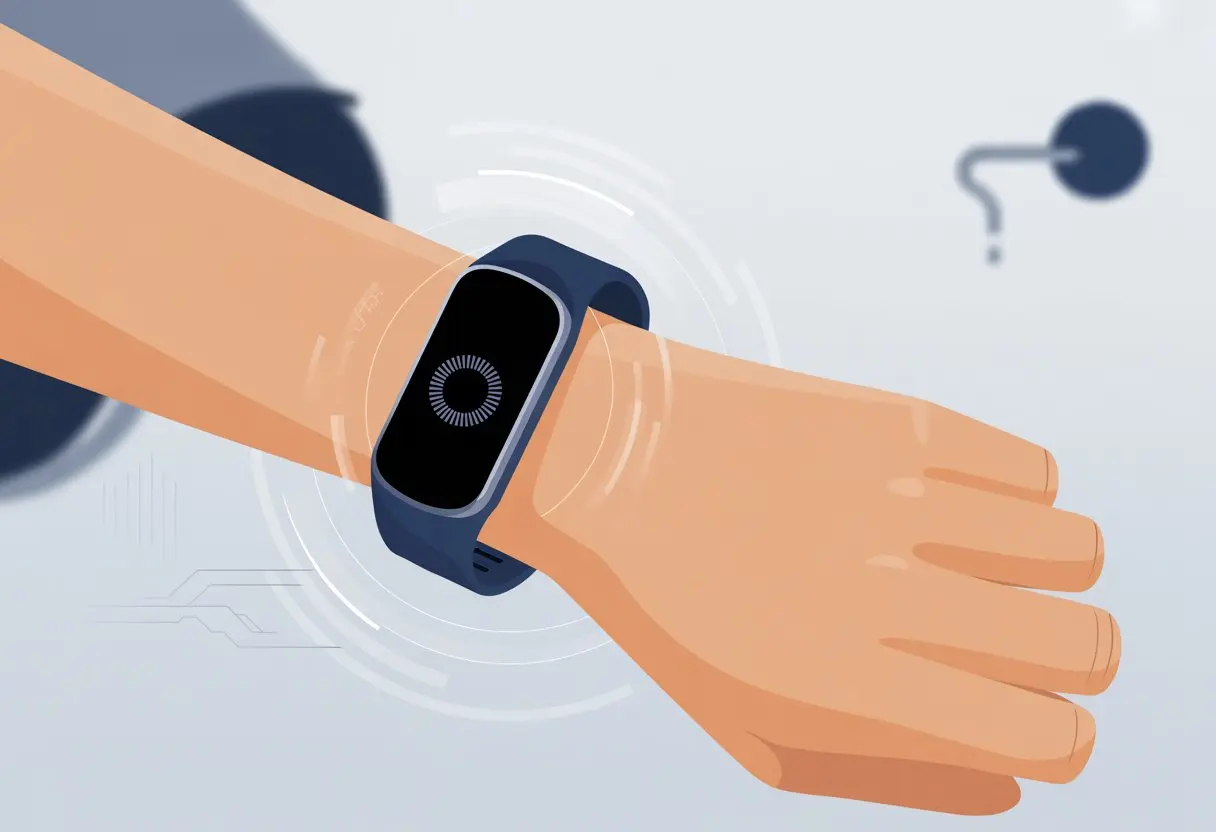
We’ve all been there: we’re about to crush a new step record, and then—bam—our fitness tracker restarts itself, as if it’s auditioning for a dramatic tech commercial. It’s aggravating, especially if it happens mid-workout, on a walk, or honestly, while we’re lounging on the couch pretending to be productive.
Usually, our fitness tracker keeps restarting because of software glitches, battery hiccups, or hardware issues.
But hey, don’t panic. We’re not cursed to live in a never-ending loop of reboots. There are actual reasons behind these random restarts, and even better, there are simple fixes we can try at home.
If your watch has been extra dramatic lately, or you’re sick of seeing the logo more than your stats, let’s dig into what’s really happening.
Understanding Why Your Fitness Tracker Keeps Restarting
When our fitness tracker keeps turning off and on like it’s stuck in a loop, it’s more than a minor annoyance.
These restarts can mess up our step counts, drain the battery, and leave us wondering if we actually exercised or just dreamed it.
Common Reasons Fitness Trackers Reboot
Let’s be real, our trackers seem to bail on us at the worst times—usually mid-sprint or right before we hit a goal.
The main troublemakers are:
Low or Faulty Battery: A tired battery can trigger random restarts. It’s basically the tracker’s way of asking for early retirement.
Software Bugs: Updates sometimes come with glitches that make the tracker reboot again and again. Not every update is a blessing.
Overheating or Moisture: Sweat should mean we’re working hard, not frying our gadgets.
Hardware Problems: Bad buttons, loose connectors, or faulty sensors can short-circuit the tracker’s brain.
If nothing works, we might have to do a factory reset or even reach out to support. No need to confess about that time we wore the tracker in the sauna.
How Restarts Affect Fitness Tracking
When a tracker keeps rebooting, tracking our hard work gets nearly impossible.
If it restarts during workouts, it can drop activity data, mess up step counts, and lose heart rate or sleep info.
Our reports start looking emptier than our fridge on a Sunday night.
Every restart also drains extra battery, so we end up charging more than moving.
Plus, broken tracking can mean missed achievements—which honestly stings almost as much as skipping dessert.
Identifying Restart Patterns
Figuring out what’s causing these restarts feels a bit like playing detective, minus the hat.
Keep an eye on when the glitches happen. Does your tracker freak out after a sweaty workout or a run in the rain?
Or does it reboot when you open specific apps, like weather or workout tracking?
Jotting down these moments—on your phone or a scrap of paper—can help you spot patterns.
If the tracker always restarts at the gym, overheating might be the culprit.
If it crashes during app use, check for software updates or buggy apps.
For extra help, join conversations on Fitbit’s forum or WearOS discussions. Sometimes, commiserating with others actually pays off.
Software Glitches and Fixes
Fitness trackers always seem to act up when we need them most—usually smack in the middle of a workout.
A few taps and updates can sometimes stop our trackers from throwing electronic tantrums.
Checking for Software Updates
Let’s be honest, trackers don’t just restart for fun. Outdated software often causes the chaos.
We should double check for software or firmware updates in the companion app. Developers push updates to squash bugs, boost performance, and, who knows, maybe just to keep us on our toes.
If an update is available, download and install it. Keep the tracker charged and still—unless you want to see it have another meltdown.
Sometimes, updating also resets glitchy settings and stops those surprise restarts.
Checking for updates is the first thing to try before anything drastic. If there’s a new version, installing it might solve everything and save us from more troubleshooting.
Force Restart and Hard Reset Methods
If the tracker keeps acting up, try a force restart or a hard reset.
A force restart is like telling your tracker to chill out. A hard reset, though, is more like wiping its memory clean.
Most brands have their own secret button combos. Usually, pressing and holding the main button for a few seconds (until the logo pops up) does a force restart.
If that fails, a hard reset is next—often a longer press or a series of button taps, depending on the model.
This clears temporary bugs. But heads up: a hard reset wipes your settings and data.
It’s basically a digital do-over, so sync anything important first. For more details, check your user guide or browse threads about force restarting smartwatches.
When to Try a Factory Reset
If your tracker seems obsessed with restarting, a factory reset might be the last resort.
Factory reset wipes everything—personal data, accounts, settings—so the device returns to its out-of-the-box state.
Usually, you find this in the settings menu: look for “About,” “System,” or “Factory Reset.”
Tap it, and the device erases itself and boots up fresh. For example, some folks fix endless restarts on Fitbit Versa Lite by following these factory reset steps.
Sync your data first unless you love starting from zero. Factory reset feels drastic, but if nothing else works, it might save you from throwing your tracker out the window.
Dealing With Connectivity Issues
When our fitness tracker acts more dramatic than helpful, connectivity issues usually play a role.
Staying connected is key for accurate data, reliable syncing, and avoiding those random reboots.
Bluetooth Connection Woes
Bluetooth: sometimes it’s a lifesaver, other times it’s a total pain.
If the tracker keeps rebooting, try turning Bluetooth off and back on—like giving your phone a little wake-up slap.
Unpair the tracker from your phone and pair it again just in case they’ve had a falling out.
Keep devices close together—Bluetooth hates long-distance relationships. Some users notice their watch only restarts when it’s connected to the phone, so try distancing them for a bit.
Let’s not forget—fitness trackers can be picky about their phone friends.
Most want at least Android 6.0+ or iOS 16. Sorry, flip phone fans, you’re out of luck.
Wear OS watches often refuse to play nice without the latest Wear OS app. Some trackers just won’t work with older phones or outdated software.
You can usually find compatibility lists on the manufacturer’s site. If your phone is as old as disco, maybe it’s time for an upgrade.
Apple Watch users, using ancient iOS versions usually causes headaches too.
Syncing With Apps and Devices
Syncing problems: the nemesis of smooth fitness tracking.
If your tracker keeps restarting, syncing with apps like Fitbit, Apple Health, or Google Fit could be the sneaky culprit.
Make sure your app is up-to-date. If not, update it (and maybe cross your fingers).
Sometimes, uninstalling and reinstalling the app clears out the digital cobwebs.
Restarting both your phone and watch after syncing can also help. For more tips, Android Authority has solid advice for Fitbit problems and syncing issues, which often applies to other trackers too.
Fitness App-Related Causes
Sometimes our fitness trackers act up because of issues inside the fitness app.
Apps can glitch, calibration data can get confused, or maybe the app just needs a fresh install.
Glitchy Fitness Apps: Spotting the Signs
Fitness apps definitely have minds of their own.
If the app is slow, freezes, or refuses to sync, that’s a big red flag. Not tracking steps, losing workouts, or showing fake marathons we never ran? The app might be the problem.
You might see the tracker restart when opening the app, or get stuck on an endless loading screen.
Glitches can sneak in after an update or just randomly. Sometimes, it feels like the app is on strike and wants us to take a break too.
Resetting Fitness Calibration Data
When calibration data gets scrambled, our trackers lose their sense of direction—literally.
If your distances look way off or heart rate numbers seem impossible (no, you didn’t hit 250 bpm walking to the fridge), a reset might help.
Resetting fitness calibration data wipes the slate clean. Usually, you’ll find this under “Reset Calibration” or “Motion Calibration” in settings.
Heads up: this erases some stored activity info, so back up anything you care about. After resetting, your device might need a workout or two to relearn your stride.
How to Reinstall or Fix Your Fitness App
Sometimes, the app needs more than a pep talk—it needs a total reinstall.
If restarting the app doesn’t work, uninstall and reinstall it. Just back up your data first so you don’t lose your hard-earned stats.
Reinstalling can fix hidden bugs and restore lost features. For example, people with Fitness app issues on iPhone often find reinstalling solves syncing problems.
On some trackers, clearing app data or cache can help if it keeps freezing. If nothing works, check for app updates or reach out to support before giving up on your tracker.
Apple Watch Specific Troubles
Our Apple Watches are smart—well, most of the time. But every now and then, they act like a confused robot on roller skates. If your watch keeps restarting during workouts or even while you’re just sitting around, something’s definitely off.
Let’s dig into why this happens and what you can actually do about it.
Apple Watch Keeps Restarting: Why?
When the Apple Watch suddenly reboots, it’s honestly like it’s throwing a mini tantrum. Battery issues, glitchy apps, GPS, or even just a sweaty workout can all cause this.
If you notice restarts right as you start a run, it might be the GPS causing trouble (more on this issue).
A low battery or a sudden voltage drop often makes the watch shut down or restart. Overly enthusiastic apps, especially if you haven’t updated them, can also crash the device.
Sweat and movement during exercise sometimes confuse the sensors, which can trip up the watch.
After an iPhone or Apple Watch update, you might get weird software bugs for a few days. It’s like the devices are having growing pains, except there’s more beeping than actual pain.
Unpairing and Re-pairing Your Apple Watch
Unpairing and re-pairing the Apple Watch feels a bit like hitting the reset button. If nothing else works and the restarts won’t quit, this is worth a shot.
Unpairing wipes all the settings and data from the watch, but don’t panic—your iPhone usually has a backup ready, so you can restore everything later.
Here’s the quick version:
Open the Watch app on your iPhone.
Tap your watch, then tap “Unpair Apple Watch.”
Wait for the magic to happen.
If you’re feeling extra thorough, you can even reset your iPhone too. Just avoid restoring from a buggy backup afterward, as others have suggested.
Sometimes the backup is where the problem started!
Restarting, Resetting, and Restoring Your Apple Watch
A simple restart is usually my first move. Just press and hold the side button until the sliders show up, then drag the Power Off slider.
Wait a minute, turn it back on, and cross your fingers. Sometimes the classic “off and on again” really does the trick.
If that doesn’t help, try a full reset. This wipes everything and gives you a fresh start.
Go to Settings, tap General > Reset > Erase All Content and Settings. The watch will forget all its bad habits, at least for a while.
Restoring from a backup can sometimes bring old problems right back. Be careful with this, especially after updates.
Sometimes these fitness trackers are more dramatic than a soap opera. Restart cycles can happen because of how the phone and tracker interact, especially when iPhones and weird software bugs get involved.
Luckily, a few solid tricks (and maybe a secret weapon or two) can help you get things back on track.
Restarting Our iPhone and Tracker
Let’s be real—half the time, the classic “turn it off and on again” actually works.
If your tracker’s stuck in a restart loop, restart both your iPhone and the tracker. It’s digital magic, honestly.
First, don’t just close the fitness app. Do a full restart of the phone by holding down the power button and swiping away your problems.
Then, once the iPhone is up and running, restart the tracker too.
This often fixes Bluetooth connection hang-ups or issues with the app recognizing the device. It also clears out any mischievous temporary files that might be causing chaos.
It’s a simple trick, but it’s surprisingly effective for random glitches, lagging syncs, or connection hiccups.
Solving iOS Issues That Cause Restart Loops
You start syncing, and suddenly the tracker gets stuck in an endless reboot. With iPhones, this sometimes happens after buggy iOS updates or app conflicts—especially after Apple’s latest “improvements.”
Common signs? The watch or tracker reboots every time it tries to sync, or just powers off mid-workout.
If this sounds familiar, check if your iPhone and tracker both have up-to-date software. Updates can fix these annoying compatibility issues.
Sometimes, unpairing and re-pairing the tracker (removing it from the Bluetooth device list and reconnecting) stops the restart drama.
If nothing else helps, try deleting and reinstalling the fitness app on your iPhone. That can iron out stubborn app problems.
Some folks also see this happen when syncing with iOS Connect, especially on certain Garmin models.
Using TunesKit iOS System Recovery
If your usual tricks just aren’t cutting it, TunesKit iOS System Recovery is like a friendly tech wizard.
This software helps fix deep iOS issues without making you an Apple genius—or risking your selfies and step counts.
TunesKit can solve restart loops, sync failures, or trackers that just refuse to connect. It walks you through plugging in your iPhone, clicking a few buttons, and letting the magic happen—no need to reset or erase your data.
Check if TunesKit lists your exact issue in their menu of fixes. If nothing else has worked, it’s worth a try, and you might save yourself a lot of frustration (and avoid any tears over lost data).
Battery Life and Power Problems
When fitness trackers keep restarting or turning off, the battery is usually the culprit. We’ve all stared at that tiny screen, wishing it would stop napping and start counting steps again.
Why Your Tracker Keeps Turning Off
If your tracker seems more interested in daily naps than collecting data, you might have a weak battery.
Batteries lose their ability to hold a charge over time, especially if you always top them off or let them drain to zero.
Power-hungry features like GPS, constant heart rate tracking, or a super-bright display can chew through battery life in no time.
Sometimes, a buggy update, hardware problem, or a loose charger connection makes the tracker think it’s time for another break.
If you see the tracker vibrating, stuck on the logo, or just not responding, it’s probably tied to these common rebooting issues.
How to Boost Battery Life
Honestly, nobody likes it when their fitness tracker dies halfway through the day. But we can squeeze more life out of it with a few simple tweaks. Give these a shot:
Lower the screen brightness.
Turn off features you never use, like always-on display or automatic workout detection.
Update your tracker’s software—sometimes those updates squash battery bugs.
Flip on airplane mode if you don’t need Bluetooth or Wi-Fi for a while.
If your device still keeps conking out or the battery drops way too fast, check for updates or try resetting the tracker. Sometimes just cleaning it and making sure the charger fits snugly helps it last longer. And if nothing seems to work, maybe it’s time to grab a new battery—or heck, maybe even upgrade to a newer model.
Hi, my name is Garrett Jones, and I am a tech enthusiast. I enjoy researching the new tech that has been released, and have a vast knowledge of the best tech to purchase.
From a young age, I have always had a big interest in technology, and this blog is an extension of that interest. Through this blog, I hope to provide others with all of the information they need regarding tech options to consider, and things such as compatibility. Some of the different items I will be discussing include headphones, smartwatches, and how to fix common issues.