When our fitness tracker keeps crashing, it honestly feels like trying to run a marathon in flip-flops. Nothing works how it should, and we end up frustrated and scratching our heads.
Most fitness tracker crashes come from software bugs, too many background apps, GPS hiccups, or just plain outdated updates. Sometimes, all it takes is one weird workout to send the whole app spinning into chaos. Suddenly, we’re left staring at a frozen screen, wondering if those steps even counted.
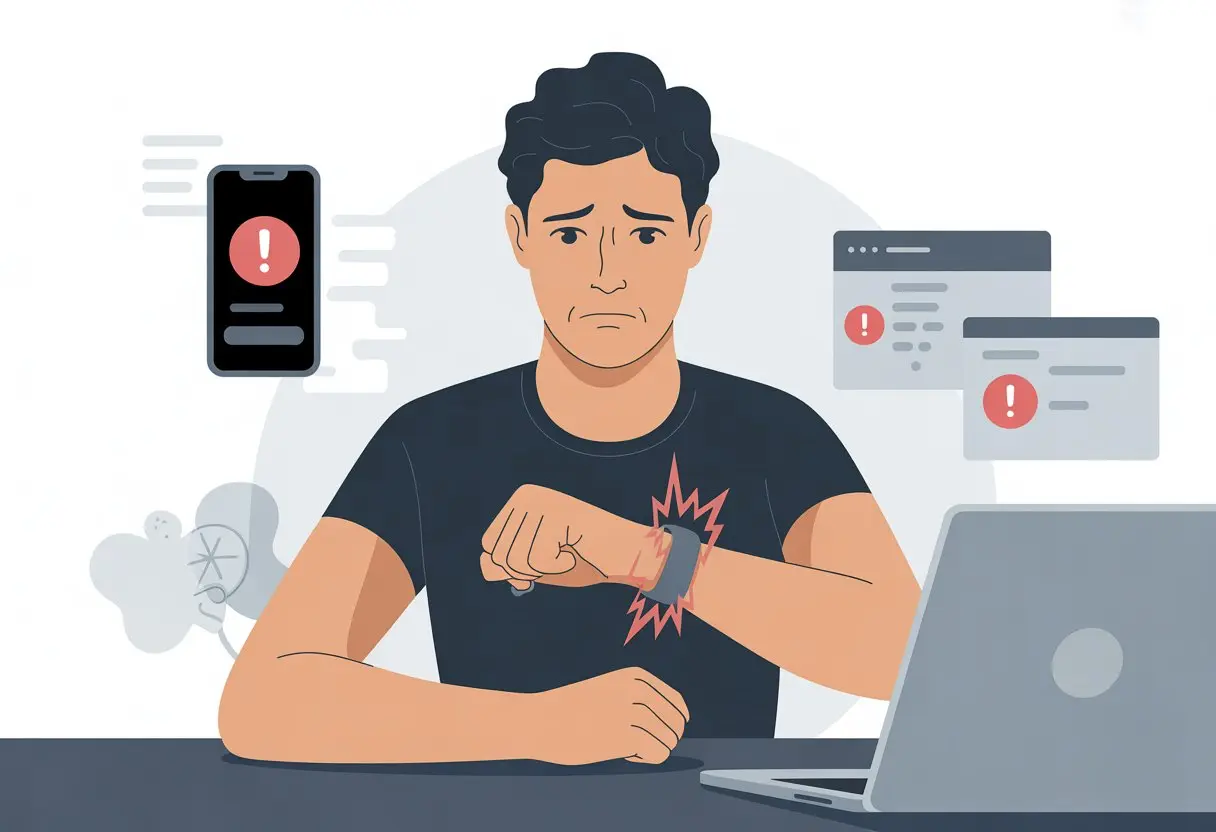
Let’s be real, we count on these little gadgets to keep us motivated. When they quit mid-exercise, it feels personal.
Maybe your device freezes during a workout, crashes when you check your stats, or just refuses to play nice with your phone. We all want to stop the endless resets and missed steps.
If you’re tired of rebooting every ten minutes, stick around. Let’s break down why this happens and what we can do to keep our trackers on track.
Common Reasons Your Fitness Tracker Keeps Crashing
We want our fitness trackers to be as reliable as a dog begging for treats. But sometimes, they crash at the worst possible moments—like right when we’re hitting a new step record.
A bunch of things can cause this, from buggy software to updates that somehow make things worse instead of better.
Software Bugs
Let’s face it, every gadget has its “oops” moments. Fitness trackers are no different.
Apple Watch and Fitbit users sometimes watch their apps crash if there’s a glitch in the code, especially after new features roll out.
We might tap “Show More” to see our stats, and the app just gives up and crashes—kind of like our motivation at a dessert buffet. Some features seem to trigger this more than others.
If the app crashes in one spot but works everywhere else, it’s probably a sneaky bug. Developers try to squash these with regular updates, but sometimes a few slip through. So we end up restarting the app instead of finishing our workout.
Pro tip: If an app keeps crashing in the same place, check for updates or reinstall it. A bug fix from the developer might just save us from another round of eye rolls.
Insufficient Storage
Remember when our phones got super slow because the storage filled up? Fitness trackers get cranky for the same reason.
Apple Watch and Fitbit both use onboard storage for apps, updates, activity logs, and settings. If we’re out of space, apps might stop mid-run or glitch during a workout.
Crashes happen more with older devices or when we never clear out old workouts, songs, or random apps we downloaded and forgot about.
Quick checklist for freeing space:
- Delete apps we don’t use
- Remove old workout data
- Offload music or files we never listen to
- Restart the device every so often
A little storage cleanup means fewer crashes and more time actually working out. Not that we needed another excuse.
Faulty Updates
Nothing says “plot twist” like installing an update to fix things, only for it to break more stuff.
Sometimes, when Apple or Fitbit push out a new version, the update just isn’t ready. We might get cool new features, but also some fresh bugs.
A bad update can mess with older devices or break certain features. There have even been times when the Apple Fitness app crashes after an update, especially if it clashes with other settings.
If your tracker gets weird after an update, rolling back isn’t always possible. Usually, we just wait for the next update and hope someone noticed the problem.
Maybe it’s a sign to take a break—or just go for a run without any tech for once.
Troubleshooting Steps to Revive Your Fitness Tracker
When our tracker acts up, there are a few things we can try before giving up. These steps can save us from endless crashes and get us moving again—no computer science degree required.
Restarting the Device
Sometimes, the tracker just needs a fresh start—kind of like us on a Monday.
First thing to try: turn it off and back on. It sounds simple, but a restart clears out temporary glitches.
Most trackers have a restart option in their settings. If it’s frozen, hold down the power or side buttons for 10-20 seconds.
Some models let you do a factory reset—but save that for last since it wipes everything. It’s like spring cleaning, but for your wrist.
If it works after a restart, great. If not, don’t worry—we’ve got more ideas.
Checking for Updates
A lot of trackers crash because they’re running old software. Devices need updates, just like we need coffee.
Check for updates in the companion app or through your tracker’s settings.
Here’s what to do:
- Open the app that pairs with your tracker (like Fitbit or Apple Health).
- Look for a section called Device or About.
- If there’s an update, hit Update and wait it out.
- Stay close to your tracker while it updates—sometimes they get finicky.
Running the latest version helps squash bugs. If there’s no update or it still crashes, time to try the next thing.
Clearing Cache and Data
Sometimes, the tracker just gets confused because its memory is full of junk. Clearing cache and data can help.
To do this:
- Open your device’s settings or the companion app.
- Go to app settings and find Storage or Memory.
- Tap Clear Cache and, if needed, Clear Data. Be ready to log in again.
If your tracker keeps crashing during workouts, clearing cache often helps. If nothing works, we might have to consider that dreaded factory reset—but fingers crossed it doesn’t come to that.
When to Consider a Factory Reset
Sometimes, turning things off and on again just doesn’t cut it. If your tracker keeps crashing, won’t sync, or is stuck in a reboot loop, a factory reset might be the only way out.
Backup Your Data First
Before you hit the nuclear option, make sure you’ve backed up your data. Otherwise, you could lose your activity history, settings, and maybe even proof of that epic walk last Sunday.
Most trackers sync with an app, so double-check everything’s saved—especially steps, sleep, and badges. Also, make sure you know your logins, since the reset could log you out.
If your app has a backup or export tool, use it now. Regret is no fun.
How to Perform a Factory Reset
Ready to wipe the slate clean? Here’s how to do it.
Find the reset option in your tracker’s settings. It’s usually under “System,” “About,” or “General.”
If you get stuck, check the manual or the company’s help site. Lots of users have been through this, as you’ll see on the Fitbit forum.
After you start the reset, your tracker will turn off and restart. You’ll have to pair it with your phone again, just like it’s brand new.
If it still won’t work (crash loop, frozen, etc.), try again. Some devices need special button combos or even have to be plugged in before resetting. Don’t be afraid to look up your specific model for help.
Getting Help from Verified Experts
When your tracker keeps crashing, it’s tempting to just chuck it out the window and go for an old-school jog. But before you lose your step count, you can actually get advice from real tech support and verified experts.
Contacting Tech Support
Nobody loves calling tech support, but it usually leads to real fixes. Most brands offer support by phone, chat, or email.
Have your device details, error messages, or screenshots ready. That way, you don’t have to repeat yourself a million times.
Some companies offer live chat, while others want you to call. If you ask clearly, most agents will walk you through common fixes like restarting, updating, or resetting.
If the basics don’t help, ask about in-person appointments. Sometimes, a little hands-on help makes all the difference.
Using Online Services Like justanswer
If talking on the phone isn’t your thing, you can get help from verified experts online—sites like JustAnswer are a good place to start.
On these sites, you describe your problem and a real expert actually replies. No “Uncle Bob with duct tape” advice here.
These experts have to pass vetting, so you’re not just getting random guesses. Usually, you get step-by-step help within minutes.
Some sites even let you send photos, error logs, or videos so the expert really gets what’s going wrong. It’s like tech support, but without the terrible hold music.
Device-Specific Solutions
We know how annoying it is when a fitness tracker crashes—sometimes it’s almost as bad as leg day. Fixing these glitches depends a lot on which device you’re using, but don’t worry, we’re all in this together.
apple watch Crash Fixes
Alright, let’s talk about the Apple Watch. If your Apple Watch keeps crashing during workouts, the fastest fix is usually a simple restart.
Just press and hold the side button, then slide to power off. If that doesn’t do the trick, try updating to the latest watchOS—sometimes those updates really do work magic.
Don’t ignore background apps—leaving too many open can slow the watch down. Double-tap the side button and swipe away whatever you’re not using, just like clearing out clutter.
Still having issues? You might need to unpair and set it up again. It sounds drastic, I know, but sometimes it’s the only way.
And hey, don’t forget to back up your data so you don’t lose your workout history.
fitbit Crash Fixes
Fitbit users, you’re not alone. The best first step is a full restart or reset.
Sometimes these trackers just need a quick break, kind of like we do. This simple move fixes a bunch of problems, especially if your tracker keeps crashing during exercise.
If it keeps acting up, check for updates to both the Fitbit app and your tracker’s firmware. Old firmware can cause all sorts of weird crashes.
When the app seems buggy, try uninstalling and reinstalling it. It’s surprising how often that helps.
GPS can sometimes crash the tracker in the middle of a run. Try turning off GPS in the Fitbit app and see if that calms things down.
For more tips, check out this list of common Fitbit fixes. And maybe double-check before tossing your tracker in the laundry—been there, done that.
How to Prevent Future Crashes
Let’s be real—nothing’s more annoying than your fitness tracker freezing right when you’re getting into your groove.
Most of the time, keeping things running smoothly just means staying updated and treating your device well.
Maintain Software Updates
If your tracker starts acting up, outdated software might be to blame. Device makers push out updates to fix bugs, patch up security, and sometimes add new features.
Running the latest version isn’t glamorous, but it really does help.
Here’s what you can do:
- Check for updates: Go into your app or device settings and look for “Software Update.” If you see it, tap it—don’t hesitate.
- Enable automatic updates: Turn this on if you can. Saves you from having to remember.
- Update companion apps: Your phone manages a lot of the tracker’s smarts. Make sure the mobile app’s up to date too, or crashes might follow.
Honestly, putting off updates just leads to more headaches. Fitbits and Samsung smart watches don’t like running on old software, and they can crash when you try to launch apps or track a workout.
So, yeah—keep everything current. Your future self will thank you.
Regularly Monitor Device Health
Even the best fitness tracker has its quirks. Expecting a five-year-old device to run like it’s brand new? That’s just asking for trouble.
Batteries age. Storage fills up. Glitches sneak in and throw everything off.
Simple ways to keep our device healthy:
- Restart often: Give it a quick reboot now and then. Honestly, a restart works wonders—kind of like a nap for us.
- Clear unused data: Go ahead and delete those old workouts, unused apps, or files that are just hanging around. If storage looks full, your tracker’s probably crawling.
- Avoid extreme heat/cold: Trackers really can’t stand wild temperature swings. Honestly, who can?
- Reset if needed: If things get really weird, back up your data and reset the device. It’s kind of a last-ditch move, but it usually clears out stubborn errors. If your Samsung watch freezes or crashes, check this link.
If your tracker keeps crashing like a clumsy squirrel, maybe it’s time for a pro to take a look—or, well, maybe it’s upgrade season.

From a young age, I have always had a big interest in technology, and this blog is an extension of that interest. Through this blog, I hope to provide others with all of the information they need regarding tech options to consider, and things such as compatibility. Some of the different items I will be discussing include headphones, smartwatches, and how to fix common issues.
- Why do my Bluetooth headphones not block outside sound? Sorry, They’re Not Mind Readers! - October 5, 2026
- How to Use a Smartwatch for Running Without Looking Like You’re Checking Your Stocks - October 4, 2026
- Best Bluetooth Headphones for Long Flights: Ears Happy, Neighbors Jealous - October 4, 2026
Related Posts: