We’ve all been there—our fancy fitness tracker is fully charged, and after pressing all the buttons and tapping the screen like we’re calling for an elevator, nothing happens. Bad timing, right? Especially when we’re just about to hit our daily step goal.
Most of the time, a fitness tracker that won’t respond after charging is dealing with a software hiccup, a faulty cable, or just needs a reboot.
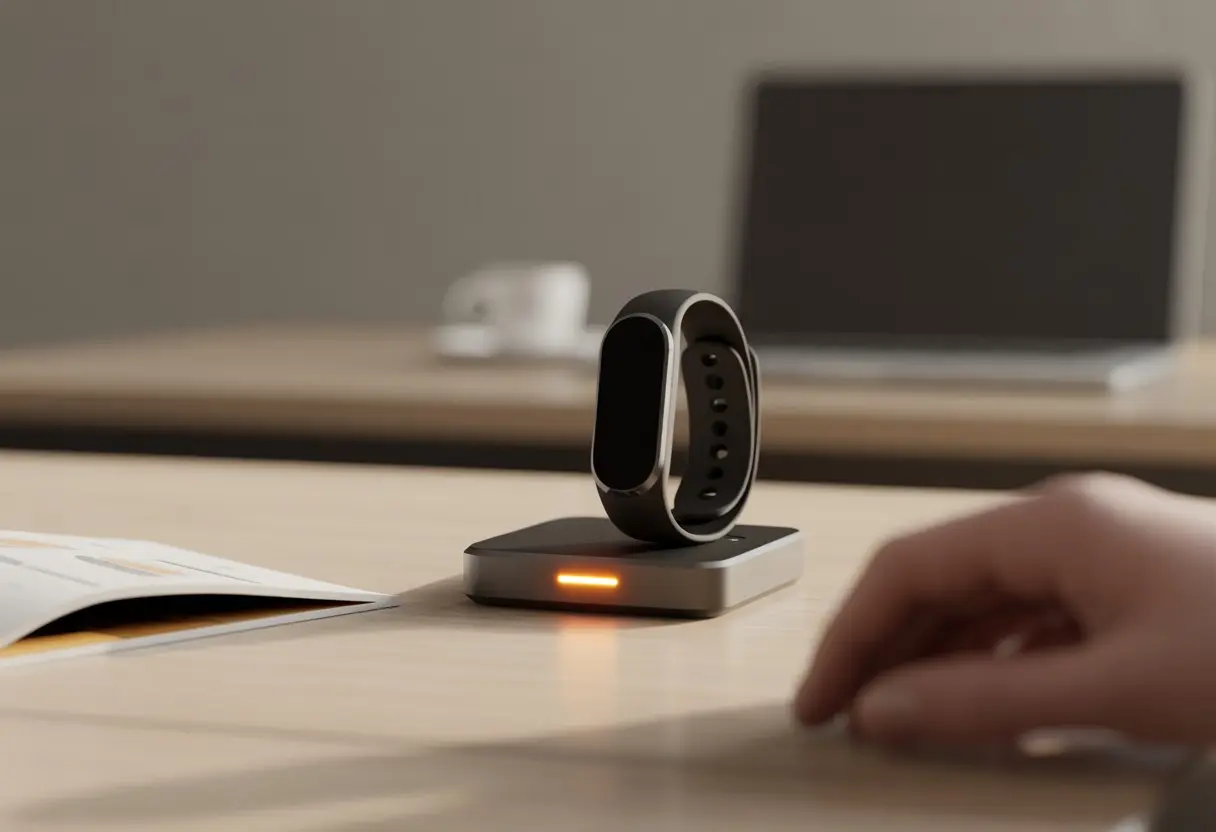
The last thing we want is for our tracker to freeze right when we’re finally feeling motivated. Sometimes it needs a reset, a new cable, or a quick trick, like holding down a button or poking a secret spot with a paperclip.
Thankfully, most stubborn fitness trackers can be revived if we know what to try. We’ll dig into why these gadgets go silent and share fixes that usually get them buzzing with data again.
After all, missing out on those steps because of a technical glitch just doesn’t seem fair.
Common Reasons Your Fitness Tracker Isn’t Responding After Charging
Sometimes our fitness tracker just takes a nap and forgets to wake up. When that happens, we need to play detective and check a few usual suspects.
Below, you’ll find the main reasons a tracker stubbornly ignores us after a charge.
Battery and Power Issues
If our tracker refuses to budge after charging, the battery might be emptier than our motivation on a rainy Monday. Even after sitting on the charging cable for hours, some trackers just won’t switch on if the battery is completely drained or past its usable life.
Let’s make sure the tracker is actually making good contact with the charger. Debris or misalignment can lead to a situation where the device only pretends to charge.
Sometimes, if the battery is really low, we need to leave it connected for 30-60 minutes before it even hints at life. Using an old or incompatible charger just makes things worse. More details on battery problems are in this Google Help article.
Signs of battery trouble:
- No response after charging.
- Faint or flickering screen.
- Charger feels unusually warm.
Damaged Charging Cable or Port
We’ve all tossed our charging cable into a drawer, then found it later looking a bit worse for wear. If the cable is frayed, bent, or just looks like it’s had a rough week, it might not be giving our tracker what it needs.
Check both ends of the charging cable for broken pins, corrosion, or dust bunnies. If our tracker’s port is loose or dirty, making a clean connection becomes impossible.
Wiggling the cable while it’s plugged in isn’t a fun dance—it’s usually a desperate attempt to charge. Trying another genuine charger or port often tells us if the real villain is the cable.
A faulty charging setup is one of the most common reasons a tracker stays silent, as mentioned on this Fitbit Community thread.
Firmware Glitches
Fitness trackers can have off days too. If the device has crashed or the software is confused, we might need to perform a restart or even a hard reset.
This is the fitness tech version of “Did you try turning it off and on again?” Sometimes the tracker seems dead, but it’s actually just frozen.
Plug it in and try restarting it following the manufacturer’s steps. Firmware bugs can sneak in during an update, or if we unplugged it too soon.
A stuck tracker is annoying, but step-by-step restart instructions usually bring it back to life. If our device ignores us after charging, these little glitches are honestly more common than we’d like.
How to Troubleshoot Your Unresponsive Fitness Tracker
When our fitness tracker refuses to wake up after charging, it’s easy to panic. But don’t worry—there are simple things we can try before launching it across the living room.
Step-By-Step Troubleshooting Checklist
First, let’s give our tracker some tough love (and by that, we mean gentle attention). Make sure it’s charged long enough—sometimes it needs a moment, just like us before coffee.
Try these steps:
- Check the charger: Make sure the charging pins touch the charge port. If they’re covered with gunk, a soft cloth should help.
- Restart the tracker: Hold down the main button for about eight seconds. If it buzzes or gives that happy smile face, we’re in business!
- Re-seat the tracker: Take it off the charger, put it back on, and see if the screen responds.
Just a little patience can go a long way, even with gadgets. If nothing happens, consider checking for updates through the app.
Sometimes a simple restart can solve the problem. Restarting a Fitbit is often all it takes to fix an unresponsive device.
Testing with a Different Charging Cable
If our tracker still plays dead, let’s look at the usual suspect: the charging cable. Maybe it’s lived its life and needs to retire.
Find another compatible charging cable—maybe borrow one from a friend who also loves counting steps. Plug the tracker in and see if it shows any signs of life.
A working cable should lock in with the tracker, and most models show a small battery icon or vibration if they’re happy. If the second cable gets things moving, we know our original cable was sneaky and faulty.
If not, maybe the device itself needs attention. For more detailed steps on using and testing cables, see the Google Help guide for Fitbit.
Syncing and Connection Problems That Can Make Trackers Look Dead
Sometimes our fitness trackers play possum, freezing after a charge and refusing to budge. It’s easy to blame the battery, but invisible goblins like Bluetooth or location settings might actually be the real troublemakers.
Bluetooth Connection Issues
Bluetooth is the matchmaker for our phones and trackers, but it’s also notorious for sudden breakups. If syncing fails, our tracker might play dead, showing nothing new or just giving us the silent treatment.
Here’s our usual drama:
- Bluetooth might be off (hey, we all forget sometimes).
- The tracker isn’t paired, or it was un-paired by accident.
- Interference from other devices makes Bluetooth act like it’s whispering secrets no one can hear.
To fix this, we can try these moves:
- Turn Bluetooth off and on again—the classic.
- Completely shut down and restart both the phone and the tracker.
- Try re-pairing the tracker if it’s invisible on the app.
If all else fails, check for any updates. As a last resort, consult the Fitbit syncing help page for more heroic rescue tricks.
Location Services Mayhem
Who knew that location services, the thing that tracks our coffee stops, could also stop our tracker from syncing? Some fitness tracker apps need location services on to connect and send data.
If our tracker won’t sync, we should check if our phone’s location services are enabled. This setting is often hidden in “Settings > Location” or sometimes buried under app permissions for the fitness app itself.
Without it, our tracker might refuse to talk, and the app just sits there, waiting.
Quick Fix Table:
| Problem | Solution |
|---|---|
| Location off | Turn on phone location services |
| App missing permissions | Grant location access to the app |
| Persistent syncing issues | Restart phone and tracker |
Sometimes poking around app settings is all it takes to bring our tracker back from the “dead.” A well-timed toggle can be a lifesaver.
When Notifications Go Silent: Is Your Tracker Misbehaving?
Sometimes our fitness tracker decides to take a vow of silence, and we miss texts, calls, or reminders. Usually, the problem falls into one of two camps—settings suddenly changing, or an app refusing to play nice.
Notification Settings Reset
We’ve all been there—one minute our wrists are buzzing like angry bees, the next, not a peep. Notification issues often start with our own settings getting reset, either after an update or just because the universe is feeling mischievous.
First, we need to make sure notifications are actually turned on. If “Do Not Disturb” or Sleep Mode is active, our tracker will keep quiet no matter what.
It sounds simple, but it trips us up pretty often. A quick way to fix this is to double-check both our phone and tracker notification settings.
Some folks have found it helps to turn notifications off, sync the device, then turn notifications back on and sync again. It’s a bit like telling our tracker to take a deep breath and try again.
For more details, see this advice about fixing notification settings and alerts not showing.
Let’s also remember privacy settings. If our phone’s privacy or permissions have changed, our tracker might not get the info it needs.
Checking app permissions for notifications can save us from a lot of missed reminders.
App Glitches That Mute Alerts
Even with the right settings, sometimes apps just don’t behave. Syncing problems, outdated apps, or a stubborn Bluetooth connection can all lead to silent notifications—usually right when we want them most.
Restarting our tracker or phone can force the app to wake up and start working again. We should also make sure the Fitbit app (or whatever app we use) is up-to-date.
The latest version usually means fewer bugs and happier notifications. If things are still silent, a fresh install of the app might be needed.
Remove the app from our phone, reinstall it, and set up the device again. This can fix random glitches and make everything feel new.
More info about app troubleshooting steps can help us get back to being properly bugged by our tracker.
Quick checklist for fixing glitches:
| Step | What To Do |
|---|---|
| Restart devices | Both tracker and phone |
| Check for updates | App and phone software |
| Reinstall app | Delete, then reinstall |
| Bluetooth check | Ensure stable connection |
It sounds like a lot, but a bit of digital nagging usually gets our tracker talking again. Nobody wants to miss anything important—or embarrassing.
Device-Specific Woes: From fitbit to Fitbit Versa
Sometimes, our fitness trackers just do not want to cooperate—especially after we charge them up and expect them to leap back to life. Different models have their own set of quirks, and some are just a tad bit more dramatic than others.
Common Issues With Fitbit Models
Fitbits definitely have their quirks. Sometimes they just won’t wake up, no matter how much battery you’ve given them.
Some of the usual troublemakers include:
- Batteries that refuse to hold a charge
- Frozen screens
- Software updates that go sideways
- Bluetooth connections that vanish and reappear
- Touchscreens that suddenly become useless
Dust in the charging port, a loose cable, or a dead battery often cause these headaches. I’ve found that a quick restart actually fixes a lot of these weird moods.
If that doesn’t work, you might want to try these fixes before spiraling into full drama mode.
Trouble-Shooting the Fitbit Versa
Dealing with a Fitbit Versa can feel like arguing with a moody cat. You’ve got options, though.
The Versa tends to freeze when updates go wrong or the battery isn’t lined up right with the charger. Sometimes, it just wants a fresh start.
Try these steps:
- Check Charger Placement: Make sure the Versa sits snugly in its charger.
- Restart the Versa: Hold down the buttons for about 10 seconds.
- Inspect for Gunk: Clean the back of the watch and the charger.
- App Reinstall: Delete and reinstall the Fitbit app for a quick reset.
If you’re still out of luck, you might face a hardware or firmware problem. A forced reset sometimes snaps the Versa out of it.
If it’s still stubborn, maybe it needs a nap—or maybe it’s time to think about a warranty claim.
The Factory Reset Gambit: One Last Hail Mary
Sometimes, fitness trackers just won’t cooperate, no matter how long you charge them. If you’ve tried every simple trick and the device still ignores you, a factory reset might be your last shot.
How to Safely Factory Reset
Before you go nuclear, make sure you do it right. Most trackers want you to press and hold the main button (or a combo) until you see a reset menu pop up.
Some models ask you to press and hold Power or Home until a menu appears for “Recovery mode” or “Factory reset.”
Grab your user manual or check the help website—every brand does this button dance a little differently.
If your tracker isn’t responding to the usual reset steps, check the manufacturer’s support page. Fitbit, for example, has model-specific factory reset steps.
If you’re not sure, don’t mash buttons randomly—unless you’re into weird surprises and cryptic error messages.
What to Do Before Hitting Reset
Before you go big with the reset, you’ll want to prepare. A factory reset wipes everything—steps, logs, sleep data, and that one epic workout from last spring.
Sync your tracker with its app if it’s still working at all. That way, you won’t lose your history.
Here’s a quick checklist:
- Sync with the app (if possible)
- Unpair the device from your phone or account
- Check your login info and backups
- Jot down your favorite custom settings
If syncing isn’t possible or the tracker is totally frozen, don’t stress—you can still reset and hope for the best. Just remember, there’s no “undo” button, no matter how much you want one.
When All Else Fails: Time to Call in the Cavalry
Sometimes, you do everything right—charge it, reset it, even whisper encouragement—and your tracker still just sits there. At that point, it’s time to call in some backup.
Getting Help from Customer Support
Nobody loves calling customer support, but sometimes the experts really save the day. When your tracker won’t budge, the support team usually knows every trick.
Make things easier for yourself:
- Keep the device, charging cable, and purchase info handy.
- List what you’ve already tried (so you don’t repeat steps).
- Be ready to describe exactly what’s happening—even the weird details.
Some companies offer live chat, email, or phone support. Waiting on hold isn’t fun, but at least you’re not alone in the fight.
Support might walk you through a special reset, help with a warranty claim, or even send a replacement if your tracker’s truly toast.
Want to see how others have handled unresponsive trackers? Forums like this Charge 5 not responding discussion prove you’re not the only one—and you might pick up a tip to mention when you call.
Seeking Advice on justanswer
Ever feel like customer support is just a maze with no way out? When that happens, I usually turn to justanswer and ask the professionals there.
This site lets us connect with tech experts who can answer our questions, often in just a few minutes. There’s a fee, but sometimes it’s worth it for quick help.
I’ve found a few things that help on justanswer:
- Upload photos or videos showing the problem.
- Spell out everything you’ve already tried.
Don’t be shy about asking follow-up questions. After all, we’re paying, so why not squeeze every bit of value out of it?
The best part? We actually get to talk to real people, not just scripted bots. Sometimes the advice is surprisingly creative, or they’ll suggest fixes you’d never think of.
If your tracker’s being stubborn and just won’t turn on, at least you’ll have an expert ready to jump in.

From a young age, I have always had a big interest in technology, and this blog is an extension of that interest. Through this blog, I hope to provide others with all of the information they need regarding tech options to consider, and things such as compatibility. Some of the different items I will be discussing include headphones, smartwatches, and how to fix common issues.
- Fitbit Charge 2: Specifications, Features & Price - October 29, 2026
- Samsung Galaxy Watch 42mm Versus 46mm Compared - October 28, 2026
- Best Solar Powered Dive Watches - October 28, 2026
Related Posts: