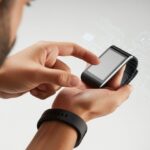
We’ve all been there. You update your fitness tracker, excited to see what’s new, and suddenly, it just refuses to work. The step counter freezes, the screen won’t swipe, and honestly, it’s like your activity rings are mocking you. Usually, a fitness tracker stops responding after an update because of software bugs, connection hiccups, or settings that get flipped during the update.

When your device turns into a fancy wristband with zero functionality, it’s more maddening than a missed step goal. Sometimes you just have to reconnect Bluetooth, but other times, it’s like solving a riddle. We want our steps, not a new headache!
If you’re trying to figure out what went sideways and how to bring your tracker back to life, you’re in the right place. Let’s dig into why these little gadgets get so moody after an update—and what we can actually do about it.
Understanding Why Your Fitness Tracker Stops Responding After an Update
When fitness trackers go silent after an update, it almost feels like we’ve lost our tiny, digital coach. Sometimes we get stuck on weird screens, the app won’t load, or we keep pressing buttons just to see if it’s dead or just taking a nap.
Common Symptoms Like Black Screen or White Screen
You know things are bad when you’re staring at a black screen or a blinding white one. If your tracker just shows a blank screen, it probably isn’t turning on at all. That white screen? Usually, it means the software starts to boot, then crashes before it can do anything useful.
Other times, we get stuck with a loading symbol, a flashing logo, or even a pixelated mess. We’ve all tried the “charge it forever and hope” strategy, but let’s be honest, that’s just the tech world’s version of smacking the remote.
Apple Watch users especially have seen this after updates, like when switching faces or opening apps. If you spot these screen issues, it often means the update didn’t go as planned, or the system got confused.
How Updates Can Cause Fitness App Not Working Issues
Updates are supposed to make things better, right? But sometimes they actually break our fitness apps. Activity rings freeze, steps vanish, workouts don’t show up—none of it is good.
Maybe you forgot to turn fitness tracking back on after the update, or maybe the update turned it off for you. Your Apple Watch or other tracker might stop syncing with your phone and ignore your workouts until you convince it otherwise. Sometimes, the device just needs a reboot or a connection reset. When nothing else works, guides like this for the Fitness App not working can be a lifesaver.
Difference Between System Errors and Firmware Issues
System errors and firmware issues sound similar, but they’re really not. A system error could be a frozen app, a crash, or a syncing problem. Usually, you can fix these by restarting your watch or toggling Bluetooth.
Firmware issues are trickier. If the firmware—the core software running the device—gets corrupted, your tracker might just sit there like a rock. You’ll see a blank screen, a stuck logo, or maybe it won’t get past the loading screen at all.
If just one app messes up, it’s probably a system glitch. But if the whole tracker won’t turn on or move past the logo, you probably need to repair the firmware. That can mean connecting to a computer and reinstalling everything. Either way, it’d be nice if these things just stuck to counting steps and not turning us into tech support.
Immediate Troubleshooting Steps to Revive Your Fitness Tracker
When your fitness tracker goes on strike right after an update, it’s tempting to toss it out the window. But before you do, try a few quick fixes. Sometimes a restart, a reconnect, or an app tweak can get things back on track in no time.
Restarting Your Device Without Breaking a Sweat
Honestly, sometimes you just need to restart everything. We’ve all heard “turn it off and on again,” and for good reason—it actually works. When your tracker or phone gets stuck, give them a reboot.
To restart your iPhone:
- Hold the Side button and either volume button.
- Slide to power off.
- Wait a second, then turn it back on.
Don’t skip the tracker or Apple Watch. Hold the side button, swipe to power off, wait a moment, and then press the button again to turn it on. Sometimes you need to restart both devices for things to click. This resets their connection and can clear up bugs from the update. If that doesn’t do it, hang in there—there’s more you can try.
Unpairing and Re-Pairing Your Fitness Tracker
If restarting doesn’t help, it’s time for a little tough love. Unpair your Apple Watch or tracker from your phone, then pair it again. This “break up and make up” move works more often than you’d think.
To unpair your Apple Watch:
- Open the Watch app on your iPhone.
- Tap ‘All Watches’ at the top.
- Tap the info button (i) next to your watch.
- Tap ‘Unpair Apple Watch.’
Your iPhone will create a backup as you unpair, so you won’t lose your data. Pair it again by following the prompts, just like when it was new. This resets the connection and often clears up weird syncing issues after updates. It’s like a quick couples therapy for your gadgets.
Reinstalling or Fixing the Fitness App
If your tracker and phone are talking again but the app still acts up, it’s time for an app reset. Sometimes, after an update, the fitness app or Apple Health just forgets how to track anything. You can fix this pretty easily.
Delete the fitness app:
- Press and hold its icon.
- Tap ‘Remove App’ or ‘Delete.’
- Go to the App Store and reinstall it.
When you launch the new app, double-check its permissions for health data. Sometimes you’ll need to go to Settings > Privacy > Motion & Fitness and turn everything on. If you want more details, here’s a step-by-step guide to reviving a stubborn fitness app.
If all else fails and your tracker still won’t play nice, at least you’ve shown some solid troubleshooting skills.
Solving Fitness App and Data Sync Issues
There’s nothing more annoying than finishing a workout only to realize your tracker didn’t log a thing. Sometimes it’s a setting, a data glitch, or maybe a privacy option you forgot about. Before blaming the universe, let’s see what you can fix yourself.
Enabling Fitness Tracking & Location Services
If your step count looks suspiciously low (like, “Did I even walk at all?”), check if fitness tracking is on.
On iPhone, go to Settings > Privacy & Security > Motion & Fitness and turn on “Fitness Tracking” and “Health.” Updates sometimes turn these off, almost like your phone wants you to take a break.
Don’t skip location services. Fitness apps use location for walking, running, and cycling. Head to Settings > Privacy & Security > Location Services and make sure it’s enabled for the Fitness and Health apps.
If you’re still getting credit for zero steps, double-check that your Apple Watch is paired and connected (if you use one). For more help, check out this Fitness app troubleshooting guide.
Resetting Fitness Calibration Data Like a Pro
Sometimes your devices just need a fresh start, especially if they think your power walk is a crawl.
To reset calibration data, open the Watch app > Privacy > Reset Fitness Calibration Data. This only wipes how your phone or watch measures your steps and speed, not your activity rings or health data.
After resetting, take a 20-minute walk outside with your watch and phone together to retrain the sensors. Try to walk on a flat area and keep a steady pace.
You should see better tracking after calibration. If things are still off, try a full restart—sometimes that’s all it takes.
Privacy Settings That Could Spoil the Party
Privacy settings can quietly ruin your tracking without you noticing.
Go to Settings > Privacy & Security > Health and let the Fitness app access your health data. If the toggle is off, flip it on and see if your steps and calories finally show up.
If you use an Apple Watch, the Watch app has privacy settings for Motion & Fitness too. Both iPhone and Watch need to be in sync, or it just won’t work. If it’s still not happening, check out extra troubleshooting tips, especially if an update changed your settings.
Ensuring Health Data and Activity Rings Are Showing Up
Closing those activity rings feels pretty great—unless they’re stuck or missing. If that’s the case, make sure your data is set to show.
Open the Health app, tap “Summary,” and scroll to “Favorites.” Make sure “Activity Rings,” “Walking + Running Distance,” and anything else you care about are set to “Show on Dashboard.”
If nothing moves, restart both your phone and watch (if you use one). Sometimes that’s all it takes. If you’re still out of luck, try a full device re-pair with a backup—this can bring your data back without losing progress.
Bugs sometimes hang around after updates, but these steps usually get things back in shape. Now, let’s get those rings moving—no more excuses!
Advanced Fixes for Persistent Glitches
Sometimes, your fitness tracker just acts like it’s on vacation after an update. When “turn it off and on again” doesn’t do the trick, you can try some extra tools or built-in repair options to get things back on track.
Using Third-Party System Recovery Tools Without Becoming a Hacker
When we hear “system recovery tool,” do we immediately think we need to start learning code or hacking? Honestly, that’s not the case. Tools like Tenorshare ReiBoot and TunesKit iOS System Recovery are designed for regular folks, not secret agents. You usually just click a few buttons and wait while the tool sorts itself out.
Here’s what these tools actually do:
- Scan our tracker or phone for system errors.
- Fix software glitches without wiping our data (usually).
- Avoid scary warnings by showing clear options.
Most recovery tools offer both free and paid versions. The free ones might let us diagnose problems but ask for payment to actually fix them. ReiBoot comes up a lot in guides about fitness app issues. It’s not magic, but it can help without wrecking our photos or settings. Always grab these tools straight from their official websites—no one wants a surprise lesson in hacking.
Standard Repair Options and Their Pros and Cons
If we’d rather not install more software, most devices have a Standard Repair or Software Update Repair option built right in.
Here’s a quick look at the usual suspects:
| Option | Pros | Cons |
|---|---|---|
| Factory Reset | Fixes most bugs, like a fresh start | Erases all our data, which can be annoying |
| Restore from Backup | Gets us back lost data after a reset | Backup may not have the latest info |
| Standard System Repair | Easy, keeps most data intact | Doesn’t always fix deep glitches |
These options work well if we trust official solutions and want to skip random downloads. We should back up our data first though. A factory reset can fix just about anything, but it takes our settings and playlists with it.
Standard repairs are usually easy to find in device settings. If problems stick around, maybe it’s time to try a third-party tool—or just admit our device is trying to retire.
iOS-Specific Fitness Tracker Woes
Isn’t it the worst when you wake up after an iOS update and your fitness tracker acts like it’s never met you? Whether it’s iOS 16 or iOS 17, sometimes the combo of new software and fitness apps just falls apart.
Dealing With iOS 16 and iOS 17 Update Surprises
Every time we hit “Install Update,” we’re hoping for miracles—fewer bugs, better battery, maybe a little more pep. But with iOS 16 and iOS 17, our fitness trackers sometimes just stop cooperating.
Updates can flip off fitness tracking settings without warning. After updating, double-check that “Fitness Tracking” and “Health” permissions are still on. Sometimes, our Apple Watch forgets to share data with our iPhone. Re-pairing or restarting both devices can help.
Honestly, some updates fix nothing and just make the app more confusing. In some cases, people have said that their workout data, steps, or calories stopped syncing after an update. It’s enough to make anyone want to toss their tracker in a drawer. There’s a whole Apple Support thread with more details if you want to dig in.
The Joys and Sorrows of the iPhone Fitness App
The iPhone Fitness App can be a real champ when it works. Watching those rings fill up and getting a little “Congrats!” feels great. But sometimes, especially after an update, it just refuses to update anything.
A common culprit? Health app permissions. If the Fitness App can’t access Health data—maybe we turned it off, maybe the update did—it won’t sync. Restarting the iPhone or reinstalling the Fitness App sometimes works, weirdly enough.
When our Apple Watch and iPhone stop syncing, it’s worth checking Settings > Privacy > Health to make sure all the right toggles are on. This little trick can save us a lot of frustration, as suggested on this tips page. If nothing works, we might just have to wait for another update—hopefully one that doesn’t break the app again.
Power, Settings, and Other Quirks That Affect Your Tracker
We count on our fitness trackers to log steps, track calories, and occasionally guilt us into moving. But a few sneaky settings or odd bugs can throw everything off and leave us scratching our heads.
Low Power Mode and Its Sneaky Impact on Tracking
Low Power Mode feels like a lifesaver when you’re desperate to stretch battery life. But honestly, it can mess with fitness tracking in ways you might not expect.
When you turn it on, your device jumps into energy-saving mode. Sometimes, it quietly turns off background activity tracking just to squeeze out a little more juice.
That means your phone or watch might totally skip counting your steps, runs, or even those wild dashes to catch the bus. Some fitness apps just pause when Low Power Mode kicks in, so they won’t record your workout data at all.
You really should double-check if Low Power Mode is on whenever your fitness tracking seems to slack off or ignores your workouts. If your step count looks weirdly low, maybe it’s not you—maybe your device just wants to save power for that next dramatic low battery alert.
Want more details? Check out this guide on why fitness tracking may stop due to Low Power Mode.

From a young age, I have always had a big interest in technology, and this blog is an extension of that interest. Through this blog, I hope to provide others with all of the information they need regarding tech options to consider, and things such as compatibility. Some of the different items I will be discussing include headphones, smartwatches, and how to fix common issues.
- How to Get Text Messages on Fitbit Versa 2 Android: Simple Guide for Users - October 13, 2026
- Why Doesn’t My Fitbit Record My Sleep? Quick Troubleshooting Guide - October 13, 2026
- How to Change Face on Fitbit Versa 2: Quick and Easy Guide - October 12, 2026
Related Posts: