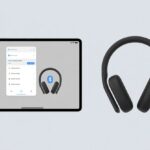
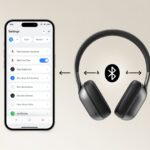
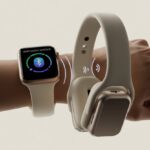
Let’s be real—most of us aren’t fitness pros or tech geniuses. We just want to hear our playlists on a run without wrestling with wires. Pairing Bluetooth headphones with a Garmin watch is actually pretty simple and usually takes just a few minutes. No need to fear buttons or confusing menus.
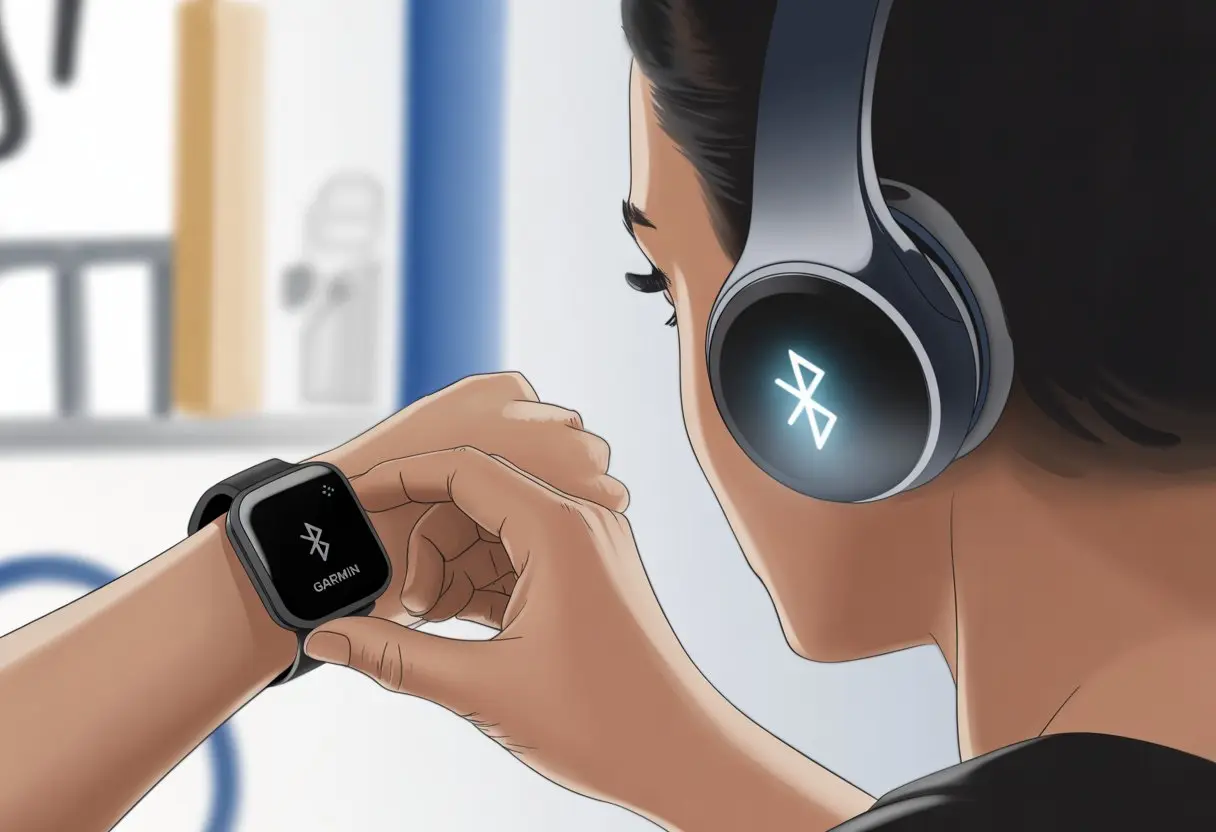
Once we get the hang of it, we unlock a new level of freedom. We can ditch our phones, crank up our playlists, and finally say goodbye to those tangled cords.
Ever wonder how to make your headphones and Garmin play nice together? Let’s break it down so it’s quick, painless, and maybe even a little fun.
We’re diving into a world where we don’t shout at our gadgets—well, at least not for this. If syncing Bluetooth headphones with your Garmin is the goal, here’s how to get started without losing your mind.
Understanding Bluetooth Headphones and Garmin Watches
If you want to listen to music on a run without hauling your phone, you’ll need to connect Bluetooth headphones to your Garmin watch. That means understanding a few basics about how Bluetooth works, how Garmin handles music, and which models are up for the job.
Bluetooth Technology Basics
Bluetooth is basically the invisible string tying our gadgets together. It lets devices like headphones and Garmin watches talk wirelessly up to about 10 meters. That’s roughly the size of a gym class warming up.
Bluetooth headphones use short-range radio waves to send and receive sound. No Wi-Fi or cell data needed, and definitely not your neighbor’s Wi-Fi (sorry, Janet).
Most Garmin watches with music support Bluetooth version 4.0 or newer, which covers almost all modern headphones. If you’re using some ancient or super high-tech headphones with odd features, you might hit a snag.
Try to keep other Bluetooth gadgets out of the area, because too many signals can make things weird. If your headphones are blinking and the watch is searching but nothing’s happening, just move them closer. Usually does the trick.
How Garmin Watches Handle Music and Audio
Garmin watches aren’t just step counters or reminders of how many donuts we’ve eaten. Plenty of models let us store songs right on the watch or stream from Spotify and Deezer. Suddenly, our wrists become tiny jukeboxes.
We can play music from these sources straight to our Bluetooth headphones. The watch has a music menu where we can pause, skip, adjust the volume, and pick our favorite playlist with a few taps.
Once we pair the headphones, the watch remembers them, so we don’t have to repeat the process every time. Want to switch headphones? The watch lets us add new ones without deleting the old unless we’re feeling extra tidy.
Compatible Garmin Watch Models
Not every Garmin watch is ready to blast Taylor Swift during a run. The Forerunner Music series (like the Forerunner 245 Music, 645 Music, and 945), Fenix series, Venu, and Vivoactive Music models support Bluetooth headphones.
Here’s a quick table for reference:
| Garmin Model | Bluetooth Headphone Support | Music Playback |
|---|---|---|
| Forerunner 245 Music | Yes | Local/Streaming |
| Forerunner 945 | Yes | Local/Streaming |
| Fenix 6/7 Series | Yes (select models) | Local/Streaming |
| Venu/Vivoactive Music | Yes | Local/Streaming |
| Forerunner 45 | No | None |
Always check your specific model. If it says “Music” in the name, you’re good. If not, well, you might be singing to yourself.
For more info, check Garmin’s Bluetooth headphone connection guide.
Preparing Your Devices for Pairing
Let’s not end up talking to ourselves instead of our headphones. A smooth pairing experience starts by charging our gadgets, setting them to the right modes, and making sure they’re compatible. A little prep now saves a lot of hassle later.
Enabling Pairing Mode on Your Headphones
Before our headphones and Garmin become besties, we need to coax the headphones into pairing mode. Usually, this means holding down a button—often the power or Bluetooth button—until we spot a blinking light or hear a quirky sound.
Every brand does this a bit differently. Some headphones blink blue, some red, and a few just keep us guessing. If you’re stuck, check the manual—no shame in that. Keep the headphones close to the Garmin, within about 2 meters, to avoid Bluetooth drama.
If you need help, Garmin’s step-by-step guide on connecting Bluetooth headphones is handy.
Charging and Powering On Devices
Dead batteries ruin the party fast. Make sure both headphones and watch are charged before doing anything else. It’s never fun when the only sound is a low battery beep.
Here’s a quick checklist:
- Plug in headphones and watch until fully charged
- Look for power indicators—usually some LED or “on” message
- Power on the headphones, then wake up your watch
If either device seems tired, give it a few more minutes on the charger. Sometimes tech just needs a little nap, right?
Checking Device Compatibility
Now, let’s see if our headphones and Garmin actually speak the same language. Not all Garmin watches support music playback or Bluetooth headphones. If you’ve got a Forerunner model with music features (like the 245 Music or 265), you’re set. If not, you might be out of luck—or stuck with an old MP3 player.
Check the model in your watch’s settings or on Garmin’s website. The manual is more useful than you think.
Most Bluetooth headphones, earbuds, and even some hearing aids will pair with Garmin watches, as long as they aren’t ancient relics. If your headphones only support some weird wireless protocol, pairing might not work. Better to check before you press play and get nothing but silence.
Pairing Bluetooth headphones with your Garmin isn’t rocket science, but it does involve a little button pressing. We’ll press, scroll, and tap our way through the settings, adding headphones and dealing with any random Bluetooth mood swings.
Accessing Bluetooth Settings
First, wake up your Garmin watch and get to the settings. Hold down the Up or Menu button (usually the middle left—because Garmin loves a little button mystery). A long press brings up the Settings menu.
Scroll until you find Music or Connectivity. Here, you’ll see the Bluetooth option. This is where all your paired and unpaired devices hang out.
Make sure your headphones are in pairing mode. If they’re not, Bluetooth won’t find them—like calling someone whose phone is off. For more info, check Garmin’s Bluetooth headphones connection steps.
Initiating the Add New Device Process
Once you’re in the Bluetooth menu, it’s time to add new headphones. Select Headphones and tap Add New. The watch will search for nearby devices—hopefully, your headphones and not your neighbor’s speaker.
If your headphones show up, select them. After a few seconds (and maybe a little suspense), you should see a message confirming the connection.
On some models, you might need to go into the Music section, then tap Headphones, then Add New. The screens may look different, but the steps are pretty similar. Garmin’s official guide has detailed steps if you need them.
Troubleshooting Connection Errors
Pairing doesn’t always go smoothly. Sometimes Bluetooth just isn’t in the mood. If your headphones don’t show up, try these:
- Make sure Bluetooth is switched on for your Garmin.
- Double-check your headphones are awake and in pairing mode (not hiding in their case).
- Move closer—within 2 meters—so the watch and headphones can actually find each other.
If nothing works, restart both the watch and headphones. It’s the classic tech fix for a reason. If you’ve paired these headphones before, try removing them and starting over.
If your Garmin still refuses to cooperate, Garmin’s troubleshooting steps might save the day before you start communicating with your devices through interpretive dance.
The Step-By-Step Pairing Process
Pairing Bluetooth headphones with your Garmin watch is honestly easier than doing your taxes (and way less stressful). Grab your headphones, a Garmin watch that supports music, and maybe a little patience—just in case.
Starting a New Pairing on Your Garmin Watch
First things first—let’s get the watch ready to party. We need our headphones close, within about 2 meters, or else nothing’s going to happen. Make sure those headphones have some charge left.
On most Garmin watches, we press and hold the UP or MENU button (it depends on your model). Then we scroll down to Music and hunt for the Headphones or sometimes Audio Devices option. Look for “Add New” or “Pair New Device.”
Only add new devices if you really need to. If the watch already clings to other headphones, disconnect those first before starting a new pairing. For more details, check out how to start pairing on a Garmin watch.
Connecting Headphones to the Watch
Let’s give our headphones some attention now. We put them in pairing mode—usually by holding a button until a light blinks quickly.
If you don’t see any blinking, grab the headphone’s instructions or just try your best troubleshooting moves. Once the headphones are ready, the Garmin watch begins scanning for Bluetooth devices and shows a list.
Scroll through the list like you’re picking a new playlist. When your headphones appear, select them. The devices should start pairing—no magic, just Bluetooth doing its thing. Need more info? Here’s how to connect Bluetooth headphones to Garmin.
Verifying the Connection
Let’s make sure the watch and headphones are actually friends now. Most headphones will say something like “Connected,” and the Garmin watch might show a checkmark or a “Connected” message.
If you hear music in your headphones or see the status on the watch, you’re all set! Still nothing? Try turning both devices off and back on—the classic move.
Double-check the headphones are still in pairing mode, and make sure no other device is trying to snag the connection. If it’s still not working, repeat the steps above with a bit more patience. You can always look in the watch’s Music section to see if the headphones are listed and confirm the connection.
Using Music on Your Garmin Watch
Honestly, who doesn’t want their own workout soundtrack? Music on your Garmin watch makes every run feel epic, and your sidewalk might as well be a music video. Let’s see how to load up your Forerunner with hits, blast them to your headphones, and control your jams like the fitness DJ you are.
Transferring Music to Your Watch
First, let’s get those tunes onto the watch. If you use streaming services like Spotify or Amazon Music, you’ll need the Connect IQ app and the right music app installed on your Forerunner.
Once you’ve got that set up, you can sync playlists and podcasts over Wi-Fi. Prefer old-school MP3s? Plug the watch into your computer and drag the files over—it’s like making a digital mixtape. The watch shows how much storage you have left, so you’ll know when it’s time to pick your 200 favorite tracks.
Strong Wi-Fi and a fully charged battery make everything easier. Heads up: syncing music with your phone nearby can drain the battery, so try to charge up first.
Selecting Audio Output
Now that your watch is loaded with music, let’s make sure it actually plays through your Bluetooth headphones. Bring the headphones close, put them in pairing mode, and open the watch’s music menu.
Go to Music > Headphones > Add New on the watch (everyone’s fumbled with this at least once). The watch searches for devices, and when your headphones show up, select them.
If you’ve got more than one pair of headphones, the watch asks you to pick. It remembers paired devices, so next time you won’t have to fuss around just to hear your favorite song. For step-by-step help, check Garmin’s official setup guide.
Playing and Controlling Music
Music’s loaded, headphones are connected, and you’re ready to go. Open the music widget on the watch by pressing the dedicated button (sometimes it takes a couple of tries). Browse your playlists, albums, or tracks right on the watch’s screen.
Pick a song or playlist and hit play. You can adjust the volume with the side buttons or on your headphones, depending on what you’re using. Skip, pause, or repeat tracks—just don’t try to fast-forward through the tough parts of your run.
You’ll see song info too, so you always know what’s powering you along. Some headphones let you use their own controls, but not every model behaves the same way. It’s a mix of trial, error, and maybe a little dancing in public.
Advanced Tips and Potential Issues
We’ve all had Bluetooth troubles—sometimes it feels like the watch and headphones are speaking different languages. Let’s run through some common headaches, like interference, starting fresh, and keeping everything updated. A little patience and humor go a long way.
Dealing with Bluetooth Interference
Bluetooth can get distracted by too many nearby devices. If your headphones are cutting out, crowded networks or walls might be the culprit—Bluetooth isn’t exactly a superhero.
Try these quick fixes:
- Move away from Wi-Fi routers, microwaves, and big groups of tech-heavy people.
- Keep thick walls out of the way between your watch and headphones (unless you’re training to be a spy).
Turn off Bluetooth on other devices you’re not using, so your watch and headphones aren’t fighting for attention. If you still get drops or crackling, reboot both devices. Honestly, electronics need their naps too.
Unpairing and Re-Pairing Devices
If your headphones aren’t cooperating, sometimes you just have to “break up” and start over. Unpairing and re-pairing can fix a lot of issues.
Here’s how:
- Open your watch’s settings and tap Music.
- Go to Headphones, then pick Forget Device or Remove.
- Put the headphones back in pairing mode (hold that button—don’t let go too soon).
- Pair them again from the watch.
If you’re still stuck, Garmin’s troubleshooting guide has your back. Most Bluetooth headphones will work, but sometimes skip or pause features act up—Bluetooth can be moody.
Software Updates for Optimal Performance
Garmin drops updates now and then to squash bugs or add new features. If things feel off, updating can help.
Connect your watch to Garmin Express or use the Garmin Connect app. Look for firmware or system updates. After that, restart both the watch and headphones.
Update your headphones too if there’s an app for it. Keeping both up to date helps avoid weird compatibility issues and makes pairing smoother next time. If nothing else works, try resetting everything and start fresh—sometimes that’s all it takes.
Pairing Headphones with Other Devices
Bluetooth headphones aren’t just for your Garmin. You can use them with computers and all sorts of other gadgets. Switching between devices can feel tricky, but you’ve got this.
Pairing with Computers
Pairing with a computer should be easy, but sometimes computers just aren’t in the mood. Make sure the headphones are in pairing mode—usually hold the power or pairing button until you see a blinking light.
On Windows, open Settings > Devices > Bluetooth & other devices and click “Add Bluetooth device.” For Macs, click the Apple logo, go to System Preferences > Bluetooth, and turn Bluetooth on. Once the headphones show up, select them.
If you don’t hear anything, check the output settings or just try re-pairing. And yes, restarting the computer sometimes actually works. Go figure.
Pairing with Printers and Other Gadgets
This gets a little weird. Printers with Bluetooth are rare, and honestly, pairing headphones with a printer isn’t exactly useful—unless you want your printer to jam out. For smart TVs, tablets, or game consoles, Bluetooth headphones let you listen privately.
Most smart TVs have a menu like Settings > Sound > Bluetooth Audio for pairing. Tablets and consoles are similar: open Bluetooth settings, put your headphones in pairing mode, and connect. Some older gadgets might ask for a passcode—try 0000 or 1234. If you’re stuck, search for your device model and “Bluetooth pairing” online.
Switching Headphones Between Multiple Devices
Alright, here’s where Bluetooth gets a little tricky. Most headphones only pair with one or two devices at a time, so swapping between gadgets usually means an extra step.
If I want to move my headphones from the Garmin to my laptop, I have to disconnect—or even “forget”—the old device first. That’s just how it goes.
Some headphones let me hold down a button to jump back into pairing mode. Others? They’re a bit stubborn and make me reset the connection through an app or some weird button combo.
Honestly, if you’re always pairing new devices, it helps to keep a list of your most-used Bluetooth gadgets. Otherwise, it’s easy to lose track of who’s next in line.
If your headphones support “multi-point” pairing, things get way smoother. You can connect to your phone and computer at the same time, which just feels like magic. If not, you’ll probably find yourself poking around Bluetooth menus more often than you’d like.

From a young age, I have always had a big interest in technology, and this blog is an extension of that interest. Through this blog, I hope to provide others with all of the information they need regarding tech options to consider, and things such as compatibility. Some of the different items I will be discussing include headphones, smartwatches, and how to fix common issues.
- How to Get Text Messages on Fitbit Versa 2 Android: Simple Guide for Users - October 13, 2026
- Why Doesn’t My Fitbit Record My Sleep? Quick Troubleshooting Guide - October 13, 2026
- How to Change Face on Fitbit Versa 2: Quick and Easy Guide - October 12, 2026
Related Posts: