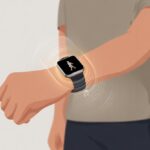
Let’s be real—nobody likes that awkward scramble at airport security, digging through bags or pockets for a crumpled boarding pass. Using our smartwatch as a boarding pass means fewer panicked moments and way more cool confidence at the gate.
With today’s tech, keeping your boarding pass on your wrist is so easy, and honestly, it kind of feels like you’re living in the future.
Whether you’re loyal to iPhone or Android, smartwatches like Apple Watch and Wear OS models let us store our boarding passes with just a few taps. We can stroll through check-in with a flick of the wrist, making travel smoother and maybe even impressing a few people along the way.
Having the boarding pass on your smartwatch means no more wrinkled paper or frantic phone unlocking. Next time we head to the airport, we can skip the stress and focus on the important stuff—like snagging snacks before boarding.
Setting Up Your Smartwatch for Boarding Passes
Before we start waving our wrists at airport gates like we’re in a sci-fi movie, our smartwatch needs a little prep. We have to get the right apps, make sure our watch and phone are on speaking terms, and set up alerts.
Installing Relevant Apps
First up: don’t wait until you’re at the airport to realize you forgot an app. Most airlines send boarding passes through their own apps, but for smartwatch magic, we’ll want something like Google Wallet on the phone, and usually on the watch too.
Flipping through emails on a tiny screen? No thanks.
Here’s a quick checklist:
Download Google Wallet from the Play Store if you’re using Wear OS.
If you’ve got an Apple Watch, the Wallet app is already there.
Some airline apps let us add the pass to the Wallet directly.
Keep your smartwatch software up to date—old software is about as useful as a paper airplane.
Once you’ve got these covered, you’re ready for the next step. The boarding pass is ready for its big moment, right from your wrist.
Syncing Your Smartphone
Apps are good to go, but now the watch needs to play nice with the phone. Make sure both are connected, or you’ll just be showing off a blank screen.
Turn on Bluetooth for both devices.
Open Google Wallet on your phone, add the boarding pass, and it should show up on your watch.
If it doesn’t, try restarting both devices—sometimes they just need a little reset.
Most Wear OS watches pull new passes once you add them to the phone’s Wallet. Apple Watch users just add the pass on iPhone, and it pops up on the watch automatically.
If syncing fails, check that both devices are on the same Wi-Fi network (and no, airport Wi-Fi doesn’t count if only one device connects).
Enabling Notifications
If notifications aren’t on, you might miss your boarding call. Trust us, missing the “final call” buzz is not a fun story to tell later.
To enable notifications:
On your phone, go to settings and find app notifications.
Allow notifications for Wallet and your airline app.
On the smartwatch, check notification settings so you actually get those buzzes.
For Android folks, our Google Wallet passes will pop up when we get close to the airport—so you can flex your tech skills with barely any effort.
Pro tip: Put the boarding pass on your watch face for super quick access. It’s kind of like saying, “Yep, I live in the future.” And hey, it’s actually useful.
Adding Boarding Passes to Your Smartwatch
https://www.youtube.com/watch?v=4Ke2-mkTYpI
Getting the boarding pass onto your smartwatch means you can skip all that paper shuffling at the airport. There are a few ways to do this, and some work better than others.
It’s not magic, but it feels pretty close when it works.
Using Google Wallet
Google Wallet really steals the show here. Start by checking in for your flight with the airline’s app on your phone. Usually, after check-in, you’ll spot a button to “Add to Google Wallet.” Tap it and, just like that, your boarding pass lands in Google Wallet.
Your smartwatch should sync up and show the boarding pass in the Wallet app. Most major airlines work with this, especially those that play nice with Google.
When it’s time to board, open Google Wallet on your watch and flash that QR code at the gate. This method is now widely supported and super convenient for Wear OS users.
Some airlines want to do things their own way. A few offer smartwatch apps that let us access boarding passes without Google Wallet.
Just download the airline’s app on your phone, sign in, and look for an option to sync or send the pass to your watch.
Not every airline app supports smartwatches, so it’s a bit hit or miss. If they do, it’s usually simple: check in, save the pass to the app, then pick the wearable option.
You’ll get a scannable QR code or barcode on your wrist—perfect for making people in line a little jealous. Check if your favorite airline supports this so you’re not left awkwardly scrolling at the gate.
Importing from Email or SMS
If your airline keeps things old school and sends your boarding pass by email or text, there’s still hope. Many airlines send passes as PDFs or links after check-in.
While Google Wallet or an official app is easier, sometimes you can save an image or screenshot of the pass and upload it to a notes or image app on your phone that syncs to your smartwatch.
If your smartwatch supports images, you can pull up the QR code even without official integration. It’s not as clean as the other methods, but sometimes you have to get creative. Just be aware, not every scanner loves a screenshot, so have a backup handy in case you need to use your phone—or, ugh, paper.
Accessing and Presenting Boarding Passes at the Airport
Let’s be honest: nobody wants to dig through bags for a paper ticket while juggling luggage and a coffee. Our smartwatches keep boarding passes right on our wrist, making airport lines a bit more bearable.
Locating Passes on Your Watch
First, let’s find our boarding pass on the smartwatch. After checking in with the airline’s app, add the pass to Apple Wallet or Google Wallet.
If you did this right, just open the Wallet app on your watch.
Here’s a quick cheat sheet for that gate panic:
Open the Wallet or Passes app (the icon probably looks nothing like a wallet).
Scroll through your digital passes—you might see old coffee coupons or gym check-ins, try not to get sidetracked.
Tap your airline boarding pass. It should pop up with your flight details, gate, and a barcode or QR code.
Some smartwatches even let you shake your wrist to show the barcode, if you’re into adding a little flair at security. More info is in this handy guide on Google Wallet for your smartwatch.
Scanning at Security
When you hit security, it’s showtime for your wrist. Line up, crank up the screen brightness (nobody wants to squint at a dim barcode), and hold your smartwatch with the pass displayed.
Place the watch face-down over the barcode reader. If the scanner beeps or flashes, you’re basically royalty for a second. If nothing happens, try holding your wrist steady, tweak the screen angle, or just ask TSA for help—they’ve seen it all.
Staff are used to smartwatches now, but sometimes they’ll ask you to use your phone if the scan fails. Some watches even send boarding group reminders or vibration alerts, so you can skip more travel guesswork.
With a quick tap, scan, and a dash of tech confidence, you can breeze through the line and strut to your gate, digital wristband leading the way.
Troubleshooting Common Issues
Even the smartest smartwatch can test your patience at the airport. Instead of panicking, let’s tackle pass syncing problems and those infuriating app crashes that always seem to happen right before boarding.
Pass Not Syncing
Nothing says stress like reaching for your smartwatch and finding the boarding pass missing. First, double-check that both your phone and watch are connected to the internet or mobile data.
It sounds basic, but it’s often the fastest fix. If you still don’t see the pass, try restarting both devices.
Next, make sure the pass is actually in your phone’s wallet and synced. Sometimes the watch won’t refresh passes when offline.
Here’s a quick checklist:
Is Bluetooth on for both devices?
Have you enabled cloud or iCloud sync for your wallet app? Sometimes it turns off and leaves the pass stuck on your phone.
Did your pass expire, or maybe you added it to the wrong account?
A little double-checking can save you from awkward stalling at the gate.
App Crashes at the Gate
App crashes—nature’s way of keeping air travel interesting. Sometimes smartwatch apps close right as you’re about to scan your boarding pass.
The classic move? You turn your wrist to scan, and the screen locks or goes black right in front of the agent.
To avoid this, set the watch display to stay awake longer, or tap the screen to wake it up before your turn. It’s not fancy, but it helps.
If the app crashes anyway, force-quit and reopen it. Make sure your wallet app and operating system are updated—old software is sneakier than lost luggage.
If nothing works, try re-adding the boarding pass or updating the app. Sometimes uninstalling and reinstalling the app does the trick.
Worst case? Show the pass on your phone, try not to curse your smartwatch, and hope nobody behind you notices.
Keeping Your Boarding Passes Organized
If you’ve got boarding passes and loyalty cards piling up on your smartwatch, it’s easy to feel like a digital packrat. Staying organized makes it way easier to find what you need—before someone in line starts sighing behind you.
Managing Multiple Passes
When our virtual pockets start bursting with boarding passes, chaos sneaks in fast. The good news? Most smartwatches actually sort passes for us.
For example, we can add airline passes or event tickets to Google Wallet on our smartwatch. Then just swipe through them—no frantic scrolling, which is honestly a relief.
Here’s a pro tip: label passes with the flight date or destination if the app lets you. Some apps even let us favorite or highlight important passes for quicker access.
Before we travel, let’s delete or archive old passes. That way, we won’t accidentally try to board a flight from last year.
Nothing says “prepared traveler” like opening the Wallet app and seeing only what we actually need.
Storing Loyalty Cards
Loyalty cards, like frequent flyer memberships or hotel points, always seem to hide at the bottom of our digital wallet. To avoid holding up the line while scrolling past every gym and supermarket card, let’s keep travel-related loyalty cards at the top.
Many wallet apps let us group passes by type—airlines, hotels, or even coffee shops if you’re into that. Here’s a quick list for wrangling those cards:
Pin our preferred airlines or hotels
Clear out expired or unused cards
Make sure barcodes or QR codes are clear and scannable
If nothing else works, let’s be real—handing someone our wrist is at least 20% cooler than fumbling with plastic cards. For more on storing passes, check out Google’s guide for using passes on your smartwatch.
Travel Tips for Using Smartwatches Efficiently
We all want smooth travel days, but a dead watch battery or some tech hiccup in a crowded airport? That’s the worst. Here’s what we can actually do to keep things chill and our boarding passes ready on our wrists.
Battery Optimization for Travel Days
Let’s be honest—our smartwatches always seem to run out of battery at the exact wrong moment. Before we head to the airport, let’s put our watch in airplane mode or turn off features we don’t need, like continuous heart rate or GPS.
Bright screens look cool, but wow, do they drain the battery. Let’s keep brightness lower than the Golden Gate Bridge on a foggy day.
Quick tips:
Close background apps we’re not using
Download our boarding pass ahead of time
Pack a portable charger—seriously, no one’s judging
We should also turn off Wi-Fi and Bluetooth when we’re not actively using them. And if our smartwatch supports it, let’s activate Google Wallet offline access so we always have that boarding pass handy, even if airport Wi-Fi decides to disappear.
Avoiding San Francisco Mishaps
San Francisco airports get busy—sometimes your smartwatch decides to play hide and seek with your boarding pass. To avoid awkwardly holding up the line, open the Wallet app on your smartwatch a few minutes before you reach the checkpoint.
It might help to practice scanning your boarding pass at home. No one wants to stand there twisting their wrist, with a line of people sighing behind them.
If the QR code looks blurry, try bumping up the screen brightness or give the screen a quick wipe. It’s a simple fix, but you’d be surprised how often it helps.
One last tip for Bay Area travelers: don’t trust spotty public Wi-Fi when you’re moving through security. Save or screenshot your boarding pass ahead of time, so you’re not that person looking lost on the way to the gate. (Hey, we’ve all taken Muni the wrong way at least once.)
Hi, my name is Garrett Jones, and I am a tech enthusiast. I enjoy researching the new tech that has been released, and have a vast knowledge of the best tech to purchase.
From a young age, I have always had a big interest in technology, and this blog is an extension of that interest. Through this blog, I hope to provide others with all of the information they need regarding tech options to consider, and things such as compatibility. Some of the different items I will be discussing include headphones, smartwatches, and how to fix common issues.