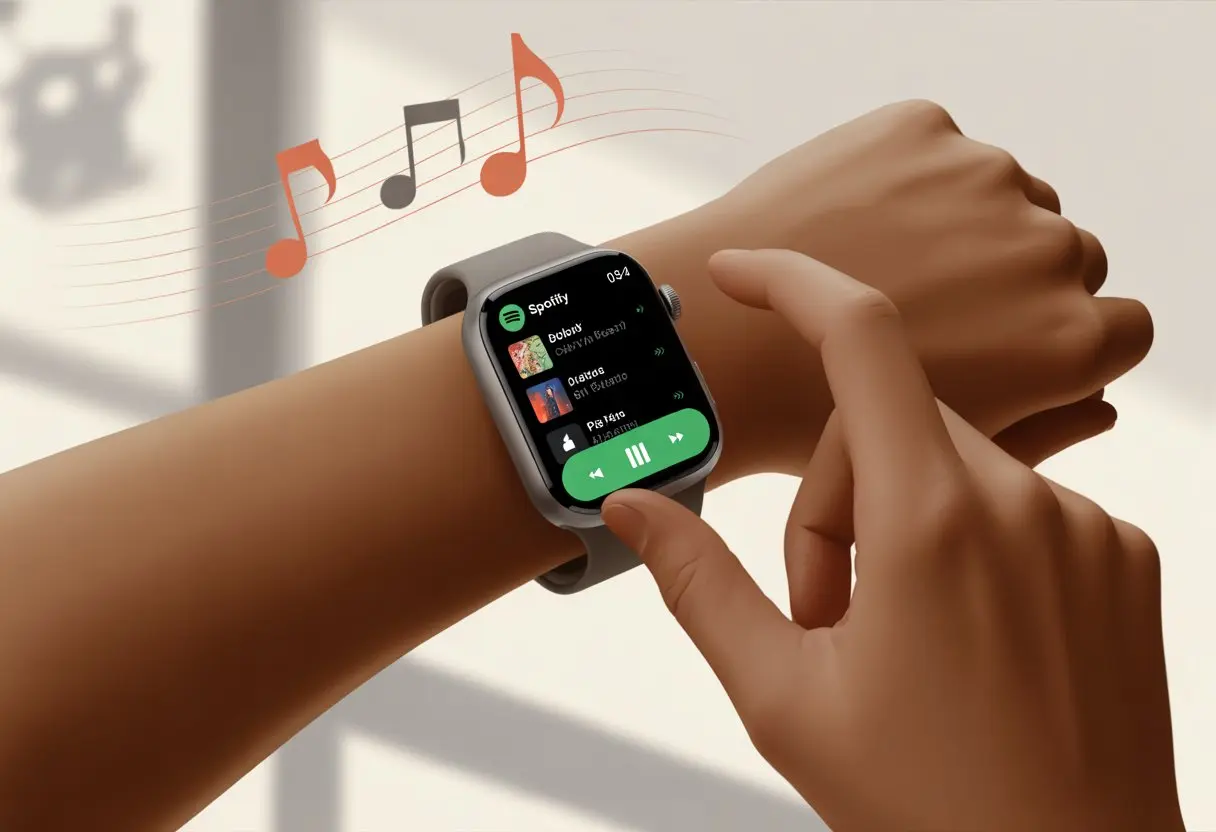
Who would’ve guessed that a tiny screen strapped to our wrist could unlock music anywhere, anytime? We can use a smartwatch with Spotify to play, pause, skip tracks, and even listen offline—all without fishing out our phones. Suddenly, weekends just got easier, whether we’re flipping pancakes, jogging the block, or “working” at the desk.
A few taps, and we’re running playlists right from our wrists. Some smartwatches let us download tracks for offline listening too, which honestly feels like magic.
If syncing tech with tunes sounds like your thing, you’re in the right place.
Let’s see how to get Spotify rolling on our smartwatch without losing our minds or texting a tech-genius friend for help. With a bit of humor and a little patience, we’ll be jamming to our favorite songs in no time.
Getting Your Smartwatch Ready For Spotify
Before we start blasting our favorite songs from our wrists, we need to make sure our smartwatch actually works with Spotify. Let’s get the basics sorted, from device requirements to installing the app and linking up our Spotify account.
Supported Devices and Requirements
Not every smartwatch plays nice with Spotify. Ours needs to support the Spotify app, which usually means it’s running Wear OS 2.0 or later—think Samsung Galaxy Watch 4 or newer Galaxy Watches.
Older watches? Sorry, they’re sitting this one out.
Garmin fans, only certain Garmin models support Spotify via Connect IQ, so double-check your model on Garmin’s website. Apple Watch doesn’t use Wear OS, but it’s got its own Spotify app, so we’re still good.
Here’s a quick cheat sheet:
Smartwatch Brand
Spotify Support
Samsung Galaxy
Wear OS models only
Garmin
Select models via Connect IQ
Fossil, TicWatch, etc.
Wear OS 2.0 or later
Apple Watch
Official Spotify app
And hey, not every streaming service has a watch app, so Spotify fans get a little bragging power.
Installing the Spotify App on Your Smartwatch
Once we’ve confirmed our watch is up for the task, it’s time to grab the app. With Wear OS watches like the Samsung Galaxy Watch 4, we open the Google Play Store right on the watch. Not on the phone, not on the microwave, just the watch.
Search for “Spotify” and tap “Install.” With a decent connection, it’s usually quick—unless our Wi-Fi is having a lazy day.
For Garmin watches, we use the Connect IQ store. Download Spotify from there, then wait for that progress bar that somehow makes seconds feel like hours.
If we need backup, the Galaxy Wearable app on our phone can help manage apps for Samsung Galaxy smartwatches. It’s like having a tiny assistant, minus the attitude.
Connecting Your Spotify Account
App installed? Almost there. Open Spotify on the smartwatch. It’ll ask us to log in, usually by flashing a code and sending us to spotify.com/pair on our phone or computer.
We type in the code—try not to fat-finger it.
If we’re using Wear OS, we might get a pop-up on the phone to confirm. For Garmin, after pairing through Connect IQ, we just follow the prompts on both devices. It’s a bit like a slow-motion game of “Simon Says.”
Once we connect our account, our playlists and controls pop up on the watch. Now we can skip tracks in the shower, at the gym, or while dodging chores.
Setting Up Spotify For The Best Music Experience
Let’s get our smartwatches ready to DJ for us. We want every song and playlist to play smoothly whenever we flick our wrists or tap play during a jog.
Signing In and Authorizing Your Device
First, we sign in to our Spotify account right on the smartwatch. For Wear OS, we hop into the Google Play Store on the watch and grab the Spotify app.
After it installs, we open it and—of course—Spotify asks us to log in.
Here’s where things get a bit clumsy: authorizing the device. We’ll see a pairing code or a link to enter on our phone or computer. We just follow the steps and keep the watch and phone on the same Wi-Fi or Bluetooth.
No wizardry, just a little patience.
When we finish, our playlists, podcasts, and recently played items show up. Our wrists are officially party-ready.
Choosing Between Spotify Free and Premium
Here’s the classic dilemma: free or Premium? If we stick with Spotify Free, we get music and podcasts, but there are ads. We can skip a few songs, but not endlessly. And streaming might require our phone nearby.
If we spring for Premium, we get ad-free listening. With Spotify Premium, some smartwatches let us download music and podcasts right to the watch. That means phone-free runs and less phone-juggling at the gym.
Quick Look:
Feature
Spotify Free
Spotify Premium
Ads
Yes
No
Offline Mode
No
Yes (on some devices)
Skips
Limited
Unlimited
Honestly, Premium usually makes life easier. But if ads don’t bother us, Free still gets the job done.
How To Play And Control Spotify Music On Your Smartwatch
Using a smartwatch with Spotify means we can leave the phone behind and still control our playlists. We get instant access to music playback—especially handy when we’re out for a run or faking a workout.
Music Playback Controls
Quick access is the name of the game. On most smartwatches, the Spotify app puts play, pause, skip, and rewind buttons right on the main screen.
No finger gymnastics required.
Most watches let us adjust volume, shuffle songs, or pick from recently played music. Swiping left or right usually skips tracks.
If we want to browse albums or playlists, we just tap into menus. No rocket science here.
Who needs tiny buttons when our hands are full of groceries (or coffee)? Many smartwatches let us control Spotify with voice commands.
We just raise our wrist and say things like “play my workout playlist“, “pause music“, or “skip song.”
With Google Assistant or Samsung Bixby, things get even faster. No more fumbling for the phone while running.
Just shout out a command, and Spotify does the rest.
Voice commands also help us search for artists or albums. We say what we want, and the watch gets it.
This saves time and keeps our attention on whatever else we’re doing (or pretending to do).
Switching Between Devices With Spotify Connect
Spotify Connect makes life easier. It lets us control Spotify on different devices—phone, smartwatch, tablet, or even that Wi-Fi speaker in the kitchen.
On our smartwatch app, we can quickly pick where the music plays. A simple “devices available” option lets us send music to the watch, Bluetooth headphones, or a speaker.
There’s a certain power in pausing music in another room just for peace and quiet.
Spotify Connect keeps all our devices in sync. We can start a playlist on the phone, switch to the smartwatch, and keep grooving.
Just try not to hijack the living room speaker during family movie night—unless you’re feeling bold.
Listening To Spotify Music Offline On Your Smartwatch
We love taking our music with us, especially when we ditch our phones for a run or workout. With the right steps, we can enjoy Spotify offline and keep our favorite playlists on hand, right on our smartwatch.
Downloading Songs and Playlists
First, we need Spotify Premium—sorry, free users. Offline listening is a members-only perk.
Let’s open the Spotify app on our smartwatch. If we haven’t logged in or synced it with our phone yet, now’s the time.
Here’s our quick starter-list for downloading music:
Find the playlist, album, or podcast we want.
Look for the Download toggle or button in the app.
Tap it, and the smartwatch starts downloading.
This works on many smartwatches, including Wear OS and Garmin. Detailed steps for Spotify on Wear OS are in this Spotify on Wear OS guide, and Spotify on Garmin Smartwatch guide. Once the downloads finish, we’re ready for offline playback—no Wi-Fi or phone needed.
Managing Storage Space
Let’s be real—our smartwatch doesn’t have a secret hard drive hiding in there. We need to pick and choose what stays.
Download only the playlists or albums we actually listen to.
Remove old or rarely played playlists before adding new ones.
Lower audio quality in Spotify settings to save even more space.
We can check storage in the watch’s settings or the Spotify app. By managing storage smartly, we avoid the heartbreak of running out of space with only three tracks left.
Offline Playback for Workouts and Running
Here’s where things get interesting: enjoying Spotify offline during workouts or runs, and leaving the phone at home for once. We just connect our Bluetooth headphones to the smartwatch and hit play on our downloaded music.
We just pick a playlist from the Downloads section in the Spotify app. It really is that easy.
Smartwatches running Wear OS or Garmin love this kind of freedom. Our downloaded playlists keep playing even if there’s no Wi-Fi, cellular, or phone anywhere nearby.
If we ever want to feel like a secret agent (or just enjoy music without a phone), this is the way to do it.
Having our favorite tracks during a jog or workout can make us feel unstoppable—even if, let’s be honest, we’re jogging slowly and stopping for snacks every 10 minutes.
At least the soundtrack is flawless.
Converting And Transferring Spotify Music For Smartwatch Offline Use
Listening to our favorite Spotify hits offline on a smartwatch should be simple—until those streaming limits pop up. Luckily, the right tools let us convert and transfer Spotify tracks for offline play.
Why Convert Spotify Songs?
Not every smartwatch supports Spotify offline playback natively. Sometimes, the built-in app only lets us stream when we’re near Wi-Fi or our phone.
That’s awkward if we want a real phone-free run or if we left the phone in yesterday’s jeans.
To fix this, we download Spotify songs and convert them into local files the smartwatch can actually read. Converting Spotify music lets us move tracks to the watch, keep lossless audio, and get offline access without any weird hiccups.
Having local files means we can transfer and play songs without limits set by the app.
Top Spotify Music Converters
We don’t have to settle for Spotify only streaming music—unless we like making life hard. Several Spotify music converters let us download, convert, and transfer songs pretty easily.
Some popular Spotify music converters:
NoteBurner Spotify Music Converter
ViWizard Spotify Music Converter
AudFun Spotify Music Converter
AudFree Spotify Music Converter
These apps convert Spotify songs to formats like MP3 and FLAC. Most keep lossless quality and preserve ID3 tags, so our song titles, artists, and cover art actually look right.
The converters have user-friendly screens. Usually, we just drag songs over, pick an output format, and click Convert.
Now we’ve got Spotify music as local files, ready to transfer to our smartwatch.
Supported Output Formats and Settings
Different smartwatches can be picky about what music files they’ll play. That’s why we need to check our output formats and settings.
The most common output formats are MP3, AAC, FLAC, WAV, AIFF, ALAC, and M4A:
Format
Supported By
Quality
File Size
MP3
Nearly all
Good
Small
FLAC
Some
Lossless
Large
AAC
Most
High
Medium
WAV
Some
Lossless
Very Large
AIFF
Some
Lossless
Large
ALAC
Few
Lossless
Large
M4A
Some
High
Medium
If we want small files, MP3 is usually the best choice. Audiophiles who crave perfect sound can go with FLAC, WAV, or AIFF, but those take up lots of space.
We can adjust bitrate (kbps), sample rate, and keep ID3 tags so our smartwatch shows the right song info.
With the right output format and settings, our smartwatch plays downloaded Spotify tracks with zero drama—even when we’re off the grid.
Spotify On Popular Smartwatches: Tips and Tricks
Smartwatches from Samsung and Garmin let us do more than just check the time. We become the DJs of our routines.
Whether we’re working out, commuting, or risking wild kitchen dance moves, controlling Spotify from our wrist feels oddly powerful.
Using Spotify With Galaxy Watch Series
Let’s be real: navigating Spotify on our Galaxy Watch is more fun than pretending to check the time. After installing the Spotify app from the Galaxy Store, we log in and get remote controls from our watch.
Volume, skipping tracks, and browsing playlists are all just a flick of the wrist.
Pro tip: We can stream music straight to Bluetooth earphones or even the watch’s built-in speaker (yep, that’s a thing now—no more awkward gym silences).
If we have a Samsung Galaxy Watch 4 or newer, the controls feel even smoother thanks to Wear OS.
Here’s a quick list of handy tips:
Download playlists for offline listening
Easily switch playback between phone and watch
Use the rotating bezel (if our watch has one) to scroll through tracks
Enhancing Your Music Streaming And Playback Experience
Getting the most out of Spotify on our smartwatch means dealing with headphones, watching battery life, and keeping playlists and podcasts organized.
Let’s focus on what actually works so we can vibe out, interruption-free.
Bluetooth and Headphone Pairing
Nothing ruins a workout faster than tangled headphone wires or, worse, no sound at all. For the smoothest setup, we stick to Bluetooth headphones.
Pairing is usually simple: turn on Bluetooth on both the watch and headphones, then make them visible.
Most smartwatches let us pick the output device from the music app.
Some watches let us stream directly to Bluetooth speakers, but it’s always good to check the manual. And yes, if we want to play songs from the watch speaker (please, only if we’re alone), we can usually find that option in the Spotify devices menu.
If the watch battery dies before the beat drops, that’s just tragic. Streaming music over Wi-Fi or cellular drains battery fast.
Whenever possible, we should download our favorite songs or podcasts for offline listening—Spotify Premium makes this a breeze.
Lowering display brightness and turning off always-on display are also good power-saving moves.
If we use other streaming services like Deezer or Amazon Music, the same logic applies. Keeping Bluetooth headphones charged (because, surprise, they need power too) means no awkward silent moments at the gym.
Don’t forget to close apps running in the background to save even more juice.
Managing Playlists and Podcasts
Getting to the right music or podcast without endless scrolling is the goal. We can create, edit, or follow Spotify playlists right in the app.
Most smartwatches let us save tracks to Liked Songs or add them to custom playlists with a tap.
Podcasts are easy, too. We can follow or download episodes for offline listening—great for commutes or pretending to be busy on the train.
To make the most of the watch’s small screen, we should organize playlists and podcasts from our phone or computer ahead of time.
Sometimes, Spotify on our smartwatch doesn’t play as nice as we hope. We want to enjoy offline music, sync playlists, and fix weird app issues without calling tech support.
Syncing and Transferring Music Files
We all wish we could just beam music from our brains to our watches. Sadly, we still have to follow a few steps.
On most smartwatches, we can sync and store Spotify songs directly on the device for offline listening if we have Spotify Premium.
This lets us leave our phones at home and keep those workout playlists ready.
To transfer Spotify songs, we open the app on the watch, go to our playlists, and select the ones we want to download. It’s about as quick as brushing our teeth—if Wi-Fi cooperates.
For Garmin smartwatches, we can store podcasts and playlists too, which is great for long walks or dodging awkward small talk.
Unfortunately, we can’t transfer local music files from a computer to Spotify on the watch. The watch only stores what we sync through Spotify.
We don’t get to mess with output settings either—unless our idea of customizing is just “volume up or down.”
Resolving Common Spotify Issues
When Spotify acts up, restarting the watch is the first move. It sounds too easy, but sometimes our gadgets just need a quick break.
If syncing fails, we should check that both the watch and phone have an internet connection. Open Spotify on both and make sure we’re logged in to the same account.
For music storage issues, clearing up space on the watch or redownloading the playlist can help.
When songs won’t play on the watch, logging out and back in sometimes fixes things. If all else fails, uninstalling and reinstalling the Spotify app is the last resort.
Patience is key—and maybe bribing the watch with an extra battery charge.
Health Tracking And Workouts With Spotify
Mixing health tracking with Spotify makes workouts more fun and maybe a little less sweaty. Our smartwatch lets us check stats and control our favorite tunes at the same time—because who wants to fumble with their phone mid-squat?
Tracking Fitness Stats While Listening
When we hit the treadmill, our smartwatch acts like a personal fitness buddy—minus the yelling. We can monitor steps, distance, heart rate, and calories burned, all while jamming to our top tracks.
Many smartwatches work with Spotify, so just a few taps let us manage music and check health data at once.
It’s easy to switch songs or adjust the volume with a flick of the wrist. Some smartwatch apps, like those on Samsung and Fitbit, let us pause or skip songs right from the watch face.
No more stopping mid-run to fix the playlist—our cardio and our tunes stay on track.
Using Spotify Playlists For Exercise Motivation
Let’s be real—sometimes working out just feels like a slog. Without the right soundtrack, it’s easy to lose motivation.
Custom Spotify playlists can give you that extra push. Need something chill for stretching? Or maybe you want fast beats for those dreaded sprints? There’s always something that fits.
You can save your favorite playlists or podcasts and pull them up right from your watch. It’s easy to switch the vibe depending on whatever workout torture you’ve chosen for the day.
The Spotify app on your watch puts your library and recently played tracks a tap away. That way, you never have to go hunting for the perfect pump-up song.
If you’re a runner, picking the right playlist can help you keep your pace. Sometimes, you might even forget you’re exercising—at least until the lactic acid shows up.
Hi, my name is Garrett Jones, and I am a tech enthusiast. I enjoy researching the new tech that has been released, and have a vast knowledge of the best tech to purchase.
From a young age, I have always had a big interest in technology, and this blog is an extension of that interest. Through this blog, I hope to provide others with all of the information they need regarding tech options to consider, and things such as compatibility. Some of the different items I will be discussing include headphones, smartwatches, and how to fix common issues.