Let’s be honest, most of us aren’t superheroes, but our smartwatches sure make us feel like secret agents sometimes. The Emergency SOS feature is one of those sneaky tricks—it can alert emergency contacts or services with a quick press or tap when things go sideways. We can use our smartwatches to call for help fast, even if our phones are nowhere in sight.
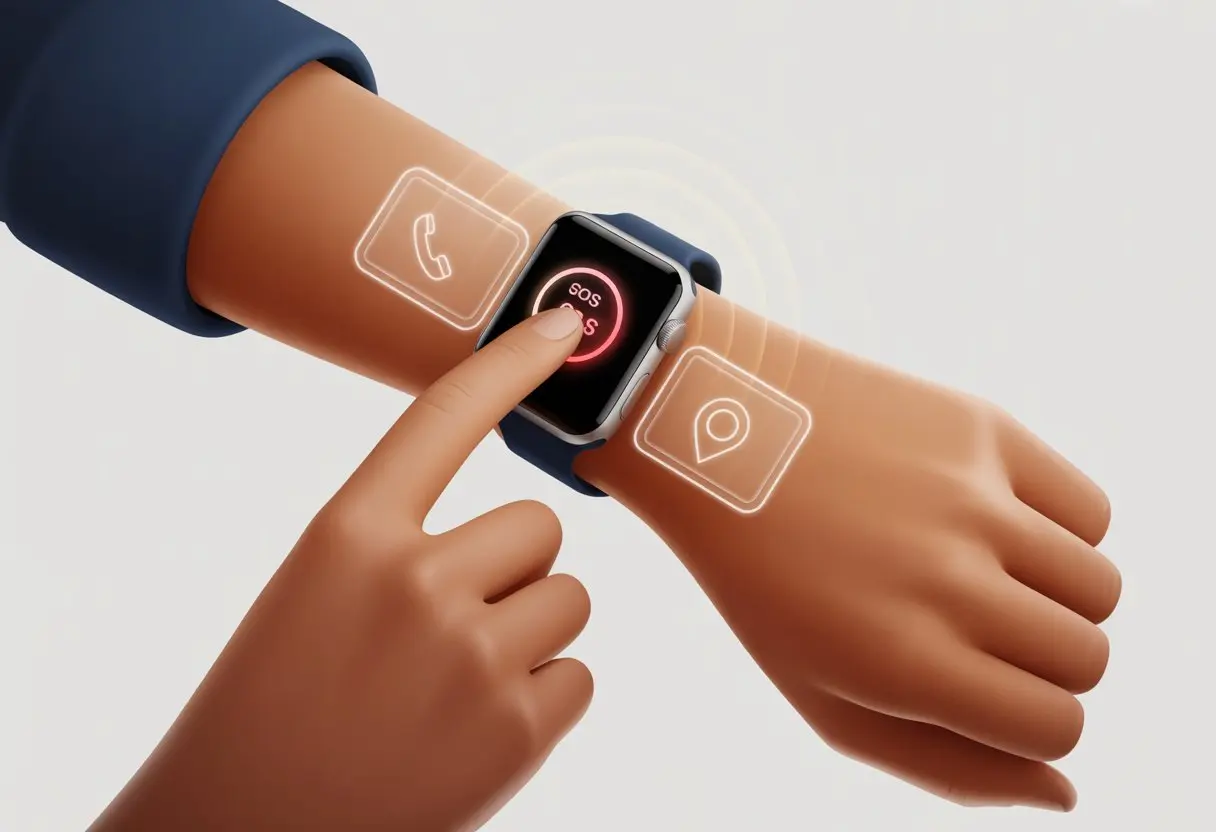
Maybe we’re out running, stuck somewhere that feels off, or just feeling uneasy in a parking lot. Knowing how to trigger Emergency SOS can give us a real sense of security.
It’s not just for the unlucky—surprises and accidents happen to everyone!
Stick around and we’ll walk through how to set up and use Emergency SOS on popular smartwatches like the Samsung Galaxy Watch and Apple Watch.
Turns out, our wrists might be our new lifeline—no cape needed.
Understanding Emergency SOS on Smartwatches
When we’re in a jam, a smartwatch can be a tiny hero on our wrist. These gadgets come loaded with features that give us quick access to emergency help and can notify friends or family if something’s wrong.
What Is Emergency SOS?
Emergency SOS isn’t a secret handshake for spies, even if it sounds cool. It’s a safety feature built into many smartwatches.
With just a few taps or button presses, we can call for emergency help. Some watches even send our location to emergency contacts—no need to yell, “I’m over here!” if we’re lost.
This feature is made for those real panic moments. Think slipping on ice, getting into an accident, or suddenly feeling unwell.
We can trigger it by pressing the side or home button a few times, depending on the brand. For example, some Samsung watches want us to press the Home key three times for help.
It’s not easy to trigger by mistake, but it’s fast when we need it. If you want the nitty-gritty, check out how Samsung’s emergency SOS works.
How Smartwatches Handle Emergencies
Our wrist gadgets do more than tell the time. When we activate Emergency SOS, the watch jumps into action:
- Contacting Emergency Services: Many watches try to dial our country’s emergency number.
- Alerting Emergency Contacts: The watch sends messages to our chosen contacts, often with our location.
- Location Tracking: Our latest coordinates get included in those messages, making rescue easier.
Our smartwatch’s software handles these steps for us, so we don’t have to fumble for our phones. Some devices even detect hard falls and trigger SOS if we don’t respond.
This feature is like having a buddy who never forgets to call for help, even if we freeze.
Setting Up Emergency SOS Features
Let’s get our smartwatch ready to save the day. We’ll add the right contacts, set up fall detection and GPS, and make sure our watch isn’t useless when we need it most.
Configuring Emergency Contacts
Nobody wants to call their mom by accident in a panic, so let’s pick our emergency contacts carefully. Most smartwatches make us choose people from our phone’s contact list.
On Apple Watch, we add contacts in the Health app or the watch’s settings. Samsung users set them up through the Wearable app in the safety and emergency section.
Double-check that we have the right numbers listed—nobody wants help from an old pizza place. Usually, we can add a few trusted folks for backup.
We should let our emergency contacts know they might get a weird SOS call from us one day. It’s not a prank; it’s just smart safety.
If you need step-by-step help, Samsung users can follow the process in their wearable app’s emergency menu.
Enabling Fall Detection
Smartwatches notice if we suddenly stop standing upright. Fall detection is on many models, including Apple and Samsung.
Once it’s on, the watch looks for hard falls and checks if we’re okay. If we don’t answer, it sends a message and our location to our emergency contacts.
To turn this on, we go to “Fall Detection” in the watch settings. On Apple Watch, it’s a quick toggle in the Emergency SOS section.
Galaxy Watch users need to check the safety settings in the Wearable app for a similar switch.
This isn’t just for extreme athletes. We all trip sometimes.
Setting it up gives us and our ankles some peace of mind. Just make sure it’s actually turned on—we’ve all forgotten an important switch before.
Activating GPS Location
If our SOS call goes out, our watch can tag our location so help finds us faster. Most smartwatches use built-in GPS to drop a pin on where we are.
First, we need to make sure location services are allowed on our phone and watch. Usually, this is under “Location” or “Privacy” in settings.
Most newer models have it on by default, but double-checking never hurts (except maybe our pride). When enabled, our SOS alerts will include our real-time spot, making it way easier for helpers to find us.
If we don’t want our location shared all the time, most watches let us limit GPS to emergency use only. That’s smart and a little less creepy.
Verifying Cellular Connectivity
Without cellular or Wi-Fi, our watch is about as useful as a potato in an emergency. For watches with built-in cellular, we should check that our plan is active and the signal is strong.
We look for a cellular icon on the watch face. If we only have Wi-Fi, our watch needs to be connected to our phone, which must have service.
Let’s try sending a test message or making a call from the watch—just not to our boss at midnight.
Keeping our watch updated, SIM card inserted (if it uses one), and checking settings will save a headache later.
For more device-specific setup, Apple users can check Apple’s official guide.
A dead connection when we need help is the worst.
Using Emergency SOS on Popular Smartwatches
Sometimes we need help fast, and nobody wants to fumble around with their phone in an emergency. Our smartwatches act as a quick lifeline.
Knowing the right steps can make a huge difference.
Triggering SOS on Apple Watch
Apple Watch keeps things simple. We just press and hold the big side button—the one under the Digital Crown.
Hold it until the Emergency SOS slider pops up, then swipe to call for help. If we keep holding, the watch dials emergency services automatically.
Apple Watch Ultra adds a loud siren to get attention—handy if we’re lost or can’t yell. For SOS to fully work, our watch needs a paired iPhone nearby or a built-in cellular connection.
The watch shares our location and can notify our emergency contacts with all the details.
SOS Features on Other Devices
Other brands, like Samsung, have their own rescue tricks.
On many Samsung smartwatches, we can send SOS messages by pressing the Home key three times.
Our location is shared with emergency contacts, and if a phone is connected, the watch can send a photo from the front and back cameras. It’s kind of like a mini spy movie, but without explosions.
We set up these features in the device’s settings. For Samsung, we use the Galaxy Wearable app to find SOS and safety options.
We can add emergency contacts and decide what happens when we press the button. Some devices let us add medical info, which is handy if we’re not awake to explain allergies.
Not all smartwatches have cellular connections, so if there’s no SIM card or phone nearby, SOS might not work as expected.
If that’s the case, we’ll have to yell for help the old-fashioned way—loud and clear.
Communicating During an Emergency
Emergencies aren’t the best time for small talk, so our smartwatches do the talking for us. Staying connected and sharing the right info can make a huge difference.
Sending Your Location
When things go wrong, our smartwatch can send out our GPS location like a digital flare.
Most models let us hit an SOS button or press and hold the side button to instantly share our spot with emergency contacts or services.
These messages use GPS data to send our coordinates. Our watch tells rescuers exactly where to find us—no breadcrumbs needed.
Some watches, like the Samsung Galaxy Watch, let us set up emergency contacts and automatically alert them if the watch detects a hard fall or we trigger SOS.
For more info, check out how to use Galaxy Watch’s SOS features.
We can usually pick which contacts get notified, so Aunt Edna won’t get worried unless we want her to.
Emergency Alerts via Email
Sometimes a text just doesn’t cut it—so we use email. Some smartwatches let us send an emergency alert by email, which is handy if someone checks their inbox more than their phone.
We can set up pre-written alerts with our GPS location, emergency details, or medical info.
Our wearable isn’t exactly writing a novel, but it gets the basics across fast.
Email alerts can help if cellular networks are jammed. As long as our watch has Wi-Fi—or can piggyback on our phone—email keeps our distress signals going.
Audio and Visual SOS Signals
If subtlety isn’t our thing, our smartwatch can make a scene. Many wearables let us sound a loud alarm or flash the screen when we trigger SOS.
These cues help us get attention nearby. It’s like shouting “help!”—but with gadgets.
Some devices even record short voice messages or play repeating sounds. Between flashing screens and loud ringtones, we’re hard to miss.
This combo of audio and visual SOS signals gives us extra backup if location data or emails aren’t enough.
Troubleshooting Common SOS Issues
Sometimes smartwatches just refuse to play nice, especially when we’re counting on them most. Connection hiccups or outdated software can leave us flailing—literally and figuratively—instead of getting actual help.
Resolving Cellular Connection Problems
We expect our wrist gadgets to call for help, but what if they just… don’t? Without a solid cellular connection, SOS is pretty much useless.
Check your network bars—more is better. If you’re out in the middle of nowhere (like that one family cabin), don’t expect miracles. When cellular fails, try connecting to Wi-Fi. Sometimes that’s enough.
The SIM card might be the culprit too. Power off the watch, then turn it back on. Still nothing? Pop out the SIM and put it back in, if your watch uses one. If you’ve got a carrier plan, double-check that your plan covers the watch and that it’s actually activated.
Some watches lean on your paired phone to send SOS. Keep your phone nearby and make sure Bluetooth is on, in case your watch can’t handle it solo. For more details, Samsung has a helpful guide about checking connected devices and settings.
Software Updates and Compatibility
Watches crave updates, just like our apps. Ignore them, and your SOS button might as well be decorative.
To update, head into settings—usually under General or About. If you’re using a Mac, make sure the Watch app is updated there too. Charge your watch first; nobody likes a device that passes out mid-update.
Check that your watch and phone play nice together. Sometimes watches get cranky if they don’t like your phone’s iOS or Android version. Keeping both updated usually smooths things out.
If things are still weird, try uninstalling and reinstalling the companion app. Sometimes, even gadgets need a fresh start—kind of like us before that first coffee. If you’re still stuck, reaching out to support might be the move, as The Verge suggests.
Best Practices for Staying Safe with Your Smartwatch
Smartwatches won’t give us superpowers, but they can make a difference in emergencies. If you want SOS features to work, keep your devices updated and actually test those features. Don’t just assume “fall detection” means what you hope it does.
Regularly Update Emergency Information
Updating emergency contacts is kind of like flossing. We know we should, but do we? Still, it matters. If you switch phones, get new numbers, or decide you’d rather have Debbie than Uncle Bob as your go-to, update your watch and companion app.
Most smartwatches let you set emergency contacts through your phone’s app. For Samsung, use the Galaxy Wearable app. It’s worth checking every few months, so your SOS doesn’t end up calling a random pizza place.
Take a moment to review your medical info in the health or wearable app’s profile section. Adding details like allergies or medications could actually help first responders help you.
Testing Fall Detection Reliability
We count on fall detection to kick in if we take a spill, but honestly—does it always work? It’s smart to check if it’s even switched on. Not every smartwatch handles this the same way, so dig into your settings and make sure fall detection isn’t just hiding in the background.
Sometimes, these features start off disabled, almost like they’re hoping you won’t notice.
If you want to test it, try simulating a gentle “fall” on a soft bed or couch. Or, better yet, poke around for test options in your watch’s app first. No need to risk your toes tripping over the cat just to see if it works.
Apple Watches (and a few others) let you trigger a practice SOS without actually calling 911. Handy, right?
Whenever you try out these emergency features, keep it safe and low-stress. If your watch does end up calling for help, maybe give your emergency contacts a heads-up, so they don’t get a surprise call from your “brave” wrist.

From a young age, I have always had a big interest in technology, and this blog is an extension of that interest. Through this blog, I hope to provide others with all of the information they need regarding tech options to consider, and things such as compatibility. Some of the different items I will be discussing include headphones, smartwatches, and how to fix common issues.
- How to Get Text Messages on Fitbit Versa 2 Android: Simple Guide for Users - October 13, 2026
- Why Doesn’t My Fitbit Record My Sleep? Quick Troubleshooting Guide - October 13, 2026
- How to Change Face on Fitbit Versa 2: Quick and Easy Guide - October 12, 2026
Related Posts: