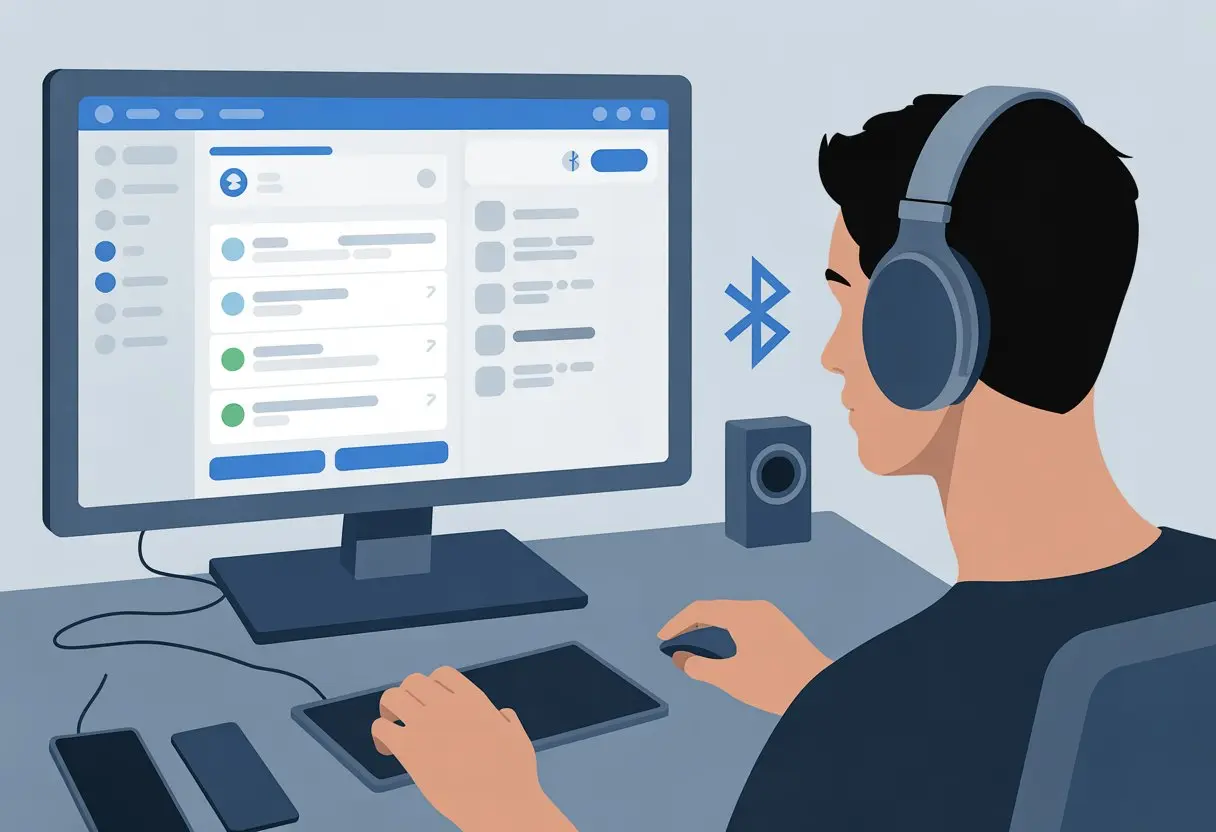
Alright, so we finally decided to join the Bluetooth headphone club and use Bluetooth headphones for Discord chats. The moment we hopped into a call, things got weird—friends sounded like robots, the mic bailed on us, or all our audio just vanished.
You can totally use Bluetooth headphones with Discord, but you’ll need to know a few tricks to dodge these headaches.
We’ve all been there: flipping through settings, frantically googling, and threatening to dig out our old wired headphones. Before things get dramatic, let’s figure this out together and make Discord calls as smooth as our favorite playlist.
Stick around, because we’re about to wrangle these stubborn headphones and finally get our voices heard—without the robot noises or tech meltdowns.
Understanding Bluetooth Headphones Compatibility With Discord
Getting Bluetooth headphones to cooperate with Discord is both easier and weirder than you’d think. It really depends on what kind of device you have and whether you want to use that built-in mic that makes you sound like you’re broadcasting from the moon.
Bluetooth Headphones vs. Bluetooth Headsets
Let’s clear up the difference between regular Bluetooth headphones and actual headsets. Most Bluetooth headphones focus on audio output and don’t bother with a microphone.
Headsets, though, give you both speakers and a mic, which Discord needs for chatting.
Here’s a quick table to keep things straight:
Device Type
Audio Output
Microphone
Works for Discord Calls?
Bluetooth Headphones
✔️
❌
Only listening
Bluetooth Headsets
✔️
✔️
Both ways
If you try using regular Bluetooth headphones for calls, Discord will probably leave you stuck in silent mode—just listening, no talking. For actual conversation, grab a headset, unless you want to rely on interpretive dance.
Microphone and Audio Output Requirements
Discord wants both your voice and your game sounds (even if we ignore the game when someone starts yelling). If you pick a Bluetooth headset with a mic, you’ve got to make sure Windows or your phone chooses the right input and output.
Bluetooth headsets usually show up with two sound modes. One is stereo for music and games—sounds awesome, but then the mic won’t work.
The other is hands-free mode, which lets the mic work but everything sounds like you’re on an old walkie-talkie.
Here’s what works best:
Set Discord’s output to headphones (for listening).
Set input to headset (for talking).
And if things get weird, just restart Discord and your Bluetooth connection—because let’s be honest, tech always finds a way to be dramatic, as the Microsoft Community will tell you.
Soon enough, you’ll actually hear AND be heard, which is a lot better than just yelling at your screen.
Getting Your Bluetooth Headphones Ready for Discord
https://www.youtube.com/watch?v=zX_TEsQymso
If you want to avoid sounding like a robot or a static-ridden DJ, you’ve got to set up your Bluetooth headphones the right way. That means pairing your headphones, getting Windows 10 to play along, and making sure your voice chats sound clear.
How to Put Bluetooth Headphones in Pairing Mode
First things first, let’s get those Bluetooth headphones into pairing mode. Every brand seems to have its own secret handshake for this.
Usually, you hold down the power button or the Bluetooth button until a light starts flashing—blue, white, or maybe even a mini rave, depending on the brand.
If your headphones shout “pairing!” in a robotic voice or the LED blinks like it’s calling for help, you’re good to go. If you can’t find the right button, sometimes pressing both volume buttons at once does the trick.
And hey, check the tiny manual or the company’s website if you’re stuck.
Quick tip: If you’ve paired the headphones with something else before, you might need to “forget” that old device. Otherwise, your headphones might ditch your computer and run back to your phone mid-Discord call.
Pairing Bluetooth Headphones With Windows 10
Once you’ve got pairing mode flashing, it’s time to make Windows 10 do its thing. Click the Start Menu, open “Settings,” and go to “Devices.”
Choose “Bluetooth & other devices,” then hit “Add Bluetooth or other device.” Pick “Bluetooth” and let Windows search like it’s looking for lost car keys.
When your headphones show up in the list, select them. If Windows asks for a pin, it’s usually 0000 or 1234. Not exactly top secret.
After you connect, double-check your sound settings. In the System Tray, right-click the speaker icon, choose “Open Sound settings,” and pick your Bluetooth headphones as both the output (speakers) and input (mic).
Once your Bluetooth earbuds are paired, you’ll want Discord to actually use them. Otherwise, you’re just talking to yourself.
Open Discord and click the little gear icon to get into “User Settings.” Under “Voice & Video,” pick your Bluetooth headphones for both Input and Output Devices.
Sometimes, Discord or Windows swaps your default device without asking. If your voice vanishes in a call, check these settings again.
If your Bluetooth earbuds have both “Stereo” and “Hands-Free” modes, Discord usually chooses “Hands-Free” for the mic. That drops sound quality, so you might sound like you’re in a tin can.
And don’t be shocked if you have to repeat the pairing dance every now and then. That’s just Bluetooth life—some frustration, some adventure, and eventually, sweet audio.
Configuring Discord Audio Settings Like a Pro
Getting Discord to work with Bluetooth headphones takes some clicking, a bit of patience, and honestly, a sense of humor helps. We’ll dodge weird sound issues, boost mic clarity, and maybe—just maybe—enjoy wireless audio.
Selecting Your Bluetooth Headphones as Output
Let’s make Discord use your Bluetooth headphones for sound. You’ll have to tell both Windows and Discord which speakers to use.
Open your system sound settings in Windows.
Under “Output,” choose your Bluetooth headphones. Make sure they’re actually paired and connected.
In Discord, click the little gear icon in the bottom-left (User Settings).
Go to “Voice & Video.”
For Output Device, pick your Bluetooth headphones from the dropdown.
If Discord picks the wrong device, just change it back. Sometimes, choosing “Headphones” (not “Headset”) in both Windows and Discord solves issues where other programs won’t play sound, as folks mention on this tech forum.
Enabling Bluetooth Microphone Input
Now, let’s make sure people can actually hear you. Most Bluetooth headphones come with a built-in mic, but Discord needs to know about it.
Still in Voice & Video in Discord’s settings.
Under Input Device, pick your Bluetooth headphones’ “Headset” or “Handsfree” option.
Heads up: Bluetooth mics sometimes sound like you’re talking from inside a cave. Bluetooth splits audio between the mic and headphones, so sound quality drops—Avantree has a good explanation.
If the audio tanks, try switching between “Stereo” for listening and “Handsfree” for talking, depending on what matters more in the moment.
Troubleshooting Common Bluetooth Headphone Issues on Discord
Bluetooth headphones are super handy, but Discord sometimes feels like it’s haunted by mischievous gremlins messing with your mic and audio. Let’s tackle these annoyances so you can get back to chatting, gaming, or pretending to pay attention in meetings.
Fixing Microphone Not Detected
If Discord can’t hear you, it’s probably because it’s using the wrong mic or Bluetooth just zoned out. Make sure your Bluetooth headphones are connected as a headset, not just as headphones.
Most computers see your device as two things—a pure audio output or a headset with a mic.
If Discord stays stubborn, head to User Settings > Voice & Video and choose your Bluetooth headphones’ microphone under “Input Device” instead of “Default.” Sometimes, Discord and Windows don’t get along, so check the Windows Sound Control Panel and set the Bluetooth headset as the default communication device.
If it’s still not working, unplug and re-pair your headphones. That old IT Crowd trick—turning it off and on—actually helps sometimes.
Restart Discord or your whole computer if your mic still won’t cooperate. Some headphones force you to manually switch to “Headset” or “Handsfree” mode for the mic to work.
Ever had your Bluetooth headphones go silent on Discord, like the sound just vanished into thin air? That’s always a fun surprise. First, make sure you’ve actually set your headphones as the output device in both Discord and Windows.
In Discord, head to User Settings > Voice & Video. Under “Output Device,” pick your Bluetooth headphones instead of leaving it on “Default.” Easy to miss, but it matters.
Now, let’s take a look at Windows sound settings. Right-click the speaker icon and choose “Open Sound settings.” Check that your Bluetooth headphones are selected, not muted, and definitely not sitting at 1% volume.
Windows is notorious for switching back to speakers after we connect Bluetooth. It’s like a prank it never gets tired of.
If you can hear game sounds but Discord stays quiet, open the Volume Mixer (right-click the speaker > Open Volume Mixer). Sometimes Discord just gets lost among all the other apps.
If all else fails, plug your headphones in with an aux cord. Not glamorous, but hey—it does the job.
Optimizing Performance and Reducing Lag
Let’s be real—using Bluetooth headphones with Discord can be a mess. Ever yelled, “Can you hear me now?” only to hear yourself echo back like a robot? Yeah, we’ve all been there.
With a few tweaks, though, things can get a lot smoother.
Minimizing Latency With Bluetooth Headphones
Bluetooth headphones are super handy, but they usually add a bit of lag. That lag—or “latency”—means your punchline lands two seconds late, which is just awkward.
The main reason? Bluetooth just isn’t as quick as a wired connection. Welcome to the joys of wireless.
You can help yourself out here. Grab headphones with the latest Bluetooth version—Bluetooth 5.0 or newer tends to be faster and more reliable. If your headphones support aptX Low Latency or something similar, that’s even better.
Keep your headphones and your Discord device close together. Bluetooth hates distance and walls almost as much as we hate lag.
If you’re desperate, most Bluetooth headphones let you plug in an audio cable. Wired mode wipes out lag, but you’ll feel like it’s 2009 again.
Getting your voice to sound good on Discord with Bluetooth headphones isn’t always simple. Discord loves to force Bluetooth headsets into “hands-free” mode when you use the mic, and that kills music or game sound quality. Suddenly, your voice sounds like it’s coming through a walkie-talkie.
If you’ve got a separate microphone, use it. Even a cheap USB mic can make a world of difference.
If you’re stuck with the Bluetooth mic, try switching audio devices in Discord’s settings. Sometimes you can trick Discord into giving you better sound. Check out this guide for more detailed steps.
No setup is perfect. But with these tricks, at least you won’t sound like a digital goblin at game night.
Extra Tips and Fun Tricks Using Bluetooth Headphones on Discord
There’s more to using Bluetooth headphones with Discord than just pairing and joining calls. If you want to unlock some perks and avoid the usual group call chaos, a little know-how goes a long way.
Using New Features and Devices
Let’s get a bit fancy. Discord keeps adding new options, and headphone makers want us to feel like we’re living in the future.
If your headphones support multipoint connections, you can switch between Discord on your computer and phone without any awkward silence.
With shared audio, you can play music or game sounds for your friends during a call. Just make sure your headphones are set to “Stereo” mode, not “Hands-Free.” That’s the only way to get the best sound. Otherwise, you’ll sound like you’re underwater. Nobody wants to be the aquatic one in the group.
If Discord’s quality tanks, check if your headphones have a firmware update. Most brands have an app for that. Keeping things updated helps avoid random connection headaches.
You can also try Discord’s mobile app if your PC setup is acting up. Sometimes Bluetooth just works better with phones than computers. Switching devices can be a lifesaver.
Best Practices for Group Calls With Bluetooth
Group calls—now that’s where things can get a little wild. Bluetooth headphones sometimes make you sound like you’re calling from the bottom of a well if you’re not careful.
Muting your mic when you’re not talking? That helps a ton. It keeps the call clear and stops your voice assistant from butting in at the worst moment.
Always double-check which Discord input and output device you’ve got set up before the call starts. It’s way too easy to end up talking into your laptop mic while your headphones just sit there looking fancy.
Don’t forget to check the volume on both Discord and your headphones. Nobody wants to get blasted by a surprise hello.
Here’s a quick checklist to keep things from falling apart:
Mute when you’re not talking
Pick the right mic and output in Discord’s settings
Keep your headphones charged (dead headphones on game night? The worst)
Ask if people can actually hear you—seriously, just ask
If your sound keeps cutting out when your mic’s on, you might be dealing with the hands-free mode issue with Discord and Bluetooth. Knowing this little quirk can save you from smashing your headphones in frustration. And hey, your wallet will thank you.
Hi, my name is Garrett Jones, and I am a tech enthusiast. I enjoy researching the new tech that has been released, and have a vast knowledge of the best tech to purchase.
From a young age, I have always had a big interest in technology, and this blog is an extension of that interest. Through this blog, I hope to provide others with all of the information they need regarding tech options to consider, and things such as compatibility. Some of the different items I will be discussing include headphones, smartwatches, and how to fix common issues.