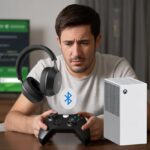
Bluetooth headphones and Discord—two things that should make our lives easier, right? Instead, they sometimes seem to create more chaos than a surprise math test.
If you’ve ever found yourself mashing buttons in frustration, hoping your headphones will finally connect, trust me, you’re definitely not the only one. Usually, Bluetooth headphones and Discord refuse to cooperate because of connection hiccups or microphone settings that confuse us and the app alike.
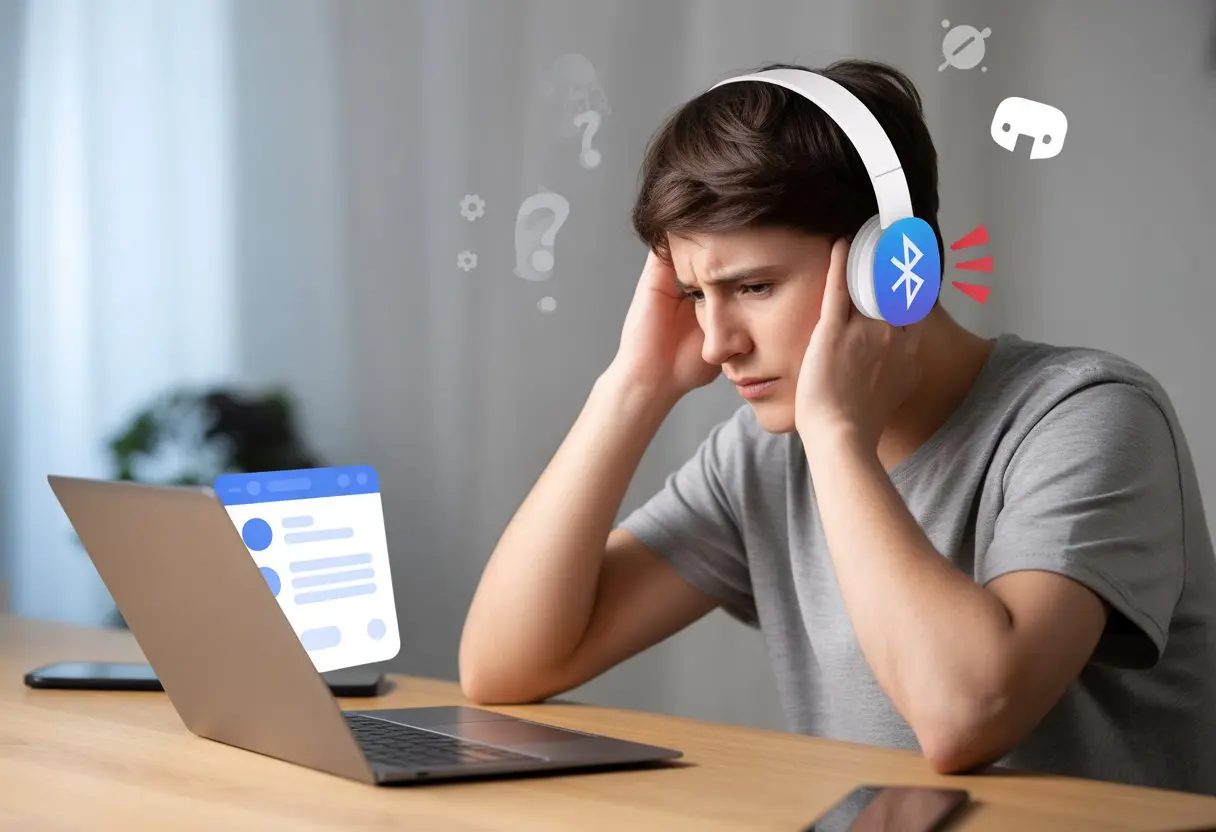
We might notice that other apps work just fine, but Discord seems to have a mind of its own. Sometimes we have to fiddle with the input and output devices, or deal with strange Bluetooth bandwidth limits that nobody warns us about until it’s way too late, like in this user discussion on Reddit.
Let’s just take a breath (maybe grab a snack) before we dig into why Discord and Bluetooth headphones act like siblings fighting over the last slice of pizza. With a little patience, we’ll get to the bottom of it and (hopefully) fix things up.
Understanding Bluetooth Headphones Compatibility With Discord
Why do our trusty Bluetooth headphones sometimes lose their cool when we jump on Discord? There’s a lot going on behind the scenes, from weird headset settings to quirky tech issues between Bluetooth and Discord.
Difference Between Bluetooth Headphones and Bluetooth Headset
Here’s a reality check—Bluetooth “headphones” and “headsets” aren’t the same, at least as far as our computers care.
Headphones are all about delivering great music and sound quality.
Headsets come with a microphone, but suddenly, audio quality takes a nosedive when the mic joins in.
If we use the mic on our Bluetooth device, our computer flips from “Stereo” (awesome audio) to “Hands-Free” (think: drive-thru speaker). That’s because the Bluetooth protocol just can’t handle high-quality music and voice chat at the same time without dropping the ball somewhere.
So, when Discord grabs our mic, the sound quality often tanks or things just stop working entirely.
Bluetooth Technology Basics
Bluetooth sends data wirelessly, and Bluetooth audio devices work with two main profiles:
- A2DP (Advanced Audio Distribution Profile) — Great for music, but no mic allowed.
- HFP/HSP (Hands-Free Profile/Headset Profile) — Lets us use the mic for calls or chat, but the audio quality drops big time.
Here’s the kicker: most Bluetooth headphones can’t use A2DP and HSP/HFP at the same time. When Discord wants the mic, we get stuck with “am I underwater?” audio.
Some fancy Bluetooth headsets can handle both, but most can’t. If ours doesn’t, expect bad quality or no Discord sound when using Bluetooth.
Common Discord Audio Challenges
Bluetooth headphones might work perfectly with music apps, but the moment we join a Discord voice call, everything goes sideways.
- No sound through headphones when joining a channel? Check Windows sound settings.
- Mic works, but sound quality drops? That’s the Bluetooth profile switching to “tin can” mode.
- Other programs go silent because Bluetooth can’t multitask well (yep, bandwidth limits).
This weirdness usually happens because Bluetooth can’t handle both mic and headset audio at once. For more info, check this Bluetooth Discord issue guide.
Sometimes, Discord settings or audio drivers just make things worse by fighting with our headphones.
Setting Up Your Bluetooth Headphones on Computer
Honestly, getting Bluetooth headphones to work with our computers can feel like trying to defuse a bomb. Just a few settings stand between us and Discord bliss.
Here’s how we can pair, connect, and get back to music or voice chat—without flipping the table.
Bluetooth Pairing Process on Windows 10
Let’s open the action center in the bottom right—the little chat bubble. Hit “Bluetooth,” then pick “Add Bluetooth or other device.”
A window pops up, and we select “Bluetooth.” With our headphones in pairing mode (usually blinking lights or a long press), Windows starts searching. Our headphones should show up pretty quick.
Click their name, hit “Connect,” and wait for the beep or chime. Sometimes, we have to nudge Windows in Settings > Devices > Bluetooth & other devices.
Make sure the default playback device is set to our headphones. If things sound off or are silent, check Windows audio settings or drivers for conflicts or driver issues.
Connecting Bluetooth Headphones on Mac
On a Mac, click the Apple menu and go to System Settings or System Preferences. Pick “Bluetooth.” Our Mac starts searching, and our headphones should pop up.
Once our headphones are in pairing mode, click “Connect.” If it works, we’ll hear a pleasant chime.
Now, open the sound settings from the Apple menu. Change both “Output” and (if you want to use the mic) “Input” to the right device.
Macs sometimes get picky and try to use the built-in mic or speakers—watch out for that. If there’s static or low quality, try disconnecting and reconnecting. Patience helps, maybe even a lucky hat.
Steps for Laptops and Desktops
Laptop or desktop, the steps are pretty much the same. Laptops usually have Bluetooth built-in, but some desktops need a dongle—tiny, but it does the job.
- Turn on Bluetooth: Use the system tray (Windows) or menu bar (Mac).
- Pair your headphones: Put them in pairing mode and follow the steps for your OS.
- Check Sound Settings: Switch the output device to the headphones, or you’ll end up with sound coming from your laptop speakers.
Keep your headphones as the default device to avoid those awkward “Can you hear me now?” moments. If nothing works, maybe step outside for a breather—sometimes tech just needs a timeout.
If audio issues won’t go away, limited Bluetooth bandwidth might be messing with things.
Configuring Audio Output in Discord
If our Bluetooth headphones aren’t working with Discord, it’s probably not our fault (for once). Usually, Discord just wants us to do a bit more clicking.
Getting the right audio device picked and understanding Discord’s quirky voice settings can save us from a lot of silent staring.
Selecting the Correct Audio Device
Ever talked into the void, only to realize our headphones weren’t even set up? Let’s fix that.
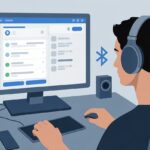
We need to make sure Discord is using our Bluetooth headphones for both Input (mic) and Output (sound).
- Click the User Settings gear in Discord (bottom left).
- Go to Voice & Video.
- Under Input Device and Output Device, set both to our Bluetooth headphones.
Discord sometimes swaps in a different device after we connect Bluetooth. Double-check both fields if sound starts playing from the speakers or, worse, the neighbor’s printer.
If our headphones still refuse to cooperate, check the Windows sound settings. Right-click the sound icon on the taskbar, pick Open Sound settings, and set both input and output to our headphones.
Windows and Discord love to bicker over who’s in charge, so we’ll have to step in.
Discord Voice Settings Explained
Maybe we finally hear sound, but the quality is straight-up potato. Discord’s voice settings might be the troublemaker.
Bluetooth headphones can get confused if Discord tries to use both the mic and speakers at once.
Check these settings in the Voice & Video section:
- Input Mode: Don’t leave it on Push to Talk unless you like pressing keys every time you speak.
- Input/Output Volume: Not too loud, not too quiet. Just test it out.
- Advanced Settings: Try toggling Echo Cancellation, Noise Reduction, and Automatic Gain Control if things sound weird.
Discord often drops audio quality for Bluetooth headsets using the mic. If you want the best sound, use only the headphones (no mic), but then chatting gets tricky.
For more on these Bluetooth quirks, check out this Reddit discussion and the Microsoft Community.
Microphone and Sound Quality Issues
Bluetooth headphones might make us feel like secret agents, but with Discord, they can turn into little gremlins. Lots of us notice the sound quality drops, or the mic just stops working when we join a call.
Bluetooth Microphone Limitations
When we try to use our Bluetooth headphones for both listening and talking on Discord, things get messy. Our headphones flip into “headset” mode, which is basically like going from a concert hall to a plastic cup and string.
The audio gets fuzzy, and the mic sounds like we’re calling from inside a washing machine.
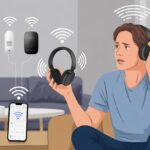
Bluetooth has limited bandwidth, and it splits its resources between sound and the mic. Most headphones can’t do both well at the same time.
That’s why music sounds great—until we jump into a call, and suddenly it’s all muffled voices and distant echoes.
Discord notices this and automatically switches the Bluetooth profile, leaving us with “hands-free” quality sound. Honestly, it’s about as good as an old drive-thru speaker.
Ever wonder why games or videos go silent after joining a Discord call? The answer is the Bluetooth audio profile switch. It’s just Bluetooth’s way of saying, “Sorry, I can only handle so much at once.”
Improving Bluetooth Sound Quality on Calls
Let’s be honest—Bluetooth headphones sometimes struggle with call quality. To help them out, the simplest fix is to grab a wired headset for Discord calls when we want both great sound and a solid mic.
If we stick with Bluetooth, we should avoid using the mic at the same time. That way, the connection stays in high-quality “stereo” mode, which sounds a lot better.
Here are a few tricks that might help:
- Disable Hands-Free Telephony in Bluetooth settings. This stops headphones from flipping to that awful audio mode during calls.
- Check Discord input settings and make sure we’ve chosen the right device—not the dreaded “Hands-Free” version.
- Update Bluetooth drivers on our computer. Old drivers can mess things up and make everything sound like static.
If nothing works, we can just tell our friends we sound like a robot because, well, science is weird sometimes. For more ideas, it never hurts to check out troubleshooting steps on Microsoft Community.
Common Problems and Solutions
Getting Bluetooth headphones to play nice with Discord can be more frustrating than trying to eat soup with a fork. Sometimes, our fancy headphones refuse to cooperate, or sound only comes from one side—like it’s shy or hiding.
Headphones Not Detected by Discord
If Discord ignores our Bluetooth headphones, we’re not alone. This happens all the time. Discord sometimes just refuses to see our headphones as an audio device, or drops them when we switch between speakers and headsets.
A quick fix is to restart both Discord and our Bluetooth headphones. Turning things off and on again really does help more often than we’d like to admit.
Let’s also check that our headphones are set as the default audio device in Windows or whatever system we’re using. Discord likes to pick random devices, so it’s best not to trust its choices.
If we connect the headphones after launching Discord, the app can get confused. We should try closing Discord, reconnecting our headphones, and then opening Discord again.
If it’s still not working, we can poke around in Discord’s Voice and Video Settings and pick the right input and output devices.
When all else fails, clearing Discord’s cache sometimes kicks it back into shape. That wipes out old settings that might be causing problems. For more help, check the official Discord troubleshooting guide.
One-Sided Audio Problems
Ever get that weird feeling when sound only comes from one ear, like a ghost is whispering secrets? That’s actually a real tech issue with Bluetooth headphones and Discord.
This usually happens if we use the headphone’s mic. Most Bluetooth headphones can’t do stereo sound and use the microphone at the same time, so one side goes silent to save bandwidth.
If we want both clear sound and a working mic, we might need to pick one. Checking the Recording Devices menu in sound settings and disabling the headphone mic often brings stereo audio back, but then we can’t talk on Discord. That’s a tough trade.
Some folks have had luck with adjusting device permissions or toggling off the “calls” setting for the Bluetooth device.
If Discord is making our music feel lopsided, it’s not just us—it’s another Bluetooth quirk.
Getting Bluetooth Headphones to Work With Other Apps
Bluetooth headphones usually behave with most apps, but sometimes they just go silent. A lot of the time, the problem comes down to audio settings or those annoying cookie pop-ups.
Watching YouTube With Bluetooth Audio
We’ve all been there—ready for a cat video marathon or a music playlist on YouTube, and then our Bluetooth headphones betray us with silence.
First, let’s check if the headphones are actually connected to our device and not still paired with the TV in another room.
Try these quick steps:
- Make sure Bluetooth is on and headphones are the default audio output.
- Open YouTube and play a video. If there’s no sound, pause and unpause (sometimes it actually works).
- Turn Bluetooth off and back on.
If YouTube is the only app that’s gone silent while others work, restarting the device or clearing the YouTube app cache can help. Some headphones have multiple modes like “Media” and “Call”—let’s double-check we’re in the right one.
Managing Cookie Policy Prompts
Cookie policy pop-ups have a talent for blocking buttons, links, or even video players, messing with Bluetooth playback. They ask if we allow sites (like YouTube) to store cookies—sounds tasty, but it’s just about tracking data.
Here’s what makes things easier:
- Tap Accept or Allow All quickly so the pop-up doesn’t block stuff.
- If it won’t disappear, reloading the page or clearing browser cookies can bring controls back.
- Some browsers let us auto-accept cookies or block certain pop-ups by default. Turning that on saves us a few taps every visit.
When in doubt, a fresh page reload can work wonders. If it still won’t work, clearing cookies and signing in again usually does the trick.
Advanced Troubleshooting Tips
Bluetooth headphones and Discord can be picky. Sometimes, a simple reset just isn’t enough, and we have to dig deeper to fix stubborn audio problems.
Let’s tackle a few technical fixes that might save our virtual meetings and game nights.
Updating Drivers and Firmware
First, let’s check for updates. Outdated drivers or firmware love to mess with Bluetooth.
We should visit the manufacturer’s website, grab the latest updates for our headphone model, and follow their instructions.
Steps to update:
- Open Device Manager on our PC.
- Find the Bluetooth device.
- Right-click and pick “Update driver.”
- If our headset has an app, open it and look for firmware updates.
On Windows, keeping things updated can fix conflicting audio settings and drivers that sometimes leave us stuck in silence.
Let’s not forget to restart the PC. It’s kind of amazing how many Bluetooth gremlins disappear after a reboot.
Resetting Bluetooth Devices
If updates didn’t help, it’s time for a good old-fashioned reset. We should unpair the Bluetooth device from the computer or phone, turn off both the headphones and Bluetooth, then turn everything back on.
A lot of headphones have a reset button or combo—usually holding power and volume down for 10 seconds. Check the manual or manufacturer’s site for the exact method.
After resetting, reconnect the headphones and test them on Discord again. Resetting can wipe out stubborn little glitches that regular re-pairing misses.
Isolating Hardware Issues
Sometimes, Discord isn’t the problem. We should test our headphones with other apps or devices. Do they work with YouTube or phone calls? If the sound cuts out everywhere, the headphones themselves might be the issue.
We can try another Bluetooth device with Discord. If a different set of headphones works, then our original pair is probably to blame.
Here’s a quick checklist:
| Test | What to Do |
|---|---|
| Try headphones on another app | YouTube, Spotify, etc. |
| Use headphones with phone/tablet | Discord mobile or calls |
| Try another Bluetooth headset | Swap and repeat tests |
If nothing works on any device, it might be time for a warranty claim—or maybe just let the headphones retire gracefully. They’ve served us well.
Conclusion
Honestly, trying to use Bluetooth headphones on Discord feels like a puzzle nobody warned us about. You’d think it would just work, right?
We play music, and everything sounds great—until we hop into a voice channel. Suddenly, silence. If you’ve ever felt alone in this, just take a peek at Reddit’s frustrated users. Turns out, we’re definitely not the only ones.
So, what’s actually going on here?
- Audio Settings Gone Rogue: Discord fights with our phone over which device should play sound.
- Bluetooth Bandwidth Drama: When we use the mic and listen at once, our headphones just can’t keep up.
- Manual Switching Madness: Sometimes, we have to dig through settings to pick Headset or Handsfree mode. Sure, the audio quality drops, but at least we can talk. Here’s more on that awkward trade-off.
We end up playing tech support for ourselves, shuffling Discord settings, switching audio modes, and yeah, sometimes just rebooting everything. At least we’re not alone—somewhere out there, someone else is restarting their phone right now.

From a young age, I have always had a big interest in technology, and this blog is an extension of that interest. Through this blog, I hope to provide others with all of the information they need regarding tech options to consider, and things such as compatibility. Some of the different items I will be discussing include headphones, smartwatches, and how to fix common issues.
- How to Get Text Messages on Fitbit Versa 2 Android: Simple Guide for Users - October 13, 2026
- Why Doesn’t My Fitbit Record My Sleep? Quick Troubleshooting Guide - October 13, 2026
- How to Change Face on Fitbit Versa 2: Quick and Easy Guide - October 12, 2026
Related Posts: