Let’s be honest—tracking our workout stats just makes us feel smarter, stronger, and maybe even a bit cooler. Peloton bikes and treads already throw tons of numbers at us, but pairing them with our smartwatches? That’s when the tech magic really kicks in.
Usually, we connect our smartwatch as a heart rate monitor or use a built-in app to sync our Peloton workout data for extra stats and motivation.
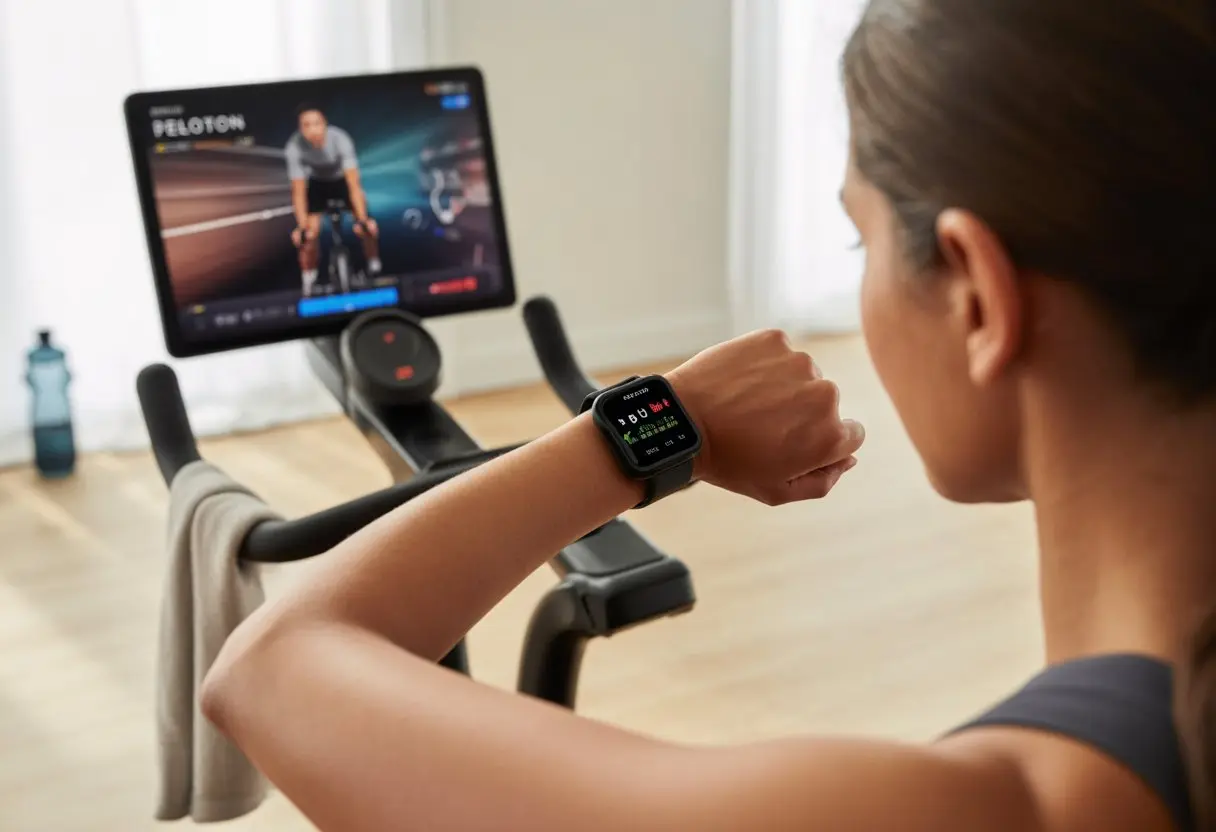
Ever wondered how to see your heart rate, calories, or even close those workout rings while sweating along with Peloton? We’re figuring this out together.
Whether you’ve got Android, WearOS, Garmin, or a Galaxy watch, there are pretty simple ways to get your heart rate onto the Peloton bike or app. Seriously, it’s not rocket science, but there are some tricks to make it smoother.
We’re about to spill the secrets and shortcuts, so get ready for a smoother ride—on both the bike and your wrist.
Setting Up Your Smartwatch with Peloton
Let’s get our gadgets talking! Before we watch our heart rates climb (faster than our energy drinks kick in), we need to follow a few steps.
Miss even one, and we’ll just sit there staring at a blank screen instead of all those glorious stats.
Checking Device Compatibility
Nobody wants to get halfway through setup only to realize their devices aren’t compatible. First, check what Peloton supports.
Most popular smartwatches—Apple Watch, Samsung Galaxy Watch, and devices running Wear OS—will work. Some older or budget models might not.
To be sure, check your specific smartwatch on the Peloton website or your watch manufacturer’s support page. Compatibility depends on both hardware and the software version, so keep your device updated.
If you’re on Wear OS, make sure you’re running a recent version. Sometimes features vary—Apple Watch supports more advanced metrics, while others might just show heart rate and calories.
Using a lesser-known brand? Check for Bluetooth support and cross your fingers. Sometimes, a little luck (and tech magic) goes a long way.
Connecting via Bluetooth or Wi-Fi
Now for the tech handshake! We need to connect our smartwatch to the Peloton machine—usually via Bluetooth.
First, turn on Bluetooth on both your watch and Peloton device (bike, tread, or app). On the Peloton screen, look for the option to pair a heart rate monitor during workout setup.
Tap it and wait for your smartwatch to appear in the list. Sometimes, it takes a minute—don’t freak out if it doesn’t show up right away.
If your smartwatch uses Wi-Fi, the features might change a bit. Some watches broadcast heart rate over Wi-Fi, but Bluetooth is the usual choice.
If you’re on Wear OS, just follow the prompts in the Peloton or companion app. Once you see your heart rate show up on the Peloton display, you’re golden.
Installing Required Apps
Don’t forget to grab the right apps—this is where patience (and good Wi-Fi) really pays off. For Android-based watches (like Wear OS), download the Peloton app from Google Play.
For Apple Watches, get the Peloton app from the App Store, plus Apple Health for syncing your data. Log in with your Peloton account.
Follow the app’s steps to enable permissions—basically, just say yes to everything heart-rate related. You might have to tap “Allow” a few times.
If you get lost, most official support pages have step-by-step instructions and even pictures. For more help, check out how Peloton walks us through the process for Android.
For Wear OS, Peloton’s got some WearOS app tracking tips that can save you a headache.
Syncing Workout Data Silently (So No One Knows You Skipped Leg Day)
We all want to close our rings and look active—even if yesterday’s “workout” was just hauling groceries. Our smartwatches and Peloton keep score, but luckily, we can handle the data like stealthy fitness ninjas.
Tracking Metrics in Real Time
With our smartwatch linked up, we get a live feed of our stats. Heart rate, calories burned, duration, and more pop up on our wrist or the Peloton screen.
Apple Watch users can tap once, sync, and sneak a glance at heart rate mid-ride, mid-run, or even mid-yoga. Android watch fans (especially WearOS) can use the Peloton Watch App to keep tabs on heart rate during any workout.
You can even see zone progress, which is a great excuse for a water break. If your smartwatch acts up, try a quick restart or update. Usually, that fixes things so your live stats don’t spill secrets to anyone peeking over your shoulder.
| Metric | Shows Up On | Privacy Level |
|---|---|---|
| Heart Rate | Watch & Peloton Screen | Only you see it |
| Calories Burned | Watch & App | Discreetly tracked |
| Workout Duration | Watch & Peloton Account | No alarms sounded |
Automatically Logging Completed Sessions
When you finish your workout, the magic happens—everything gets logged, no pen or paper needed. The data slides right into your Peloton and smartwatch histories.
Apple Watch and Android users don’t have to do anything extra. Once you wrap up a ride or run, your session details sync over Bluetooth.
All your completed classes and milestones get saved where only you (or your apps) can see them. If you want to check progress, pull up the Peloton app or your watch’s health summary.
You’ll see workout dates, times, and stats—perfect for reviewing how hard you didn’t skip leg day. For sneaky rest days, just don’t share your screen, and your skipped classes stay between you and your devices.
Maximizing the Magic: Features You Didn’t Know Existed
Syncing your smartwatch with Peloton unlocks way more than basic tracking. These hidden features can seriously boost your workouts and save you from embarrassing sweat alerts.
Using Heart Rate Monitoring Like a Pro
Let’s admit it—we sometimes guess how hard we’re working by how red our faces get. With smartwatches, we don’t have to guess anymore.
Peloton turns your smartwatch into a heart rate coach right on your wrist. It tracks your heart rate during every workout and shows your metrics in real time, so you know exactly when to push harder or take it easy.
Watches running WearOS sync directly with Peloton bikes and app classes for easy monitoring; see how it works with WearOS and Peloton.
Here’s how to make the most of it:
- Check heart rate zones: Stay in the right zone for fat burn or cardio.
- Stats after every class: Spot trends over weeks, not just minutes.
- Pair with any class: Yoga, strength, cycling—the heart rate data flows everywhere.
If you want to geek out, compare different workouts and brag about tiny improvements to friends (even if they don’t care).
Customizing Notifications (Peloton Instructors Might Not Text Back)
Getting notifications mid-run can totally break your focus. But you can filter what pops up and keep distractions to a minimum.
Pick which notifications break through, so only the important stuff buzzes your wrist. For example:
| Notification | Turned On | Turned Off |
|---|---|---|
| Workout Reminders | ✅ | |
| Team Chat | ❌ | |
| Texts from Mom | ✅ | |
| “Motivation” memes | ❌ |
Apps like Peloton will let you know about class starts or milestones, but it’s smart to mute the less important stuff. Set “Do Not Disturb” during high-intensity intervals or, if you’re feeling mischievous, tell friends you’re in a super secret Peloton meeting.
If only Peloton instructors would text back… but for now, we’ll settle for personalized alerts.
Troubleshooting Tango: When Your Smartwatch Decides to Be Dramatic
Sometimes, just as we’re ready to work out, our smartwatch throws a fit. It might refuse to connect, act like it doesn’t know us, or freeze at the worst moment.
Let’s break down what usually goes wrong and how to fix those stubborn sync issues before frustration wins.
Common Connection Issues
The most common drama? Our smartwatch won’t connect to Peloton. One minute, we’re ready to ride, and the next, the watch gives us nothing.
Main culprits include:
- Bluetooth not enabled
- Outdated software on your watch or the Peloton app
- Incorrect permissions (like not allowing heart rate tracking)
- Not starting the workout properly on the bike or watch
If you’re using a WearOS or Samsung watch, start your workout on Peloton first, then connect during the intro. Sometimes, the app just needs an update—easy to forget, but it matters.
For more steps, check Peloton’s WearOS product tracking issues. And yes, your watch might just want a tighter fit—loose bands miss heartbeats.
Resetting Sync Settings Without Losing Your Mind
When nothing else works, resetting sync settings (without losing your cool) can save the day. Here’s a quick rescue plan:
- Restart both devices—sometimes they just need a fresh start.
- Forget the device’s connection in Bluetooth settings, then reconnect.
- Reinstall the Peloton app on your watch for a clean slate (keep your login handy).
- Check app permissions—make sure the watch can track heart rate and sensors.
- Update all software; outdated systems love to cause headaches.
If you’re still stuck, Peloton has detailed troubleshooting pages that can help you out. Usually, these steps get your rebellious smartwatch back in line so you can sweat, not stress.
Smartwatch Tips for Competitive (and Lazy) Cyclists
Whether you’re sprinting to lead the pack or just pedaling for the view, your smartwatch game can make a difference. It’s easy to miss the little tricks that help you perform better—or at least look like you do.
Optimizing Battery Life During Long Rides
Nothing ruins a mid-ride victory selfie faster than a dead watch. To keep our smartwatches alive through those epic sessions, we usually start by turning off extra features.
GPS comes in handy, sure. But do we need live weather updates on our wrists every three minutes? Probably not.
Here’s what actually helps us:
| Tip | Why it matters |
|---|---|
| Lower screen brightness | It saves serious battery. |
| Use battery saver mode | Essential for marathon rides. |
| Turn off Wi-Fi/Bluetooth | Only leave on when syncing. |
| Close unused apps | Less background drain. |
We always charge our watches fully before hopping on the bike. If the ride’s going to be long, tossing a small power bank in the bag feels like a pro move.
Outlasting our friends’ batteries is almost as satisfying as beating them up a hill.
Swapping Watch Faces to Intimidate Friends
The right watch face says a lot. A race-themed face with bold fonts doesn’t make us faster, but it definitely makes us look like we mean business.
We like showing off stats front and center—heart rate, speed, effort—turning our wrists into tiny scoreboards.
On “intense ride days,” switching to achievement badges or animated flames really sends a message: we’re here to win, or at least look like we are.
If you’re feeling lazy, a chill, minimal face with a calm landscape keeps expectations low and lets you blend in.
Honestly, picking a watch face is our secret psychological trick.
Privacy, Safety, and Other Responsible (But Mostly Boring) Considerations
Let’s be real: privacy and safety don’t get anyone’s adrenaline pumping, unless you count identity theft. Still, we have to make sure our smartwatch-Peloton combo keeps things safe (and, yeah, a little boring).
When we sync our smartwatch with Peloton, we check privacy settings. Some devices share stuff like heart rate, age, even location.
A while back, a bug in 2021 revealed user data like gender, age, and location. Not great.
Here are a few privacy moves that don’t make for thrilling TV, but they help:
- Change passwords often (even if “password123” is tempting).
- Use two-factor authentication whenever possible.
- Keep smartwatch and Peloton apps updated.
We get distracted mid-ride sometimes (anyone else suddenly thinking about dinner during sprints?). Still, don’t ignore physical safety.
Make sure straps feel secure, but not too tight—unless you really want a wrist imprint that sticks around longer than your ride.
Quick Safety Checklist
| Item | Good Idea? | Party Pooper? |
|---|---|---|
| Share your real location | ❌ | ✔ |
| Check for software updates | ✔ | ❌ |
| Use privacy settings | ✔ | ❌ |
We don’t need to become security experts to use our smartwatches responsibly. Maybe someday “Bored and Secure: The Movie” will happen, but for now, we’ll just keep things safe.
Alternatives: If Your Smartwatch Prefers Couch Potato Mode
Sometimes, smartwatches just want to relax. Maybe they’d rather count steps from the couch to the fridge than keep up with us on the bike. Honestly, I get it.
No worries—we’ve got backup plans.
Old School Chest Straps:
If your watch decides to nap, you can grab a chest strap heart rate monitor. These trusty old-school tools sync right up with Peloton bikes and the app. Plus, you won’t get pinged about every missed text.
Peloton Heart Rate Band:
Peloton actually makes its own heart rate band. It pairs up super easily and seems made for those days when your watch just isn’t pulling its weight.
Manual Logging:
Want to go retro for a bit? Just jot down your stats with a pen and paper. Sure, it’s low-tech, but at least you won’t get those annoying “stand up!” reminders all the time.
Here’s a quick look at the options:
| Option | Syncs Automatically? | Comfort Level | Price Range |
|---|---|---|---|
| Chest Strap | Yes | Medium | $ |
| Peloton Heart Rate Band | Yes | High | $$ |
| Pen & Paper | No | Depends on pen | $ |
If your smartwatch wants to lounge, at least you’ve got a few tricks up your sleeve. And maybe a snack within reach—just saying.

From a young age, I have always had a big interest in technology, and this blog is an extension of that interest. Through this blog, I hope to provide others with all of the information they need regarding tech options to consider, and things such as compatibility. Some of the different items I will be discussing include headphones, smartwatches, and how to fix common issues.
- How to Get Text Messages on Fitbit Versa 2 Android: Simple Guide for Users - October 13, 2026
- Why Doesn’t My Fitbit Record My Sleep? Quick Troubleshooting Guide - October 13, 2026
- How to Change Face on Fitbit Versa 2: Quick and Easy Guide - October 12, 2026
Related Posts: