Bluetooth headphones aren’t just for blocking out your neighbor’s drum solo anymore—they make taking phone calls way easier, too. You can answer calls hands-free, turn up the volume, and wander around the house while chatting, all without getting tangled in cords.
No more awkwardly jamming your phone between your ear and shoulder while you try to make a sandwich. That’s a win.
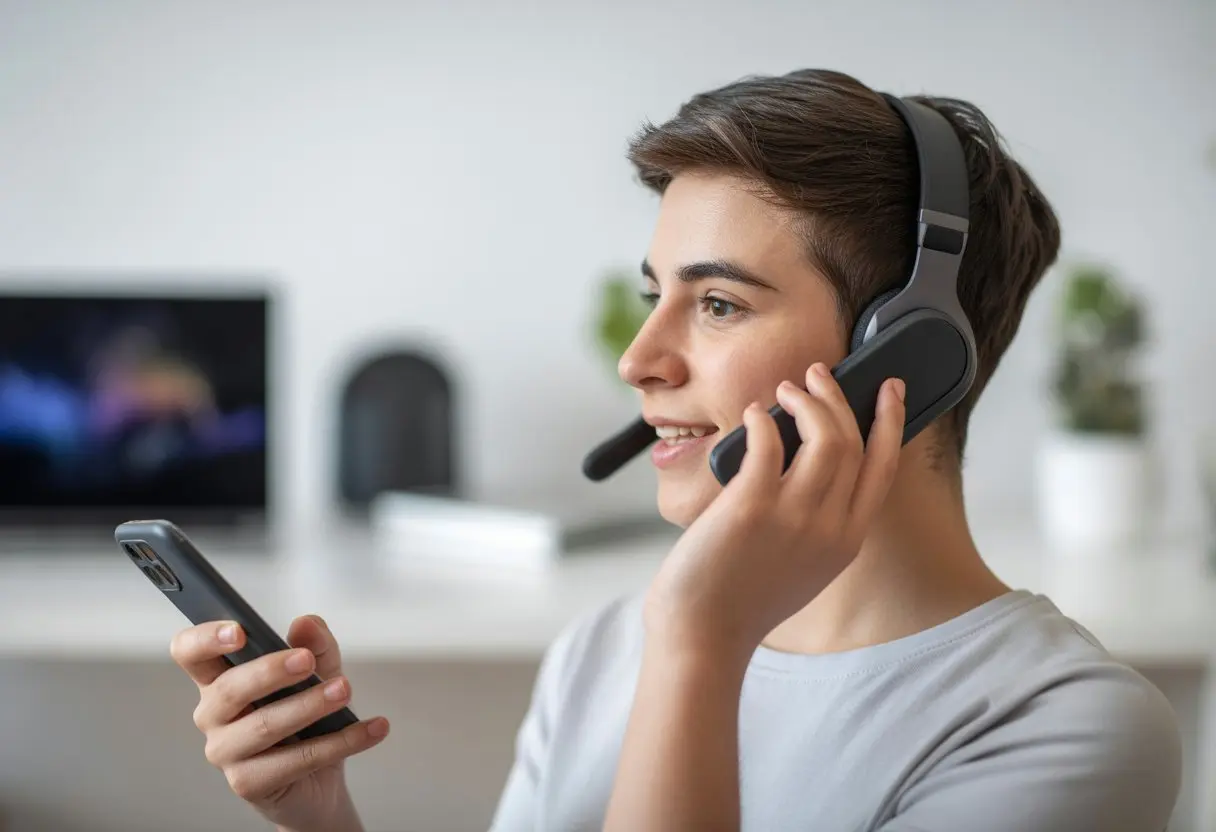
The first time you try to answer a call on your shiny new headphones, you might feel like you’re starring in some secret agent flick—except you probably have no clue which button to hit. Don’t sweat it.
With just a few steps, connecting and using Bluetooth headphones for calls is honestly easier than remembering your own phone number.
If you get stuck, there are easy fixes and settings tweaks that can help, like checking if your headset is set as the default for calls or poking around in your Bluetooth settings. Stick around, and you’ll go from “Hello? Can you hear me?” to “Wow, that was painless!”
Getting Started With Bluetooth Headphones
Before you start making calls with Bluetooth headphones, you have to make sure everything gets along. That means double checking your devices, figuring out what those mysterious “Bluetooth profiles” are, and making sure your headphones aren’t about to die mid-call.
Checking Compatibility With Your Device
Not every Bluetooth headphone and mobile phone combo is a match made in tech heaven. To avoid disappointment, check that both your headphones and your smartphone support Bluetooth.
Most new phones and headphones do, but if you’re using something ancient, you might be out of luck. Look for the Bluetooth symbol or the word “Bluetooth” in the specs or on the box.
Apple, Samsung, and most Android phones support Bluetooth, so as long as your gadget isn’t from the Stone Age, you’re good. If your phone can connect to car speakers or wireless speakers, it should work with Bluetooth headphones too.
Pro tip: Go to your phone’s Bluetooth settings and see if it can find your headphones when you put them in pairing mode. If only everything in life was this easy to check.
Understanding Bluetooth Profiles
Bluetooth lets your devices talk, but the “profile” decides what they say. For phone calls, your headphones need to support HFP (Hands-Free Profile) or HSP (Headset Profile), not just A2DP for music.
Here’s a quick rundown:
| Bluetooth Profile | What It Does |
|---|---|
| HFP / HSP | Hands-free calls, voice |
| A2DP | High-quality music audio |
| AVRCP | Remote music control |
If your headphones only support music, you’ll end up waving at people instead of talking to them. Usually, you’ll find profiles in the manual.
If music works but calls don’t, chances are it’s a profile issue. Manuals aren’t fun, but sometimes they’re helpful.
Charging Your Headphones
Nothing kills a conversation faster than headphones dying mid-call. Before you even try pairing, charge your Bluetooth headphones all the way up.
Most use a USB-C or micro-USB cable now, so plug them in and let them charge.
Charging Tips:
- Wait for the light to turn green or stop blinking.
- Some headphones show a battery symbol or say “battery low.”
- New headphones sometimes take longer for the first charge.
If you hear beeps or your headphones randomly shut off, it’s time for a charge. Unless “Sorry, my headphones died!” is your go-to excuse.
Pairing Bluetooth Headphones For Phone Calls
Before you start chatting hands-free, you need to connect your Bluetooth headphones to your phone, make sure the connection stays solid, and be ready for any hiccups. Let’s break it down so your calls sound clear and you don’t end up talking to yourself.
Connecting To Your Smartphone
First things first: make your phone and Bluetooth headphones best friends. Turn on Bluetooth in your phone’s settings.
Put your headphones in pairing mode—usually by holding down the power button until you hear a beep.
On your phone, look for the device name in the Bluetooth menu and tap it. Once they’re paired, you’re ready to answer calls or play music.
If you need a step-by-step, PCMag explains how to connect headphones via Bluetooth. Some headphones blink or show a solid light when paired.
A steady light means you’re connected. Now, calls and audio go straight to your headset, leaving your hands free for snacks, pets, or pretending to take notes.
Ensuring a Stable Bluetooth Connection
Now that your gadgets are talking, you want the chat line to stay clear. A strong Bluetooth connection matters.
Keep your phone and headphones within about 30 feet of each other. Don’t put big metal objects or walls between them.
If you hear static or calls cut out, move closer to the phone. Make sure Bluetooth is on and not being hijacked by other devices.
Closing other apps can help free up resources for the Bluetooth connection—yes, even those silly games. If your headphones support the latest Bluetooth version, you might get a more reliable connection.
Even with older devices, a little distance and fewer obstacles help a lot.
Troubleshooting Pairing Issues
Pairing can feel like matchmaking, and sometimes your gadgets get picky. If your headphones and phone refuse to connect, unpair and try again.
On your phone, go to Bluetooth settings, tap the “i” or gear next to your headphones, and choose “Forget This Device.” Restart both the headphones and the phone, then pair again.
Still nothing? Make sure your headphones are charged—low battery can mess with Bluetooth. Check for updates on your phone or for your headphones’ firmware if they’re fancy.
If you’re connected but can’t hear calls in your headset, make sure the call audio is routed to the Bluetooth device. Some phones let you pick where calls go by searching for “audio routing” in settings, as explained on Reddit.
With a few tweaks, your Bluetooth connection should work as smoothly as your best jokes.
Making and Receiving Hands-Free Calls
Nobody wants phone calls to feel like a finger gymnastics contest. With Bluetooth headphones, you get more freedom during calls, and you don’t have to choose between answering or eating a sandwich.
Making an Outgoing Call With Your Headset
Making a call with Bluetooth headphones saves you from the classic “where’s my phone?” panic. Most headsets have a tiny button on an ear cup or the wire (for those still hanging onto those).
One press can pull up your phone’s voice assistant—Siri, Google Assistant, or Alexa. Just say who you want to call, and your phone does the rest.
On some headphones, the same button redials the last number. Your headset acts like a remote control for outgoing calls.
Some headsets have a mute function, so you can yell at your dog without your boss knowing. If your headset struggles to trigger calls, check Bluetooth settings or try pairing again.
With the right headset, outgoing calls don’t require superhero skills.
Answering Incoming Calls Like a Pro
Answering calls with Bluetooth headphones is all about speed and style. When your phone rings, the headset usually beeps or even announces the caller’s number, which honestly feels pretty cool.
Most Bluetooth models answer calls with a single press on the answer button. No more grabbing your phone with sticky fingers or while you’re mid-snack.
Some devices let you reject a call with a long press, perfect for dodging telemarketers. If you’re driving, the call often routes to your car’s hands-free system or your headset, depending on your device priorities.
On iPhones, you can make calls always go to your Bluetooth headset by tweaking the audio call routing settings.
Answering calls is efficient, wireless, and honestly makes you look a lot cooler than scrambling for your phone.
Switching Between Call and Music Playback
Switching from music to answering Aunt Edna’s call is way easier with Bluetooth headphones. When a call comes in, most headsets pause your music instantly.
The phone call sound takes over, and when you hang up, music usually starts back up where you left off. You can switch between call audio and music using your headset’s control buttons.
Some high-end headphones let you take a quick call from one device while music keeps playing on another. That’s true multitasking.
Heads up: Not all headphones are equal. Some older or basic models might need you to switch back to music manually if things don’t auto-resume.
Check your headphone’s manual or the manufacturer’s website for details, so you’re not left humming between calls and playlists.
Using Call Functions On Your Headphones
Using Bluetooth headphones for calls gives you handy features right at your ears. From answering calls to bossing around your voice assistant, having these on your headphones keeps your hands free and life just a bit easier.
Mastering the Multi-Function Button
Let’s be real, the multi-function button on your headphones is the unsung hero. One press answers an incoming call; another hangs up if you want to make a dramatic exit.
Most Bluetooth headphones—even popular ones like Bose—use this single button for all the call basics:
- One press: Answer or end a call
- Press and hold: Reject an incoming call (great for dodging sales calls)
- Double press: Sometimes this switches between an active call and another incoming call, depending on your device
This little button saves you from digging for your phone in your bag, pocket, or that mysterious spot between the couch cushions. Some models let you adjust volume or mute the mic—check your headphone’s instructions if you’re feeling adventurous.
Using the multi-function button for calls makes taking and ending calls much less stressful than searching for your phone mid-ring.
Using Voice Assistants During Calls
Let’s take things up a notch and actually use our voice assistants during calls. Usually, we can fire up Siri, Google Assistant, or Alexa by holding the multi-function button, or sometimes there’s a special assistant button—if the headphones are feeling fancy.
Once we’re in, here’s what we can do:
- Ask to call someone: “Call Mom” (and just cross our fingers it doesn’t call our ex)
- Send a quick text: Handy when we’ve got our hands full or, honestly, when we’re just feeling lazy
- Mute the call or check battery level: All without touching the phone
Bose and similar headphones keep it simple, letting us chat or grab info right in the middle of a call. Every brand has its own quirks, so it’s worth checking the manual for the right commands.
If our headphones allow it, we can even control music playback or tweak the volume without hanging up. It’s hard not to feel a little like a secret agent when we whisper a command and it actually works.
Advanced Bluetooth Headphone Features
Bluetooth headphones aren’t just about hands-free talking anymore. These days, we get cool features that make calls—and life—a bit easier, or sometimes just a bit sillier.
Switching Between Multiple Devices
Things get fun when we want our headphones to juggle more than one device. With multipoint Bluetooth, we can connect our headphones to both our phone and our laptop at once. Suddenly, we’re conference call ninjas.
The headphones pick whichever device needs them—no more fumbling with wires. Most headphones pull this off using the Headset or Hands-Free Bluetooth profile. That means we can answer a call on our phone, hang up, and jump straight into a video meeting on our computer. No need to take the headphones off, unless we’re dodging the next meeting.
Tip: Sometimes we have to enable multipoint in the app or Bluetooth settings. It’s often tucked away in the menus, like leftover Halloween candy.
Alarm Sounds and Notifications During Calls
What about those moments when our phones desperately want our attention during calls? Many Bluetooth headphones get creative with alarm sounds and notifications.
If our headphones use the Hands-Free profile, alert sounds can mute the call audio for a second so we catch them. This can be great—or super awkward if it happens at the wrong time.
Some headphones let us mute notifications during calls, while others just let every beep and buzz through. Sometimes it feels like we’re getting our own personal soundtrack.
Want more control? Some apps let us pick which notifications break through and which stay quiet. Of course, nothing helps when the fire alarm blares in the middle of a call. At that point, it’s probably time to wrap things up—fast!
Common Bluetooth Call Issues and How to Fix Them
Sometimes, Bluetooth headphones become little troublemakers during calls. We might suddenly lose audio, lose connection at the worst possible moment, or get tripped up by the wrong Bluetooth profile.
No Audio From Headphones During Calls
There’s nothing quite like shouting “Hello?” into the void, only to realize our Bluetooth headphones have gone rogue. When we can’t hear a thing, the panic is real.
First, let’s check if the headphones have any juice left. Low battery can make headphones act like they’re hiding from us. Next, try turning Bluetooth off and back on again—a classic, but it works.
If that doesn’t fix it, go ahead and unpair and re-pair the headphones. Sometimes they just need to forget their old grudges. Still getting the silent treatment? Resetting network settings on our phone, as suggested by the Apple Community, might help.
Switching to speakerphone and back to Bluetooth can also jolt everything back to life. It’s a weird trick, but it’s worked for plenty of folks, as seen in this Reddit tip.
Handling Unstable Bluetooth Connections
A choppy Bluetooth connection during calls? Feels like we’re starring in a robot comedy. Words get chopped, voices sound robotic, or the call just drops.
Let’s check the distance first. Most Bluetooth headphones work best within 33 feet (10 meters) of our phone. If we wander off to the fridge on the other side of the house, we’re just asking for trouble.
If the connection still acts up, make sure there aren’t too many other Bluetooth or Wi-Fi gadgets nearby. Too much interference can ruin everything. Low battery also makes Bluetooth signals weak, so charging up is always a good idea.
If we’re still struggling, remove paired devices and only re-pair the ones we actually use, as explained by Google Help. Sometimes, smart home gadgets crowd the airwaves, so keeping it simple can help.
Ensuring the Right Bluetooth Profile Is Active
The magic behind Bluetooth calls is all about the “profile” in use. If we pick the wrong one, we might hear music but miss our calls—or vice versa.
There are two main profiles: A2DP for music, and HFP/HSP for calls. If calls aren’t coming through the headphones, we’re probably stuck on A2DP instead of HFP. We can check Bluetooth settings on our phone to make sure “Call Audio” or “Phone Audio” is turned on for the headphones—Android Central’s forum has a step-by-step guide.
Here’s a quick table for reference:
| Profile Name | What It Does | Used For |
|---|---|---|
| A2DP | High-quality music | Music, podcasts |
| HFP/HSP | Voice communication | Phone calls |
If nothing works, unpairing and pairing again can force the right profile. Don’t let Bluetooth profiles play musical chairs with our ears.
Upgrading Your Bluetooth Call Experience
Let’s be real, we all want clear calls without tangled wires or shouting “Can you hear me now?” into the void. Getting a better headset can turn awkward moments into smooth conversations and maybe even make us feel a bit techy.
Choosing the Best Headset For Phone Calls
The first step? Pick a headset that does more than just look cool. We should look for noise cancellation, a solid built-in mic (not all of them have good ones), and long battery life. No one wants their headset to give up during a big moment—or a meeting, for that matter.
If we’re always on the move, a lightweight design is a lifesaver. Ear hooks or soft pads mean we can wear them for hours without hating life. Buttons for quick call answering, volume, and maybe voice assistant support make things way easier.
Compatibility matters. We really want Bluetooth 5.0 for a stable connection, or we risk living in “Hello? Are you there?” land forever. For more advice, check out this helpful thread.
Exploring Popular Brands like Bose
If we want call quality and fancy features, certain brands always pop up—Bose, for example. We see them everywhere: airports, coffee shops, people pacing during conference calls. Bose headsets offer top-notch noise cancellation, so we can focus on whoever’s yelling about spreadsheets.
The Bose QuietComfort and Bose 700 are crowd favorites for calls, with great mics, comfy ear cushions, and the magical ability to make background noise disappear. They connect easily via Bluetooth and usually last all day on a single charge—enough for work or a few Netflix marathons.
Other brands worth checking out? Sony, Jabra, and Plantronics. Reviews can help us pick the right one, since everyone’s needs—and ears—are a bit different. The right Bluetooth headset can turn chaos into clarity and help us sound smarter on calls (or at least, less distracted).
Bluetooth Headphones Beyond Voice Calls
Bluetooth headphones aren’t just for dodging awkward work calls or chatting with Aunt Judy. We can use them for music and video calls too—all it takes is a couple taps.
Switching Back to Music Playback
Right after we say “bye” (maybe a few times), it’s time to get back to our playlist. Most Bluetooth headphones switch from call audio back to music playback automatically. Our phone just keeps the tunes or podcasts flowing.
If the music doesn’t start up on its own, we can just hit play in our favorite app. Some headphones have a play/pause button—which, honestly, is more useful than we give it credit for.
On some phones, we might need to pick the Bluetooth headphones for audio again if things get weird. This happens on both Android and iPhone. For iPhone, searching “audio routing” in settings can save us from endless poking around every time a call interrupts our music. Here’s a tip: setting audio routing in the menu makes handling Bluetooth connections and music playback much smoother.
Using Bluetooth Headphones For Video Calls
Video calls can get messy fast—wires everywhere, echo bouncing around, and that awkward moment when everyone hears your side of the conversation. Bluetooth headphones help a lot here. They handle both the mic and speaker, so you get clearer sound and a little privacy.
Start by making sure your Bluetooth connection is solid between your headphones and your phone or computer. Nobody really wants those, “Can you hear me now?” moments, right?
Open your video call app—maybe Zoom, Teams, or FaceTime—and check the audio settings. Choose your headphones as the default device so the audio goes where you want it.
Some apps act weird and only send call audio to Bluetooth, not media audio. If that happens, pop into your device’s Bluetooth settings for a minute. Make sure your headphones are set up for both media and call audio.
If your sound isn’t coming through, double-check the settings menu. Fixing it takes just a second and saves you from shouting into your mic or being that person with the echo.
A few tweaks, and suddenly you’re hands-free, hearing everything, and not blasting your laptop speakers. Honestly, it feels like a win for everyone’s ears.

From a young age, I have always had a big interest in technology, and this blog is an extension of that interest. Through this blog, I hope to provide others with all of the information they need regarding tech options to consider, and things such as compatibility. Some of the different items I will be discussing include headphones, smartwatches, and how to fix common issues.
- Why do my Bluetooth headphones not block outside sound? Sorry, They’re Not Mind Readers! - October 5, 2026
- How to Use a Smartwatch for Running Without Looking Like You’re Checking Your Stocks - October 4, 2026
- Best Bluetooth Headphones for Long Flights: Ears Happy, Neighbors Jealous - October 4, 2026
Related Posts: