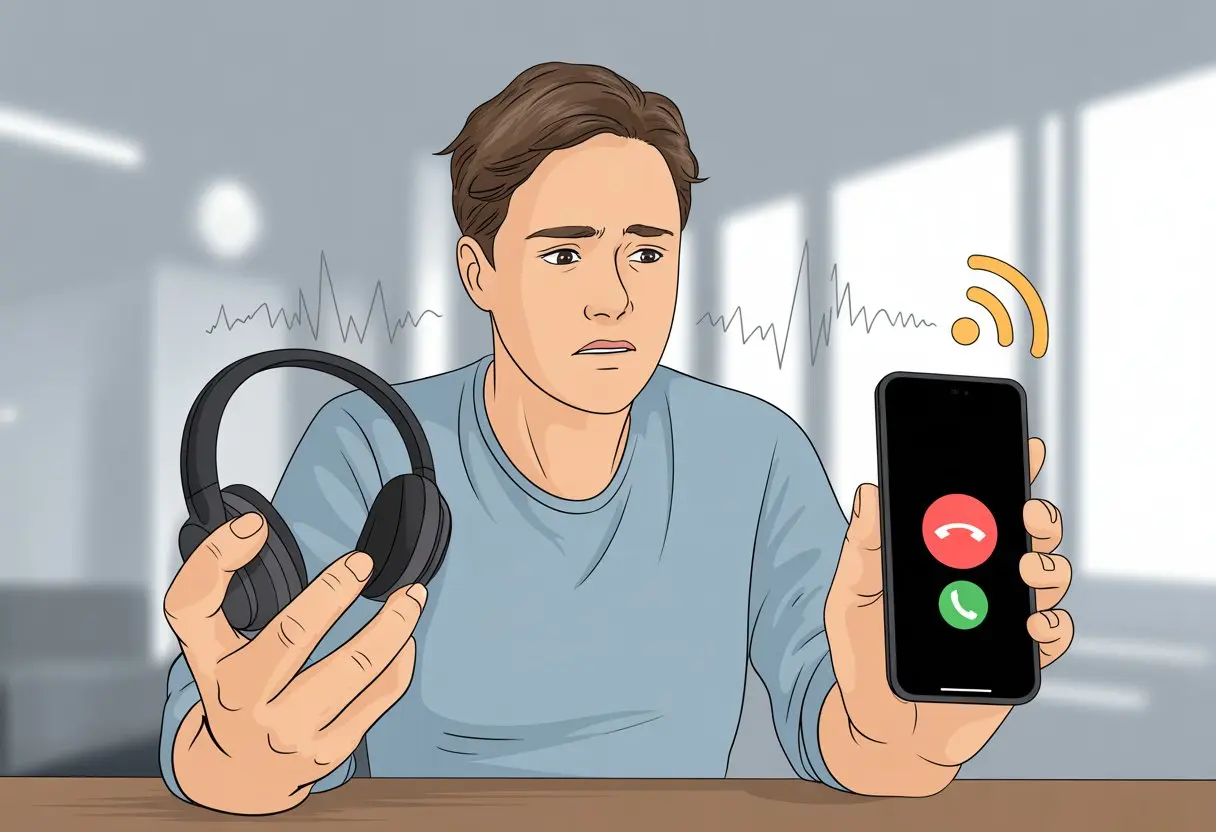
Ever picked up a call with your Bluetooth headphones and realized you can hear everything—except the actual call? Yeah, it’s frustrating. It almost feels like our headphones just want to stick to music and ignore calls altogether.
Usually, this happens because the call audio isn’t routed to our headphones, or a sneaky setting is blocking calls from coming through.
We’ve all mashed buttons, checked for silent mode, and wondered if our Bluetooth just doesn’t like phone calls. The upside? Most of the time, a few quick tweaks in our device’s settings can fix things.
Let’s dig into why our Bluetooth headphones sometimes ghost our calls—and how we can get them back in the conversation.
Understanding Bluetooth Technology
Bluetooth can feel like magic—until it flakes out during a call. To figure out what’s going on, we need to look at how Bluetooth connects our headphones and all the features packed inside these little gadgets.
How Bluetooth Works
Bluetooth is a short-range wireless tech. Our headphones and phones basically chat with each other from about 30 feet away, unless you’re in a concrete bunker or something.
When we pair them, they swap special codes to make sure they’re only talking to each other. If we wander too far or someone uses the microwave nearby, our Bluetooth connection might drop.
Walls and other electronics love to mess with the signal, causing dropped calls or silence right when we answer. Bluetooth also tries to multitask—it streams music, handles calls, and sometimes connects to two devices at once.
When it gets confused, we might hear music but not calls, or the other way around. That’s usually when we do the classic “turn it off and on again” routine.
Common Bluetooth Profiles for Headphones
Headphones use Bluetooth profiles, kind of like apps that give them different powers. The main ones for phone calls are:
HFP (Hands-Free Profile): Lets us talk on the phone and handle call functions.
HSP (Headset Profile): Lets us hear and speak during calls, but with fewer extras than HFP.
Some headphones juggle both music and calls by switching profiles. But if HFP or HSP isn’t enabled or supported, calls just won’t work—even if music does.
To make calls, our headphones need to handshake with our phone using the right profile. If everyone sounds underwater or the mic ignores us, it’s probably a profile mismatch.
Common Reasons Bluetooth Headphones Fail for Phone Calls
We all just want to take calls without shouting at our screens, but sometimes our Bluetooth gadgets have other ideas. Dropped calls, silent headphones, and weird beeps can make us feel like we’re talking to ourselves.
Bluetooth Connection Issues
Nothing kills a call faster than our Bluetooth device suddenly ghosting us. The connection between our headphones and phone can cut out for a bunch of reasons.
If we wander too far from the phone, we’ll definitely lose audio. Bluetooth’s range is about 30 feet—just far enough to miss something important.
Low battery on either the headphones or the phone can also cause connection issues. If either one’s dying, we’ll probably lose the call.
Other wireless devices or crowded spaces full of electronics can add to the chaos. Sometimes, Bluetooth just needs a reset. Turning it off and back on or unpairing and repairing can work wonders.
Ever been on a call and realized your voice is echoing from another room’s speaker instead of your headphones? Audio routing loves to mess with us.
When a call starts, the phone might send audio to the regular speaker or another Bluetooth device instead of our headphones. This usually comes down to the phone’s settings.
Most devices let us pick where call sound goes—headphones, speakers, or phone. If our headphones aren’t chosen for calls, no amount of button mashing will help.
Sometimes toggling between audio sources during a call fixes things. Try switching to speaker and back to Bluetooth. That quick move can solve call audio mishaps.
Device Compatibility Limitations
Sometimes, the problem is simple: our headphones and phone just aren’t compatible. Not all devices speak the same Bluetooth language.
Some headphones only support music (A2DP profile) and not hands-free calls (HFP or HSP). That means calls will always be silent.
Updates can break things too. After a phone update, our Bluetooth device might suddenly refuse to work for calls.
Resetting Bluetooth or network settings can sometimes fix it, as explained in this community fix guide.
Older phones or headphones might struggle with newer gadgets. If our devices are outdated, those new features might just stay out of reach.
Troubleshooting Connection Failures
https://www.youtube.com/watch?v=LdndTPFqXPs
Sometimes our Bluetooth headphones just refuse to work for calls, no matter how much we plead. Here are some steps to help us fix those annoying connection failures and get our conversations back on track.
Checking Bluetooth Settings
First up, let’s make sure our Bluetooth settings aren’t sabotaging us. On most phones and tablets, Bluetooth needs to be on—but it’s easy to forget.
Checklist:
Double-check that Bluetooth is turned on. If it’s off, our headphones are just fancy earmuffs.
Make sure airplane mode isn’t on.
If the headphones show as “connected” but don’t work for calls, try toggling Bluetooth off and back on.
Find the “Call Audio” setting and make sure it’s switched on for our headphones.
Clearing the device list and re-pairing can help if nothing else works. On some devices, clearing the Bluetooth cache in settings can fix weird or old connections.
Let’s make sure our headphones aren’t secretly paired with another device. If they’re connected to a tablet in the other room, things will get confusing fast.
Most of us have a bunch of gadgets nearby, and Bluetooth devices sometimes pick favorites. Make sure our headphones are connected to the device we actually want to use for calls.
Here’s how:
Open Bluetooth settings and see what’s connected.
If it’s the wrong one, tap “Forget” or “Disconnect.”
If things still don’t work, reboot everything—phones, headphones, all of it—so every device gets a fresh start. Advanced tricks like wiping cache or fully resetting settings might solve Bluetooth call audio not working.
And hey, headphones are loyal, but sometimes they need a little push.
Solving Audio and Call Quality Problems
Getting Bluetooth headphones to behave during calls can feel impossible sometimes. We deal with no audio, bad sound, or one-sided conversations more often than we’d like.
Let’s see what messes up our calls and how to fix these audio headaches.
Handling No Audio or Poor Sound
When our headset sounds awful or gives us silence during calls, Bluetooth limitations might be the culprit. Many headphones can only use either high-quality stereo or the mic—not both at once.
That means call quality drops or sounds muffled, especially when the mic is active.
Here’s a quick checklist:
Check device settings. Sometimes the phone picks the built-in speaker or mic instead of our headphones.
Re-pair the headphones. Forget the device in Bluetooth settings, then connect again like it’s brand new.
Adjust the volume. It’s basic, but we all forget sometimes.
If nothing works, try updating the headset’s firmware or testing with a different device. If it works elsewhere, our phone is the likely suspect.
Dealing with One-Sided Audio
A phone call where only one earbud works is just annoying. One-sided audio can pop up from bad pairing, a loose fit, dirty connectors, or just Bluetooth acting up.
Clean the headphones. Earwax is a silent killer for audio.
Switch ears. If one works and the other doesn’t, maybe give the other side a shot.
Check the phone’s mono setting. Make sure it’s not set to mono, which can send audio to just one earbud.
If nothing fixes it, the headphones might be the problem. At that point, maybe it’s time to start dropping hints for a new pair.
Recognizing Hardware and Product Issues
Sometimes our Bluetooth headphones just refuse to cooperate for calls, even though music sounds perfect. Hardware quirks and brand differences can make troubleshooting feel like a weird game of whack-a-mole.
Button Malfunctions and Controls
Ever pressed the answer/end button and got nothing but awkward silence? We’ve all mashed those buttons, hoping for magic, and instead just heard weird beeps—or, honestly, nothing at all.
The tiny controls on headphones often misbehave or get stuck. Sometimes you wonder if you need a tiny pair of pliers or just more patience.
Common problems? Buttons that don’t register presses, double-clicks that skip commands, or the multifunction button acting like it knows better than you do. Sometimes a bit of dust or sticky gunk blocks the contact under the button. A gentle (seriously, be gentle) cleaning can help. Just don’t give your headphones a bath—they’re not fans of spa days.
Some headphones come with baffling control schemes. Is a long press going to answer or hang up? If you’re not sure, check the user manual—even if it’s probably buried under the couch.
Specific Brand Challenges: Bose Headphones and Others
Some brands, like Bose headphones, have their own quirks. Sometimes call audio routes strangely, or the mic just gives up—usually right when you need it most. Bose devices often need firmware updates to fix these headaches, so it’s worth checking their app for updates.
Pairing issues happen too. Sometimes the Bluetooth settings decide “calls” are optional and turn them off. For some troubleshooting steps and hidden features, community threads and official guides can save us from inventing new swear words. Check if call audio is enabled in the Bluetooth device options.
If nothing else works, try resetting the headphones. That often jogs their memory. Every now and then, though, you just get a lemon—so a warranty claim might be your best bet (pun totally intended).
When to Seek Help or Support
When Bluetooth headphones flat-out refuse to work for calls, sometimes you need backup. Not every issue cracks under the pressure of a restart or a death stare, so what next?
Contacting Tech Support and Verified Experts
If you’ve tried everything and still want to scream, it’s probably time to reach out to tech support. Most brands have a customer support number or online chat. Just explain your problem and, if you’re lucky, they’ll actually have a fix.
Having your device details ready—like the model number and purchase date—makes you look like a pro, not someone who forgot everything. A lot of companies also work with verified experts on platforms like JustAnswer. Somehow, those folks troubleshoot all day and don’t lose their minds.
Here’s a quick checklist before you call:
Is the headphone charged?
Did you update your device software?
Have you turned it off and on again? (Seriously, just try it.)
You might have to wait on hold, but at least the elevator music sounds better with working headphones.
Understanding Product Warranty and Service Options
If tech support hits a wall, now’s the time to dig up your warranty information. Many Bluetooth headphones come with a one- or two-year warranty. If yours is still covered, you could score free repairs or a replacement. Finding this info might mean rummaging through boxes or old emails, but hey, free service is worth it.
Service options depend on the brand and where you live. Some companies want you to ship the headphones back; others have local stores. You’ll need proof of purchase. If your warranty’s out, some brands still offer affordable repairs or spare parts.
Product support can also check if your model’s under recall or needs a special update. If you’re unsure, just ask. No point in living with headphones that are only good for looking cool around your neck.
Alternative Solutions and Accessories
Bluetooth headphones have moods. When they refuse to work for calls, sometimes it’s best to switch things up—or maybe dig out that old wire from 2010. There are a few tricks and gadgets to try before you give up and start yelling across the room.
Trying Other Bluetooth Devices
If your headphones are being stubborn, try another set of Bluetooth earbuds, a speaker, or even a soundbar. Some soundbars and home cinema systems can handle calls—as long as they have a mic, or you’ll just be talking to yourself.
Bluetooth speakers are often easier to connect. Sure, you lose privacy, but at least you’ll hear the whole conversation. According to some common fixes, reconnecting or resetting your devices can help—sometimes headphones just need a little nudge. For more troubleshooting, even pairing another Bluetooth device or checking settings can help you figure out if the headphones are really the problem.
Considering Wired Options
Honestly, going back to wired headphones almost feels like churning butter. But you know, sometimes the simplest solution just works.
Wired headphones usually get along with most phones. You don’t have to mess with weird Bluetooth glitches or worry about your headphones dying at the worst moment.
Check if your phone still has a headphone jack (and yeah, some don’t—thanks, “progress”). If it’s missing, you’ll probably need a USB-C or Lightning adapter.
Wired gear usually gives you clearer sound on calls, and you won’t deal with random connection dropouts. Plus, you can skip the whole charging hassle. No Bluetooth, no battery drama.
Sometimes, old school really is the new cool—even if the cord manages to tie itself into knots the second you put it down.
Hi, my name is Garrett Jones, and I am a tech enthusiast. I enjoy researching the new tech that has been released, and have a vast knowledge of the best tech to purchase.
From a young age, I have always had a big interest in technology, and this blog is an extension of that interest. Through this blog, I hope to provide others with all of the information they need regarding tech options to consider, and things such as compatibility. Some of the different items I will be discussing include headphones, smartwatches, and how to fix common issues.