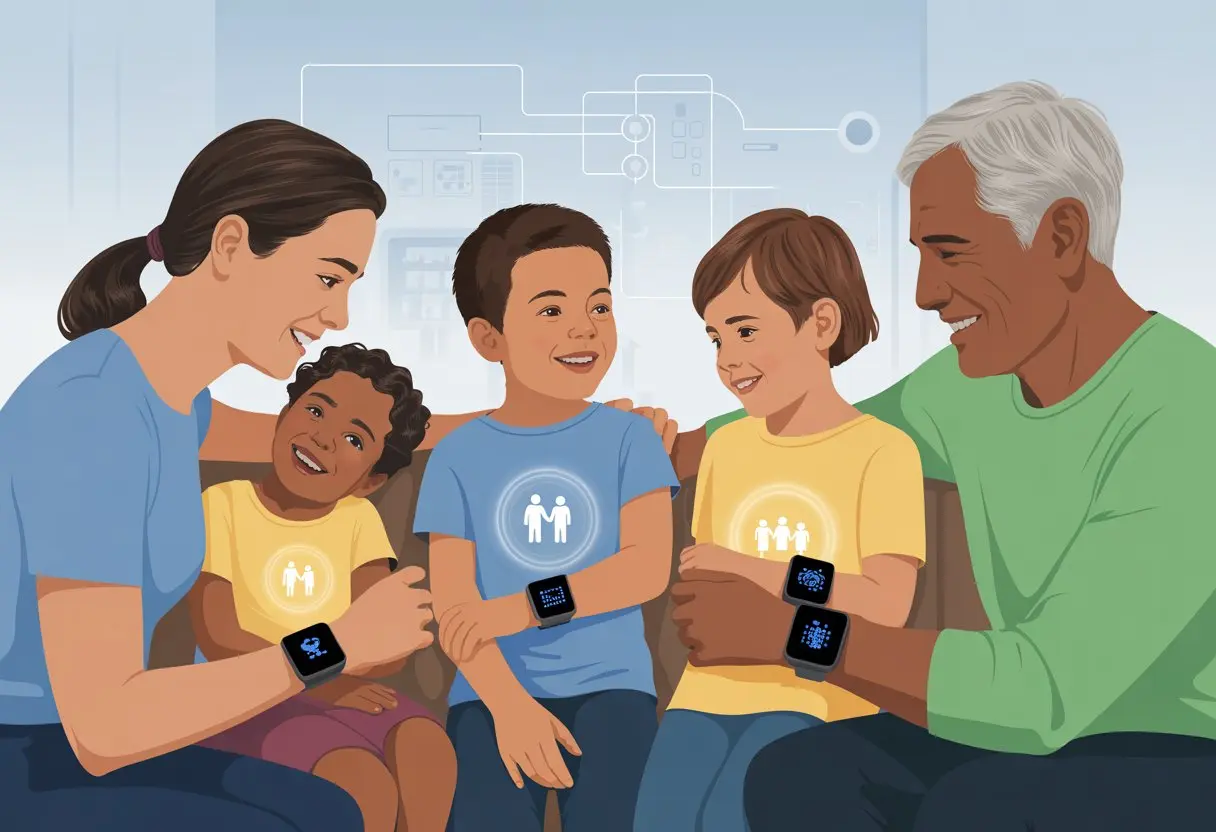
Isn’t it wild how a tiny smartwatch can help us keep tabs on the whole family—without feeling like the FBI? With family sharing on a smartwatch, we can check our kids’ locations, send quick texts, and even make sure Grandma took her walk—all from our own wrist.
No more group texts asking, “Where are you?” or, “Are you okay?” Now we actually know.
Setting up a smartwatch for family sharing takes less time than finding matching socks in the morning. We just need our phone, a smartwatch, and a relative—hopefully one who remembers to charge their device.
If you want to help your kids, parents, or even that forgetful cousin stay connected, it’s a great way to bring everyone together.
Let’s be honest, we could all use a few shortcuts in the daily chaos. If keeping the family connected sounds like magic, it’s actually just family sharing on a smartwatch.
Stick with us—we’ll show how it works and how it can make our lives a whole lot simpler.
Getting Started With Family Sharing on a Smartwatch
Let’s be real—setting things up for the whole family sounds complicated, but it’s easier than teaching Grandma to text GIFs. We just need the right smartwatch, a few Apple IDs, and our iPhone ready to go.
Supported Devices and Requirements
First, we need a smartwatch that can actually join our family party. For Apple fans, that means an Apple Watch SE or any Series 6 (or newer) with cellular.
No, that ten-year-old clunker gathering dust in the junk drawer won’t cut it.
Here’s what we need:
Apple Watch SE, Series 6, 7, 8, 9, or Ultra
Cellular model only for kids or family
An iPhone 6s or later running iOS 14 or newer (sorry flip phones)
Each person we add needs their own Apple ID
Basically, Apple keeps it in the (device) family. If our kid is hoping to sneak in a non-cellular watch, we’ll need to break the bad news—it’s not supported.
Setting Up Family Sharing
Before we can stay connected with our kids, we have to set up Family Sharing on our iPhone. We head to Settings > Apple ID > Family Sharing.
If junior isn’t already in our group, we tap Add Member and follow the prompts. Each family member has to accept an invite (which usually means bugging our kids to check their phones).
Once they’re in, we pick their Apple Watch in the Apple Watch app and tap Set Up for a Family Member. It’ll ask for our child’s Apple ID password, proof we’re really their parent, and maybe even for our firstborn.
Family Sharing lets us manage:
Screen Time
App Store spending
Find My location tracking
If only it came with “Get everyone to actually answer group chats.”
Creating and Managing Apple IDs for Kids
If our child doesn’t have an Apple ID yet, we can make one right from Family Sharing. We tap Add Member, then Create Child Account.
We follow the steps—this is where we enter a birthday, answer security questions, and make sure our kid can’t pretend to be 27 to access PG-13 apps.
Tips:
Use a unique email for each kid
Set up a strong password (secret handshakes not accepted)
Enable Ask to Buy so they can’t spend our money on 1,000 sticker packs
Our iPhone keeps all Apple IDs in one tidy spot. This means less hunting for lost passwords and more time laughing at our kids’ silly watch faces.
Before we can enjoy sharing a smartwatch with the whole family, we need to make sure it connects to something other than our hopes and dreams. From eSIM wizardry to old-school Bluetooth, there are a few ways to get everything talking.
Using eSIM and SIM Card Options
Let’s dive into the world of eSIMs and SIM cards. Most newer smartwatches, like the Apple Watch Series 3 and beyond, use an eSIM.
This is basically a digital SIM—so no more fiddling with tiny plastic cards that instantly vanish the moment you drop them.
To activate cellular, we go to our phone’s settings and find the watch’s section. Choose Cellular Setup or Add a Plan.
When we use Family Sharing on the Apple Watch, a parent or organizer sets up the watch for another family member (here’s how). The process asks for a cellular plan and an Apple ID for the wearer.
With eSIM, once everything is set up, the watch can make calls, send texts, and even answer “What’s 7×8?” when your child asks at breakfast.
Some smartwatches still use a classic SIM card slot. Slide in the SIM, wait for the magic bars to appear, and you’re ready to go.
Check with your carrier to see if you need a special family plan or—if you’re feeling retro—a plastic card with numbers on it.
Tip: Using an eSIM means fewer physical parts, but we’ll still have lots of digital paperwork to click through. Yay, progress!
Bluetooth Pairing and Setup
Now, let’s talk Bluetooth. This is the invisible handshake between our phone and our smartwatch.
It’s the reason Aunt Karen accidentally paired her watch to Grandpa’s phone that one Thanksgiving.
To pair a new family smartwatch, we open the Watch app on our phone, tap “Add Watch,” and follow the prompts. The devices do a little Bluetooth dance and connect in just a moment.
This is especially handy for devices without cellular connectivity—hello, Wi-Fi-dependent kids’ watches!
Bluetooth lets us share notifications, health data, and app access. When we use Family Sharing, we can also set up controls, like Screen Time, right from our phone.
For parents, this means we can supervise who gets which notifications—sorry, kids, no TikTok at midnight under the covers.
If you hit a snag, try turning Bluetooth off and on again. It’s basically tech-support tradition at this point, and honestly, it works more than we’d like to admit.
Setting Up Messaging and Communication Features
When we set up messaging on our kids’ smartwatches, sneaky group chats and mysterious emojis are less of a mystery. We’ll look at how to make iMessage work smoothly and how to keep contacts neat, so messages go to the right people—like Grandma, not a random pizza place.
Enabling iMessage on Kids’ Devices
First things first, let’s get iMessage working on our kids’ Apple Watches. We start by setting up Family Sharing and add our child’s account so their messages don’t end up in some internet black hole.
Then, through the Watch app on our iPhone, we select the kid’s watch under Family Watches. Next, we enter their Apple ID (or create one for them if they think they’re too young to need email).
This is key, because iMessage needs a real Apple ID to work. We then go to Settings > Messages and flip the iMessage switch faster than they can say “LOL.”
If something’s not working, double check Wi-Fi or cellular is on. Using Family Setup, we can manage which contacts our kids can message, so those “Can I have a cookie?” texts still go through, but not any suspicious friend requests.
Contacts are like the bouncers of our kids’ digital world. With Family Setup, we control who gets past the velvet rope.
We can add only trusted family and friends, making sure our kids aren’t suddenly messaging a random clown named Bob. This means less worry about weird texts or spam.
We do this in the Apple Watch app by picking “Contacts” and adding the phone numbers or emails we approve. We can also decide if our kids can add contacts on their own or if that power stays in our hands.
If we want, we can turn off message notifications at bedtime, so nobody ruins their beauty sleep—not even Aunt Linda.
And let’s not forget group messages. We check who’s in the group and make sure it’s not a secret club plotting to take over the cookie jar.
By reviewing the message history and contact list regularly, we keep everything safe, cozy, and slightly less chaotic. For more details on managing an Apple Watch for kids with parental controls, check the full guide.
Managing Smartwatch Plans and Subscriptions
Getting a family set up with smartwatches isn’t just about picking snazzy colors and bands. We also have to make some decisions about the plans and the monthly service that keeps everything running (and keeps the kids from claiming they’re “off the grid”).
Choosing a Smartwatch Plan
Picking the right smartwatch plan can feel like ordering coffee in a new city: There are too many options and someone behind us in line always seems impatient.
Many carriers, such as T-Mobile, AT&T, and Verizon, offer plans just for smartwatches. These work alongside our regular phone plan.
Some smartwatches, like the Apple Watch, offer special family setup plans so kids or parents without their own phones can still use the watch. We’ll need to check if our carrier supports this.
Choose a family or standalone smartwatch plan with enough data, texts, and calling features.
A table can help us keep it straight:
Carrier
Standalone Watch Plan?
Family Setup Support
Verizon
Yes
Yes
AT&T
Yes
Yes
T-Mobile
Yes
Yes
We shouldn’t forget to check if smartwatches need their own SIM cards or if they use eSIMs—it’s the difference between “pop it in” and “what’s an eSIM?”
Understanding Monthly Service Costs
Now let’s talk money. Each smartwatch added to our family empire needs its own monthly service fee.
On most carriers, plans for smartwatches cost between $10 to $15 a month. Apple’s Family Setup feature can add extra costs, so we’ll want to ask our carrier before anyone gets attached to their wrist notifications.
Some plans may throw in unlimited data and calling. Others limit how much the watch can do when away from Wi-Fi or a paired phone.
We have to keep an eye out for hidden fees, one-time activation charges, and “special features” that sound more exciting than they are.
If our smartwatch users are especially chatty or need GPS tracking all the time (hello, adventurous kids), paying a bit more for an unlimited plan might be worth it.
If not, a basic plan usually does the job, keeps everyone connected, and—fingers crossed—no surprise bills at the end of the month.
Ensuring Safety and Parental Controls
Staying safe with a smartwatch is about more than just keeping track of the time (though, yes, we’re always late anyway). With the right settings, we can help keep our kids safe, our minds calm, and, hopefully, avoid mysterious midnight text messages to the principal.
Setting Usage Limits and Permissions
Kids are curious, and if you let them, they’ll treat a smartwatch like it’s a ticket to endless games (nice try, junior). Thankfully, we can set limits on screen time, app downloads, and messaging so the watch doesn’t just turn into a pocket-sized arcade.
With Family Setup on the Apple Watch, we get to decide exactly who our kids can call or text. No more “accidental” prank calls to Aunt Linda.
We also approve which apps they install. By heading into the watch’s settings, we can schedule Downtime for school hours and bedtime, basically locking things down when it matters most.
It’s a win for parents, a minor tragedy for sneaky kids, and honestly, it’s pretty easy after a few taps in the Apple Watch app. If you want more details, check out guides like Apple Watch parental controls.
Tracking Location for Peace of Mind
Let’s be real—sometimes we want to track our kids like secret agents, but it’s less “mission impossible” and more “where’s your backpack this time?” Modern smartwatches let us see exactly where our kids are, so we don’t have to guess if “at the library” is code for arcade again.
With real-time location sharing, we can grab our phone and check if our kids are actually where they said they’d be (spoiler: not always). Geofencing lets us set up safe zones, and if anyone wanders off, we get an alert faster than a kid can make up an excuse.
Parents get peace of mind, and kids get just a little less freedom to become hide-and-seek champions. Want to see how it all works? Take a look at the tools in smartwatch safety guides.
Using Family Sharing Across Different Brands
Getting family sharing to work with smartwatches sounds futuristic, right? But things get messy when you mix brands. Pairing an Apple Watch with a Samsung or Google device? Yeah, it’s not exactly like sharing popcorn at the movies.
Sharing With Samsung and Google Devices
If your family uses Samsung or Google smartwatches, you’ll notice sharing features don’t always line up. Samsung’s Galaxy Watch and Google devices run on Wear OS. Both offer health and activity sharing, but there’s no universal family sharing mode that works across every brand.
Usually, we can share basic fitness stats through third-party apps like Google Fit or apps from the Galaxy Store. Some clever folks on Reddit figured out platforms that don’t care what brand we’re using, but honestly, the features are pretty basic.
Here’s a quick cheat sheet for sharing across brands:
Use Google Fit for step counts and workouts
Connect apps compatible with both watches to share activity
Keep expectations low—there’s no magic family notice board for everyone’s wrist
Working With Different Smartphones
Things get even more interesting if your family’s phones are a mix of Androids and iPhones. Apple Watch only works with iPhones, so don’t expect it to pair with a Samsung or Google phone—classic Apple.
Samsung and Google smartwatches play nicer; most work with any Android phone and sometimes even with iPhones (but with fewer features). Family sharing works best when devices stick to their own club.
If Grandma’s got an iPhone and a Galaxy Watch, expect a few hiccups. Messaging and calls might not work fully, but health data can still sync with some apps.
The trick is to install the right companion app for each brand and cross your fingers that the tech gods are on your side.
International Roaming and Connectivity Tips
Traveling with smartwatches makes us feel like we’re living in the future, but international borders don’t always cooperate. Cell service can get weird, roaming charges pop up out of nowhere, and a few quick settings tweaks can save you a lot of grief.
Managing Roaming Settings
Crossing into a new country? Sometimes our smartwatch acts like it’s on vacation too. To keep things working, we need to check a couple of things.
Open the Settings app on the watch, tap Cellular, and turn on Data Roaming if it isn’t already. If we skip this, our device might as well be a wrist calculator.
Family setup plans don’t always play nice with international roaming. Apple Watches set up with Family Setup often won’t roam internationally, even when our carrier supports roaming for regular plans.
To avoid nasty surprises, let’s check our plan before packing. If you’re ever unsure, check the carrier’s website or app—it’s way better than guessing.
We really don’t want to end up calling home using smoke signals.
Considerations for Travelers
Thinking of traveling with the family’s smartwatches? Solid idea, but let’s read the fine print. Carriers love surprises—some only support watch roaming if the watch is paired with the main user’s phone and plan.
If we set up a kid’s watch on a standalone plan using Family Setup, it might not support international roaming at all.
Here’s a quick checklist:
Is our watch compatible with cellular networks in the country we’re visiting?
Does our carrier allow roaming on family or standalone plans?
Did we actually enable roaming in the settings?
And seriously, ask the carrier about extra roaming fees. We’d rather spend that money on ice cream.
Compatibility With Older Devices
Let’s be honest—a lot of us still have an iPhone that feels ancient. When we think about family sharing with a smartwatch, both the iPhone model and the iOS version can make or break things.
No one wants to set everything up only to find out it doesn’t work.
Using iPhone 6s With Modern Smartwatches
Still holding on to your trusty iPhone 6s and want to use family sharing with an Apple Watch? Here’s the deal: the iPhone 6s connects to a lot of smartwatches, but there are limits.
The biggest catch? Modern Apple Watches, especially the newer Series models, usually want the latest iOS. The iPhone 6s supports a surprisingly high number of updates, but it doesn’t last forever—eventually, those updates stop and everything starts moving at a snail’s pace.
If you’re using an old iPhone 6s, pairing it with the latest Apple Watch Series 9 or Ultra might feel like trying to play a 4K movie on a flip phone. Some features, like Family Setup, might not even show up if your iPhone or iOS is out of date.
Want more details? Check out how to set up Apple Watch for family members.
iOS 11 Requirements
If we want our family sharing dreams to come true, our iPhone has to run at least iOS 11. But honestly, a lot of the cool Apple Watch stuff and newer family sharing tricks? They usually need iOS 14 or higher.
So, if we haven’t updated our phone since fidget spinners were a thing, the smartwatch might just ignore us. Here’s the deal: always check the required iOS before sinking time or money into this.
We should join a Family Sharing group and grab a cellular-capable Apple Watch if we’re setting things up for a kid or another family member.
And for anyone still clinging to an old iPhone 6s—no amount of duct tape or wishful thinking will make outdated iOS play nice with all the latest smartwatch features!
Hi, my name is Garrett Jones, and I am a tech enthusiast. I enjoy researching the new tech that has been released, and have a vast knowledge of the best tech to purchase.
From a young age, I have always had a big interest in technology, and this blog is an extension of that interest. Through this blog, I hope to provide others with all of the information they need regarding tech options to consider, and things such as compatibility. Some of the different items I will be discussing include headphones, smartwatches, and how to fix common issues.