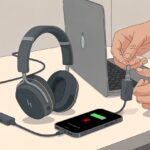
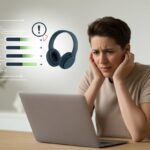
We’ve all been there—one minute we’re vibing to our playlist, and the next, our Bluetooth headphones just stop charging all the way. The frustration? Oh, it’s real.
Most of the time, it’s a tired cable, a glitchy port, or a battery that’s just plain worn out. It almost feels like the headphones just decided to take a break instead of finishing the job.
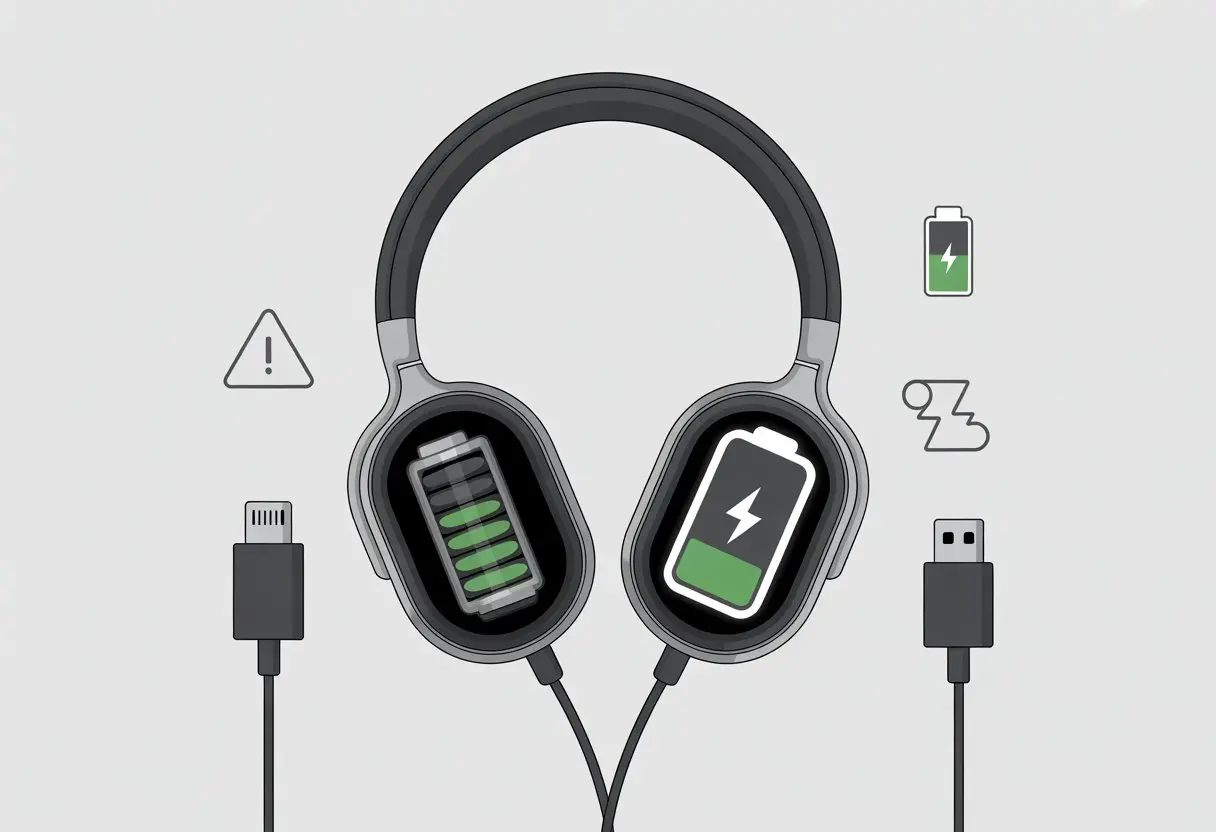
It’s seriously annoying when the charging light goes off before we’re ready, or the battery meter stubbornly stays below 100%. Sometimes, we’re left scratching our heads, wondering if it’s the cable, the headphones, or just plain bad luck.
If you’re tired of playing tech detective, you’re in the right place. Let’s see if we can figure out why our headphones are being so stubborn about charging.
Common Reasons Bluetooth Headphones Do Not Charge Fully
Sometimes our Bluetooth headphones just take a nap instead of charging up. Usually, something simple went sideways in the charging process.
A few usual suspects—bad USB cables, a dirty charging port, or a weak power source—can mess up our charging routine.
Faulty USB Cable Connections
Let’s be real—who doesn’t have a drawer full of questionable USB cables? Old, frayed, or cheap cables can turn charging into a guessing game.
A bad cable might give us a few seconds of charging before quitting. Worn-out cables usually have visible damage, or the ends don’t fit snugly into the charging port.
Sometimes, only one side works, which is about as useful as a mug with a hole in it. If the charging light flickers or turns off quickly, try swapping in a cable you trust.
Having a dedicated, high-quality USB cable for your headphones actually solves a lot of weird charging problems. Just ask anyone who’s spent time on Bluetooth headphone charging forums.
Damaged or Dirty Charging Port
Charging ports seem to attract dust, lint, and who-knows-what. A dirty or bent port can totally mess up the connection you need for a full charge.
If the USB cable feels loose, or if moving it around makes the charging light flicker, there’s probably some gunk in there—or worse, the port could be damaged. Sweat, pocket lint, and random crumbs love to hide in headphone ports, especially if you toss them in bags or pockets.
Regular checks help. Grab a soft brush or a wooden toothpick and clean gently—no need to go overboard. For more tips, check out guides like this JBL charging contact cleaning article.
If cleaning doesn’t help, you might be looking at actual hardware damage. At that point, it’s probably time to call in a pro.
Insufficient Power Supply or Amp Rating
Not all power sources are equal—some wall adapters and USB ports just can’t keep up. An underpowered USB port (looking at you, ancient laptops) can leave our headphones only half-charged or charging super slowly.
If your power supply’s amp rating is too low, your headphones won’t get enough “juice” to charge all the way. Always check the output—most chargers list their amp rating (like 1A, 2A, etc.) right on the plug.
Plugging into a laptop instead of a wall charger usually means you’ll get less current. A higher amp-rated charger makes a big difference, just like people mention in posts about insufficient power supply.
If you think your charger’s slacking, swapping it for a beefier one is a quick fix.
Diagnosing Bluetooth Headphone Charging Issues
When our Bluetooth headphones stop charging all the way, it’s time to play detective. Focus on what’s lighting up (or not), and check if your charging cables have given up.
Checking Charging Status Indicators
First, check those tiny lights on your headphones and case—they’re basically little messengers. If the charging status lights blink, turn red, or just refuse to show up, they’re telling us something’s wrong.
Many headphones flash red when low, glow white or green when charged, and sometimes do a weird light show before stopping. That could mean a full battery, or just a charging issue.
If there’s no light at all, maybe the headphones aren’t just being moody. A stuck power button or just needing a break from overuse could be the culprit.
Try a long press on the power or reset button to wake them up. If nothing happens, keep digging.
Testing Alternative USB Ports or Cables
Let’s talk about USB cables and ports—they’re either heroes or total troublemakers. Just because a cable worked last week doesn’t mean it’s not toast today.
Start by swapping out your cable for a different one. Sometimes, you’ll discover the old one wasn’t charging anything at all—not even a little hope.
Plug the cable into another USB port, wall charger, or even a different device. If something finally works and your headphones light up, you know the cable or port was the problem.
Just reinserting the USB cable securely can sometimes fix charging problems. And let’s be honest, we all have way too many cables but can never find the one we actually need.
Troubleshooting Solutions for Incomplete Charging
Sometimes, our Bluetooth headphones just refuse to cooperate—kind of like a cat that hates baths. When this happens, it’s usually a small problem we can fix ourselves.
Dust, glitches, and even our own forgetfulness can get in the way.
Performing a Reset or Reboot
Before you reach for the screwdriver or blame the dog, try restarting your headphones. Sometimes headphones freeze up, just like our brains on a Monday.
By doing a reset or reboot, you can clear out small software hiccups that mess up charging.
Most models let us reset by holding the power or reset button for about 10 seconds. Check your manual to be sure.
If there’s no reset button, just turning them off and on can help. It’s fast—faster than making coffee, honestly.
Often, a basic reboot does the trick. If your headphones still only charge for a second or two, you might have a different issue.
Check out forums like this one about Bluetooth headphone charging issues for more ideas.
Cleaning Dust and Debris from Ports
Let’s talk about dust—it’s a real villain for headphones. Dust loves to hide in charging ports and block us from getting a full charge.
USB charging ports get clogged with lint, dust, or even snack crumbs (hey, it happens). To fix this, grab a toothpick, a soft brush, or some compressed air.
Gently poke around for debris, then sweep away any stubborn bits. Blasting with canned air works well for stubborn dust.
Cleaning the port helps restore the connection between the cable and your headphones. Some guides say to start here, like these charging and cleaning tips.
Don’t use water or metal tools—unless you want a shocking surprise! If nothing helps, check if the cable or port is damaged.
Importance of Product Updates and Firmware
Staying on top of product updates and firmware for Bluetooth headphones isn’t just busywork. Updates can actually make our headsets work better, stay compatible, and—most importantly—keep them from dying right when we want to listen to music.
Let’s not end up with an expensive earmuff that refuses to charge.
Updating Headset Software
We all get those popups asking us to update our headphones’ software, and yeah, it’s annoying. But ignoring updates is kind of like ignoring a blinking check engine light—eventually, something’s going to go wrong.
Outdated firmware can cause charging problems, battery drain, and make us regret our purchase. Some manufacturers release updates that fix charging bugs, so skipping them means risking endless battery headaches.
It’s smart to check for updates from the manufacturer, especially if your headphones won’t charge fully. Firmware issues can cause charging problems, and updates often fix them.
Just follow the instructions in the app or on the company’s website. That way, you’re less likely to end up using your headphones as fancy earmuffs.
Compatibility with Bluetooth Devices
Sometimes our headphones are updated and still act up. That’s when compatibility with our other Bluetooth gadgets comes into play.
If your phone or tablet’s software and your headset don’t get along, charging can fail or things get weird. It’s like inviting two friends who secretly hate each other to dinner—never a good idea.
Make sure your other Bluetooth devices have the latest software too, not just the headset. Outdated devices can cause Bluetooth communication glitches or even mess with charging, especially during updates.
Check compatibility lists from the manufacturer or look for known issues online, like in this Sony troubleshooting article. Better software compatibility means fewer surprises—and more time listening to music instead of staring at error screens.
Battery Health and Longevity Concerns
We all want our Bluetooth headphones to last longer than our favorite socks. But battery health can crash the party fast.
If your headset refuses to charge all the way, it might be waving a tiny white flag you just can’t see.
Identifying Battery Wear Signs
Let’s play detective for a second. Is your headset suddenly draining faster than a toddler with a juice box? Rapid loss of battery life usually means the battery’s worn out, or maybe you’ve been blasting your music a little too loud.
If you crank up the volume to the max every time, you could lose up to 30% of battery life per charge, according to these battery usage tips.
Do your headphones only work when you plug them in? At that point, you might as well call them wired. That’s a big red flag—the battery just isn’t holding a charge anymore, but the headset still runs off the cable.
Here’s another classic: you charge for hours, then get five minutes of music before it goes dead. Not exactly ideal.
When to Replace Your Headset Battery
Every battery eventually calls it quits. If your headset keeps acting up—only turning on while charging or never reaching 100%—it’s probably time for a new battery.
Most Bluetooth headphone batteries last between 300 and 500 charge cycles before performance really drops, as this battery guide explains.
Here’s a quick checklist:
- Headphones charge forever but never get “full”—battery is tired.
- Random shutdowns or zero battery in minutes—battery life is toast.
- Only works while charging—battery took a long nap and didn’t wake up (fix details).
If you’re seeing these signs, a replacement battery (or, honestly, a new headset) is probably your best move.
Preventative Tips to Ensure Full Charges Every Time
Nobody wants their headphones dying in the middle of a dramatic plot twist or their favorite chorus. If you want hassle-free charging and longer battery life, a few small habits can really help.
Best Practices for Daily Charging
Charging every day can feel like a chore. Some of us already forget to water our plants, right? But you can avoid battery problems by following some simple steps.
Don’t wait until your battery’s crawling at 1%. If your headset is at about 40-50%, go ahead and plug it in. This keeps the battery healthy, instead of running it on empty every time—kind of like us after skipping breakfast.
Don’t leave your headphones plugged in all night. Most wireless headphones need about an hour to charge, so there’s no need for an all-night marathon. If you’re forgetful, set a timer.
Use a good wall adapter instead of a weak computer USB port. That way, you’ll avoid slow or partial charging—kind of like picking a strong coffee when you need to wake up. For more charging tips, check out these Bluetooth headphone charging tips.
Stick these reminders near your charging spot:
- Don’t use frayed or old cables.
- Try different charging ports if one seems slow.
- Stay consistent with charging times.
Proper Storage and Care for Headphones
Let’s talk about where you toss your headphones when you’re done. Too many of us treat them like gym socks—stuffed in a bag or lost between couch cushions.
Storing headphones in a clean, dry case keeps them from getting scratched and stops food crumbs from sneaking into the charging port. It also helps the battery last longer.
Keep your headset away from heat or direct sunlight. High temps make batteries age faster, and nobody wants that. If your headphones get wet, dry them out right away. Moisture in the charging port is just asking for trouble.
Check and gently clean the charging contacts every so often. Dust, pocket lint, and mystery gunk can mess with the connection. Good storage habits and the occasional cable check help make sure your next charge is quick and full. For more on headphone care, here’s a detailed guide on headphone care.
When to Seek Professional Help or Replacement
Sometimes Bluetooth headphones just won’t cooperate, no matter what you try. If you’ve cleaned, reset, and even begged the headphone gods, but nothing works, it might be time to think about other options.
Recognizing Irreparable Charging Problems
If your headset only charges for a split second or not at all, that’s a pretty loud hint the battery might be toast. Lithium-ion batteries don’t last forever—eventually, they just can’t hold a charge.
You might swap cables, clean the contacts, or even do a hard reset, but sometimes nothing fixes it.
Here’s what you might see:
- The charging light blinks but never stays on
- Headphones stop working after just a few minutes of “charging”
- Nothing changes after trying different chargers and cables
If this sounds familiar, someone with the right tools can maybe fix a hardware issue. If not, buying a new pair is probably the easiest route. If you’re determined to keep troubleshooting, here are more details about charging problems.
Warranty and Support Options
Before you toss your headset aside, let’s double-check if there’s an easy fix hiding in plain sight. Most big brands give you a warranty that lasts anywhere from six months up to two years.
Here’s a quick checklist:
- Still under warranty? Go ahead and reach out to customer support. They might just replace it or fix it for you.
- Bought it at a store with a decent return policy? Time to dig through drawers for those receipts.
- No luck with those? Some companies will sell you a replacement battery, or at least point you toward a service center.
Usually, you have to fill out a form to file a support claim. Sometimes, they’ll even ask for a photo of your sad-looking headset.
If dealing with customer service sounds better than dropping cash on a new pair, definitely check their official support pages first. Why rush to buy something new when you might get a fix for free?
If nothing works, well, at least you can say you gave it your best shot—short of breaking out a spell book, anyway.

From a young age, I have always had a big interest in technology, and this blog is an extension of that interest. Through this blog, I hope to provide others with all of the information they need regarding tech options to consider, and things such as compatibility. Some of the different items I will be discussing include headphones, smartwatches, and how to fix common issues.
- The Best Rugged And Waterproof Smartwatches - October 21, 2026
- 10 Best Military Smartwatch – Find The Best Tactical Military Watches in 2023 - October 20, 2026
- Are Wired Headphones Safer Than Bluetooth? A Friendly Guide - October 20, 2026