Let’s be honest—there’s something cool about talking to your phone without actually talking to your phone. That’s where Bluetooth headphones and Google Assistant really shine.
With just a quick setup, you can ask Google to play music, check the weather, or remind you to buy laundry detergent, all while your phone stays in your pocket.
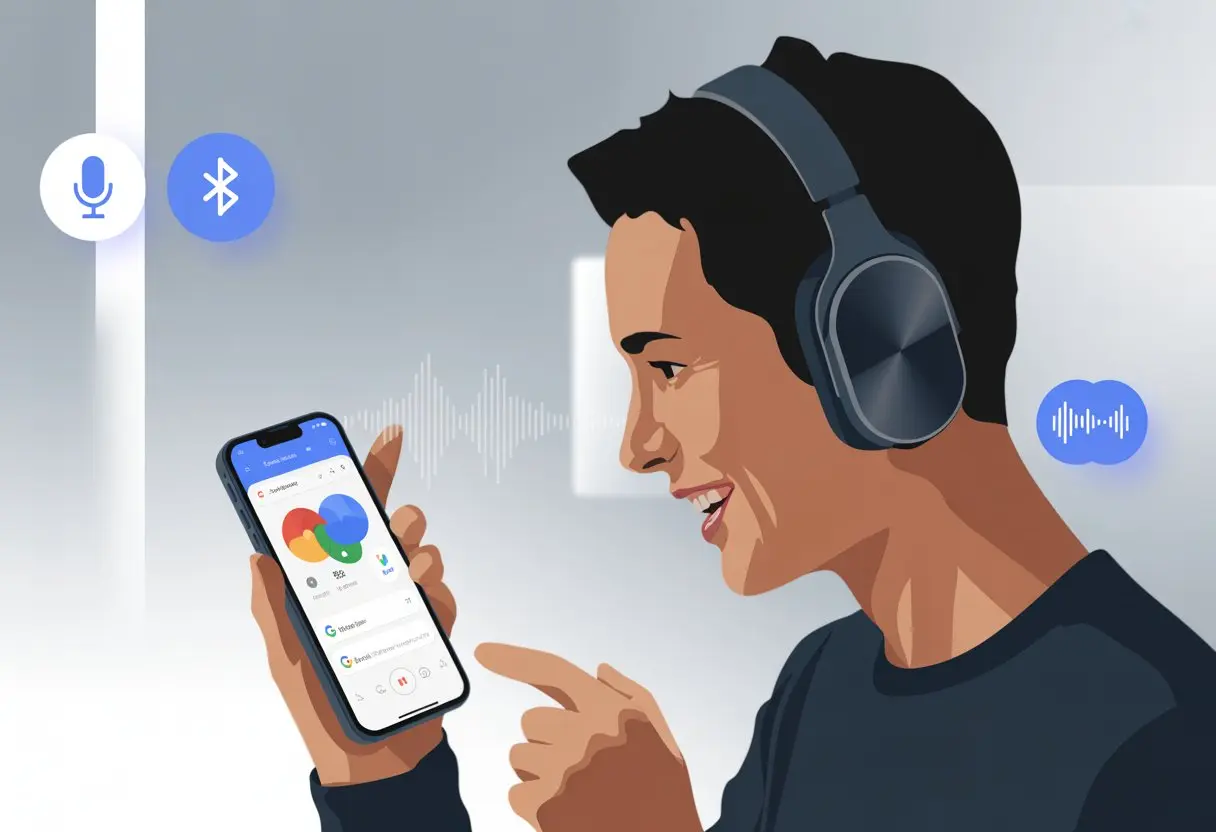
Pairing Bluetooth headphones with Google Assistant turns you into a hands-free wizard. You can answer calls, send texts, or check traffic on your commute, usually just by talking.
Most headphones let you trigger Google Assistant with a button, so you don’t have to shout “Hey Google” in public and get strange looks. If you haven’t tried it yet, connecting your headphones is simple thanks to built-in support on lots of devices, including fancy Sony and JBL models.
Setup steps are straightforward, too.
With the right settings, you’re ready to live that futuristic life—no wires, no typing, just you, your headphones, and a helpful assistant. The best part? Google Assistant doesn’t judge, even if your questions get a little weird.
Preparing Your Bluetooth Headphones for Google Assistant
Before you start barking orders at Google through your headphones, you’ll want to make sure everything works together. Skipping these steps is like inviting a magician to a party but forgetting the deck of cards.
Ensuring Compatibility
First up, check if your Bluetooth headphones even work with Google Assistant. Not every pair has this feature—some just play music and that’s about it.
Look for the Google Assistant logo on the box or in the manual. Brands like Sony, JBL, and Bose usually mention this right up front.
If you only see Siri or Alexa, your headphones probably don’t support Google Assistant.
If you bought your headphones a while ago (let’s say more than a few years), they’re less likely to have this feature. You can also visit the manufacturer’s website for a list of supported features.
If you get stuck, Google has a helpful page for troubleshooting Assistant on headphones.
Checking Software Versions and Updates
Outdated software can mess things up fast. Google Assistant works best if your headphones and your phone both have the latest updates.
Start by updating your headphones’ firmware. Most brands have a companion app, like Sony’s Headphones Connect or the JBL Headphone App, where you can check for updates.
If there’s an update, go ahead and install it.
Next, make sure your phone has the newest Google Assistant app or Google app. On Android, open the Play Store; on iOS, use the App Store.
Old versions sometimes lose features or just won’t launch.
Don’t forget to enable Bluetooth. If things don’t click, try restarting your phone and headphones.
Google explains the steps in this official support guide. If you’re still stuck, try resetting your headphones or double-checking the Assistant’s permissions.
Keeping everything updated gives you the best shot at a smooth setup.
Connecting Your Bluetooth Headphones to Your Device
Nobody likes a finicky connection. With the right steps, your Bluetooth headset should pair easily with any smartphone, whether it’s Android or iOS.
Pairing with Android Devices
Let’s start with Android, because honestly, it’s everywhere. First, turn on Bluetooth—otherwise, your headphones will just sit there waiting.
Swipe down your screen and tap the Bluetooth icon. Hold your headphones’ power button for a few seconds until you see a flashing light.
Open Settings > Connections > Bluetooth on your device.
Your headphones should show up in the available devices list. Tap their name and wait for the connected message.
If you’re asked for a passcode, try “0000” or “1234”—unless your headphones are fancier than you expected.
If pairing doesn’t work, don’t panic. Try restarting Bluetooth on both devices, or just turn them off and on again.
Here’s more help for pairing on Android.
Pairing with iOS Devices
Apple folks, your steps are a bit different but still easy. Open the Settings app on your iPhone or iPad and tap Bluetooth.
If it’s off, flip it on. Put your headphones in pairing mode (usually means blinking lights).
Find your headphones under “Other Devices” and tap their name.
If prompted for a code, “0000” or “1234” usually works.
If your headphones don’t show up, try moving them closer or restarting both the headphones and Bluetooth on your device. Sometimes Bluetooth just needs a little patience.
Setting Up Google Assistant on Your Bluetooth Headphones
Let’s take the mystery out of connecting Bluetooth headphones to Google Assistant. With the right steps, you’ll have a voice assistant ready for your commands—and your hands can stay busy with coffee or air drumming.
Using the Assistant App or Google App
Start with your smartphone and headphones connected. On Android, open the Google app, tap your profile picture, and go to Settings.
Find Google Assistant settings there. On iOS, you’ll probably need the Google Assistant app instead.
Once your headphones are paired, you’ll usually see a screen that walks you through setup. Sony and JBL often add extra prompts for custom setups.
Some headphones want you to press and hold a button during setup, so keep an ear (and a finger) out for that.
After pairing, just follow the app’s instructions. You can find more step details for Android on this Google support page.
Configuring Voice Command and Permissions
Now, make sure your voice assistant actually listens to you. In the Google app, under Voice settings, look for options like “Hands-free” or “Allow requests with device locked” and turn them on.
This lets you say “Hey Google” even when your phone is snoozing in your pocket.
Most headphones use a button or touchpad to summon Google Assistant. Set Google as your default device assistance app in your phone’s settings so the button launches Assistant instead of something random.
Check your headphone brand’s guide if you need help with button setup. Once everything’s set, your headphones’ tiny microphones are ready for your requests and playlists.
Check out this Android Central thread for more details on enabling requests and permissions.
Using Google Assistant Features with Bluetooth Headphones
Bluetooth headphones are more than just earbuds now. With Google Assistant, they answer questions, control your music, and even remind you not to burn dinner—all hands-free.
Hands-Free Voice Commands
Let’s be real—we all like being a little lazy. With Google Assistant on your headphones, you can feel like a secret agent, quietly whispering commands into your mic.
Just say “Hey Google” or “Ok Google” and launch Assistant, even if your phone is buried in your bag (or lost under the couch, again).
Most headphones with voice assistant features have a button or touch sensor. Press and hold it, then speak.
It’s almost like your headphones have a tiny digital butler.
Some headphones need setup first. For example, Sony models will walk you through some on-screen steps before Google Assistant joins the party.
Once you’re set, you can control volume, skip tracks, or get directions—no hands, no digging for your phone.
Managing Notifications and Spoken Alerts
No more missing important texts about pizza night. When you connect your Bluetooth headphones and turn on notifications, Google Assistant reads texts, reminders, and app alerts right into your ears.
On Android, check that spoken notifications are switched on in Google Assistant. Then, incoming alerts get read out loud, and you can reply or ignore them with your voice.
It’s super handy when you’re walking, biking, or carrying groceries. The assistant filters out spammy alerts (looking at you, “Limited time offers!”) and focuses on what matters.
Some headphones let you pick which notifications you want to hear. If you only want messages and calendar events, just tweak it in your phone’s settings. Now you don’t have to risk dropping your phone every time a notification pops up.
Searching the Web and More on the Go
You don’t have to stare at your phone to search the web anymore. With Bluetooth headphones and Google Assistant, you can ask for the weather, check scores, or find the nearest coffee shop.
The assistant uses your phone’s connection to deliver answers straight to your ears.
Anytime you have a random question—like “What’s the capital of Madagascar?”—just ask. Google Assistant listens through your headphones and answers right away, saving you from guessing in front of friends.
You can also ask Assistant to set reminders, add to your shopping list, or control smart home devices. All that, and your hands stay free.
Advanced Tips for Different Headphone Models
Bluetooth headphones are getting smarter, but squeezing out all the features sometimes means digging into specific models and their companion apps.
With the right setup, you can control Google Assistant, tweak sound, and get even more magic from your wireless headphones.
Sony Headphones and the Headphones Connect App
Sony’s wireless headphones open up a whole world of options with the Headphones Connect app. We get to tweak the noise canceling level, flip on ambient sound mode, and even swap out the button’s job—maybe we want Google Assistant instead of Alexa or that default voice guidance. Honestly, it feels way less awkward asking for directions when our headphones don’t blurt out the weather in Spanish.
Pairing? It’s simple. We just follow the prompts in the app and make sure Google Assistant is picked as our voice assistant. If we’re curious, we can try out different equalizer presets. Custom button mapping is a real highlight—just hold down the button to trigger Google Assistant and skip the phone entirely. No more digging through menus—headphones should make life easier, not more complicated.
Bose Noise Cancelling Headphones 700
Bose Noise Cancelling Headphones 700 really pack in the features, and honestly, it’s kind of impressive. We get up to 11 levels of noise canceling, so finally, we can block out our neighbor’s trumpet practice. To get Google Assistant going, we first connect in the Bose Music app and set the “Action” button to launch the Assistant.
Voice guidance keeps us posted on battery and connection status (and maybe, if we’re lucky, not another dad joke). The 700s handle calls, alerts, notifications, and music—all without us lifting a finger. These headphones actually multitask as well as we claim we do.
Limitations, Regions, and Language Support
Before we all start dreaming about chatting with Google Assistant from our Bluetooth headphones anywhere in the world, let’s get real about where it actually works—and why it sometimes just… doesn’t.
Supported Countries and Regions
Google Assistant isn’t everywhere, and it sure doesn’t speak every language. Some countries and regions just aren’t on the list. For example, it skips over languages like Français (Belgique) or English (Singapore). If you want to know for sure, check Google’s official supported countries and regions guide.
It’s smart to see if your home country gets the Google magic before buying new Bluetooth headphones and expecting all the features. If you’re in an unsupported region, Google Assistant might just ignore you like an annoyed sibling. Keeping devices updated helps too—sometimes a software update brings new support.
Changing Languages for Google Assistant
Ever wonder why Google Assistant doesn’t get your accent? Most of the time, it’s down to language settings. Google Assistant only listens to certain languages, so we need to pick from its approved list if we want it to pay attention.
Trying to sneak in with unsupported languages like Français (Belgique) or English (Singapore) won’t work. To change the language, just head into the device’s settings, find the Assistant language options, and pick something from the official list.
If you switch things up, make sure your chosen language matches both your location and what Google recognizes. For the latest steps, Google’s language setup guide walks you through it. Until they add more languages, we’ll just have to keep practicing our “Hey Google” in the ones that work.
Troubleshooting Common Issues
Sometimes Bluetooth headphones and Google Assistant just stop cooperating. It’s up to us to get them talking again. If pairing gets stuck or Google refuses to listen, let’s see how to fix it.
Solving Pairing Problems
Is your Android or iOS device struggling to find your Bluetooth headphones? No need to panic—Bluetooth can be finicky. First, make sure the headphones are in pairing mode. If you see a blinking light, you’re on track.
Sometimes our Bluetooth lists get crowded, which leads to confusion. Removing old devices and resetting the headphones can help. For stubborn cases, try forgetting the headphones from your phone’s settings and pair them like it’s the first time.
On Android, go to Settings > Bluetooth and toggle Bluetooth off and on. For iOS, visit Settings > Bluetooth, tap the “i” next to your device, and disconnect or forget it. Honestly, sometimes just turning things off and on again does the trick.
Fixing Microphone or Voice Activation Errors
So, our Bluetooth headphones are paired, but Google Assistant just ignores us? Yeah, it’s frustrating. Some Bluetooth headsets just don’t use the microphone by default, so Google Assistant sits there, silent, like it’s pretending not to hear.
Let’s check if our Bluetooth device actually supports microphone use with voice commands. If it doesn’t, our requests are probably going nowhere. We can open the Google Assistant app or poke around in the phone settings to tweak input devices or turn on “Bluetooth headset” for voice control.
Sometimes, long-pressing a button on the headphones wakes up Google Assistant, even if saying “Hey Google” doesn’t do anything. If that trick fails, try disabling and then re-enabling the Google app—folks on this forum thread mention it can work.
You can also delete the Bluetooth device data and repair the connection. That usually shakes something loose, at least according to Sony’s support tips.
If nothing works, maybe just pause, check the device’s manual, and remember—sometimes even Google Assistant needs a little nudge.

From a young age, I have always had a big interest in technology, and this blog is an extension of that interest. Through this blog, I hope to provide others with all of the information they need regarding tech options to consider, and things such as compatibility. Some of the different items I will be discussing include headphones, smartwatches, and how to fix common issues.
- How to Get Text Messages on Fitbit Versa 2 Android: Simple Guide for Users - October 13, 2026
- Why Doesn’t My Fitbit Record My Sleep? Quick Troubleshooting Guide - October 13, 2026
- How to Change Face on Fitbit Versa 2: Quick and Easy Guide - October 12, 2026
Related Posts: