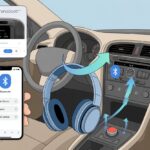
We’ve all been there—juggling Bluetooth headphones between our phone, tablet, and laptop like we’re in some kind of tech-themed circus. The good news? You can switch Bluetooth headphones between devices with just a few steps, as long as your headphones and gadgets cooperate with multipoint or fast pairing. No wizard hat required, but a little know-how definitely helps.

Let’s be honest: nothing kills the vibe faster than missing a song or call because your headphones are still tuned into last night’s Netflix binge. The right tricks help you stay connected without that awkward “Bluetooth device not found” dance.
If you want to avoid the classic routine of disconnecting and reconnecting, you’re in the right place. Let’s make smooth switching less of a mystery and more of a skill.
Understanding Bluetooth Headphones and Connections
Bluetooth headphones use wireless tech so you can listen to music and take calls without worrying about tangled wires. There are some key differences between Bluetooth and wired headphones, especially in how you connect and use them with different devices.
How Bluetooth Headphones Work
Bluetooth headphones skip the cables. They use tiny radios to send and receive data over short distances—usually up to 33 feet, or about the length of a small pool.
You pair these headphones with your devices using a Bluetooth connection. Once paired, the headphones talk to your phone, laptop, or whatever gadget you like, and play sound.
Their batteries usually last several hours, but you’ll need to remember to recharge them—unlike wired headphones, which just draw power straight from your device.
Many newer models offer a feature called multipoint. With it, you can connect to more than one device at once, making it so much easier to switch between your phone and computer. If your headphones have this, you’re in for a smoother ride.
Differences Between Wireless and Wired Headphones
Here’s a quick comparison:
| Feature | Bluetooth Headphones | Wired Headphones |
|---|---|---|
| Connection | Wireless (Bluetooth) | Wired (3.5mm jack/USB) |
| Mobility | Move freely, no cords | Must stay near device |
| Battery Required | Yes | No |
| Sound Quality | Good (can vary) | Consistently reliable |
| Setup | Pairing needed | Plug and play |
With wireless headphones, you get the freedom to move around and, let’s be real, maybe dance a bit—without tripping over cords. Wired headphones usually deliver more reliable sound quality, but they keep you tethered.
Bluetooth headphones ask you to learn pairing and recharging. But hey, you don’t have to untangle any knots.
Pairing Bluetooth Headphones For The First Time
When you get a new pair of Bluetooth headphones, the first thing to do is pair them with your device. Usually, you hold down a button on the headphones until an LED starts blinking like it’s sending Morse code.
On your phone or computer, head into the Bluetooth settings, find your headphones in the list, and tap to connect. Most of the time, it’s quick—unless your device decides to be difficult.
Sometimes, the headphones might ask for a passcode, which is usually something simple like 0000 or 1234. If everything works, you’ll hear a success sound, and your music starts playing through your shiny new headphones.
If it doesn’t work, try restarting both the device and headphones. Once you’ve paired them, they should reconnect automatically next time—unless you lose them under the couch for a week and they forget you exist.
Preparation: Ready, Set, Switch!
If you’re about to swap your Bluetooth headphones from one gadget to another, a little prep can save you from random button-mashing and mild cursing. Making sure your devices and headphones are ready is the first step to keeping the music going, whether you’re switching between a Nintendo Switch, your phone, or even your smart fridge (okay, maybe not the fridge).
Checking Compatibility With Devices
Check if your playback devices work with Bluetooth headphones. Look at your game consoles, phones, tablets, or laptops to see if they support Bluetooth audio.
For the Nintendo Switch, Bluetooth audio works, but only with recent software updates. Go to System Settings and the Bluetooth Audio section to check. Some devices limit how many Bluetooth connections they allow at once or drop features, like microphone support, while you’re using them.
It’s also smart to check what version of Bluetooth your devices and headphones support. If your phone has Bluetooth 5.3 but your headphones are stuck at 4.2, you might miss out on features like low latency.
Here’s a mental checklist:
- Device supports Bluetooth audio.
- It isn’t paired with a million other gadgets.
- Software is up to date.
- Features you want (mic, AAC, etc.) work with the pairing.
If you’ve got these boxes checked, you’re almost there. If not, maybe grab the instruction manual or check out official guides like the steps to pair and manage Bluetooth audio devices on Nintendo Switch.
Making Sure Your Headphones Are Discoverable
Before your headphones can connect to another device, they need to be in pairing mode—or “discoverable,” in Bluetooth speak. Usually, you press and hold the power or Bluetooth button until you see blinking lights or hear a “Ready to Pair” voice.
Every brand has its own routine, so you might need to check the instructions if you forget. Some headphones enter pairing mode automatically if they aren’t paired yet, while others make you hold a button for what feels like forever.
Here’s a quick routine:
- Turn off headphones. Then, turn them back on and hold the Bluetooth/power button.
- Watch for blinking lights or listen for a sound.
- If nothing happens, time to dig up that tiny manual or search online.
Once your headphones are discoverable, your playback device should show them in its Bluetooth settings. Select the name from the list and, with any luck, enjoy wireless music without hassle.
If your headphones remember previous devices, switching back later could be as easy as clicking on their name in your device’s paired list.
Switching Bluetooth Headphones Between Devices
Let’s be real—Bluetooth headphones are awesome until you want to use them with everything at once. Whether you’re jumping from your phone to your laptop or switching between computers, knowing the steps can save you from yelling at your gadgets.
Here’s how you can make switching less stressful and a bit more like a spy movie.
Disconnecting From The Current Device
Before you pair your headphones with a new device, you’ll need to break up with the current one. Most Bluetooth headphones cling to the last device they loved, so it helps to either turn off Bluetooth on that device or use the disconnect option in the Bluetooth settings.
On a smartphone, tap “Settings” > “Bluetooth,” find your headphones, and tap “Disconnect” or “Forget.” On a laptop, it’s similar—head to the control panel or system settings, then disconnect.
Some headphones let you disconnect straight from the headset by holding the power or Bluetooth button for a few seconds. If your headphones seem stuck, a quick restart of both gadgets usually helps.
Pairing With A New Device
Once your headphones are free, it’s time to pair them with something new. Put your headphones in pairing mode—usually by holding the power or Bluetooth button until a light flashes or a voice says “Pairing.”
On your new phone or computer, open the Bluetooth menu and scan for devices. When your headphones pop up, tap or click to connect.
Some newer headphones let you use multipoint connections, so you can stay connected to more than one device at once. For help setting up multipoint, Android has step-by-step instructions that actually make it feel doable.
On many Sony headphones, the Sony Connect app can walk you through enabling connections to two devices at the same time—no magic required.
Troubleshooting Common Switching Problems
Sometimes, things just don’t work. Your headphones might stubbornly stay paired with the wrong device, or they don’t show up while pairing. The classic move is to turn Bluetooth off and back on for each device.
Restarting everything isn’t just a cliché—it actually works more often than not. If your headphones keep jumping back to the last device, try forgetting the device in Bluetooth settings and then reconnecting.
For headphones with multipoint, make sure it’s enabled in the app or settings—it’s not always on by default. If nothing else works, do a full reset of the headphones (usually holding down the power for 10-30 seconds).
Some folks on forums suggest using the headphone’s physical controls to switch between devices, which can help when you’re juggling a few Bluetooth gadgets at once. There are some good tips in discussions on Reddit.
Switching Bluetooth Headphones On Android Devices
We all know the pain of tangled wires. That’s why we love our Bluetooth headphones, but switching between devices can feel like a puzzle.
With the right steps, you can shuffle between devices like a Bluetooth ninja—no cables required.
Accessing Bluetooth Settings On Android Phones
First, wake up your Android phone and open the Settings app. Head into the Connected devices section.
Look for the Bluetooth option, usually hiding in plain sight. Tap on Bluetooth, and you’ll see a list of available audio gadgets (including your headphones).
If your headphones are already paired, they’ll show up under Paired Devices. Need to connect them? Just tap on their name and you’re good.
Some Bluetooth headphones have Multipoint or Audio switch features. If your headphones support these, you can tweak extra options like toggling Multipoint in the settings. For more details, check Google’s audio switch setup guide.
Managing Previously Connected Devices
Switching back to headphones we’ve already paired shouldn’t feel like rocket science. In the Connected devices area, we spot our favorite gear just hanging out, ready for action.
To reconnect, we just tap the headphones we want. Some Android phones get clever—if our headphones have Multipoint, we can stay connected to more than one device at once. That means less fiddling and more listening.
There’s also a handy Audio switch setting that controls how our phone shifts sound between devices. If things get weirdly silent, we can forget the Bluetooth device and pair it again for a quick fix.
Samsung users get a treat: the Dual Audio feature lets us play music on two Bluetooth gadgets at once. Honestly, that’s pretty cool for anyone who loves multitasking with music.
Automatically Connecting Bluetooth Headphones
Some Bluetooth headphones connect to our devices automatically, almost like they’re eager puppies. But to make that happen, we need to tweak a few settings and decide which device gets special treatment.
Enabling Auto-Reconnect Features
First, let’s check if our headphones have auto-reconnect or multipoint features. Most newer wireless headphones do. We usually find these options in Bluetooth settings or a dedicated headphones app.
On Android, we go to Settings > Connected devices and look for toggles like multipoint or auto-reconnect. Some brands even offer a “Connect to 2 devices” option that feels almost too helpful (for more, here’s how to set up Multipoint headphones on Android).
If our headphones don’t reconnect automatically, turning them off and on again can help them find the last device they played music with. If that doesn’t work, unpairing and repairing the headphones usually does the trick—even if it feels a bit like relationship counseling.
Prioritizing Devices For Seamless Switching
Bluetooth headphones can’t read minds, unfortunately. Sometimes we need to set device priority so we don’t end up connected to something random. Multipoint headphones often let us pick a “primary” and “secondary” device.
We check the manufacturer’s app or user guide to set our top device. Some headphones let us drag our favorite to the top of a list, while others make us dig through menus. Once we set it, our chosen device wins out every time.
Many headphones have a button or touch control for quick device switching. If ours doesn’t, disconnecting in Bluetooth settings usually helps us switch faster than our neighbor can ask to borrow our headphones (see more device switching tips).
Using Bluetooth Headphones With Multiple Devices Simultaneously
Bluetooth headphones these days can juggle more than one device. Newer models let us switch from music on our laptop to a phone call in seconds. It’s almost enough to make us feel like tech superheroes.
Understanding Multipoint Connections
Multipoint isn’t the most exciting term, but it’s pretty magical for those who bounce between devices. It lets our headphones connect to two devices at once, so we don’t have to fumble with menus every time our phone rings during a YouTube binge.
Both our phone and computer stay paired with our headphones, ready for action. We can jump between a meeting and music without re-pairing. The catch? Not every headset can pull off this trick.
We check our headphone’s specs or the companion app to see if multipoint is supported. Brands like Sony and headphones with Google’s Fast Pair often let us turn on features like “connect to 2 devices simultaneously.” If we want a step-by-step, SoundGuys breaks it down in their multipoint guide.
Connecting To 2 Devices At Once
If our headphones support multipoint, we can go for dual connection. Usually, we need an app or menu setting to enable it—look for “Multipoint,” “Simultaneous Connection,” or “Connect to 2 devices.”
Here’s how it usually goes:
- Pair with Device #1: Turn on the headphones and connect to our first device, maybe a phone or laptop.
- Enable Multipoint: Find and flip the switch in the app or settings.
- Pair with Device #2: Connect to the second device without dropping the first.
If we get stuck, Android users can follow Google’s multipoint steps. Most multipoint headphones handle calls and music, but there are limits. Usually, we can listen to music on one and answer calls on another, but not play music from both at once—unless we love chaos.
Managing Playback And Calls During Device Switching
Switching Bluetooth headphones between devices can make us feel like DJs or secret agents, juggling playlists and taking calls from whichever device rings first. Managing all this smoothly means less fumbling and more time actually enjoying our music.
Switching Music Playback Between Devices
Let’s be real—no one likes awkward silence, especially when we’re mid-song and want to switch from phone to laptop. Most Bluetooth headphones need us to stop music on one device before we start on another. If we try to play from both, things get messy fast.
To switch playback:
- Pause music on the first device.
- Connect the headphones to the new device (sometimes we need to do this manually in Bluetooth settings).
- Start music on the new device.
Some headphones support multipoint so we can stay connected to two devices at once. That means less time poking at menus and more time enjoying music. We can check compatibility in the manual or look up info on setting up multipoint headphones.
Handling Incoming Calls On Different Devices
We’ve all been there—jamming out, and suddenly our headphones ring. “Wait, is it my phone or my computer?” Handling calls with several connected devices can feel like a magic trick.
Here’s what usually happens:
- If a call comes in on the device we’re using for playback, our headphones ring and we answer as usual.
- With multipoint, calls from either device can interrupt music. The headphones prioritize the call so we don’t miss Aunt Linda’s update about her cat.
- If we’re not connected to the device getting the call, we might need to disconnect from the current one and connect to the ringing device.
Some devices show pop-ups to help us switch quickly, especially if we use AirPods (see switching AirPods between devices). The trick is to stay calm and avoid flinging our headphones across the room when a call comes from the wrong place.
Using Manufacturer Apps For Enhanced Switching
Bluetooth headphones are more than just sound—they want to be our tech assistants. Apps from brands like Bose help us swap between devices without digging through Bluetooth settings.
Using The Bose App And Similar Tools
The Bose app and other headphone apps act like remote controls for our ears. We can see which devices are paired and switch between them with a tap. No more frantic button mashing or guessing which device will connect next.
For Bose headphones, we just open the app, pick a device, and boom—we’re connected. Many other companies now offer similar apps for their headphones. Some apps even let us rename devices or organize them in a list. Honestly, giving Mom’s phone a silly emoji is kind of fun.
These apps often go above and beyond, with features like battery displays, firmware updates, and tutorials for those of us who forget how to pair. If the app doesn’t connect us automatically, it usually guides us through the process step by step.
Customizing Headphone Switching Settings
One of the best things about these apps is the customization. We can decide if our headphones switch to the loudest device, or if they need our permission each time.
Here’s what we can usually tweak:
- Connection Priority: Pick which device connects first.
- Multipoint Settings: Turn on or off connection to two devices at once.
- Voice Prompts: Get alerts when headphones connect or switch.
- Manual vs. Auto Switching: Choose between buttons, app taps, or hands-off switching.
If the defaults annoy us, these apps let us fine-tune things so our headphones stop switching to the TV just as an embarrassing YouTube video starts on our phone. It’s like giving our headphones a gentle nudge in the right direction. More details are in guides on Bluetooth multipoint and pairing with multiple devices.
Disconnecting Or Turning Off Bluetooth Devices
Nobody wants their headphones playing a mystery podcast from some forgotten device. We can simplify our Bluetooth life with a few steps, so our headphones only listen to us—like loyal little robots on our heads.
When To Turn Off Bluetooth
Turning off Bluetooth sometimes feels as satisfying as closing all those browser tabs. If we have too many previously connected devices, our headphones might play favorites and connect to the wrong one.
Here’s when we should hit that “off” switch (gently):
- When we want our headphones to stop picking up random devices.
- If our headphones stubbornly cling to the wrong phone or tablet.
- When we’re switching to a new device and the old one won’t let go.
Most gadgets have a Bluetooth toggle in settings or a button in the Quick Menu or Control Center. If we turn off Bluetooth, headphones can’t connect to that device, and we avoid those awkward moments when our music blares from a tablet in another room.
Forgetting Devices To Avoid Future Mix-Ups
Ever notice your headphones keep running off with your neighbor’s phone or your cousin’s iPad? Maybe it’s time for a digital breakup. Forgetting devices in your Bluetooth settings lets you clear out old connections, so you get a fresh start—no more weird interference.
Here’s how you can forget a device:
- Open Settings > Bluetooth on your device.
- Scroll through the list of previously connected devices.
- Tap the little “i” or gear icon next to the device you want to ditch.
- Hit “Forget This Device” or “Remove.”
After you do this, your headphones won’t keep trying to pair with that device automatically. It’s super handy if you just upgraded your phone, or if some rogue device keeps hijacking your music. You can also remove Bluetooth audio devices on gadgets like the Nintendo Switch, so there’s still hope for game night.
You might have to repeat this little ritual on every gadget. Honestly, it’s a small price to pay. Headphones should listen to you—not some random playlist blaring from the living room TV.

From a young age, I have always had a big interest in technology, and this blog is an extension of that interest. Through this blog, I hope to provide others with all of the information they need regarding tech options to consider, and things such as compatibility. Some of the different items I will be discussing include headphones, smartwatches, and how to fix common issues.
- The Best Rugged And Waterproof Smartwatches - October 21, 2026
- 10 Best Military Smartwatch – Find The Best Tactical Military Watches in 2023 - October 20, 2026
- Are Wired Headphones Safer Than Bluetooth? A Friendly Guide - October 20, 2026
Related Posts: