Let’s be real—syncing a smartwatch with Google Fit shouldn’t feel like trying to solve a Rubik’s Cube in the dark. We want our steps, workouts, and heart rates to just show up on our phones—no magic spells or tech gurus required.
To sync a smartwatch with Google Fit, we connect our watch and phone, sign in with the same Google account on both, and allow sharing between the devices. That’s it—a couple of taps and our steps start popping up like digital confetti.
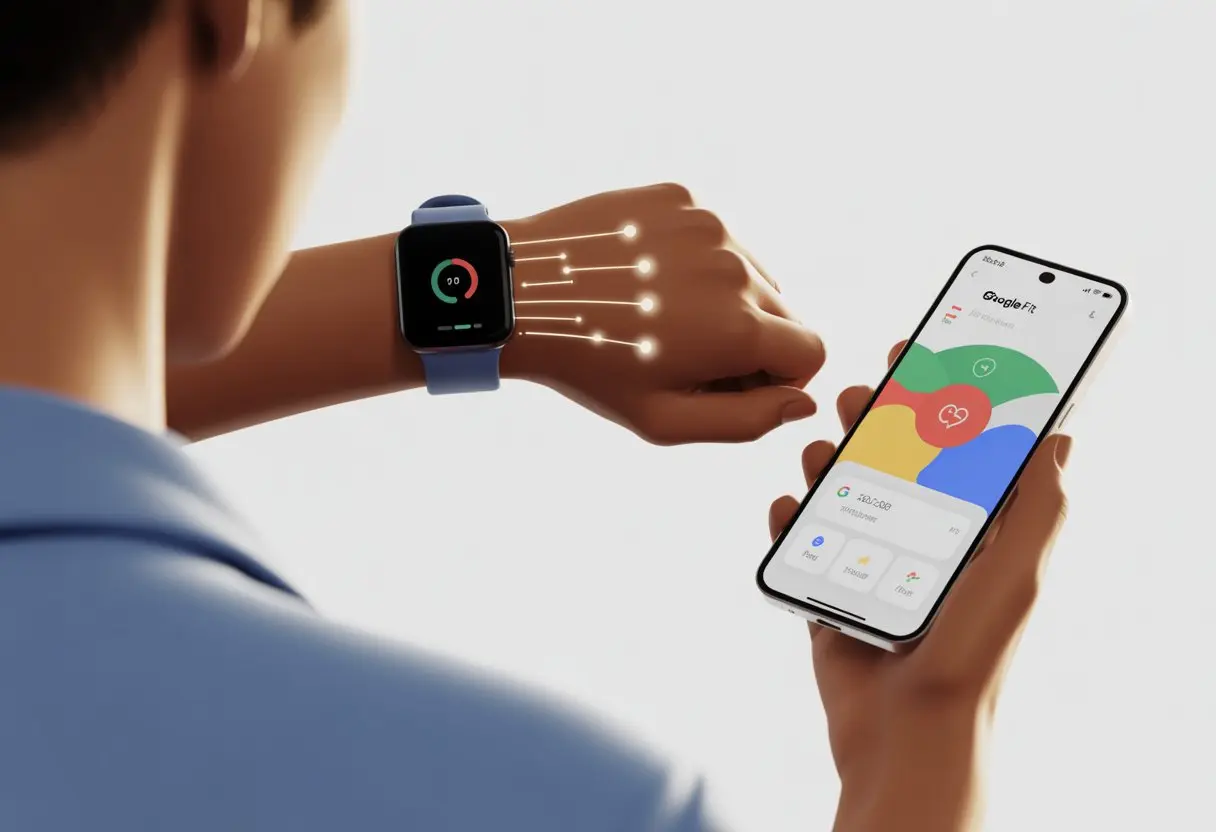
If we get lost in the settings maze, the Google Fit app actually points us in the right direction. Some watches may need an extra app or two, but most work as long as we stick with the same account and grant the right permissions.
Let’s not let tech headaches derail our fitness goals. Our energy should go into workouts—not endless troubleshooting.
No more pacing around, wondering if those steps will count. Let’s get everything syncing smoothly so we can focus on smashing our next fitness milestone.
What Is Google Fit and How Does It Work?
Google Fit helps us track physical activity, keep an eye on health stats, and maybe even feel a bit proud about moving around. It gathers data from our smartwatch and phone so we can see our fitness progress all in one spot.
Main Features of Google Fit
Let’s admit it, staying fit isn’t always easy. Thankfully, Google Fit tries to make things a little less painful—without judging our snack habits.
Here are some of the main features:
-
Step Counting: Tracks every step, whether we’re running laps or just heading to the fridge.
-
Heart Points: Gives us points for activities that get the heart rate up. Even vacuuming counts.
-
Move Minutes: Records every minute we’re not glued to the couch—even chasing after the dog.
-
Activity Tracking: Logs exercises like walking, cycling, or whatever else we call “working out.”
-
Reminders and Insights: Nudges us to move and tosses out friendly advice to keep us motivated.
-
Goal Setting: Lets us set daily targets and feel a little thrill (or a bit guilty) when we hit or miss them.
Using these tools helps us see how active we really are. Sometimes, the numbers are a surprise.
Supported Health Metrics
Google Fit keeps track of more than just steps. Here’s what it watches:
-
Step Count: Every step gets counted and celebrated.
-
Heart Rate: If our watch measures it, Google Fit grabs the data.
-
Calories Burned: Estimates calories burned based on how much we move.
-
Distance: Tracks how far we go, even if it’s just to the bakery.
-
Active Minutes: Adds up all our moving time.
-
Sleep Data: Some devices or linked apps add sleep tracking, so we can see if we’re getting enough rest.
-
Weight and Blood Pressure: We can enter these manually if we’ve got the gadgets.
All this info gives us a clearer view of our habits and progress.
Compatibility with Devices
We don’t need to buy fancy new gear just to use Google Fit. It works with a bunch of devices and apps.
Here’s a quick overview:
| Device Type | Examples | Google Fit Support |
|---|---|---|
| Smartphones | Android, iPhone | Yes |
| Wearables & Smartwatches | Wear OS Smartwatches, some Fitbit devices | Yes |
| Fitness Bands | Devices compatible with Health Sync app | Yes |
| Other Fitness Apps | Strava, MyFitnessPal, Runkeeper | Can be linked |
We get the best results when we use Google Fit on both our phone and watch. This way, our data syncs automatically and stays fresh.
If we need help, there’s a step-by-step guide for tracking fitness with your watch using Google Fit.
Getting Ready: Before You Start Syncing
Let’s slow down before diving in. If we want our stats to show up, we need a smartwatch and phone that work with Google Fit, the latest updates, and—of course—a Google account.
Supported Smartwatches and Smartphones
First things first: not every smartwatch plays nice with Google Fit. We should check if our watch uses Wear OS, since it connects easily right out of the box.
Some non-Wear OS watches offer limited support, but it’s a bit hit-or-miss.
For phones, we’ll need Android 6.0 or higher. We can check this by going to Settings > About phone > Android version. iPhone users aren’t left out—Google Fit works there too, though a few features might be missing or a bit clunky.
If we’re unsure, searching for our device on the Google Fit support page or Play Store helps. No shame in double-checking before we hit a wall.
Essential Software and Updates
Nothing kills a syncing vibe like outdated software. Let’s jump into the Play Store and update the Google Fit app.
We should also check for updates on our smartwatch software from its settings. Updates bring new features and fix bugs that can mess with syncing.
Don’t forget companion apps (like Wear OS by Google or whatever our watch brand insists we use). Here’s a quick checklist:
- Update Google Fit app
- Update the smartwatch app
- Update the phone’s main software
- Make sure Bluetooth is on
A few minutes now can save us hours of frustration later.
Setting Up Your Google Account
Without a Google account, Google Fit won’t work. We need to log in with the same Google account on both our smartwatch and phone, or syncing just won’t happen.
Let’s open the phone’s Settings, scroll to Accounts, and check which Google account is connected.
If we just got a new device or want to switch, removing and adding a Google account is quick and important. Using two different accounts is like trying to text yourself from someone else’s phone—just doesn’t work.
For step-by-step help, the Google Fit help page has our backs.
One account, synced up, and we’re good to go.
How to Pair Your Smartwatch with Google Fit
Syncing a smartwatch with Google Fit should be easier than tying our shoes, but sometimes we need a little help. Nailing the Bluetooth setup, granting permissions, and knowing what to try when things break are the main steps.
Bluetooth Settings and Initial Pairing
Let’s start with Bluetooth. Every smartwatch has its quirks, so we need to turn Bluetooth on for both our phone and watch. No Bluetooth, no connection.
After that, we open pairing settings on both devices. Usually, the watch suggests a device to connect—hopefully ours, not the neighbor’s speaker. When our watch pops up in the Bluetooth list, we tap it (like it’s the last piece of chocolate). Once paired, both devices should say “Connected.”
Next, we open the Google Fit app. If it asks, we pick our smartwatch as the device to sync. Some watches might need an extra app or update, so we check instructions or watch a tutorial if things look weird.
Granting Permissions
Tech manners matter—Google Fit asks for sensor data, activity info, and sometimes our location. When pairing, we should hit “Allow” for each request. It’s a little invasive, but hey, it’s for our own good.
Here’s what we might need to allow:
- Physical activity tracking
- Location access (for steps, runs, or chasing after the dog)
- Health data (steps, heart rate, and the rest)
To double-check, we go to our phone’s settings, tap Apps, hit Google Fit, and look at “Permissions.” Everything important should say “Allowed.” If we skip this, the watch might pair but won’t send over any data.
Troubleshooting Connection Issues
If things don’t work, let’s not panic. Most problems come down to a simple sync hiccup. We can open Google Fit, tap Journal, and hit the Sync button at the top.
For stubborn issues, we double-check that we’re logged into the same Google account. Using two accounts is like wearing mismatched shoes—not a good look. Restarting the watch and phone or toggling Bluetooth off and on can also work wonders.
If our data still doesn’t match, the Google Fit help page offers pretty solid advice.
Worst case, we remove and re-add the Bluetooth connection. It’s the classic “turn it off and on again” trick, and it works more often than you’d think.
Syncing Your Smartwatch Data with Google Fit
Getting our smartwatch to sync with Google Fit can feel confusing, but it’s not rocket science. Once we get the hang of it, we’ll be checking our heart rate after climbing a single flight of stairs.
Manual vs. Automatic Sync
Here’s the big question—do we need to press a button every day, or does our data just appear? Most smartwatches, once connected to the same Google account as our phone, sync automatically. Our heart rate and step count show up in Google Fit without us lifting a finger.
But not all watches are that cooperative. Sometimes, the data just sits there and refuses to budge. If that happens, we open the app and look for the manual sync button—usually hiding in device settings or right on the dashboard. Tap it if our numbers seem stuck in the past.
Here’s a quick look:
| Sync Type | What It Does | When We Need It |
|---|---|---|
| Automatic Sync | Updates data in real time | Most of the time |
| Manual Sync | Updates data when we tap “sync” | If running behind |
Try both and see what sticks. And, just to be clear, giving the device a gentle nudge doesn’t actually fix anything.
Tracking Heart Rate and Step Count
Here’s the fun part—tracking how fast our hearts pound when we spot a staircase and counting every step, even the ones to the fridge. Google Fit pulls our heart rate and step count from most smartwatches, so we can keep an eye on our health without much effort.
Let’s make sure heart rate monitoring is on. Some watches need us to enable that in their settings. When it’s set, Google Fit syncs the data and we can check our heart rate any time (nobody’s judging if it jumps when pizza appears).
Step counts usually track by default. Our daily total pops up each time we open the app. If the numbers seem off, try a manual sync—sometimes our steps are as sluggish as we are on a lazy Sunday.
Syncing Third-Party Apps Like Strava
Maybe we’re into Strava or use a cycling app. Good news: Google Fit connects with these third-party apps, so all our sweaty stats land in one place. To link Strava, just head into Google Fit settings, find “connected apps,” and follow the prompts.
Once we connect them, Strava sends workouts, heart rate, and step count right into Google Fit. Our epic bike rides and heroic jogs finally show up in our daily stats. For more details, check out this guide on syncing a fitness band or smartwatch to Google Fit.
We’ll probably have to give permission for Google Fit and Strava to share info—it’s just so our stats move over, not so the apps can swap secrets. If our data isn’t showing up, try disconnecting and reconnecting the apps, or do a manual sync.
Managing Notifications and Calendar Integration
Notifications and having our schedule on our wrist help us remember birthdays and those random Zoom meetings we agreed to at 7 a.m. Setting things up is simple, but a few tips can save us from annoying pings and missed reminders.
Setting Up Notifications
Our smartwatch acts like a loyal messenger that never takes a break. To start, open the companion app (usually on our phone) and find the notifications section. We can pick which alerts make it from our phone to our wrist.
Most watches let us choose from a list, so we can allow messages, calls, and the important emails, but skip the endless meme notifications. For sanity’s sake, only turn on the ones we care about.
Some models let us preview notifications. We can also mute alerts during meetings—nobody wants to buzz through a presentation. Look for a “Do Not Disturb” mode; sometimes silence is just what we need.
Integrating Google Calendar
Getting Google Calendar events on our smartwatch means less frantic phone-checking. On Wear OS, we can sync Google Calendar by signing in with our Google account through the watch or its phone app.
After connecting, our next meeting pops up on the watch face, showing the time, place, and a reminder for Aunt Lisa’s birthday lunch. We can check our schedule, get event notifications, and even respond to invites right from our wrist.
If we don’t use Wear OS, some brands offer their own apps or third-party options to sync calendar events. Just make sure Google Calendar is linked or allowed in notification permissions, or we might miss those helpful nudges.
Customizing Alerts
A smartwatch that vibrates every five seconds makes us feel popular—but not exactly calm. Luckily, most watches let us adjust when and how we get alerts for calendar events, emails, and other notifications.
We can tweak vibration strength, pick notification sounds, or silence everyone except our favorite contacts. Some calendars let us change alert times, so if we want a 15-minute warning instead of five, we’re set.
It’s worth taking a few minutes to explore alert settings. We can turn off reminders for things we’ll never attend and highlight important meetings or family events. No need for our wrist to be busier than our inbox.
Enhancing Your Fitness Experience on Different Devices
Let’s be real—sometimes our fitness journey gets tangled in cables, devices, and more screens than we’d like to admit. If we can handle smartphones, we can definitely use laptops, computers, or even a Mac without breaking a sweat (unless the Wi-Fi drops). Here are some tips for using Google Fit and keeping our health data organized across all our gadgets.
Using Google Fit on Laptops, PCs, and Mac
We open our laptop or MacBook, hoping for a Google Fit website, only to find out there isn’t one. Instead, we can view our health info using Google Takeout or by grabbing our data through third-party apps.
Tip: Downloading our Google Fit data as a CSV file lets us check steps and activities in Excel or Google Sheets. If we’re into charts and graphs, this makes for some fun fitness logs.
Don’t expect live updates, though. Any new achievements have to wait until we export the latest batch.
Connecting to Google Drive
Backing up health data is important—otherwise it might disappear faster than our Monday motivation. Google Fit syncs and backs up some data to our Google account. We can’t connect directly to Google Drive, but our exported data can be saved there for safekeeping.
Pro Hack: Save those .CSV or .ZIP files in a “Fitness Data” folder on Google Drive. That way, we’ve got proof of our 10,000 steps a day. Plus, sharing our stats with a coach or nutritionist gets a lot easier.
Tracking Fitness on the Go
When we’re out and about, our smartwatch uses GPS to track routes and distances. Google Fit syncs between our watch and phone if both use the same account and permissions. Sometimes syncing needs a nudge—open Google Fit and hit Sync in the Journal to pull the latest activity.
Now our step count, workouts, and heart rate follow us, no matter how many devices we juggle. We can finally show off those lunchtime walks and have the data to back it up. If syncing gets tricky, check out these Google Fit sync tips.
Wellness, Memberships, and Extra Perks
Taking care of our health with Google Fit isn’t just about counting steps or calories. There are extra benefits, rewards, and even some fun ways to stay motivated.
Membership Benefits
Who doesn’t love freebies and discounts, especially if they help us feel healthier? Some smartwatches offer exclusive perks for Google Fit users. These might include extra workout plans, personalized health tips, or even a badge system for showing off—because digital badges are just adult gold stars.
Some platforms add challenges with prizes or premium memberships. These rewards can unlock better tracking or even access to online fitness classes and gyms. A few brands link up with Google Fit to offer special deals or longer trials. Here’s a quick look at what memberships can offer:
| Benefit | Example |
|---|---|
| Personalized Coaching | Tailored exercise plans |
| Exclusive Challenges | Win gift cards or swag |
| Extra Health Tracking | Sleep analysis, stress |
| Community Features | Compete with friends |
It’s worth checking the smartwatch app for updates, since companies love dropping new perks just when we think we’ve seen everything.
Insurance Integrations
Insurance companies aren’t hiding behind the curtain anymore. Now, some insurers reward us for using Google Fit and reaching fitness goals. If our step count makes our insurance agent cheer, we must be on the right track.
Some insurers use fitness data to offer lower premiums or even cash back. Linking our smartwatch and Fit app can make this automatic. Partners sync with Google Fit to confirm activity, steps, or sleep habits. To set it up, just log in to the insurance provider’s app, connect Fit, and let the data sharing begin.
We should always check our provider’s privacy policy before syncing. Discounts are great, but privacy matters too. With the right setup, we get peace of mind and maybe an extra coffee fund.
Staying Inspired with Google Fit
Motivation is tough. Sometimes we need more than a robot voice cheering us on after 1,000 steps. Google Fit keeps us inspired with badges, reminders, and streak alerts when we hit goals.
We can join seasonal challenges or invite friends to compete. Nothing like a little friendly rivalry over who walked more at lunch. Google Fit also nudges us when we’re stuck. Short prompts, virtual high-fives, and progress charts make exercise less of a chore and more of a quest.
For inspiration, we can check our stats, join events, or try to beat our own records. Motivation comes in all shapes, and Google Fit isn’t shy about sending a few extra nudges—sometimes more than our real friends.
Keeping Everything Secure: Updates and Payments
Let’s be honest, we want our smartwatch to be as safe as that secret snack stash. Staying on top of payments, keeping software up to date, and fixing connection problems all help us worry less and move more.
Managing Payment Information
We don’t want just anyone buying a new watch face with our money. Keep an eye on payment details like a hawk… or at least like someone who’s had a card hacked before. Use strong passwords and update them every few months.
When adding cards or payment methods, check if the app or website is official. No shortcuts! Set up Google Pay through the official Google Fit or smartwatch app, not some sketchy ad.
If we lose our watch, use our phone to remove payment info remotely or lock the watch. It’s smart to keep a paper list of important numbers—so we don’t have to call Mom for the bank info again.
Staying Safe with Regular Updates
We all ignore update notifications sometimes, but smartwatch security depends on us actually pressing “Update.” Updates patch security bugs and keep things running smoothly.
Our smartwatch and phone both need the latest app and software versions. Set updates to automatic if possible. That way, we avoid old bugs and don’t give hackers a reason to celebrate.
Make it a habit to check for updates once a week if auto-updates aren’t on. It’s a tiny task that can save us a lot of trouble.
Networking and Connectivity Troubleshooting
A smartwatch that won’t sync feels like a fitness goal with no reward—just a letdown. If syncing fails, first check Wi-Fi and Bluetooth settings on both watch and phone. Sometimes toggling Bluetooth off and on does the trick.
Still stuck? Open the Google Fit app on the phone, tap Journal, and hit Sync to force a manual sync. Restarting both devices often fixes stubborn issues.
Make sure both devices use the same Google Account. When in doubt, reboot, resync, and try not to toss the watch out the window.
Tips for Tech Enthusiasts: Programming and Advanced Features
Syncing a smartwatch with Google Fit is just the start for us tinkerers. There’s plenty to explore—APIs, custom features, and clever automation tricks. Let’s look at some ways to make Google Fit work harder, so our code and our fitness both stay in good shape.
Exploring API Integrations
If you’re programming with Google Fit, its APIs really shine. With the Google Fit API, you can read fitness data, write new entries, and pull stats to build your own dashboards.
This means your app can log steps, track heart rate, or even keep tabs on sleep using live data. It’s pretty cool to see real-time info pop up in your own interface.
REST and Sensor APIs serve different purposes, and you’ll probably use both. The REST API lets you query and push history—super useful for fitness summaries.
Meanwhile, the Sensor API handles live metrics, which feels almost magical when it works smoothly. But don’t forget about user permissions and OAuth tokens.
If you skip authorization checks, your app might crash at the worst moment. That’s no fun for anyone.
You can sync a third-party app or build fitness leaderboards with live step counts. Mixing Google Fit data with other apps opens up a ton of possibilities.
Honestly, it’s a great excuse to show off your coding skills—maybe even while tracking your own workouts.
Custom Workouts and Tracking
Setting up custom workouts is one of the best features. Most smartwatches and the Google Fit app let you add new activity types or tweak existing ones.
You don’t have to log every odd hobby as just “other.” That’s a relief if you’re tracking things like juggling, hula hoop contests, or your daily two-minute victory dance.
When you create custom workouts, you can log distance, reps, calories, and even toss in quirky notes. Developers get to adjust the activity recognition system with the API, which is great for recording those less-common sports.
Personalizing Google Fit makes your data more meaningful—and let’s be honest, it’s perfect for humble-brag screenshots. If you want to see it in action, check out the app’s Journal feature or dig into the code if you’re integrating directly.
Automating Data with Google Fit
Why bother with manual syncing when you can just code it and let things run on their own? Google Fit makes it pretty easy to automate stuff if you use scripting tools or automation apps like Tasker.
You could set up daily exports to Google Sheets. Maybe trigger an alert if you haven’t moved in an hour. Or, hey, make your lights flash green when you finish a run—why not?
When you tap into API endpoints and sync features, your workflow feels smoother. It’s definitely more fun than just counting steps.
Here’s a quick example:
- Grab your step count using Google Fit’s REST API
- Write a script to send an email if you’re slacking
- Hook this up to your smartwatch so it buzzes when you need some motivation
Let your inner tech nerd take the wheel. Your devices handle the boring stuff, and you get more time to nail that tricky yoga pose.

From a young age, I have always had a big interest in technology, and this blog is an extension of that interest. Through this blog, I hope to provide others with all of the information they need regarding tech options to consider, and things such as compatibility. Some of the different items I will be discussing include headphones, smartwatches, and how to fix common issues.
- Why do my Bluetooth headphones not block outside sound? Sorry, They’re Not Mind Readers! - October 5, 2026
- How to Use a Smartwatch for Running Without Looking Like You’re Checking Your Stocks - October 4, 2026
- Best Bluetooth Headphones for Long Flights: Ears Happy, Neighbors Jealous - October 4, 2026
Related Posts: