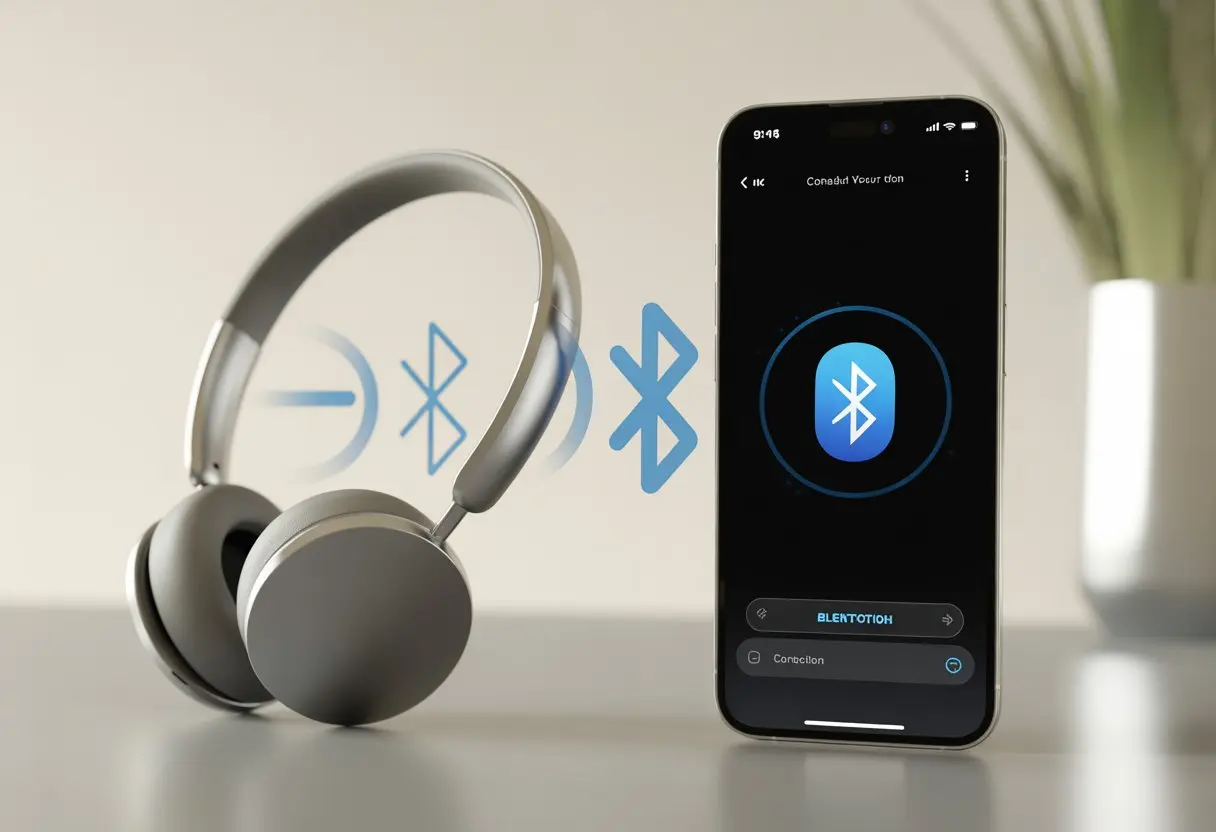
We’ve all been there—Bluetooth headphones in hand, hoping for smooth tunes, just to watch them refuse to connect to our iPhone like two toddlers fighting over a toy. Most of the time, Bluetooth headphones don’t connect because of old pairings, being out of range, or a random software hiccup. Usually, it’s just tech being finicky—not some cosmic plot to ruin our music time.
Honestly, nothing kills the mood faster than your favorite song stuck on pause, all because your headphones and phone aren’t talking. We want our tech to just work, but sometimes a quick fix stands between us and that sweet wireless freedom.
If our headphones can’t connect, the culprit is probably pairing mode, a sneaky Bluetooth setting, or maybe a forgotten device haunting the phone’s memory. It’s like a tech ghost messing with our playlist.
Let’s dive into why these wireless headphones go silent and how we can get everything singing in harmony again—with fewer headaches and maybe a little less yelling at our phones.
Understanding Bluetooth Headphone Connections
Bluetooth headphones need to talk to our iPhone, but sometimes they just don’t hit it off. We want our gadgets to get along, but little things can cause Bluetooth confusion and missed connections.
How Bluetooth Pairing Works
Let’s start with the basics. Bluetooth pairing is like a handshake between devices.
Our headphones send out a signal, and our iPhone listens for it. When they finally spot each other, they trade info that lets them connect more easily next time.
If either device is already busy with something else—like your headphones still locked onto a previous phone—the handshake never happens. We might need to make them forget those old connections or even reset them to play nice.
If Bluetooth is off or stuck, neither gadget can see the other. We can check if Bluetooth is on by looking for the little Bluetooth symbol at the top of our iPhone screen or in the Control Center.
Bluetooth Functionality on iPhone
iPhones usually handle Bluetooth pretty well, but they’re not perfect. Our iPhones only connect to devices that are powered on, close by, and ready to pair.
If things go wrong, sometimes we just need to give Bluetooth a quick reset—turn it off, then back on, or restart the phone. The Bluetooth settings menu shows us which devices we’ve paired with before.
Sometimes headphones refuse to connect because they think they’re still paired, even if we’re sure they aren’t. We can go to Settings > Bluetooth and remove (“forget”) old devices if needed.
Most Bluetooth headphones have a special “dating phase” called pairing mode. This is where they show they’re available.
Usually, we activate pairing mode by holding down the power button or a combo of buttons for a few seconds—sometimes until a light blinks fast.
If we skip this, the iPhone can’t see the headphones at all. It leaves both devices feeling a bit ghosted.
It’s smart to unpair the headphones from any other device first. If you aren’t sure which button combo works, check the manual or look it up online.
Some headphones reset by holding down the volume buttons, which puts them back into pairing mode so the iPhone can spot them again, as some Reddit users figured out.
Common Reasons Bluetooth Headphones Don’t Connect
Bluetooth connection issues can feel like a game we never asked to play. Under the surface, a few usual suspects trip us up when our headphones refuse to join the party.
Some reasons are so basic, they almost feel like a joke.
Device Is Not in Pairing Mode
First up, let’s talk pairing mode. Sometimes, our headphones just aren’t looking for new friends.
If we don’t put them into pairing mode, they won’t give off the signal our iPhone needs to find them. Most headphones have a tiny button, a special combo of button presses, or a blinking light that means “I’m ready! Pair me!”
If we just turn them on like it’s any other day, our iPhone probably won’t see them. To make it trickier, some headphones leave pairing mode after a minute or two, so if we wait too long, we have to start over.
The trick is to check the user manual or the manufacturer’s website for the secret pairing ritual. That way, we can avoid random button-press dances in public.
Bluetooth Is Not Enabled
This one’s almost embarrassing, but it happens. Sometimes, Bluetooth isn’t even on.
We pull down the Control Center and see the little “B” symbol isn’t lit up—no wonder nothing’s working. We’d think our iPhone would warn us, but nope, it just trusts us to get it right.
Apple support says we can fix a lot of Bluetooth not working problems just by making sure the toggle is green in Settings. It’s also smart to cycle Bluetooth off and back on again, like the classic “Did you try turning it off and on?”
This trick clears up a lot of hiccups between iPhone and headphones.
Multiple Devices Interfering
Let’s talk about overcrowding. Our headphones love being the center of attention, but sometimes they’re still thinking about another device—a laptop or tablet they paired with before.
If those gadgets are nearby and have Bluetooth on, our headphones might run off to hang out with them instead. We can avoid this third-wheel situation by unpairing our headphones from other nearby devices or turning off their Bluetooth.
It helps to make sure our headphones forget old relationships before starting with our iPhone. Tech can be jealous, honestly.
If nothing else works, restarting both devices often helps clear the crowd and gives our iPhone a better shot at connecting. The Apple Community is full of stories about unruly devices jumping in, so we’re definitely not alone here.
Troubleshooting Steps for Connection Issues
Sometimes our Bluetooth headphones just won’t connect to our iPhone, even if we send them good vibes. There are a few things we can try before we throw our devices out the window.
Here’s how to wrestle with these wireless gremlins and maybe win.
Toggle Bluetooth On and Off
First step: play “flip the switch.” Open iPhone’s Settings and find the Bluetooth toggle.
If it’s gray, tap it until it turns green. If it’s already on, turn it off, wait a few seconds, then flip it back on.
It’s basically giving everything a gentle shake and hoping for the best. Sometimes our headphones and iPhone just forget how to say hello.
Toggling Bluetooth makes them send those electronic “how are you?” signals again. It sounds simple, but it often works like magic.
For more details, check the guide from Business Insider on toggling Bluetooth.
Restart the iPhone
When in doubt, we embrace the reboot. There’s something about restarting our iPhone—it’s like a quick nap, so it wakes up refreshed and hopefully more agreeable.
Hold down the power button and slide to power off. Wait a minute, turn it back on, and try pairing again.
This works because sometimes background processes get stuck. Restarting clears out those temporary glitches.
Don’t worry, your photos and apps are safe. The restart won’t delete Wi-Fi or Bluetooth settings; it just gives everything a fresh start.
If our headphones still ignore us, it’s time for tough love. Open Bluetooth settings on the iPhone, find the headphones, tap the “i” icon, and pick Forget This Device.
This wipes out old pairing info, including failed connections. Next, put the headphones in pairing mode—usually by pressing and holding a button until a light flashes.
Return to the iPhone’s Bluetooth menu, wait for the headphones to show up, then tap to pair again. Re-pairing usually clears up weird issues that even toggling Bluetooth can’t fix.
Reset Network Settings
This last move is the “big gun.” Sometimes network settings get tangled up after software updates or too many gadgets fighting for attention.
Go to Settings > General > Transfer or Reset iPhone > Reset and tap Reset Network Settings. Heads up: this logs you out of all Wi-Fi networks and removes saved passwords.
A little scary, sure. But it’s often effective.
This clears all network settings—Wi-Fi, Bluetooth, even VPN—so you start fresh. Afterward, you’ll need to reconnect to Wi-Fi and re-pair Bluetooth headphones.
If nothing else has worked, this trick often solves hidden problems that other resets won’t touch. For official steps, check Apple’s advice for resetting network settings.
Advanced Solutions for Persistent Problems
Sometimes Bluetooth headphones just don’t want to cooperate. When turning it off and on again doesn’t work, we need to dig a little deeper.
Update iOS Software
Before we give up, let’s check if our iPhones are running the latest iOS update. Outdated software can cause all kinds of weird glitches, including Bluetooth refusing to work.
Go to Settings > General > Software Update and see if there’s an update waiting. If there is, tap ‘Download and Install.’
Updates often include bug fixes and can solve those strange Bluetooth problems we keep running into. It’s basically like giving the phone a fresh cup of coffee.
If updating doesn’t help, try restarting the iPhone or resetting network settings. For more steps, check Apple’s guide for Bluetooth connection issues.
Factory Resetting Bluetooth Headphones
When updates flop, sometimes our headphones just need a fresh start. Doing a factory reset is basically wiping out all their old pairings and weird quirks.
Most Bluetooth headphones use a special button combo for resetting—usually a long press or holding down a couple buttons at once.
After the reset, we’ll need to pair our headphones with our iPhone again. Don’t freak out if everything looks unfamiliar.
This trick often sorts out those sneaky Bluetooth connection issues. Each headphone model has its own reset method, so checking the manual or the brand’s site for the right button sequence helps a lot.
Using TunesKit iOS System Recovery
Sometimes, the headphones aren’t the problem at all—it’s actually our iPhone acting up. That’s when a tool like TunesKit iOS System Recovery steps in to save us.
TunesKit scans our iPhone for firmware glitches and Bluetooth problems. It guides us through the process, and usually, we don’t have to mess with any complicated button presses.
It’s not a free fix, but it can be way cheaper than buying new headphones—or, honestly, venting about Bluetooth to anyone who’ll listen.
Dealing with Bluetooth Interference and Compatibility
When our Bluetooth headphones refuse to connect to our iPhones, it feels like our gadgets are out to get us. Most of the time, it’s interference or compatibility issues causing the drama.
Luckily, we can usually sort these problems out with a few quick steps.
Common Sources of Bluetooth Interference
Bluetooth interference pops up when too many wireless devices start “talking” at the same time. It’s like a bunch of people shouting over each other in a small room.
Here are some usual suspects:
Wi-Fi routers: Both Wi-Fi and Bluetooth fight for the 2.4 GHz band, so our headphones and router can clash.
Microwaves: Yep, reheating leftovers can mess with the signal.
Getting Bluetooth to work smoothly on our iPhones can feel like teaching an old dog new tricks—fun, but a bit of a challenge. We can dodge a lot of frustration by keeping our devices updated and knowing the best ways to pair them.
Keep Devices Updated
Most of us ignore those “Update now?” pop-ups, hoping they’ll vanish. But skipping updates is like never changing your car’s oil—it’ll catch up with you.
To avoid Bluetooth headaches, we should keep both our iPhone and headphones updated. Updates usually bring bug fixes, security patches, and better Bluetooth features that stop random disconnects.
Updating steps:
Go to Settings > General > Software Update to check for iOS updates.
For headphones, check the manufacturer’s app or website for firmware updates.
If we stay on top of updates, we give Bluetooth the best shot at working right. And hey, that means fewer moments where we want to launch our headphones across the room (but maybe don’t).
Best Practices for Bluetooth Pairing
Pairing headphones isn’t magic, but honestly, it sometimes feels like it when it finally works. Want a strong, reliable connection? Just follow a few simple tips.
Charge everything: Low battery ruins connections more often than we’d like to admit. Let’s make sure both devices are charged before blaming Bluetooth for the problem.
Clear old connections: When too many devices pile up, things get messy. Go ahead and remove old Bluetooth devices, then reconnect—here are some extra tips if you’re stuck (see more here).
Stay close: Keep your headphones and iPhone just a few feet apart while you pair them. Honestly, walls, microwaves, or even a nosy cat can mess things up.
Reset when in doubt: If things still aren’t working, try toggling Bluetooth off and on, or just restart your iPhone before pairing again.
Delete and re-pair: Sometimes, deleting your headphones from the Bluetooth settings and re-pairing works like a charm for those stubborn problems.
These quick habits can help you spend more time enjoying your music—and less time yelling at your devices.
Hi, my name is Garrett Jones, and I am a tech enthusiast. I enjoy researching the new tech that has been released, and have a vast knowledge of the best tech to purchase.
From a young age, I have always had a big interest in technology, and this blog is an extension of that interest. Through this blog, I hope to provide others with all of the information they need regarding tech options to consider, and things such as compatibility. Some of the different items I will be discussing include headphones, smartwatches, and how to fix common issues.