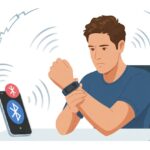
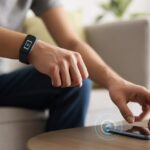
We’ve all been there—ready to crush our daily step goal, but our fitness tracker just disappears from the Bluetooth list. It’s like playing hide and seek with a gadget that’s way too good at hiding.
Usually, our fitness tracker goes missing because of a quick connection glitch, old settings, or a battery that’s running on fumes. Sometimes, it just needs a nudge—a reset or a quick Bluetooth toggle can do wonders.

Let’s be honest, nothing tests our patience quite like a stubborn gadget that refuses to connect. I mean, did someone swap our tracker with a decoy while we weren’t looking?
Before we start blaming the universe, we should check a few easy things. Let’s try to coax our tracker out of hiding so we can get back to counting steps—or at least pretending we went for that jog.
Checking If Your Fitness Tracker Is Ready to Boogie
Before we panic about Bluetooth, let’s make sure the tracker is actually awake and ready to pair. Sometimes it just needs a battery boost or a simple setup step we missed.
Is the Battery Alive or in a Deep Sleep
Honestly, we all expect our fitness trackers to keep going forever. But they do run out of juice.
If our tracker isn’t showing up, the battery might be so low it’s basically invisible. Lots of trackers won’t even try to pair if the battery’s nearly dead.
Let’s charge the tracker for at least 30 minutes. Most devices will blink an LED or show a battery icon when they get some power.
If nothing happens, try a different charging cable or adapter. Chances are, our tracker was just napping, not broken.
If we skip charging, it’s like calling a friend whose phone is dead. No response, just frustration, and definitely no Bluetooth.
Let’s look for blinking lights or vibrations to make sure it’s powered up.
Making Sure the Tracker Is in Pairing Mode
Now for the pairing dance. Most trackers need us to put them in pairing mode before they’ll show up in Bluetooth devices.
This doesn’t happen on its own. Usually, we have to press and hold a button, or tap an option in the settings until a pairing symbol, pulsing light, or a “Ready to Pair” message pops up.
Don’t skip this step. If we don’t see any special signs, our phone will just keep searching forever.
Some devices need a restart—maybe plugging them into the charger and holding a button. You’ll find details on forums like this Fitbit guide for restarting and pairing trackers.
Quick steps to check pairing mode:
- Open the tracker’s device settings menu.
- Look for a “Bluetooth,” “Pair,” or “Connect” option.
- Press the button or tap the screen when prompted.
If nothing works, turn it off and on again, then try pairing mode once more.
Bluetooth Basics: When Your Devices Refuse to Mingle
Sometimes our devices act like they’re at a middle school dance—awkwardly ignoring each other even when they’re inches apart. Getting both our tracker and phone to recognize each other takes more than just wishful thinking.
Confirming Bluetooth Is Actually On
Let’s start with the obvious: is Bluetooth even on? We’ve all tried pairing a tracker only to realize Bluetooth is off, just chilling.
Here’s a quick checklist:
- Bluetooth toggled on: Check both the phone and the tracker.
- Airplane mode: This one loves to sneak in and block all signals.
- Device visibility: Some trackers and phones have a “hidden” setting. If that’s on, the tracker’s basically invisible.
When Bluetooth gets stuck, flipping it off and back on usually helps. For stubborn cases, try clearing the Bluetooth cache or restarting devices—a trick you’ll find in this Bluetooth troubleshooting guide.
How Close Is Too Far: Proximity Problems
Bluetooth, like people, has a comfort zone. If our devices are too far apart, pairing just won’t happen.
Keep them within a few feet for the best shot. Thick walls, metal objects, or that infamous junk drawer can mess with the signal.
Syncing can also fail if the tracker’s surrounded by other Bluetooth gadgets fighting for attention. Move the tracker and phone into their own little bubble (at least for a minute). For more details, check out this troubleshooting thread about proximity.
Troubleshooting Techniques for Invisible Trackers
Sometimes, our fitness tracker just refuses to show up in the Bluetooth list, as if it’s hiding on purpose. Before we freak out, let’s try a few troubleshooting steps that actually work more often than you’d think.
Turning It Off and On: The Ancient Strategy
Let’s be real—turning things off and back on is the Swiss Army knife of tech fixes. If our tracker’s invisible, power it off, wait ten seconds (just to feel official), and turn it back on.
Sometimes, devices get confused and freeze up the Bluetooth chip inside the tracker. We want that chip to start fresh, like after a good night’s sleep.
If there’s a tiny button, hold it to trigger a restart, or check the manual for how to do it. In a lot of cases, this is all it takes to make our tracker visible again.
If there are other Bluetooth devices nearby, switch them off for a moment too. This way the tracker isn’t overwhelmed by competition and can finally connect to our phone. Need more detail? This Fitbit troubleshooting tip says switching off extra Bluetooth activity can help.
Restarting Your Smartphone: Because Why Not
Phones act like party hosts for Bluetooth signals. Sometimes the host gets overwhelmed and forgets about new guests (like our tracker).
If that happens, restart the phone. Hold the power button, slide to restart, and wait for it to come back to life.
Now, open Bluetooth and check if the tracker pops up—often, it does. Restarting clears old Bluetooth connections and other little glitches.
It might sound basic, but this “turn it off and on” ritual works for both trackers and phones. That’s why tech support always asks us to try it, no matter what device we’re using.
App Adventures: Taming the garmin connect app and Friends
Sometimes the drama isn’t with the Bluetooth chip at all—it’s the app causing trouble. Syncing problems and weird settings can drive anyone nuts, so let’s look at the usual suspects.
Getting to Know Your Fitness App’s Quirks
Navigating the garmin connect app can feel like searching for a treadmill’s off button—tricky and a little sneaky.
If the device isn’t showing up when we try to pair, check if Bluetooth is on and the app has the permissions it needs. Most syncing fails come from missing permissions or the device hiding in plain sight.
Still lost? Try a classic move—restart both the fitness tracker and phone. It’s not magic, but it works more often than not.
If the tracker still ignores us, remove it from both the garmin connect app and the phone’s Bluetooth list, then pair from scratch. You’ll find more advice in this Bluetooth troubleshooting guide.
Updating Apps and Firmware: Because Progress Never Sleeps
Let’s talk updates. Some bugs only disappear when we let our gadgets learn new tricks.
Outdated apps and old tracker firmware often cause syncing issues or weird Bluetooth problems. Check for updates in the garmin connect app store listing and device settings.
Keeping automatic updates on for both the app and phone OS helps a lot. Even sleep data might not sync if we’re running ancient firmware.
If you want guidance, Garmin’s troubleshooting sync problems guide has more tips. Every update is like a shot of caffeine for our fitness tracker—without it, things just drag.
Settings Snafus: When Your Device Says No
Before we threaten to throw our trackers out the window, let’s look at a few important settings. Sometimes, tweaking the right option is all it takes for our gadgets to remember they like us.
Granting Permissions: Begging Your Phone to Cooperate
Phones need us to say “yes” before they’ll share Bluetooth secrets. If we skipped that pop-up or tapped “No” by accident, our tracker stays invisible.
Let’s double-check in device settings:
- Go to Settings on the phone.
- Find Bluetooth and make sure it’s on.
- Check the fitness app’s permissions—Bluetooth, location, and background activity should all be allowed.
If our phone still ignores the tracker, turn Bluetooth off for 15 seconds, then back on. This trick works surprisingly often, as mentioned in community discussions.
Still nothing? Try removing the device from Bluetooth and pair it again like it’s brand new. Sometimes gadgets just want a clean slate.
Checking Device Compatibility: Not All Friendships Last
Just because our fitness tracker looks smart doesn’t mean it gets along with every phone. Some devices act like snobby party guests—they just refuse to talk to older or unsupported systems.
We should check the official list from the tracker’s maker. Look for supported phones, operating systems, and Bluetooth versions.
Not every phone out there works with the latest smart gadgets. It’s a bit of a popularity contest, honestly.
Updating everything makes a difference. Using an old operating system at a tech party? That’s like showing up in clothes from 2005—awkward and out of place.
If our device’s OS is too old, Bluetooth connections might not even work. Many user reports point this out.
Certain apps or trackers want extra settings (sometimes called “Bluetooth sensors” or something similar). If we dig into the device settings on both our phone and tracker, we might find switches we missed.
Sometimes, a simple update or toggle can turn things around. It’s worth poking around a bit.
Physical Factors: Body Blocks and Mighty Walls
Sometimes, our own bodies or the world around us can hide our tracker from Bluetooth, like a shy kid behind their parent’s leg.
Humidity, sweat, or even the stuff we put between us and our device can break up the connection. That leaves us wondering what’s going on.
Sweat, Metal, and Other Sneaky Interferences
Let’s be honest—things get sweaty when we exercise. Our bodies block signals pretty well, especially with a layer of moisture.
That puddle of effort on our wrist? It might weaken the connection between our fitness tracker and phone.
Wearing our tracker next to metal jewelry or a metal watch can mess things up, too. Metal reflects or absorbs radio waves, leaving our tracker’s Bluetooth lost like a tourist with no map.
Walls definitely don’t help. Brick, plaster, or anything thicker than a sandwich can mess with the signal.
Trying to talk to someone through a closed door? It’s kind of like that. Hiding our tracker under heavy clothes can block the link, making us think it’s broken when it’s just stuck behind a wall—literal or not.
For more tips on why devices play hard to get, check out this guide to understanding Bluetooth pairing problems.
What Your Watch Face Might Reveal
The watch face isn’t just for telling time or showing off. It gives us hidden clues about why our fitness tracker might not show up in Bluetooth devices—if we know where to look.
Notification Icons and Their Hidden Messages
Let’s be honest—those tiny icons on your watch face can feel like a secret language. Who hasn’t stared at them and thought, “Wait, what does that even mean?”
When your fitness tracker refuses to connect, those little symbols might be trying to warn you. If you spot the Bluetooth icon with a line through it, your watch is basically shouting, “Hey, not connected!”
A red phone or a broken link? That’s not some curse—it just means your phone and watch aren’t communicating. If your heart rate symbol disappears or freezes, your tracker’s probably struggling to pick up a signal.
Spotted a weird icon? Pop open the menu and look for a “lost connection” message or maybe a Bluetooth warning. Feeling brave? Try turning the watch off and back on—honestly, that trick works more often than you’d expect.
If you want the full scoop on these mysterious icons (and the rest of your smartwatch’s quirks), you might want to skim through this Apple Community thread.

From a young age, I have always had a big interest in technology, and this blog is an extension of that interest. Through this blog, I hope to provide others with all of the information they need regarding tech options to consider, and things such as compatibility. Some of the different items I will be discussing include headphones, smartwatches, and how to fix common issues.
- The Best Rugged And Waterproof Smartwatches - October 21, 2026
- 10 Best Military Smartwatch – Find The Best Tactical Military Watches in 2023 - October 20, 2026
- Are Wired Headphones Safer Than Bluetooth? A Friendly Guide - October 20, 2026
Related Posts: