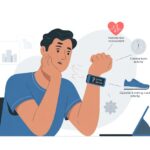
Ever feel like your fitness tracker thinks you live at the top of a skyscraper? Sometimes you glance at your wrist and, somehow, you’ve “climbed” Mount Everest just walking to the fridge.
Most trackers count floors by measuring changes in air pressure. Wind, tiny elevation shifts, or even a dirty sensor can throw things off and mess up your numbers.
You’re not alone here—lots of us have scratched our heads after a drive to work or an elevator ride somehow earned us a stair-climbing badge. Even car vibrations or blocked barometer ports can send your floor count on a wild ride, making the “floors climbed” stat a bit of a joke sometimes.
If you’ve ever wondered whether you really climbed that many stairs, trust me, you’re in good company.
So what’s actually happening inside these little gadgets? Can we help them get it together? Let’s poke some fun at why our trackers keep overachieving—and see how we might set them straight before they turn every hill into a mountain.
How Fitness Trackers Measure Floors Climbed
Fitness trackers don’t have tiny elves counting your steps up the stairs. They use clever sensors and a dash of math instead.
Understanding how they work makes it easier to see why “floors climbed” sometimes looks a bit off.
Role of the Internal Barometer
Let’s talk about the internal barometer—the hero (or maybe the villain) hiding inside many devices. This little sensor measures tiny changes in air pressure as you move up or down.
When you climb stairs, the air pressure drops a bit, and the tracker tries to catch that difference.
The magic number is usually about a 10-foot (3-meter) elevation change to count as one floor. If grime, sweat, or even cookie crumbs clog the barometer holes (hey, it happens), the sensor can’t work right.
When that happens, your device might miss your efforts or, worse, invent new “floors” during a bumpy car ride. So, keeping those barometer holes clean is actually important.
If you want more info on how blocked sensors ruin your stats, Garmin has some advice about cleaning the barometer holes.
Altimeter Sensor Basics
The barometer listens for air pressure changes, but the altimeter sensor does the math. It checks your elevation using that air pressure data—like a high-tech see-saw.
Some trackers just use a barometer, others add GPS, and a few do both. But indoors, GPS can’t really help, so it’s mostly up to the altimeter.
If your tracker is in “smartwatch mode,” it might only check your altitude every now and then. That means it can miss quick trips up a few stairs.
If you want better results, try using “activity mode” or workout tracking. The sensors check elevation more often that way.
Trackers expect stair climbing to be, well, up and down. But sometimes, vibration or elevator rides trick them into logging extra floors.
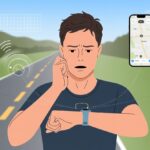
Drive over a bumpy road? Surprise! You just “climbed” two floors, according to some trackers.
Trackers try to tell the difference by looking for a steady, step-like elevation gain. If you just jump up and down, the tracker might ignore it.
But smooth, repeated elevation increases paired with a step count usually mean real stairs climbed. Still, false positives sneak in.
Some users have shared that driving can add steps and floors because the device senses those “climbs” from vibrations, not actual effort.
Common Reasons for Inaccurate Floors Climbed Readings
https://www.youtube.com/watch?v=BWM9UkhkND4
When your tracker says you’ve climbed 57 floors before breakfast, something’s up—and it’s not just you. Floors climbed readings can get weird for a few reasons, from sneaky drafts to how you wear your gadget.
Erratic Readings From Environmental Factors
Trackers like to think they’re little scientists, sensing every stair. But even the smartest device can get fooled by the world around us.
Fitness trackers with altimeters use air pressure changes to count floors. If you wander into a windy spot or get blasted by A/C, your device might think you’re climbing a mountain, not just checking the thermostat.
It gets stranger. Sudden pressure shifts in elevators or from opening a window can spike the “floors climbed” count.
No stairs needed—just a breeze or an elevator ride, and your step count jumps for no good reason. Even a brisk walk on a windy day might add fake floors.
So, if you wake up and your watch claims you became a stair master overnight, don’t panic: even trackers fall for a draft sometimes. There’s more about how air pressure tricks trackers at Fitbit Community.
Device Placement and Usage Habits
Where and how you wear your tracker matters. If your device sits too loose, slides around, or spends time in your pocket, it can’t track movement or pressure changes as intended.
That means waving your arm or bumping your bag might log extra “floors” before you know it.
Wearing the device on the wrong wrist or switching arms mid-day can also mess with results. Sometimes grime covering the barometer port—the tiny hole for sensing air pressure—blocks readings.
A dirty port could leave you stuck on floor zero.
There’s also the “charging contacts” problem. Sweat or dust on these can send readings haywire.
It’s one of those sneaky fitness mysteries: your tracker is making up tall tales while you’re just sitting on the couch.
It’s tempting to blame your tracker when your floors climbed numbers look like you’ve scaled a mountain. Sometimes, though, a small setting or a software hiccup on your Fitbit or Apple Watch is the real troublemaker.
Impact of Device Settings
Let’s be honest—most of us haven’t checked our tracker’s settings since we set them up. If you switched wrists, changed units (hello, metric!), or skipped calibration, you might be in for some stair-counting comedy.
The device needs these settings to figure out if you’ve hiked Everest or just gone to the kitchen.
Some devices, like the Fitbit Charge 2, want to know which wrist is doing all the work and how tightly you wear the band. If your settings say you’re eight feet tall or always walking in slow motion, the sensors can’t keep up.
A lot of trackers rely on barometric sensors to guess elevation change. If you keep getting weird results, poke around the settings menu first. A couple of accurate entries can actually help.
Importance of Firmware Updates
Firmware updates aren’t just annoying pop-ups. They actually matter, believe it or not.
When something goes wrong—like the Garmin vivoactive 3 suddenly logging a “record” stair count after an update—a glitch probably slipped through.
Skipping updates can leave your device stuck on old software, making the floor count even less reliable.
Some firmware updates actually fix bugs for the barometer and step detection. Before you throw your tracker across the room, check if there’s an update waiting for you.
If a new version causes chaos, search the support forums for your device. Sometimes, other users have found temporary fixes.
And hey, it’s always good to laugh with fellow floor-count sufferers.
Platform Differences and Compatibility
Not all fitness trackers play nice with every platform. Sometimes your favorite smartwatches and apps just don’t want to cooperate, and suddenly you’re the referee in a tech wrestling match.
Apple Watch and Apple Health Integration
If you use an Apple Watch with Apple Health on your iPhone, it’s supposed to just work. Sometimes, though, it’s as smooth as climbing an escalator going down.
Floors climbed stats can go missing or look totally off.
Apple Health uses the barometric altimeter in your watch to track elevation. If you wave your arms too much or take the stairs too slowly, the system gets confused—kind of like us before morning coffee.
Here’s a funny bit: with Apple Health, your watch logs a floor if it thinks you’ve gone up about 10 feet (3 meters). If data doesn’t sync right, your iPhone might just ignore it, so what shows up in the app can leave you scratching your head.
If you’re dreaming of bragging rights, no, shaking the watch doesn’t count—even if your arms get a workout.
Fitbit on Android Devices
You’d think Fitbit trackers, like the Fitbit Charge 2, would have figured out stairs on Android by now. But sometimes, they decide car rides or a small earthquake count as a few flights.
Your floors climbed results can look suspiciously ambitious because vibrations can fool the sensor—especially in cars. See users chatting about this on the Fitbit community.
Syncing is a whole other drama. Sometimes, Android phones and Fitbits act like siblings fighting for attention.
Floors climbed might not show up until you open the app, try a manual sync, or threaten your devices with replacement.
If you want the best results, keep the sensors clean, avoid syncing mishaps, and just accept that, on Android, your tracker might think you’re an Everest climber after one bumpy Uber ride.
Syncing and Data Recording Issues
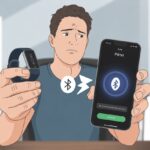
When your fitness tracker gets its Bluetooth wires crossed, your stair count can look more like a random lottery number than anything real.
Sometimes, data from your walks and climbs just disappears—kind of like socks in the dryer.
Troubles With Sync and Syncing
Let’s be real: syncing trackers can feel trickier than dragging ourselves out of bed for an early morning workout. If Bluetooth acts up, our hard-earned floors climbed sometimes just vanish into thin air.
When our phone and tracker stop communicating, those last few stairs might not show up in the app at all.
Some fitness trackers, like the Apple Watch, can get a bit moody if we haven’t synced them in a while. That’s when we start seeing duplicate records or missing routes.
We’ve all stared at a spinning app screen, only for it to spit out numbers that don’t add up. It’s frustrating, right?
Restarting both the tracker and our phone, double-checking for app updates, and making sure Bluetooth is on can usually help. If things are still weird, resetting the device sometimes does the trick—though we might lose a bit of data along the way.
Syncing regularly is honestly the best way to keep things working smoothly. We want every floor—yes, even the ones at work—to count, don’t we?
Gaps in Historical Data Collection
Climbing a mountain and then realizing our tracker forgot the whole thing? That’s just plain annoying.
Missing historical data can make us look like we’ve been glued to the couch, even after a day of hiking all over the city.
These gaps usually pop up when we forget to sync on time, or if the tracker’s battery dies mid-adventure. Sometimes, traveling through areas with bad phone reception or a tracker that decides to nap can make our data disappear.
It’s not personal—fitness trackers just have their own quirks.
To dodge these black holes, we can set our apps to sync automatically every day. Keeping devices charged and watching out for software bugs helps, too.
If you want to see some wild stories about missing or inflated floors climbed, the Fitbit community has a whole thread on it. Sometimes, all we can do is laugh, stretch, and climb another set of stairs—maybe our tracker will notice this time.
How to Improve Floors Climbed Accuracy
Getting a fitness tracker to count floors right? Sometimes it feels harder than actually climbing them.
Placement, dirt, and outdated software can all mess things up faster than we can say, “just one more flight.”
Optimizing Tracker Placement
You’d think we could just strap on a tracker and forget about it, but these little gadgets can be picky. For counting floors, most trackers use barometric pressure changes and motion sensors.
If we wear the device too loosely, it might miss our elevation changes. Go too tight, and our hand might fall asleep before the tracker does.
It’s best to wear the tracker on our non-dominant wrist since it moves less when we’re waving the other hand around. If we’re flapping our arms while walking up stairs, the tracker might not know if we’re climbing or just dancing.
Wearing it the same way every day helps a lot.
Cleaning and Maintenance Tips
Sweat, dust, and even those sneaky snack crumbs can block a tracker’s sensors. Many trackers have tiny barometer ports for sensing altitude, and if they get clogged, our device might think we’re underwater or hiking through a sandstorm.
Let’s try to check these little holes—usually on the back or side of the tracker—and keep them clear. A soft, dry cloth or gentle brush works best.
Don’t drown the tracker while cleaning, unless we want it to record “permanently at sea level” like some Garmin users mention here.
Some trackers actually have cleaning tips in their manuals, so maybe it’s time we actually read them for once.
Monitoring Firmware and App Updates
Trackers, just like us, need updates now and then to keep functioning properly. Manufacturers often fix bugs or improve accuracy with firmware and app updates.
If our tracker starts acting up, there’s a good chance a new update is waiting to fix things.
We should check for updates regularly through the companion app or the product’s website. Some trackers even add new features or tweak how they detect floors, so updates can really matter for us stair climbers.
Ignoring updates? We’re just missing out on whatever “new and improved” the device can do.
Distinguishing Floors Climbed Data From Other Metrics
Sometimes, our fitness tracker’s floors climbed reading makes us wonder if we’ve secretly been training for Everest. Understanding how these numbers get mixed up with steps or heart rate can save us a headache or two.
Separating Step Count and Stairs Climbed
Let’s admit it—sometimes we celebrate a new record, only to realize we never climbed a single stair. This happens because trackers measure steps and stairs totally differently.
Step count uses motion sensors to record every shuffle, skip, or even a foot tap under the desk.
Stairs climbed uses a barometric altimeter, sensing pressure changes as we go up or down. This tiny sensor might think we’ve scaled a mountain when we’re just standing up fast or riding in a bumpy car.
False readings can happen when pressure changes for reasons that have nothing to do with stairs. Some folks even say their device counts fake floors during car rides because of vibrations and altitude shifts. Here’s a Fitbit discussion with more details.
It’s confusing, since one action can sometimes count as more than one thing. But knowing there’s a difference helps us not panic when we apparently “climb” skyscrapers just walking to the fridge.
Understanding Heart Rate’s Role
We might hope our racing heart rate proves we’ve climbed six flights of stairs (or at least one steep driveway), but trackers don’t see it that way. Heart rate sensors only measure our pulse—they’re not tied to floors climbed or steps.
Even if our hearts pound with excitement—like when someone brings snacks to the office—the tracker won’t count that as stairs unless we actually change altitude.
Fitness trackers use heart rate to estimate workout intensity and calorie burn, not vertical gain.
So, if our tracker shows an Olympian’s heart rate but refuses to log any floors, it’s not broken. It just doesn’t use heart data for that metric.
Turns out, our hearts can race without us touching a single stair.
When to Contact Support or Replace Your Device
Sometimes, our fitness tracker claims we’ve climbed Everest, when we barely made it up to the bedroom. It’s not always our imagination—hardware problems or faulty sensors can be the real issue.
The tricky part is knowing when our device actually needs professional help or a replacement.
Recognizing Hardware Issues
Honestly, sometimes trackers just go haywire. If our device keeps adding extra floors when we’re standing still, or refuses to count any floors at all, the hardware might be the problem.
Dirty or blocked barometric ports are a common culprit. These little holes sense elevation changes.
We can grab a clean cloth or soft brush and gently clean those tiny ports on the back or side of the device. Dust, sweat, or even cookie crumbs (don’t ask) can block them up.
If cleaning doesn’t help and our tracker still hands out fake badges for floors we didn’t climb, it’s probably time to call support. Some devices, like certain Garmin models, have their own cleaning tips.
Watch out for these warning signs:
Extreme or random floor counts
No floors counted after climbing stairs
Device gets stuck or reboots when tracking activity
Warranty and Replacement Options
So, we’ve cleaned every nook and cranny, but our tracker still insists we live in a penthouse. What now? This is where warranties and return policies finally step in.
Most fitness trackers offer at least a one-year limited warranty. If our device still qualifies, we should reach out to support.
We’ll need the original receipt, the serial number, and—let’s be honest—a bit of patience. Maybe grab a snack or prepare for some elevator music.
A support rep might walk us through a quick troubleshooting session. If the device seems truly faulty, they might just send a replacement.
If our tracker is out of warranty, why not ask about a discount or trade-in? Sometimes they surprise us.
Honestly, we shouldn’t try to fix hardware ourselves—unless we happen to have a degree in tiny-screwdriver engineering. Attempting repairs can void our warranty faster than our tracker racks up phantom staircases.
Hi, my name is Garrett Jones, and I am a tech enthusiast. I enjoy researching the new tech that has been released, and have a vast knowledge of the best tech to purchase.
From a young age, I have always had a big interest in technology, and this blog is an extension of that interest. Through this blog, I hope to provide others with all of the information they need regarding tech options to consider, and things such as compatibility. Some of the different items I will be discussing include headphones, smartwatches, and how to fix common issues.