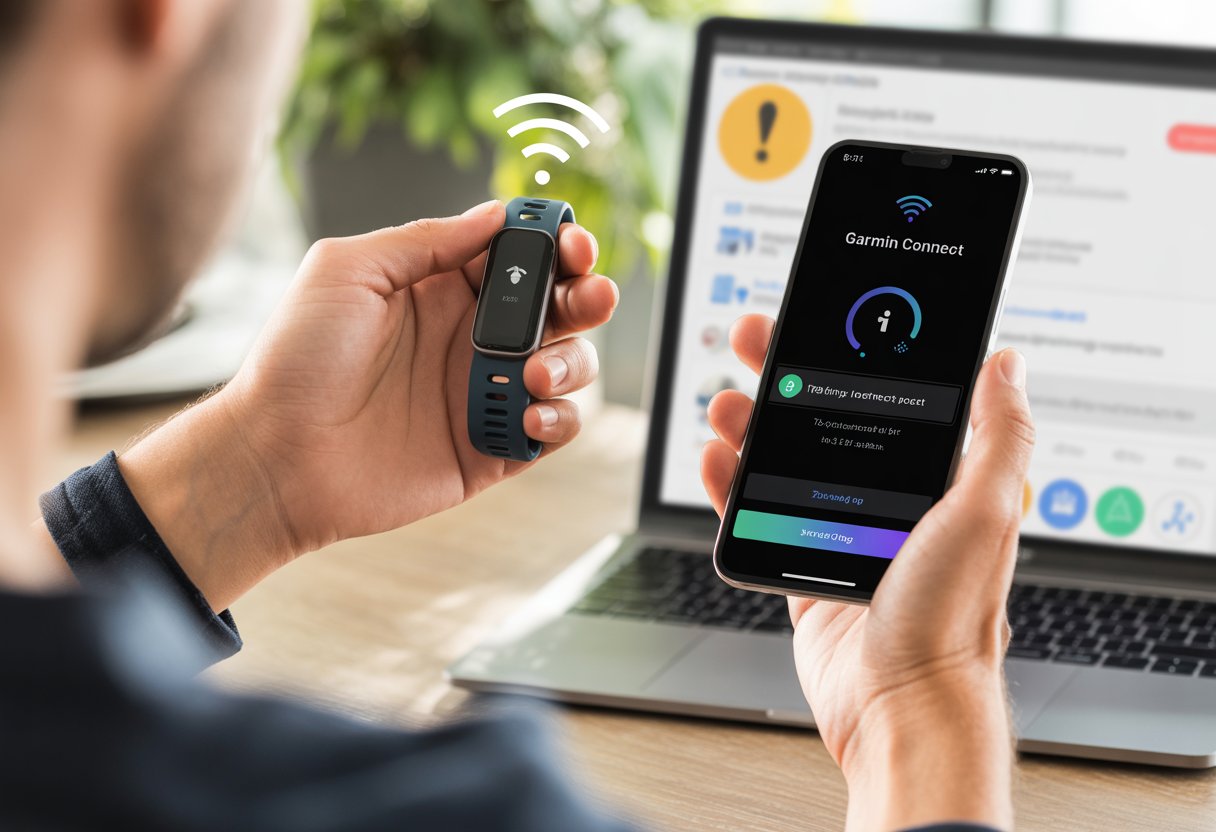
Let’s be real for a second—we’ve all waved our fitness trackers around, hoping something will finally sync. When our gadgets refuse to pair with Garmin Connect, it’s enough to make anyone stare at their phone and wonder if the universe just wants a rest day.
Usually, our fitness tracker won’t pair with Garmin Connect because of a simple connection glitch, a forgotten Bluetooth setting, or an app that just needs a quick update or restart. If this sounds familiar, you’re in good company. Sometimes tech just throws a tantrum.
So, why won’t our devices get along? Most of the time, the reasons are easier to fix than assembling flat-pack furniture. Restarting the tracker and our phone, checking the app version—these are simple steps anyone can try before calling for backup.
Let’s see if we can get these devices talking again.
Common Reasons Your Fitness Tracker Isn’t Pairing With Garmin Connect
Getting a Garmin device to pair with the app should be easy, but sometimes tech has other ideas.
Whether the app acts up, Bluetooth is being moody, or the devices just won’t cooperate, here are the most common things stopping us from syncing up.
Outdated Garmin Connect App
Let’s be honest, most of us put off updating our apps. The Garmin Connect app practically demands to be current. Using an old version can mess with notifications, slow down pairing, or even make it impossible to find our device.
When we use an outdated app, new features might not work, and bug fixes are missing. That means pairing can get stuck or crash out of nowhere.
Updating the app from the App Store or Google Play usually clears up a lot of headaches. Not sure if you have the latest version? Just check—it only takes a second.
Updating isn’t just busywork—it’s how Garmin keeps everything talking.
Bluetooth Technology Glitches
Bluetooth can be as unreliable as a paper umbrella in a storm. One minute our Garmin device is right there, the next it’s hiding from our phone.
Most pairing problems come from Bluetooth glitches or bad connections. Sometimes all our gadgets need is a quick reboot.
Turning our Garmin device off and on, then restarting the phone, often nudges Bluetooth back into action. We should also check if Bluetooth is enabled on both devices.
If they still won’t connect, try unpairing from both the Garmin Connect app and Bluetooth settings, then start the pairing process again. It feels a bit dramatic, but it actually works a lot.
Some Garmin devices just won’t pair with certain phones or operating systems. It’s like trying to introduce two friends who just don’t click.
Before we get too frustrated, let’s check that our device and phone are listed as compatible.
Compatibility isn’t just about model names—operating system versions matter too. Old phones or ancient OS versions might not connect at all.
Make sure both phone and Garmin device have the latest updates. Sometimes battery-saving settings mess with the pairing process.
We might need to tweak our phone’s permissions or battery modes so Garmin Connect can run in the background. If pairing still fails, Garmin’s not found during pairing page has more help.
Preparing Your Devices for Pairing Success
Getting a fitness tracker to pair with Garmin Connect might feel mysterious, but a little prep work goes a long way.
Focusing on readiness, pairing mode, and keeping things up to date makes the process smoother.
Ensuring Your Phone and Garmin Device Are Ready
Let’s start simple. Both phone and Garmin device need enough battery.
Nobody wants their watch or phone dying mid-pairing—talk about bad timing. Next, turn on Bluetooth on the phone.
If it’s already on and things still aren’t working, try toggling it off and back on. Classic move, but it helps.
It also helps to restart both devices. Turning them off and back on can clear minor glitches.
If the Garmin device was paired with another phone, remove it from both the Garmin Connect app and the phone’s Bluetooth settings. Garmin’s device not found troubleshooting can walk you through it.
Activating Pairing Mode
Time to activate pairing mode. On many Garmin watches, hold down a button until a pairing symbol or prompt pops up.
If you get a beep, even better—it means you’re in business. Check the screen for pairing instructions.
Make sure the phone searches for devices within the Garmin Connect app. If you paired this watch with another phone before, remove it from any old Bluetooth lists.
Following these steps helps the devices see each other—like two lost socks finally reunited.
Updating Software and Apps
Keeping gadgets up to date isn’t about chasing trends—it’s about dodging bugs and pairing issues.
Check for app updates in the App Store or Google Play. If Garmin Connect isn’t current, update it.
The phone might need an OS update, too. Sometimes behind-the-scenes changes fix stubborn pairing problems.
For the Garmin device, update through the app when connected, or plug into a computer with Garmin Express.
Updates fix all sorts of issues, and sometimes even make pairing possible when it wasn’t before. If you need more details, the Garmin Connect FAQ and Troubleshooting page is pretty helpful.
Missing updates is like skipping brushing your teeth: minor at first, but things get weird fast. Let’s keep everything fresh and ready.
Step-by-Step Pairing Process With Garmin Connect
When our tracker refuses to connect, it’s tempting to feel betrayed by technology.
Honestly, the fix is usually easy—if we follow the right process and don’t toss the device out the window.
Add Device in Garmin Connect App
First, check that the Garmin Connect app is installed and updated on your phone.
Open the app, then tap the Menu (those three little lines—not quite a hamburger, but close).
Scroll to Garmin Devices and tap Add Device. The app might spot your tracker if it’s nearby and awake.
If not, tap “Search All Devices” and wait. It’s a bit like waiting for coffee—impatiently.
If the tracker keeps hiding, restart it and try again. Removing it from the app or phone’s Bluetooth list sometimes helps.
Once the tracker appears, select it. The app usually asks for a pairing code, which pops up on your tracker screen.
Entering the right code is just as important as remembering your own birthday.
Quick checklist for pairing:
Bluetooth is enabled on your phone
No other Bluetooth devices causing drama
Battery saver mode is off (the tracker likes its power)
Once paired, the phone and tracker should start sharing data—like best friends gossiping. If you see a “Pairing Failed” message, check the pairing steps and try again.
Sometimes all it takes is a restart for things to finally click.
Solving Bluetooth Technology and Connection Problems
Bluetooth might seem like magic, but even magic needs a reset button sometimes.
Let’s look at the most effective tips to stop our phone and watch from ignoring each other—and get Garmin Connect pairing working again.
Rebooting Devices and the Age-Old Unplug-Replug
First up: the classic “have you tried turning it off and on again?” move. Phones, watches, and even Bluetooth itself get overwhelmed (don’t we all?).
Here’s the routine:
Turn off the phone completely.
Power down the watch or fitness tracker.
Wait a few seconds—grab a snack.
Turn both devices back on.
You’d be surprised how often this works. Outdated Bluetooth connections get stuck or corrupted.
If it works, you get to feel like a technical wizard with basically zero effort.
Checking Permissions and Settings
Let’s make sure Bluetooth isn’t being blocked by accident. Permissions matter—a lot.
Without the right ones, devices can sit in the same room and never say a word.
Double-check these:
Bluetooth is switched on in the phone’s settings.
Garmin Connect has permission to use Bluetooth and location services. Some phones forget after updates.
The watch is actually in pairing mode, not just chilling.
Low power or battery saver modes can cause trouble too, since they love shutting off background features.
If the tracker doesn’t show up, toggling these modes sometimes solves the mystery. Android users, especially—don’t skip permissions.
Disabling and Re-enabling Bluetooth Technology
When in doubt, flip Bluetooth off and on like a light switch. This move snaps Bluetooth out of its funk more often than you’d think.
Here’s how:
Go to the phone’s Bluetooth menu.
Turn Bluetooth off and wait ten seconds.
Switch Bluetooth back on.
Put the watch into pairing mode again.
Sometimes, the phone remembers old devices or gets stuck halfway through connecting. Disabling and enabling Bluetooth can clear out these old connections.
Some users remove their Garmin device from the Bluetooth list and add it back—kind of like a digital game of tag.
Pairing problems often come from the device we’re using, not just the fitness tracker itself. If the Garmin Connect app can’t find our device, we can try borrowing a friend’s phone or switching to another smartphone or even a computer (Windows or Mac).
Before we switch, we should make sure the Garmin Connect app is installed and updated on the new device. If we use the same account, our fitness data should come along for the ride.
If the tracker pairs on a new device, that tells us the old phone or computer is the problem. Clearing the Bluetooth cache, updating the operating system, or toggling airplane mode can help on the old device.
Android users can clear the Bluetooth cache, which often works wonders. There’s a good tip about this in this Garmin troubleshooting thread.
Factory Resetting the Fitness Tracker
If switching devices doesn’t fix it, we might need to try a factory reset. This wipes the tracker, removing all settings and pairing info, and sends it back to its first day.
We should back up any data we care about using the Garmin Connect app before wiping everything. Losing steps or sleep data is never fun, and nobody wants to start from scratch if they don’t have to.
Factory reset steps vary by Garmin model, so it’s smart to check the manual or Garmin’s support site for details.
After resetting, we set up the tracker again like it’s brand new. Often, this clears up even the most stubborn pairing issues.
Contacting Garmin Support (and Resisting the Urge to Scream)
If nothing else works, we have to reach out to Garmin Support. It’s not anyone’s favorite task, but sometimes their team is the only thing standing between us and a tracker tossed out the window.
Before calling or emailing, we should gather the basics—model number, error messages, what we’ve tried, and the device software version. Garmin might have more advanced steps or offer warranty help.
Getting support can take a while, so maybe grab a snack, charge the phone, and practice some deep breathing. Garmin’s support page has full instructions for persistent pairing issues and ways to reach a real person.
Dealing With External Factors: When It’s Not You, It’s Your Environment
Sometimes our fitness tracker just needs a little help with the chaos of modern life. The problem isn’t always the gadget—sometimes it’s everything else around us.
Interference From Other Electronics
Our fitness tracker isn’t the only device fighting for attention. Our homes are packed with electronics: TVs, buzzing phones, laptops, and game consoles all competing for bandwidth. It’s a wonder anything connects at all.
Bluetooth, which Garmin Connect uses, can be picky. If someone’s nearby with a bunch of electronics or even if the microwave is running, interference can mess things up.
If the tracker won’t pair, we can try moving away from crowded electronics zones. Pairing in a quiet room, away from the TV and Wi-Fi router, often helps.
Turning off extra Bluetooth gadgets can also cut down on competing signals. There are more troubleshooting tips here.
Networking Confusion: Wi-Fi vs Bluetooth Technology
Modern homes run on a mix of wireless tech. But Wi-Fi and Bluetooth are totally different beasts. Our tracker uses Bluetooth to connect to our phone, not Wi-Fi.
When our phone juggles Wi-Fi, VPNs, and Bluetooth, it can get overwhelmed. A busy home network with smart cameras, video doorbells, and laptops streaming videos can slow things down.
If pairing fails, we can try turning Wi-Fi off for a moment or disconnecting from the network. It’s important to make sure Bluetooth is actually on and the phone isn’t getting confused about which device to talk to (read more).
Sometimes, all the tracker needs is a quiet moment with the phone—no other electronics butting in.
Pairing Challenges on Computers and macOS Devices
Trying to connect a fitness tracker to Garmin Connect on a computer can feel like assembling IKEA furniture with missing instructions. Problems show up whether we’re using Windows or a shiny Mac.
Bluetooth Technology Setup on Windows PCs
First, we need to check that Bluetooth is actually on. It’s easy to forget, and sometimes that’s all it takes.
On Windows, especially with older machines, checking for Bluetooth driver updates is smart. Old drivers make pairing a nightmare.
If our Garmin device is already paired with another phone or computer, we need to unpair it everywhere else first. Then, we try again and hope for the best.
Smart Tips to Keep Your Fitness Tracker Pairing Seamlessly
Pairing a fitness tracker with Garmin Connect sometimes feels like setting up our grandma’s Wi-Fi—frustrating, but doable. A little attention to updates, watch settings, and Bluetooth quirks makes everything easier.
Maintaining Software Updates
Honestly, most of us ignore update notifications. But skipping updates is just asking for trouble.
Here’s how we stay on top of things:
Update the Garmin Connect app: Outdated apps cause pairing headaches. We should check the app store for updates.
Update the watch’s firmware: Garmin pushes out updates to fix bugs and boost Bluetooth.
Keep the phone updated: Sometimes the phone’s OS is the real culprit.
When everything’s up to date, devices usually play together nicely. If we’re not sure, checking the settings menu on both the Garmin and the phone is quick and easy.
Keeping Your Watch Face and Settings Synced
Ever switched to a silly watch face and suddenly nothing works? Custom faces or settings can mess with syncing.
A few things help:
Stick to official Garmin Connect IQ watch faces if things get weird.
Sync settings by opening the Garmin Connect app and double-checking all the options.
Manually sync if something seems off; most smartwatches have this in the menu.
It’s also a good time to check GPS and activity settings. Sometimes, all the tracker wants is to show off its latest run.
Preventing Future Pairing Problems
Nobody wants to repeat the same pairing drama. A little prevention goes a long way.
Try these steps:
Keep Bluetooth on and don’t let devices wander too far apart.
Skip battery saving modes on both phone and watch, since these block background syncing.
Restart devices every now and then—it’s simple and surprisingly effective.
Remove and re-add the Garmin device in the app if it just won’t listen. Garmin’s guide covers this.
If pairing fails, it’s not the end of the world. A little patience and troubleshooting almost always fix things.
When to Consider Upgrading or Replacing Devices
Sometimes, fitness trackers act like stubborn cats—refusing to work with new tech and glitching more than our parents with voice assistants. At some point, we have to wonder if it’s time to upgrade.
Compatibility With UK Electronics and Modern Appliances
Trying to make an old tracker work with new UK electronics is like teaching your nan to use TikTok. It’s possible, but don’t expect it to be easy.
If the tracker can’t connect to updated modern appliances or the latest Bluetooth on UK phones, it’s probably stuck in the past.
Here are some warning signs:
The app asks for updates the tracker can’t install.
It won’t sync with current UK gadgets or appliances.
Strange connection errors show up after every app or OS update.
Battery life drains faster than a cup of tea on a Monday morning.
If our tracker is always the odd one out at the smart home party, maybe it’s time to let it go. Sometimes, even our favorite gadgets need to retire.
Signs It’s Time for a New Fitness Tracker
When my fitness tracker spends more time refusing to pair than actually tracking, I start to get the hint. Watches that stall during Bluetooth pairing, freeze up, or barely hold a charge longer than a quick elevator ride? Yeah, those are definitely on the suspect list.
Watch for these red flags:
Frequent pairing failures—even after I’ve restarted, updated, and, honestly, tried everything short of begging.
The display only works when it feels like cooperating (which is basically never).
Physical damage—cracks, missing buttons, or if the thing has taken more accidental swims than I have.
It can’t use features in the Garmin Connect app that all the shiny new models seem to have.
If my tracker causes more frustration than motivation, maybe it’s just time to move on and find one that’ll actually stick around the next time I go for a run.
Hi, my name is Garrett Jones, and I am a tech enthusiast. I enjoy researching the new tech that has been released, and have a vast knowledge of the best tech to purchase.
From a young age, I have always had a big interest in technology, and this blog is an extension of that interest. Through this blog, I hope to provide others with all of the information they need regarding tech options to consider, and things such as compatibility. Some of the different items I will be discussing include headphones, smartwatches, and how to fix common issues.