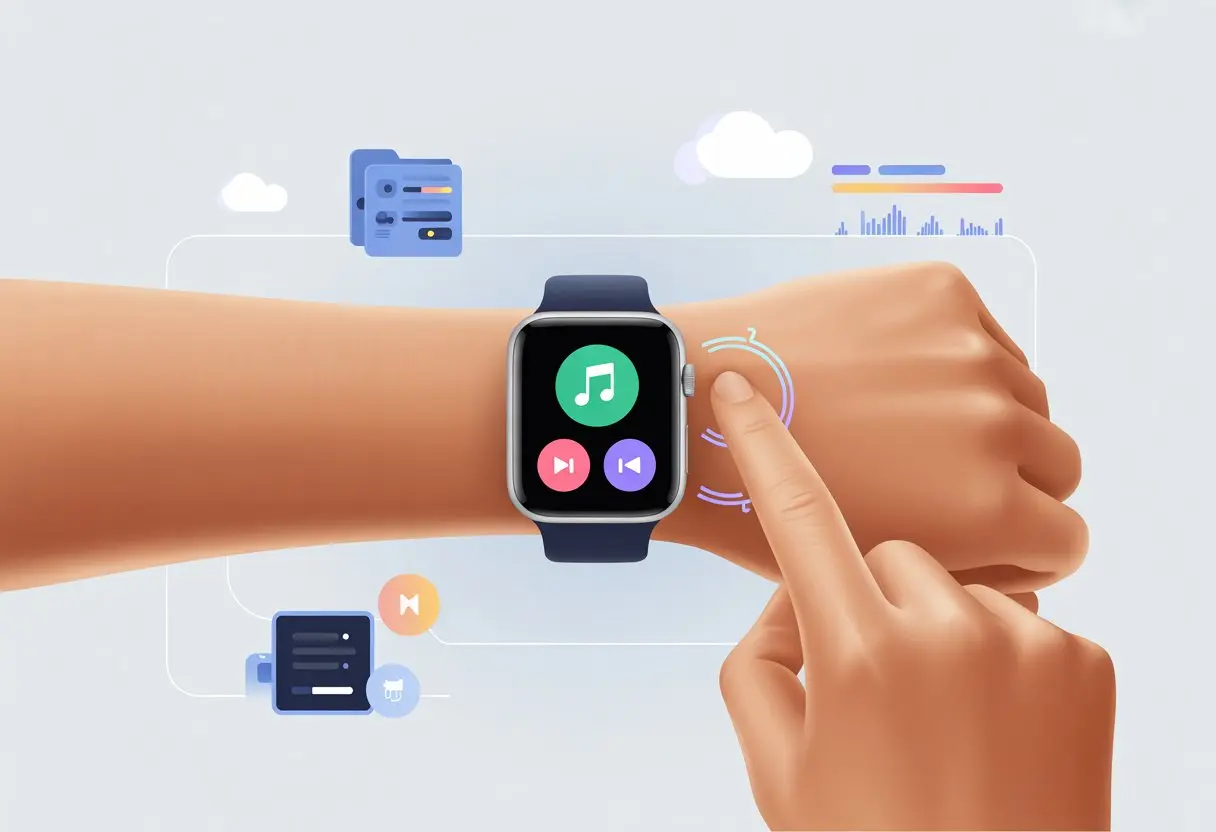
Ever wanted to ditch your phone but still keep your favorite songs close during a jog or walk? Same here. Jogging with a phone bouncing around in your pocket isn’t exactly fun. If you pick the right smartwatch, you can stash music right on your wrist, making workouts and commutes way lighter—and honestly, just more fun.
Let’s walk through how to get playlists onto your smartwatch so you can listen straight from your wrist. No more tangled cords or that “Did I forget my phone again?” panic.
Let’s figure out how to turn our smartwatches into mini jukeboxes—no extra pockets, maybe a dance move or two.
Getting to Know Your Smartwatch’s Music Features
We all want our favorite tunes right there when we need them. These days, smartwatches actually make that possible.
Different watches come with different music perks. Let’s get into how this all works—don’t worry, you don’t need to be a DJ.
Supported Audio Formats
Loading songs onto a smartwatch sounds simple, but not every device handles music the same way. Most watches love the classic mp3 format, so if your songs are mp3s, you’re golden.
Things get trickier with other formats like aac, flac, wav, or aiff. Watches running Wear OS or Apple’s watchOS usually handle aac and sometimes wav, but flac is hit or miss. Some files just won’t work, and your watch will let you know.
Best move? Always check which formats your specific watch supports. If you get a “file unsupported” message, your watch is basically saying “no thanks.”
Onboard Storage Capabilities
Smartwatches don’t all have the same space for music. Some are packed with storage, others—not so much.
Most music-friendly watches give you anywhere from 2GB to 8GB. That’s usually enough for a few hundred songs, depending on file size.
Apple Watch, Samsung Galaxy Watch, and some Garmin models let you load songs directly onto the device. The operating system matters too—Apple’s watchOS, Google’s Wear OS, and Samsung’s Tizen each handle storage a bit differently.
Don’t expect to fit every album you own unless you’ve got a watch with serious storage. Want to check which Garmin watches have music storage? Here’s a Garmin guide.
Compatibility With Music Streaming Services
If you’re all about streaming, good news: many smartwatches work with apps like Spotify, Deezer, and Amazon Music. Devices like Apple Watch, Samsung Galaxy Watch, and certain Garmin or Wear OS watches let you stream or download playlists for offline use.
You’ll usually need a premium account—free versions rarely allow offline downloads. Setting up varies by operating system. For example, Samsung Galaxy Watch makes it easy to manage songs and apps right in its companion app.
Music turns a smartwatch into a little jukebox on your wrist. Let’s talk about how to move your favorite songs onto a smartwatch, either by transferring files directly or syncing playlists with a cable.
Transferring MP3s and Other Formats
Nobody wants a silent workout. Most smartwatches support MP3 files, so if that’s your format, you’re set.
Some models also play WAV or AAC files, but check your watch’s specs if you like experimenting with audio formats. You can usually move files using special apps or your computer.
Some watches let you use FTP or ADB protocols if you’re feeling techy, or you can just drag and drop files like it’s the iPod days. Unsupported formats simply won’t play, so sticking to MP3s is usually the safest bet.
Sometimes, nothing beats a trusty USB cable. It’s simple and reliable.
Most smartwatches come with a USB cable in the box. Plug your watch into your computer, and it might show up like a tiny USB drive.
Then, just drag and drop songs or playlists into the music folder. Some watches ask for special software, which you can usually get from the watchmaker’s site.
If your watch doesn’t show up, try another cable or port, or check for syncing instructions for your specific model. Here’s more on USB syncing for different brands.
Managing Playlists on Your Device
Once your songs are on the watch, you can get creative with playlists. Most smartwatches let you organize tracks so you’re not stuck listening to every single old tune in order.
Playlist syncing, when available, saves you from endless tapping to find that one song. Some watches read ID3 tags, so your playlists and song titles look tidy.
If not, you might need to rename files before transferring. Good playlist management means you’re never more than a couple swipes from the right song, whether you’re jogging, commuting, or just dancing in your kitchen.
Want step-by-step details? Check out these playlist management tips for different smartwatch platforms.
Using Streaming Services Offline
Streaming on your smartwatch is fun, but sometimes you just want to leave your phone at home and keep the music going. Thankfully, many watches now offer offline playlist support, so you’re not left humming to yourself on a silent run.
Downloading Playlists for Offline Listening
Offline listening is a lifesaver when you’re out of cell range. On services like Spotify, you can download playlists or albums straight to your smartwatch.
Here’s the usual routine:
Open the music app on your smartwatch, like Spotify or YouTube Music.
Pick the playlist or album you want.
Look for a download or offline toggle.
Wait a bit—when it’s done, your tracks are now living on your watch.
Managing downloaded songs is easy, and you don’t need your phone once it’s done. Some watches let you remove tracks if you need space for more playlists.
Supported Apps for Offline Music
Not all music apps do offline. Here are some of the big ones that do:
Apple Watch has its own Apple Music app, which works well. Wear OS users have options, but it depends on what you install from the Google Play Store.
Your watch’s storage and app updates affect what works. Some popular apps only allow streaming, so always check before syncing your playlists.
Managing Streaming Subscriptions
You need a paid subscription for offline listening—free plans just don’t cut it. Spotify, Pandora, and YouTube Music all keep offline features behind a paywall.
Double-check that your subscription includes offline syncing. Spotify Premium, YouTube Music Premium, and Amazon Music Unlimited all support it, but only if you’re signed in on the right app.
Switching subscriptions might mean re-downloading playlists, so it’s a good excuse to clean things up. Balancing which services offer offline music on your smartwatch can feel like picking favorites among too many apps.
And hey, smartwatch storage isn’t unlimited. If you’re out of space, maybe delete those whale sounds you never listened to.
Connecting Your Smartwatch to Audio Devices
Getting your smartwatch to play music isn’t just about flicking your wrist. You need to pair it with some audio gear for the full experience.
Whether you want privacy with headphones or want to go full party mode with speakers, it all starts with the right connection.
Pairing Bluetooth Headphones
Bluetooth headphones are the go-to. Most smartwatches support Bluetooth, so you can connect wireless headphones and leave your phone behind.
First, put your headphones in pairing mode. On your smartwatch, open settings, find the Bluetooth menu, and tap “Add new device.”
Your headphones should pop up—just tap to connect. If it doesn’t work, try toggling Bluetooth off and on again. Usually, you’ll know you’re connected when music starts playing in your headphones.
Using Wireless Headphones With Your Smartwatch
Using wireless headphones with your smartwatch is a game changer for workouts, commutes, or just zoning out with your favorite artist.
Here’s how to keep it smooth:
Make sure your smartwatch supports offline music or streaming apps.
Download songs or playlists so you can play music without your phone.
Open your music app and select your wireless headphones as the output.
Sometimes, smartwatches only support certain formats or apps, so check the manual or the manufacturer’s support website. If your headphones disconnect, try moving closer or disconnecting other Bluetooth devices.
And that’s it—now you’re ready to jam out, no phone required.
Streaming to External Speakers
Streaming music to speakers turns a smartwatch into the heart of any backyard barbecue or shower jam session. Most modern speakers let us pair directly with Bluetooth.
To connect:
Turn on the speaker and switch it to Bluetooth mode.
On the smartwatch, open Bluetooth settings and look for available devices.
Tap the speaker’s name when it pops up, and wait for that satisfying “connected” beep.
Wi-Fi streaming isn’t as common, but if both the watch and speaker allow it, playback feels more stable and the sound improves. Feeling a bit fancy? Some smartwatches let us use voice commands to play, pause, skip, or crank up the volume right from our wrist. If only they could make us coffee too.
Controlling Music Playback Like a Pro
We don’t have to dig out our phones every time we want to skip a song or tweak the volume. The right smartwatch lets us manage music straight from our wrist, even if we’re jogging or stuck on a packed train.
Fans of both physical buttons and voice commands will find easy ways to control everything.
Playback Controls On the Watch
Most smartwatches keep playback controls simple and obvious. We can tap, swipe, or twist our way through tracks.
On the Apple Watch and Samsung Gear S3, the main playback screen shows big, bold icons for play/pause, skip, and rewind.
Changing the volume? Usually, it just takes an extra swipe or a quick spin of the bezel. We can adjust sound, swap playlists, and even see album art with a flick of the wrist.
Some watches, like the Gear S3, give us both physical buttons and touch controls—great for sweaty hands or clumsy moments.
Even when our music lives on the phone, the watch controls keep things in sync. For example, the Galaxy Fit can’t store music, but it still controls music playback from our phones.
This setup makes us feel like digital DJs, minus the giant headphones.
Voice Commands for Hands-Free Listening
Sometimes, our hands are full, or we just want to feel like we’re living in the future. That’s when voice commands save the day.
“Hey Siri, play my workout mix”—and suddenly, our soundtrack kicks in. The Apple Watch’s voice assistant handles simple commands for skipping songs, changing volume, or pausing music.
On the Samsung Gear S3, we can call out to Bixby and request a specific track, artist, or playlist. That’s perfect when we’re cooking, biking, or carrying groceries and don’t want to smudge the screen.
We can ask for info like “What song is playing?” or say “Play next” to move through tracks quickly. The trick is to speak clearly—no one wants a random polka tune during a workout.
Voice controls give us a taste of the future, letting us command our playlists with just a whisper.
Managing Battery Life and Storage Space
When we use our smartwatches for music, we have to juggle battery life and storage space. If we’re not careful, we’ll end up with a silent wrist and no room for our favorite tracks.
Optimizing Battery Life for Music Playback
Listening to music on a smartwatch is fun—until the battery dies halfway through a song. To keep the music going, we need to be smart about our battery.
Let’s check the battery settings. Most smartwatches, like the vívoactive 5, let us turn on power-saving modes, dim the screen, and shut off unused features.
Switching on “Power saving” helps a lot, especially during music playback. Take a look at these battery-saving tips to stretch the charge.
Bluetooth drains the battery fast when streaming to wireless earbuds. If possible, using wired headphones or listening through the watch speaker helps. Lowering the volume can squeeze out a few extra minutes too.
It’s a good idea to close apps running in the background. Multitasking is great for computers, but not so much for our wrists.
Maximizing Storage for Your Songs
Storage space on smartwatches is precious. Most models give us around 4GB, but some—like the vívoactive 5—might offer more or less.
So, let’s not treat our watch like a dumping ground for every song we’ve ever heard.
The key is to pick songs we actually want to hear. Deleting old podcasts and voice memos frees up space for new tracks.
Most watches let us manage files one at a time, so we can keep favorites handy without running out of room.
If our watch supports microSD cards or expandable storage, we’ve hit the jackpot. For everyone else, it’s about careful curation and avoiding massive playlists.
Want more info? Check out smartwatches that support offline music storage to see what fits our style.
Personalized Music for Fitness and Beyond
The right playlist on our wrist can turn a boring jog into a dance party. With smartwatches, storing and playing our favorite tracks is easy—no more fumbling with phones while we sweat.
Creating Workout Playlists
Let’s be real, elevator music won’t help us run faster. With modern wearables, we can choose every song and organize them for specific workouts like running, biking, or even yoga (for those brave enough).
Most smartwatches with music storage allow us to create and edit playlists right from the watch or through a paired app.
Some smartwatches for music lovers let us import tracks from streaming services or computer files and group them however we want.
We can build a high-energy playlist for interval runs and a slow, mellow list for cooldowns. The best part? The watch never judges our song choices.
Using Your Smartwatch as a Fitness Music Companion
Carrying a phone while running is a hassle. No one wants to risk dropping it for one more rep.
A smartwatch with music storage keeps our pockets free and lets us focus on the workout, not tangled wires or slippery phones.
These fitness trackers can play music offline and without a phone. While we track stats like heart rate and calories, the watch doubles as our DJ, pumping out tunes that keep us moving or help us cool down.
Some watches support wireless headphones, so we look extra slick (or at least less tangled). Smartwatches with music storage are a game-changer for fitness enthusiasts who want their custom mix in their ears for every workout.
Troubleshooting Common Music Storage Issues
Sometimes, using a smartwatch for music storage doesn’t go as smoothly as we’d like. Sync errors and file compatibility problems can leave us in silence instead of playing our favorite songs.
Resolving Sync Errors
Sync errors crash the party when we’re just trying to move music to our smartwatch. If our Samsung smart watch or Android Wear device stops syncing, we should first check the Bluetooth connection.
Toggling Bluetooth off and on often works wonders. If that doesn’t help, restarting both the smartwatch and phone usually does the trick.
We should make sure we have enough storage space, since our smartwatch isn’t bottomless. Clearing out unused apps or old tracks can open up room.
On Wear OS or Tizen, we might need to update the music app or even the operating system. Outdated software is the enemy of smooth syncing.
A stable Wi-Fi connection can also make syncing easier if Bluetooth isn’t cooperating.
Handling Incompatible File Formats
When we try to add songs and nothing shows up, file formats usually cause the trouble. Our watches can be pretty picky—they’ll happily play MP3s but might just ignore FLAC or WMA files, especially if the watch is a bit older.
To dodge all that hassle, let’s just convert our songs to MP3. You can grab a free audio converter tool online and get it done in a few clicks.
Some music apps, like Spotify, don’t keep songs as regular files. Instead, they save everything in their own weird format for offline listening.
We should always check if we’re moving over purchased songs, ripped CDs, or files from a streaming service. That little detail matters more than you’d think.
If you’re using something like Android Wear or any brand-specific software, definitely check the manual for what formats your watch likes. Wrestling with files isn’t anyone’s idea of fun, so keeping things in the right format just gets you back to your music faster.
Hi, my name is Garrett Jones, and I am a tech enthusiast. I enjoy researching the new tech that has been released, and have a vast knowledge of the best tech to purchase.
From a young age, I have always had a big interest in technology, and this blog is an extension of that interest. Through this blog, I hope to provide others with all of the information they need regarding tech options to consider, and things such as compatibility. Some of the different items I will be discussing include headphones, smartwatches, and how to fix common issues.