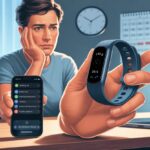
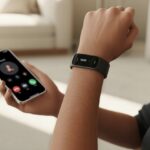
Let’s be honest, our fitness trackers act like our miniature, overly polite assistants. They buzz when we get a message, a call, or a nudge to stand up after an epic Netflix binge.
So, when the tracker just stops vibrating for notifications, it almost feels like it’s given up on us. No warning, just radio silence.
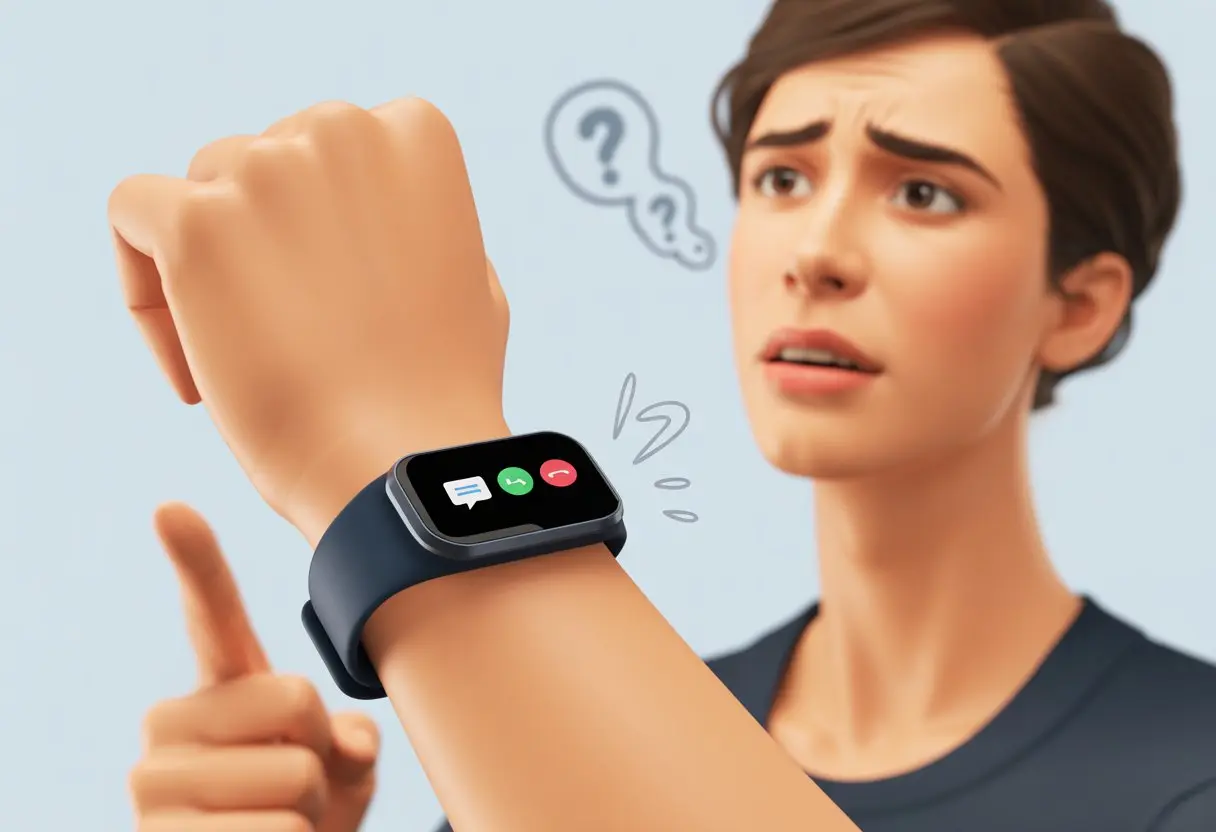
Usually, our fitness trackers stop vibrating because we’ve changed a setting, lost connection, or messed with notification preferences on our phone or the tracker itself. Sometimes, a feature gets turned off by accident, or our tracker just needs a restart to snap out of its funk.
It’s shockingly easy for a single toggle to mess up our whole alert routine.
No need to freak out or assume the tracker’s dead. If we poke around a bit, we can usually get our digital buddy buzzing again.
Want to skip ahead? Fitbit Charge 6 users often fix notification issues with a quick restart.
Common Reasons Your Fitness Tracker Isn’t Vibrating
When fitness trackers go silent, something’s usually off in the tech department. More often than not, the problem lurks in the settings or battery—not exactly a hardware disaster.
Device Not Receiving Notifications
Sometimes, our tracker just doesn’t get the memo. If our phone isn’t sending notifications, the tracker has nothing to vibrate about.
We should check if our phone’s notifications are actually enabled for the tracker’s app.
Notification permissions can disappear after an update or a stray tap. It helps to open our phone’s settings, find the app that controls the tracker, and make sure notifications are allowed.
Let’s also check that we’ve given the right apps permission to notify our tracker. Some devices let us pick which apps can send alerts, so if we get picky, we might miss that “Pizza’s on the way!” buzz.
If notifications are still missing, Fitbit’s support page might have a few more ideas.
Bluetooth Headaches – The Connection Struggles
Bluetooth’s supposed to keep everything connected, but sometimes it just doesn’t feel like cooperating. If Bluetooth is off or flaky, our tracker won’t get notifications, period.
We’ve all watched Bluetooth drop out for no reason, especially if we wander too far from our phone. That magical 10-meter range? It’s more like a suggestion, especially with walls or random gadgets in the way.
The fastest fix: turn Bluetooth off and back on, both on our phone and the tracker. If that doesn’t work, restart the tracker by diving into settings and giving it a restart.
To avoid Bluetooth drama, we should keep our phone and tracker close and steer clear of too many wireless devices nearby.
The Mysterious Case of Do Not Disturb Mode
Our tracker sometimes takes “Do Not Disturb” literally and blocks all vibrations. Suddenly, we get no alerts—just a weird, peaceful silence we didn’t ask for.
Do Not Disturb and Sleep Mode work great at night, but if we forget to turn them off in the morning, we’ll miss every notification. It’s easy to overlook, especially before coffee.
We can fix this by opening our tracker’s settings and switching off Do Not Disturb and Sleep Mode. Some watches even have a “Do Not Disturb When Off Wrist” setting that keeps things too quiet if we’re not wearing it.
It’s worth double-checking in the settings or peeking at this help thread.
Battery: The Undercover Culprit
When our tracker’s battery runs low, it tries to save itself by skipping vibrations.
We forget how fast those tiny batteries drain, especially after a busy day or long calls. If the battery dips too low, the tracker might ditch vibrations to hang on a bit longer.
A quick battery check can save us some headaches. If it’s low, just charge it up and see if the buzz returns.
If battery issues keep happening, we might need to replace the battery or contact support if it’s still under warranty.
Checking Notification Settings Like a Pro
Sometimes, our tracker’s silence comes down to a missed setting, a sneaky permission, or an overprotective Android feature. Let’s poke around the usual hiding spots for those settings that keep our trackers quiet.
Notification Permissions in the App
If the tracker’s app isn’t allowed to send notifications, we won’t get any vibrations. In the companion app—Fitbit, Galaxy Wearable, Garmin Connect—we check if notifications are actually turned on.
Apps often hide settings in layers. Inside notification settings, we make sure calls, texts, and calendar alerts are checked and allowed.
There’s usually a master switch. If that’s off, nothing gets through.
Vibration settings love to hide. We need to find “Sounds & Vibration” or “Haptics” in the app and make sure vibration isn’t set to “Mute” or “Silent.” Sometimes, it’s buried deep—like a digital scavenger hunt.
Android’s Notification Settings and Security Rules
Android tries to help, but sometimes it blocks notifications from reaching our tracker.
We go to Settings > Apps & notifications > Notifications on our phone. There, we find the tracker’s app and flip every switch for “Allow,” “Send,” or “Push.”
Some Android versions have Do Not Disturb and security modes that mute notifications for wearables. If our phone is unlocked or in use, notifications might not make it through.
We can fix this by picking settings like “Show alerts even when phone in use”, as explained for the Galaxy Watch here.
Android security sometimes blocks background permissions. If prompted, let the tracker app run in the background and draw over other apps. No one wants to miss out on group chats or calendar pings.
App Notifications: WhatsApp, Gmail, Telegram & Beyond
Every app has its own notification settings—just to make things complicated. WhatsApp, Gmail, Telegram—they all want us to turn notifications on both in their app and in the phone’s settings.
Inside WhatsApp, we tap Settings > Notifications and make sure “Vibrate” isn’t off. For Gmail, it’s Settings > Notifications > All. In Telegram, we check Notifications and Sounds.
If we only fix the phone app but not the app itself, the tracker stays silent.
Some trackers let us pick which apps can buzz our wrist. We should add our messaging apps to the allowed list.
It’s a bit like being the bouncer at a club—deciding who gets in. Send ourselves a test message from another device and see if our tracker finally vibrates.
The Wonderful World of Device Settings
Fitness trackers can get a little moody about notifications. If we’re missing buzzes, there’s probably a setting hiding somewhere, just waiting to trip us up.
Silence Mode and Do Not Disturb: Tech’s Peacekeepers
When our tracker stops vibrating, it might be stuck in silence mode or do not disturb. These features are great when we need quiet—meetings, naps, movies—but easy to forget about later.
Checking these settings is like searching for a lost sock—easy to miss, but important.
Most trackers have “Do Not Disturb” or “Silence” under device settings, usually in Sounds or Notifications. Some even turn on do not disturb automatically when we take the watch off.
To bring back the buzz, we make sure silence mode is off and do not disturb isn’t enabled. If you want more details on fixing vibration issues, check out this tip on disabling the “Do Not Disturb when off wrist” setting.
Quick Checklist:
- Silence mode: Off
- Do Not Disturb: Off
- Tracker: On our wrist (not the nightstand)
Customizing Vibration and Sound on Your Tracker
Not everyone wants their tracker to buzz like a marching band. Most devices let us tweak vibration and sound levels—or turn them off completely.
Settings like “Sounds,” “Vibration,” or “Controls Menu” usually hide these options. Sometimes, we have to dig a bit.
Let’s open settings and look for ways to change the intensity, pattern, or volume of alerts. If vibration is off or set to “Low,” we’ll barely notice it.
Boosting vibration or customizing it helps us catch every buzz.
On Garmin, we usually find this under Settings → System → Sounds or Sounds and Vibe. Keeping controls organized makes tweaks easier.
For more tips, see how to make sure vibration is enabled.
Power Saving Settings: Friend or Foe?
Power saving modes try to protect our battery, but sometimes they silence notifications in the process.
When we enable power saving, the tracker often cuts back on vibrations, sounds, or even syncing with our phone. Our watch might last longer, but our notifications could slip by unnoticed.
Let’s check what power saving is actually doing. Look for “Power Saving” or “Battery Saver” in device settings.
Some trackers let us pick which features to disable—maybe just dim the screen instead of muting vibrations.
Turning off power saving (even briefly) can help us figure out if it’s the reason our tracker isn’t buzzing. If the vibration returns, we’ve found our answer.
Balancing battery life and notifications is a juggling act, but it’s doable.
How To Troubleshoot Fitness Tracker Notification Issues
When our fitness tracker refuses to buzz, it’s usually not broken. We just need a few simple tricks to get those notifications back. Let’s get started—no carrier pigeons required.
Time for a Classic: Reboot Your Phone and Tracker
Sometimes, the best fix is also the oldest: turn it off and back on again. Our tracker and phone act like cranky toddlers—they just need a quick nap.
Here’s what usually works for us:
- Turn off the fitness tracker.
- Restart the phone.
- Power both back on.
This move forces a fresh connection and usually sorts out surprise glitches. If you’ve got a Fitbit Charge, you can restart it by heading to Settings, scrolling down, and tapping “Restart Device.” The Fitbit community has detailed steps if you’re stuck.
If things still won’t wake up, don’t worry—there are more tricks to try.
Syncing Secrets and App Updates
No notifications? Maybe syncing is to blame. Our tracker and phone need to stay in touch.
Try these steps:
- Check if Bluetooth is on.
- Make sure the tracker isn’t in airplane mode.
- Open the companion app and see if the tracker connects.
- Hit “Sync Now,” just in case.
Don’t skip updates! Outdated apps or firmware can turn our tracker into a stubborn rock. Update the app on your phone and install any firmware updates on your tracker.
Old software causes notification headaches, so it’s best to keep things current.
Asking for Assistance—Don’t Be Shy!
If we’ve tried everything and our tracker still insists on “silent mode,” maybe it’s time to ask for help. Reaching out isn’t giving up.
Customer support teams have seen it all—trackers that won’t sync, phantom vibrations, weird bugs. We can visit the support forums or use chat or phone support. Garmin and Fitbit both have lively communities and helpful troubleshooting steps.
Let’s not be shy—sometimes a professional nudge is all it takes!
Reinstalling Apps and Fixing Software Snafus
Sometimes, our trackers act even more stubborn than a cat that doesn’t want its belly rubbed. A simple app refresh or update can save us from a headache.
Here’s how to tackle those software hiccups and get our notifications buzzing again.
Reinstall Notify App: Tech Support’s Favorite Trick
We’ve all heard it: “Have you tried turning it off and on again?” For the Notify app, uninstalling and reinstalling is basically magic.
Issues with notifications not vibrating often come from a glitchy app install.
Here’s what to do:
- Uninstall the Notify app from your phone.
- Restart your phone—tech support’s classic move.
- Reinstall the Notify app from the app store.
- Pair your tracker again and check the app’s notification settings.
Doing this can squash invisible bugs that stop your tracker from vibrating. It sounds almost too easy, but sometimes the basics just work.
If you’re still missing vibrations, it’s time to check for updates.
Updating the Fitbit App for Bug-Free Vibes
Apps get cranky if we don’t feed them updates. The Fitbit app is no exception.
If we skip upgrades, old bugs might confuse our tracker and cause it to ignore notifications. Not cool.
Here’s what to do:
- Open the app store on your phone.
- Search for the Fitbit app.
- If you see an update button, tap it and let the app finish its glow-up.
- Once updated, check notifications under app settings and make sure vibrations are turned on.
Staying up to date means we get bug fixes and better notifications. For more on why trackers ignore us, check out this thread on Fitbit watches not vibrating for notifications.
Special Notification Types: Calls and Texts
Different notifications do more than just buzz our wrists. Friends who call, secret codes in messages, and the art of never missing a call—trackers can do it all if we set them up right.
Show Caller Name—Brag About Your Friends
When our tracker gets a call, don’t we want to see who’s calling? Most fitness trackers can display the caller name right on the screen during incoming calls.
To use this, we need to sync contacts from our phone. Double-check app permissions so the tracker can access our address book.
If we’re only seeing phone numbers, it’s probably a permissions thing—boring! For those who love a little social validation, having the name pop up lets us show off that yes, we do have friends (and not just robocalls).
If the name still won’t show, try tweaking incoming call settings or resyncing the watch. For detailed instructions, check out guides on notifications not vibrating or adjusting notification problems for certain Fitbit devices.
Show Notification Text Like a Secret Agent
Getting a text message feels important, but seeing the notification text on our tracker? Way cooler—like we’re secret agents getting classified updates.
This only works when tracker settings allow full message previews. In the app, go to notification settings and make sure text notifications and message previews are turned on.
If they’re off, we’ll just see a generic “New Message” alert. Where’s the fun in that?
Some trackers even let us reply with canned responses right from our wrist. If text notifications show up but don’t vibrate, maybe there’s a software hiccup or silent mode is on. Daring, but not helpful!
For help, users have shared fixes like rebooting both devices in discussions about text notifications not vibrating.
Incoming Call Settings for the Social Butterfly
If we never want to miss an incoming call—even when the phone is buried in a bag—there are settings for that.
We can adjust our tracker’s vibration strength to make sure calls get our attention. Most trackers offer choices like “Normal” or “Strong” vibration for calls, so we can pick how dramatic we want our notifications to be.
A strong buzz means no more missing pizza delivery updates. On some devices, turning on “Show notification on lock screen” helps keep us in the loop.
If all else fails, check if “Do Not Disturb” or similar mute modes are blocking alerts. People on the Fitbit Community have solved similar issues by switching vibration levels and re-syncing their trackers.
When Vibration Goes Missing: Other Tracker Features
Even if our trackers refuse to buzz for alerts, not all hope is lost. Important stuff like step counting and heart rate checks usually still work, even when notifications are silent.
Does Activity Tracking Still Work?
When the wrist buzz disappears, we might worry everything else quit, too. But most of the time, activity tracking keeps chugging along.
Trackers still count steps, measure distance, and estimate calories burned. The sensors don’t depend on the vibration motor, so we won’t suddenly disappear from our step charts.
If we’re syncing to an app, our data should still show up. Quick test: go for a short walk and check your stats after.
As long as the tracker’s screen turns on and the app updates, step tracking is probably working just fine. The lack of buzz might feel weird, but it usually won’t stop our calories from being counted—unless the tracker is completely dead, and then, well, that’s another story.
Heart Rate and Sleep Tracking Status Check
Losing the vibration doesn’t mean you lose your heart rate readings or sleep tracking magic. Fitness bands and smartwatches use tiny lights and sensors underneath the case just for this.
If your device still lights up when you check your heart rate, or shows nighttime stats, those features probably still work. You can look for recent heart rate graphs in the app, or check last night’s sleep log.
If those numbers are there, your sensors are doing their job. No vibration? That won’t mess with your midnight data gathering.
But if both heart and sleep tracking disappear along with vibration, try restarting your device or dig into some troubleshooting.

From a young age, I have always had a big interest in technology, and this blog is an extension of that interest. Through this blog, I hope to provide others with all of the information they need regarding tech options to consider, and things such as compatibility. Some of the different items I will be discussing include headphones, smartwatches, and how to fix common issues.
- Best Aviation Headset To Buy For Student Pilots? (7 Top Picks By Budget) - October 21, 2026
- The Best Rugged And Waterproof Smartwatches - October 21, 2026
- 10 Best Military Smartwatch – Find The Best Tactical Military Watches in 2023 - October 20, 2026
Related Posts: