Isn’t it weird how Bluetooth headphones seem flawless—right up until we actually need them? We’re ready to relax with some music or hop into a call, and suddenly our headphones just won’t connect.
Usually, Bluetooth headphones don’t connect because they’re out of range, not in pairing mode, or our devices have a setting that’s messing things up.
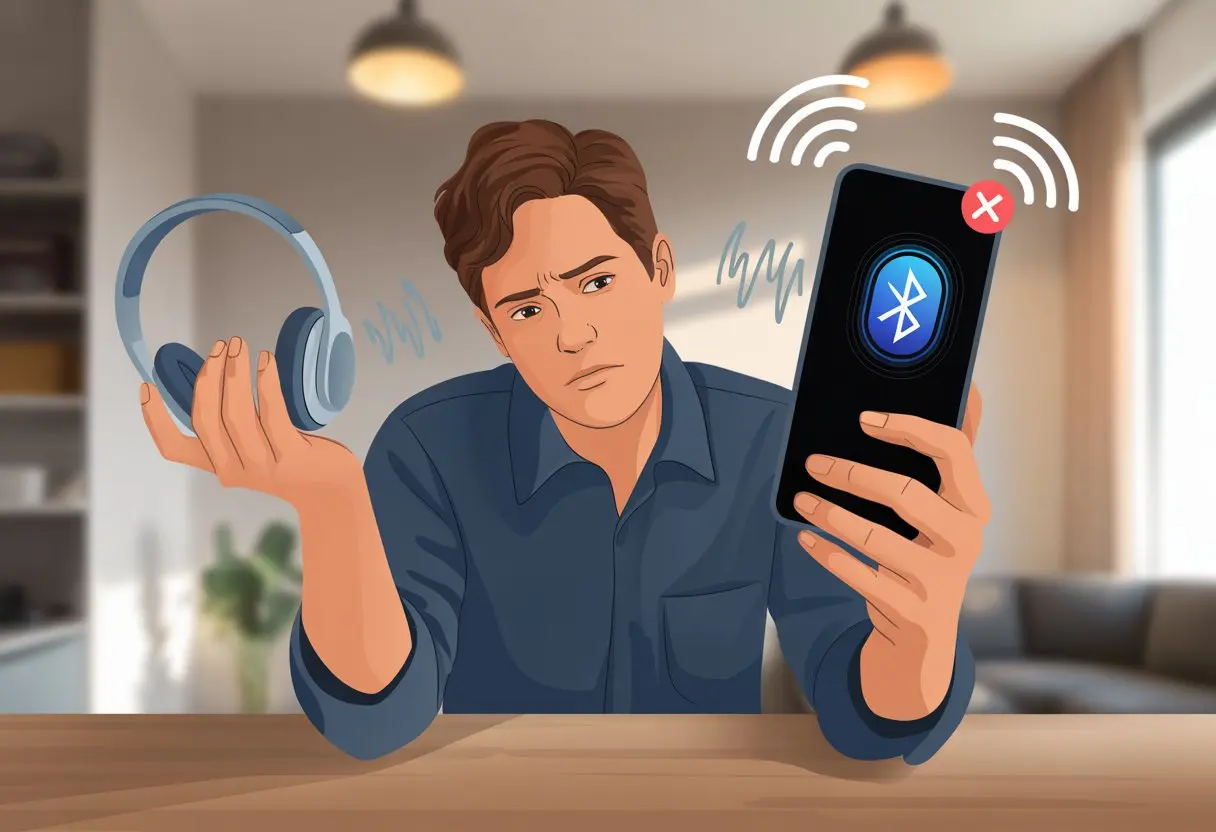
We’ve all mashed buttons, restarted our phones, and wondered if our headphones have it out for us. Oddly enough, the fix is often way simpler than we expect.
Most of the time, tackling these annoying pairing problems just means resetting the headphones, toggling Bluetooth settings, or making our devices forget and reconnect to the headphones like it’s the first time (there’s more about that here).
Let’s dig into why our headphones act up and how we can get the music going (or at least end the awkward silence) without launching anything across the room.
Common Reasons Bluetooth Headphones Won’t Connect
Honestly, few things are more annoying than Bluetooth headphones refusing to connect. Before we lose our cool, we should check for the usual culprits.
Out of Range or Obstructions
Sometimes we stand there, phone in one hand, headphones in the other, and wonder if Bluetooth is magic. It’s really not.
Bluetooth usually works up to about 30 feet. If we wander off or there’s a wall, door, or—yep—a fridge in the way, the signal drops off fast.
Obstacles like thick walls, metal stuff, or even aquariums can kill the signal. So if we want to binge-watch by the fridge, those snacks might cost us our audio.
For a solid connection, let’s make sure there’s nothing big blocking the line of sight between our devices. If it’s still not working, moving closer or stepping into the same room can help.
Even the best headphones can’t handle a marathon through multiple floors.
Headphones or Device Not in Pairing Mode
Pairing mode is just our headphones waving at our devices. If one isn’t in the mood, nothing happens.
Many headphones want us to press and hold a button—sometimes it’s a combo, sometimes just until a little light blinks like it’s trying to Morse code “help me.” If our device isn’t searching for Bluetooth connections, it won’t find our headphones.
Even if we paired before, sometimes our headset forgets us or clings to an old connection. Resetting the headphones by holding the right buttons (it can feel like cracking a safe) often lets us start fresh.
This trick helped someone else fix connection issues, according to a Reddit post.
If nothing’s working, it’s worth toggling Bluetooth off and on again. Maybe science doesn’t say it helps, but experience sure does.
Low Battery Issues
A dead battery just turns our headphones into pricey earmuffs. Sometimes they power on but don’t have enough juice to pair.
Some models flash a red light, others beep, and a few just give up in total silence. We should check the battery level on both the headphones and the device.
If all we see is a faint blinking light or they turn off right away, it’s time for a date with the charger. This is a super common problem, according to this Soundcore troubleshooting guide.
Forgetting to charge our headphones is like forgetting to water a plant. At least the fix is easy—plug them in and wait a bit before trying again.
Bluetooth Turned Off
This one’s embarrassing, but it’s the easiest to solve. If Bluetooth is off on our phone, tablet, or laptop, nothing will connect.
It’s like trying to call someone without actually dialing. Sometimes Bluetooth turns off to save battery or after a software update.
We need to check our settings and look for the little Bluetooth icon. A quick swipe or tap usually brings it back.
If our device insists Bluetooth is on but still won’t play nice, toggling it off and on can help. It’s the tech world’s version of shaking the vending machine—oddly effective, but maybe don’t do it too often.
For step-by-step help, check this guide on fixing Bluetooth connections.
Checking and Resetting Bluetooth Settings
If our Bluetooth headphones won’t connect, the problem usually hides in our settings. There are a few quick things we can try before panicking.
How to Turn On Bluetooth
First, let’s check if Bluetooth is even on. It sounds silly, but we’ve all missed it.
On most smartphones, we swipe down from the top and look for the Bluetooth “B” logo. If it’s gray or off, a tap brings it back.
On computers, we usually click the Bluetooth icon in the system tray or menu bar. If it’s missing, we might have to dig into the settings.
Tablets are similar—Bluetooth’s usually just a tap away in the main settings menu. Even the best of us forget this step sometimes.
Every device hides Bluetooth settings in its own weird spot. On Android phones, we open Settings, tap Connected Devices, then Bluetooth.
For iPhones or iPads, it’s Settings, then Bluetooth. If our headphones are hiding, a quick check here usually tells us if they’re listed.
On Windows, we click Start, go to Settings, pick Bluetooth & devices, and see if our headphones show up. For Macs, it all starts in the Apple menu under System Settings, then Bluetooth.
If a device is paired but not connected, clicking on it usually gives us more options—sometimes even a “forget” button for a clean slate. We don’t need to be tech geniuses, but poking around here can save a lot of headaches.
Just don’t poke your computer literally. That never helps.
Toggling Bluetooth On and Off
Sometimes, Bluetooth just needs a quick nap. Turning it off and on again can wake up even the laziest connections.
We go back into our device’s Bluetooth settings (remember those secret hiding spots) and flip the switch. If things still act stubborn, restarting the device can help too.
It’s the classic “did you try turning it off and back on” move, and it works more often than we’d like to admit. Frequent problems might need us to reset Bluetooth settings or unpair and pair devices.
If nothing works, telling our device to “forget” the headphones and starting over can work wonders. Sometimes they’re just in a mood.
Unpair, Reboot, and Reconnect Strategies
Bluetooth headphones can be moody, honestly. When they won’t connect, our best tricks involve unpairing, restarting, and putting everything in pairing mode—sometimes all at once.
Unpairing and Forgetting Devices
Let’s start by breaking up with our audio device the right way. Sometimes our headphones have already bonded to a different phone or computer and ignore us.
To fix it, we head to Bluetooth settings and hit “Forget” or “Unpair” next to our stubborn headphones. If we think a previous connection is holding things up, removing old Bluetooth devices from the list can help.
Here’s a quick checklist to keep us on track:
- Open Bluetooth settings
- Select our headphones or device
- Tap “Forget” or “Unpair”
- Double-check it’s not connected elsewhere
Taking these steps gets both our phone and headphones ready to try again. If you’re curious, some people found success after removing other devices that might interfere, like on Microsoft’s support site about Bluetooth connection troubles.
Restarting Your Audio Device
Sometimes, our devices just need a break. Restarting the phone, tablet, or computer we’re using can solve hidden issues.
A restart clears out glitches and can get Bluetooth back on track. All it takes is a quick reboot—just power off and on again.
Before we roll our eyes, it actually fixes a lot of tech problems. If things are really stubborn, restarting both the headphones and our audio device doubles our chances.
We should also check if Bluetooth is actually turned on. And, yeah, sometimes it’s off even when we swear we didn’t touch anything.
Let’s also make sure everything’s charged. Nothing ruins the mood like a dead battery.
Putting Headphones Back in Pairing Mode
Getting our Bluetooth headphones back in pairing mode is like waving a flag that says, “Let’s connect!” Most headphones have a special button combo: holding the power button, or sometimes the volume buttons, for a few seconds.
We’ve all mashed buttons, hoping for a flashing light. The exact process might be in the manual, but here’s a quick cheat sheet for most models:
- Turn off the headphones
- Hold the power button (or power + volume) for 5-10 seconds
- Wait for a flashing light or voice prompt
- Try pairing from our audio device again
Some folks recommend long-pressing the Bluetooth button to reset the connection, especially after unpairing. You can see these steps in action on Android forums, where resetting Bluetooth pairing has helped a lot of people get back to their tunes.
Platform-Specific Solutions for Windows Users
Connecting Bluetooth headphones on Windows can feel like solving a riddle written in invisible ink. We end up checking settings, poking around the taskbar, and sometimes even updating drivers just to listen to our favorite songs.
Troubleshooting on Windows 10
Let’s dive into the mystery that is Windows 10. First things first, check if Bluetooth is even on—yeah, it’s basic, but you’d be surprised how often it’s off. Click the Start menu, open Settings, hit Devices, and then Bluetooth & other devices. Is the little switch next to Bluetooth blue and set to “On”? Perfect. If not, just flip it.
Sometimes, the headphones pair but just won’t connect. In that case, remove them from the list of paired devices and add them again. If that doesn’t help, you might have a driver problem. Right-click the Start button, open Device Manager, and expand “Bluetooth.” Spot a yellow triangle? You’ll need to update or reinstall the Bluetooth driver.
If you’ve checked everything else, keep any USB 3.0 devices away from the Bluetooth adapter. It sounds random, but Microsoft actually says USB interference can mess things up.
Fixing Issues on Windows 7
Ah, Windows 7. It’s reliable, classic, and sometimes just plain stubborn. To connect a Bluetooth device, open the Control Panel. Click Devices and Printers. Hit Add a device and follow the prompts.
If your headphones don’t show up, check if Bluetooth is enabled. Sometimes you’ll need to flip a physical switch on your laptop or press a function key.
Driver issues pop up here a lot. If your device isn’t connecting, open Device Manager and find the Bluetooth section. Right-click the adapter and try updating the driver. Still nothing? You might need a specific driver from the manufacturer’s website, since Windows 7 and automatic updates don’t always get along.
Unlike Windows 10, Windows 7 doesn’t offer a quick toggle for Bluetooth in the taskbar. It takes more clicks and, honestly, a bit of patience. It’s not fast, but with enough determination—maybe even a snack break—you’ll get those headphones working.
Finding Bluetooth Settings in the Taskbar
The taskbar is basically command central for Bluetooth devices, but sometimes it likes to hide the controls just to mess with us. On Windows 10, look for the Bluetooth icon in the bottom right corner. If you see it, click to open a quick menu where you can pair, connect, or even send files.
No icon? Let’s fix that. Go to Settings > Devices > Bluetooth & other devices > More Bluetooth options. In the pop-up window, check Show the Bluetooth icon in the notification area. Hit apply and, just like that, the icon should show up in your taskbar.
On Windows 7, the icon might stay hidden unless Bluetooth is enabled and something’s paired. If you’re stuck, just search “Bluetooth” from the Start menu and let Windows take you there. Wouldn’t it be nice if it just read our minds?
Bluetooth Driver and Compatibility Problems
Before blaming your headphones, take a closer look at Bluetooth drivers and compatibility. Outdated software or mismatched devices can turn a simple pairing into a headache.
Updating Bluetooth Drivers
Let’s be honest—your Bluetooth drivers might be as old as your favorite retro playlist. If your headphones refuse to connect, there’s a decent chance the driver hasn’t kept up with newer devices. An outdated or wrong driver causes most connectivity meltdowns, especially on Windows.
Here’s a quick way to check:
- Open Device Manager
- Find Bluetooth
- Right-click your Bluetooth adapter
- Select Update driver
If that doesn’t fix it, uninstall the old Bluetooth driver and restart your computer. Windows usually searches for the latest driver automatically when you reboot. You’ll find step-by-step details for fixing Bluetooth problems in Windows.
Honestly, even the fanciest Bluetooth headphones won’t work if your drivers are stuck in the past.
Checking Device Compatibility
Nothing tests your patience like tapping “Pair” over and over, only to realize your devices just aren’t meant to work together. Not all Bluetooth headphones play nice with every phone, tablet, or computer.
Here’s what to check:
- Make sure both your device and headphones use compatible Bluetooth versions
- iOS and Windows have their own quirks—some headphones just work better with certain systems
- Keep devices close together (trying to pair from another room is a lost cause)
If your headphones only pair with some devices and not others, you’re probably dealing with a compatibility issue. Try resetting or restarting both the headphones and the device, as Apple’s troubleshooting guide suggests.
Trying to mix and match incompatible devices? It’s like expecting a cat and a dog to be best friends overnight—not impossible, but definitely a stretch.
Advanced Troubleshooting and Rare Issues
Sometimes, Bluetooth headphones just love to keep us guessing. Weird connections or mysterious problems can pop up even after you’ve tried everything else.
Interference from Other Devices
Bluetooth headphones can struggle when surrounded by other wireless gadgets. If your neighbor cranks up their Wi-Fi router or someone’s microwaving popcorn, signals can clash and mess up your connection. Even old cordless phones like to jump in and interfere.
Take a look around when problems hit. If things work better in another room, interference might be the culprit. Try these:
- Move away from wireless routers and smart fridges
- Turn off extra Bluetooth devices you’re not using
- Unplug that ancient cordless phone (it’s not helping)
If you get better sound and fewer dropouts, you’ve probably found the problem.
Firmware Glitches in Headphones
Sometimes, Bluetooth headphones just get stuck. Their software—or firmware—needs a refresh, just like we do after a long week. Outdated firmware can block pairing or cause weird bugs with your devices.
Check the maker’s website or app for updates. Most major brands let you download a fix in just a few steps. Don’t be shy—sometimes all it takes is plugging the headphones into your computer or opening an app.
Factory resets can also snap stubborn firmware back into shape. Give the manual a quick skim. If your headphones only act up after certain updates, rolling back can sometimes help. Staying updated helps dodge software hiccups and keeps everything running smoother.
Preventing Future Bluetooth Headphone Headaches
Let’s be real: Bluetooth headaches can make you want to toss your headphones out the window. But you can save yourself the trouble (and a broken window) with a few smart habits and a little patience.
Best Practices for Pairing
Let’s talk pairing. If you keep trying to connect your headphones without following the right steps, you’ll just end up stuck in Bluetooth limbo. Always start by putting your headphones in pairing mode. Usually, that means holding down a button until you see a blinking light. If that doesn’t do it, check the manual—even if you’d rather not.
Clear out any old connections on your device before starting fresh. Some headphones get confused if they’re still clinging to your phone from last week. Head into Bluetooth settings and “forget” those old devices.
Still no luck? Move away from busy Wi-Fi routers and microwaves—yeah, microwaves can really mess with your Bluetooth connections. Last but not least, make sure the battery isn’t low. Bluetooth headphones with a dying battery are notorious for refusing to connect.
| Quick Checklist |
|---|
| Turn on pairing mode |
| Forget old Bluetooth links |
| Avoid interference |
| Check the battery |
Keeping Devices Updated
Let’s be honest—most of us hit “remind me later” when a software update pops up. But outdated software? It’s honestly one of the biggest reasons Bluetooth acts up.
Headphone companies roll out firmware updates to fix annoying connection problems. Check the brand’s website or open up their app to see if something new dropped.
For phones, just dive into settings, update the system, and give it a quick restart. It’s simple, but it really can help.
Staying on top of updates doesn’t just squash bugs. It also shields us from weird, random errors that seem to come from nowhere.
When we keep our gadgets fresh with the latest versions, they usually connect better—and sometimes we even get a cool new feature as a bonus.
If your headphones use a companion app, make sure that’s up to date, too. Those updates can fix pairing headaches and help everything work together, almost like a well-oiled team.

From a young age, I have always had a big interest in technology, and this blog is an extension of that interest. Through this blog, I hope to provide others with all of the information they need regarding tech options to consider, and things such as compatibility. Some of the different items I will be discussing include headphones, smartwatches, and how to fix common issues.
- Best Aviation Headset To Buy For Student Pilots? (7 Top Picks By Budget) - October 21, 2026
- The Best Rugged And Waterproof Smartwatches - October 21, 2026
- 10 Best Military Smartwatch – Find The Best Tactical Military Watches in 2023 - October 20, 2026
Related Posts: