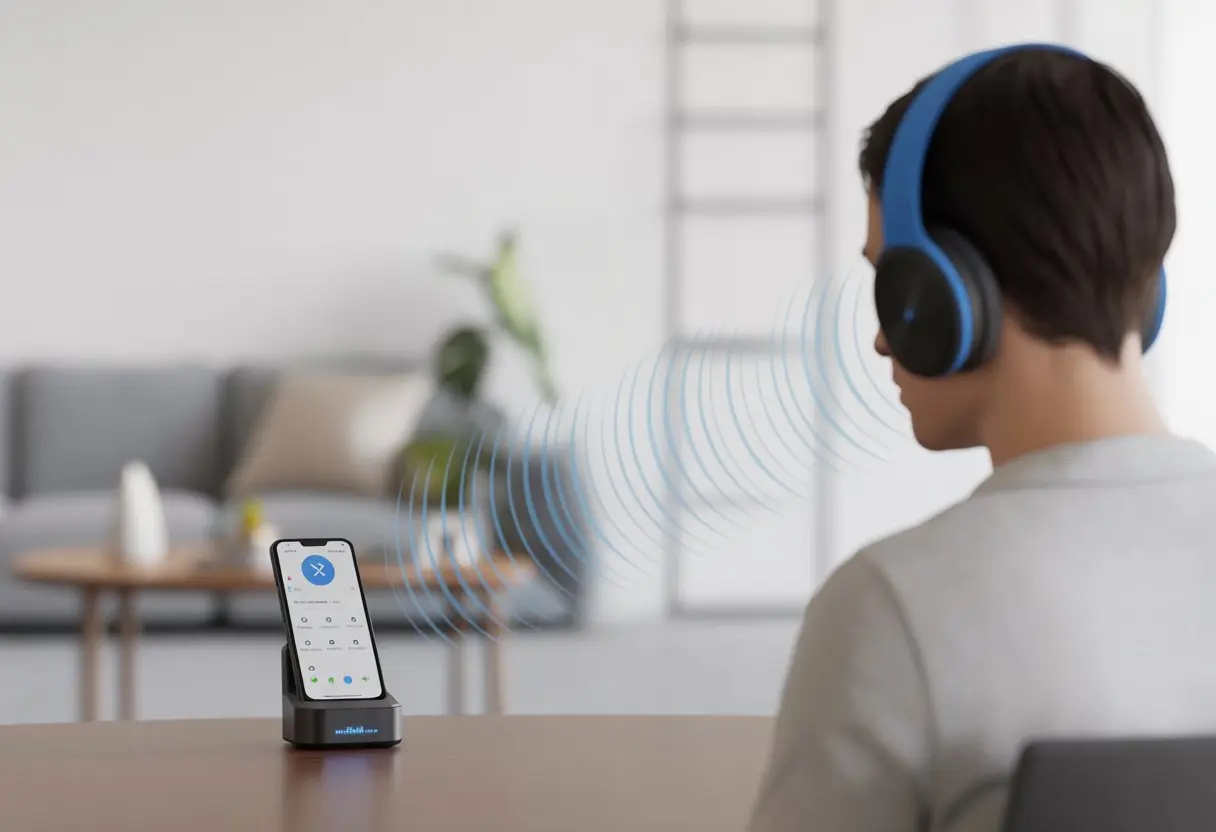
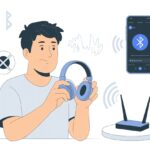
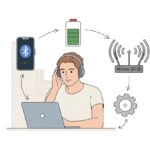
Let’s be real—we love our Bluetooth headphones, but sometimes their range feels about as long as a goldfish’s memory. We’ve all had that awkward moment when our playlist just vanishes because we wandered a little too far from our phone.
Here’s the upside: we can extend the range of our Bluetooth headphones with some easy tweaks and a few handy tools.
Whether we want to listen from the kitchen, the backyard, or maybe even the garage, there’s hope. Sometimes it’s as simple as using a Bluetooth range extender or just moving the transmitter a bit closer.
Honestly, we don’t have to be tech geniuses to pull this off. With a few simple tricks and a better sense of what messes up our signal, we’ll be jamming out from farther away—no wizard hat required.
Understanding Bluetooth Range Limitations
Bluetooth headphones are super handy, but they can only go so far. We can’t exactly beam them to Mars—at least, not yet.
Let’s dig into how Bluetooth works, what gets in its way, and how far we can actually walk before our music turns into static.
How Bluetooth Works
Bluetooth is basically a digital walkie-talkie for our gadgets. It uses little radio waves (no, not magic) to connect our headphones to our phones or laptops.
Most Bluetooth headphones run on the 2.4 GHz frequency, which is also where Wi-Fi and microwaves hang out—yes, even the thing that burns our popcorn.
The headphones and device do a quick handshake and pick a channel to chat on. Once they pair up, they send music, podcasts, or TikTok audio back and forth in little bursts.
Bluetooth is built for short distances so it doesn’t eat up battery. That’s why our headphones don’t fry our brains, but also why the music drops out if we try to grab a snack in the next room.
Fun fact: Not all Bluetooth is created equal. Newer versions (like Bluetooth 5.0) can go farther and transfer data faster than the old ones.
Common Obstacles to Bluetooth Signals
Bluetooth absolutely hates hide-and-seek. Its signals get blocked by walls, furniture, people, and anything thicker than a bowl of oatmeal.
Even our own bodies soak up Bluetooth waves, which explains why music stutters if our phone sits in the wrong pocket.
Concrete and metal walls are the worst, while windows and drywall just get in the way. Devices like Wi-Fi routers and microwaves can also mess with Bluetooth because they hog the same frequency.
A quick tip: Keep headphones and the device in sight of each other when possible. Move stuff out of the way and try not to stack all the wireless gadgets together.
Most Bluetooth headphones advertise a range of about 10 meters (33 feet). But that’s really only in “perfect” conditions—think empty room, no walls, maybe a unicorn holding the signal steady.
In reality, furniture, pets, and our jungle of houseplants can shrink that range fast. Older Bluetooth versions might only get 5-10 meters, while newer ones sometimes reach up to 40 meters outdoors.
Here’s a quick comparison:
Bluetooth Version
Indoor Range
Outdoor Range
4.0/4.2
5-10 m
10-50 m
5.0+
10-15 m
40-240 m
Just remember—walls are Bluetooth’s arch-nemesis. If you want the details, check out these notes on how far Bluetooth can reach.
Simple Tricks to Instantly Extend Bluetooth Headphone Range
Bluetooth headphones can act a little dramatic about distance. Our tunes can drop out fast if we’re careless about where we move or what’s in the way.
Changing Your Position and Removing Barriers
Sometimes we don’t need high-tech fixes—just a little shuffle around the living room. Bluetooth can’t see through walls or big furniture, so if we park ourselves behind the fridge, our music will sound like it’s coming from underwater.
When we keep our headphones and devices in the same room and within sight, we get fewer dropouts. Even turning our heads can help, since Bluetooth signals bounce off our bodies like we’re part of a science experiment.
Try holding the phone or tablet higher, or leave it on a shelf. This avoids interference from desks or electronics.
Don’t pile up clutter behind the device—thick walls, doors, and even some windows can mess with the signal. If nothing else works, just take a few steps closer instead of blaming the headphones for world peace not happening.
Switching Rooms Without Losing Your Groove
How many times have we strutted into another room, only for the podcast to quit right at the good part? When we move away from our device, our Bluetooth headset usually taps out around 30 feet indoors, if we’re lucky.
Even the best headphones can’t punch through concrete or metal walls like superheroes. To keep things smooth, we can leave our phone near the doorway or in a central spot.
That way, we can wander a bit farther before the music drops out. For the multitaskers, adding a Bluetooth repeater helps relay the signal throughout the house, so our tunes don’t take a nap every time we switch rooms.
Try not to put your head between the headphones and the device, since that just turns you into a wall. A few simple tricks and some smart gadget placement can save us from a lot of sighs and missed lyrics.
Advanced Methods for Boosting Bluetooth Signal
Sometimes, our Bluetooth headphones just can’t keep up—and honestly, neither can we (especially when the fridge is calling). If the basics aren’t enough, we’ve got some advanced moves to try.
Upgrading to a Stronger Bluetooth Transmitter
Let’s be honest: not all transmitters are created equal. The tiny chip in an old laptop or cheap smartphone might have the strength of a toddler with a pool noodle.
If we switch to a more powerful Class 1 Bluetooth transmitter, we’ll notice a huge difference. Most built-in transmitters are Class 2, with a typical range of 10 meters, but Class 1 can push a signal up to 100 meters (just… don’t try this at the airport).
Here’s how to get more punch from our signal:
Pick a USB Bluetooth dongle that supports Class 1 or Bluetooth 5.0 or higher.
Plug in antennas if the dongle supports them, for better direction and strength.
Some transmitters also let us connect more than one device—hello, double headphone dance party. Just check if our headphones or speakers are compatible before bringing in new tech.
Bluetooth Signal Repeaters and Range Extenders
When moving the transmitter isn’t possible and shifting the couch doesn’t help, it’s time for repeaters—no, not your uncle who tells the same joke twice. A Bluetooth repeater (or range extender) grabs the signal and boosts it so it reaches farther, maybe even the kitchen.
We can just place the repeater halfway between our transmitter and headphones or speaker for the best effect. Some plug into outlets, others use USB power, so we’ve got some flexibility.
These gadgets act like signal cheerleaders, catching weak waves and sending them out again, letting us wander farther without the dreaded dropout.
Some repeaters and extenders work with multiple devices, but always double-check they’re compatible with our Bluetooth version. When setup is right, it might feel like the walls are finally on our side.
Optimizing Devices for Better Range
Bluetooth headphones can get a little moody, depending on our device settings and software. Luckily, a few smart tweaks can squeeze out better range and make dropped connections less of a headache.
Updating Firmware on Your Bluetooth Headphones
If we haven’t updated our Bluetooth headphones’ firmware, we might be missing out on range boosts or bug fixes. Firmware updates can patch glitches, improve connection stability, and sometimes even stretch our wireless reach a bit.
Usually, we need a companion app on our phone or computer to check for updates. The app often hides a “Firmware Update” or “Check for Updates” option somewhere in the settings.
If updating feels like a wild goose chase, the brand’s website usually has guides or troubleshooting steps. A fresh firmware can also smooth out issues with different devices, especially when pairing our headphones with a Mac or Android phone is more dramatic than a reality show.
Maximizing Performance on Android Devices and Mac
Android devices and Macs can be sneaky about hiding power-saving or Bluetooth settings that zap our range. On Android, it helps to keep Bluetooth and phone software up to date.
We can dig into Settings and turn off battery-saver modes or adaptive battery features. These settings can throttle our Bluetooth connection so much that it gives up before we do.
For Mac users, sometimes just resetting the Bluetooth module does the trick. Turning off Wi-Fi can also help, especially if our Mac is juggling lots of wireless devices.
And let’s not forget: keeping the OS and Bluetooth drivers updated gives our headphones their best shot at a strong connection.
A quick fix: place our Android or Mac away from metal objects or thick walls. The signal likes open space, so let’s not stick it in a Wi-Fi jungle or behind a fortress of books. That one move can make a surprising difference.
Testing and Measuring Your Extended Bluetooth Range
If we’re on a mission to stretch our Bluetooth headphone range, we’ll want proof that our DIY magic actually works. Testing keeps us from bragging about a range upgrade that can barely cross the kitchen.
Using GPS and Range Apps for Precise Measurement
If you want to know how far your Bluetooth headphones, speakers, or even that old printer can really reach, you can’t just guess (unless you’ve got superpowers). GPS apps on our phones are the real heroes here.
We usually grab a measuring app like “GPS Fields Area Measure” or “Map My Walk.” After pairing our device, we start walking away and let the app track us until the music cuts out—or we just get bored and wander off for a snack.
These apps work best outside, where walls can’t mess with the Bluetooth signal. If we want to get extra nerdy, some Bluetooth range apps will even record dropouts, re-connections, and signal strength as we move around.
It helps to jot down test points in a simple table:
Device
Max Range (meters)
Obstacles Present?
Headphones
28
No walls
Speaker
25
1 glass wall
Printer
20
2 doors
Honestly, nothing beats a real-world test.
Ensuring Compatibility With Other Devices
Great range on your headphones doesn’t matter if your other gear can’t keep up. Not all Bluetooth gadgets—speakers, printers, headphones—play nice together. Some use different Bluetooth versions, which can mess with range or connection quality.
We always check if the devices we’re testing use similar Bluetooth versions. Mixing new headphones with an ancient Bluetooth speaker can mess up the range, even if everything else is perfect.
Before celebrating, we need to see if any device on our list is lagging behind. Sometimes one stubborn printer or oddball speaker drags down the whole group.
Checking device specs and compatibility (usually in the manual or on the manufacturer’s website) saves us from blaming the wrong gadget. Sometimes it’s not the headphones—it’s the old printer causing all the trouble.
Troubleshooting Common Bluetooth Headphone Range Issues
When Bluetooth headphone range suddenly tanks, the problem is usually right under our nose. Sometimes it’s something in the room—or even a quirk in the headset itself.
Let’s look at a few practical fixes so we can get back to listening in peace.
Interference From Other Wireless Devices
We’ve all had that moment when music starts skipping because someone’s ancient printer suddenly wakes up. Wireless interference is a real pain. Most Bluetooth devices—headphones, computers, printers—use the crowded 2.4 GHz frequency.
If there are too many gadgets nearby—wireless routers, microwaves, cordless phones—they all fight for space, and Bluetooth gets cranky.
To fix this, try moving headphones and devices away from routers or big metal stuff. Turn off or unplug any wireless gear you’re not using.
Keep your computer, headset, or phone as close together as possible. Walls and furniture can block your signal more than you’d think.
If all else fails, a little “reorganization” (aka, shoving stuff around) sometimes helps. For really stubborn interference, a Bluetooth repeater or range extender might be worth a shot.
Pairing Problems With Multiple Devices
Trying to pair your Bluetooth headset with multiple devices? That can turn into a digital tug-of-war fast. Headphones sometimes pair with the wrong device or just refuse to connect, which is always fun.
To fix this, disconnect the headset from every device it remembers. Restart your headphones, computer, phone—whatever’s involved.
Clear out the pairing lists if you can. Usually, you’ll find this in Bluetooth settings.
With fresh pairing, things usually go smoother. If Windows is being stubborn, uninstalling and reinstalling the Bluetooth drivers can give your connection a much-needed wake-up call.
Once everything works together again, you’ll probably see your Bluetooth range and reliability bounce back.
Maintaining Optimal Bluetooth Headphone Performance
Want your Bluetooth headphones to last longer and sound good? A little care and a few good habits can go a long way.
Storage Tips and Regular Maintenance
Let’s be honest—most of us just toss our headsets on the nearest table when we’re done. Try to resist! Store Bluetooth headphones in a hard case or at least a soft pouch to keep out dust, pet hair, and those mystery crumbs that always show up.
Extreme heat or freezing cold will make headphones cranky, so pick a spot away from windows, heaters, or the fridge.
Nobody wants sticky ear cups or buttons that don’t work. Wipe headphones down every couple of weeks with a soft, dry cloth.
For stubborn grime, use a slightly damp cotton swab, but don’t soak anything—these gadgets hate baths. If your model has replaceable ear pads, swap them out every year to keep things fresh.
Regularly check and clean the charging port with a toothpick if needed (gently, please). And if you’ve got cords, don’t let them tangle—unplug and wrap them up after use instead of letting them turn into a knotty mess.
Best Practices for Long-Term Use
If you want your Bluetooth headphones to last, you’ve got to use them with a little care. Cranking the volume all the way up? That’s just asking for trouble, and honestly, your neighbor’s cat probably doesn’t appreciate it either.
Keep the volume at a reasonable level. You’ll get clearer sound, and your headphones will thank you by sticking around longer.
Turn off your headset when you’re not using it. Sure, it’s tempting to leave them on and always be “ready to rock,” but switching them off helps the battery last through more charge cycles.
If your headphones let you update the firmware, go ahead and do it. Manufacturers fix bugs and sometimes even toss in a new feature or two—no magic, just a bit of code.
Try to charge your headphones before the battery dips below 10%. Lithium batteries, honestly, don’t love being drained completely.
And please, don’t grab a sketchy off-brand charger just because it’s nearby. Stick to the charger that came with your headphones, or at least a decent quality replacement.
These habits aren’t complicated, but they make a real difference. Your headphones might just stick around for years if you treat them right.
Hi, my name is Garrett Jones, and I am a tech enthusiast. I enjoy researching the new tech that has been released, and have a vast knowledge of the best tech to purchase.
From a young age, I have always had a big interest in technology, and this blog is an extension of that interest. Through this blog, I hope to provide others with all of the information they need regarding tech options to consider, and things such as compatibility. Some of the different items I will be discussing include headphones, smartwatches, and how to fix common issues.