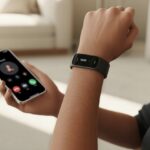
We’ve all been there—waking up late because our fitness tracker decided to take a nap right when we needed that alarm the most.
Most of the time, our fitness trackers stop vibrating for alarms because Do Not Disturb or Sleep Mode is on, or the alarm wasn’t set up correctly. Honestly, these wrist gadgets can get confused, just like us before our morning coffee.

Sometimes, it’s just a weird settings mix-up that keeps our wrists from buzzing us awake.
Other times, maybe the tracker didn’t sync, or we set the alarm for PM instead of AM—classic move. If the tracker still gives us the silent treatment, maybe there’s a hardware issue or a battery problem lurking.
Nobody wants to miss an important wake-up call (or a steps competition) because their tracker went quiet. So, let’s dig in and figure out how to get those vibrations back—because sleeping through alarms is getting old.
Understanding How Fitness Trackers Use Vibration for Alarms
When our fitness trackers jolt us awake or nudge us for something important, there’s some neat tech at work.
Let’s peek at how these little gadgets make those buzzes that either save us from oversleeping or just jolt us out of a dream.
How Alarm Vibrations Work
When we set an alarm on our fitness tracker, the device quietly waits for the right moment.
Once the time hits, it sends a signal to the vibration motor and starts buzzing.
Alarms usually hit us with repeated short buzzes—like a mini earthquake on our wrist—to get our attention.
Some trackers let us adjust how long the alarm rings and how many pulses we get.
If our tracker doesn’t vibrate, maybe the software’s acting up, the battery’s low, or we’ve accidentally turned on “Do Not Disturb” or “Sleep Mode.” Devices like Fitbit have specific vibration alert settings that sometimes get switched off without us even realizing.
Vibration Motor Overview
Every buzz we feel comes from a tiny vibration motor inside the tracker.
Most fitness trackers use an “eccentric rotating mass” (ERM) motor—a little weighted disk that spins super fast to make us feel those shakes.
Some newer trackers have linear resonant actuators (LRA). These sound fancy (because they are) and give us stronger, more controlled vibrations.
LRAs also use less battery, which means more time for our alarms to try and wake us up.
Vibration motors are small and efficient, but they can wear out. If our tracker’s buzz feels weak or goes missing, the motor might be tired from too many early mornings.
Types of Vibration Alerts
Not all buzzes feel the same. Fitness trackers give us more than just the basic alarm.
We get different vibration patterns for calls, texts, reminders, and alarms.
| Alert Type | Typical Vibration Pattern |
|---|---|
| Alarm | Strong, repeated bursts |
| Text messages | Short, double tip-tap |
| Calls | Long, steady rumble |
| Reminders | Quick, light pulses |
Some trackers let us tweak these patterns.
The alarm is usually the strongest—it really wants us up and moving. If we miss it, it’s not for lack of shaking!
Common Reasons Your Fitness Tracker Is Not Vibrating
A fitness tracker that stays silent when our alarm goes off feels about as useful as a screen door on a submarine.
Alarm and vibration problems pop up more often than we’d like to admit.
Alarm Settings Issues
Sometimes, the culprit hides right in the alarm settings.
Maybe we set the alarm, but did we choose the right time? Is it just for weekdays, but we need it on the weekend?
To avoid being late again, we should:
- Double-check if the alarm is enabled.
- Make sure it’s set to the right day and time.
- Confirm our device is synced with our phone or computer. If not, the alarm might as well not exist.
Some trackers only allow a certain number of alarms—if we add too many, one might not work. Deleting and re-adding an alarm can actually help.
It’s easy to forget these steps when we’re half asleep.
Vibration Level Settings
Most fitness trackers let us control vibration strength.
If we set it too low—or off—we’ll sleep through alarms like a rock.
Here’s what to check in settings:
- Make sure vibration strength is at medium or high.
- See if silent/vibrate only mode is on for alarms.
- If customization is available, check that alarm vibration isn’t stuck on the lowest setting.
Some trackers have separate vibration levels for alarms and notifications, so we should check both.
If our wrist hasn’t felt a buzz in ages, toggling the setting off and on can sometimes wake it up.
Do Not Disturb or Mute Mode
We’ve all hit a “Do Not Disturb” or “Mute” button—sometimes on purpose, sometimes by accident.
If alarms aren’t coming through, maybe our tracker is stuck in DND mode.
Here’s what happens:
- In “Do Not Disturb,” the tracker ignores alarms, calls, and messages.
- Mute mode blocks all sound and vibration, turning our tracker into a silent bracelet.
We should check settings for a moon or bell icon.
If we see one, tap it to turn it off. There’s more on this in Do Not Disturb and Sleep Mode.
Low Battery Life or Power Settings
If our tracker’s battery is low, it might skip vibrations to save power—especially for alarms.
Low battery life can trigger power-saving modes that silence vibration feedback.
To check:
- Make sure the tracker is charged. Some trackers show a red battery icon or send a notification when power is low.
- Look at power or battery saver modes in settings. These can turn off things like alarms to make the battery last longer.
- Charge the device and try setting an alarm again.
Sometimes, the battery just can’t power the vibration motor. If buzzing doesn’t come back after charging, maybe it’s time for a restart or even a replacement.
Checking and Adjusting Alarm and Notification Settings
We don’t want to be the ones who wake up two hours late just because our fitness tracker decided to snooze.
Making sure alarms and notifications actually vibrate means checking the settings with the same energy we check the fridge after a long day.
Accessing Alarm Time and Settings
Let’s start with the basics.
We need to check that our alarm is actually on and set for the right time—a 7pm alarm won’t help us get up at 7am.
On most trackers, we open the device’s app, like Fitbit or Garmin Connect, and go to “Alarms.” We should see all our alarms, their times, and whether they’re active or just chilling.
If “Do Not Disturb” or “Sleep Mode” is on, the tracker might ignore all notifications and alarms—even the ones meant to wake us up. We should double-check those modes before blaming the device.
For more help, official Fitbit support has some info.
Managing Multiple Alarms
If you’re like us and set five alarms “just in case,” it helps to know how our tracker handles them.
Some trackers quietly ignore overlapping alarms or only vibrate for the first one, which is basically a snooze button that doesn’t work.
We can edit, add, or remove alarms right from the app, so we don’t end up with accidental overlaps or missing alarms.
A simple table in the alarms section can help us keep things organized:
| Alarm Time | Repeat Days | Status |
|---|---|---|
| 6:30 AM | Mon-Fri | Active |
| 7:00 AM | Weekends | Disabled |
| 7:05 AM | Daily | Active |
Spacing alarms by at least a minute or two gives each one a chance to do its job (and gives us fewer excuses to keep hitting snooze).
Customizing Notification Preferences
Alarms aren’t the only things fighting for our attention.
Fitness trackers send all kinds of notifications—texts, reminders, stand-up alerts (even if we’re already standing).
Checking notification preferences means toggling which alerts vibrate our wrist and which ones don’t.
Usually, we go to “Settings” or “Quick Settings” on the tracker or the phone app. We want to make sure app notifications, calls, and reminders are enabled for vibration. Otherwise, our tracker might only buzz for one alarm and ignore the rest.
If the tracker refuses to vibrate even after we’ve switched things on and off, enabling and then disabling features like “Do Not Disturb” might help, as some folks on the Fitbit forums have found.
Sometimes notifications are off by default, and we have to turn them on before our fitness tracker gets with the program.
Connectivity and Syncing Troubles That Stop Vibrations
Sometimes our fitness trackers refuse to buzz, not because they’re shy, but because they can’t talk to our phones the right way.
Let’s untangle the main reasons—Bluetooth breakdowns, cranky app permissions, and updates—that can silence those important alerts.
Bluetooth Pairing Issues
We’ve all yelled, “Why won’t you connect?!” at our devices at some point.
If Bluetooth pairing between our tracker and phone goes bad, vibrations for alarms, calls, or texts might disappear.
Outdated Bluetooth drivers or turning off Bluetooth by mistake can cause problems. Some trackers even “forget” their paired device and need a fresh start.
Turning Bluetooth off and back on, or toggling airplane mode, can help.
If that doesn’t work, removing the tracker from our phone’s Bluetooth list and pairing it again often fixes things.
It’s like couple’s therapy, but for gadgets.
Quick Fix Checklist:
- Reboot both the phone and the tracker
- Check that Bluetooth is on
- Remove and re-add the tracker in Bluetooth settings
- Keep devices close together (no hiding in another room)
Syncing with Mobile Apps
Sometimes our fitness tracker decides to go rogue and just won’t sync with our phone. Apps like Garmin Connect can’t always talk to the tracker—usually because of background limits, random glitches, or a dropped connection.
Keeping the app updated and open usually helps. We can open Garmin Connect, pull down to refresh, and hope for the best.
If we use Garmin Express, plugging the tracker into a computer and syncing might catch up on missed notifications.
A few tricks:
- Let the app run in the background
- Don’t use battery saver mode while syncing
- Log out and back in if the app freezes
App Permissions and Updates
If our tracker doesn’t have the right permissions, notifications and vibrations just won’t get through. Apps need access to notifications, Bluetooth, and background running.
We should double check the app’s notification and Bluetooth permissions. After updates, permissions sometimes reset or act weird, so it’s worth checking if something stops working.
When there’s an update, it’s smart to install it—developers often fix broken notifications. Checking for updates in the app store keeps our tracker from falling behind.
If we’re stuck, Google has a step-by-step Fitbit alert troubleshooting guide.
Device-Specific Watch Settings That Affect Vibrating Alarms
Sometimes alarms don’t buzz just because of a sneaky setting buried in the watch. If we poke around, we can usually get vibrations working again—no need to rely on sheer willpower to wake up.
Watch Face and Display Options
The watch face isn’t just for showing off our step count or style. It actually controls which features we see, including alarms and vibrations.
Some watch faces don’t show alarm icons, or they might hide certain alerts. If we pick a simple display without alarm previews, our alarms might not get the attention—or vibration—they need.
Choosing a watch face that clearly displays alarms and notifications helps us avoid missing anything important.
Display brightness and always-on settings matter too. If the display goes dark, we might not notice the vibration, especially if we sleep through anything.
It helps to make sure our display settings aren’t hiding alerts or causing the watch to skip vibration cues.
Using Widgets and Menu Options
Widgets can save us—or just make us forget where we put things. Many watches have alarm and notification widgets that show upcoming alarms and let us turn vibration on or off with a quick tap.
If alarms don’t show up in the widget list, we should dig into the settings or swipe through the controls menu to enable them. Sometimes widgets get disabled by accident, or the vibration setting inside the alarm widget is set to “off” without us realizing.
Menu options might include vibration intensity, sound-only alerts, or a do-not-disturb mode, which can silence alarms. We should check for any controls like sleep mode or do-not-disturb—these can be the biggest culprits for missing vibrations.
Fitbit’s watch settings advice and Garmin’s vibration troubleshooting have more details.
Checking widgets and menus regularly—even when things seem fine—helps us catch any changes that could mess with our alarms. Nobody wants to miss their morning jog just because of a hidden menu setting.
When to Perform a Restart, Update, or Factory Reset
Our fitness trackers sometimes act like grumpy toddlers and just stop working. Maybe the alarm is quiet, lazy, or won’t vibrate at all. There are a few things we can try before giving up.
Restarting or Turning the Watch On and Off
Let’s be honest—turning a device off and on again solves a lot of problems. When our wearable stops vibrating, a restart should be our first move.
Turning the watch off and back on clears out glitches or stalled software. It’s like giving the device a quick nap.
On most trackers, we hold down the side button (or both if there are two) until a power menu pops up, then tap “Restart.” Sometimes just toggling the power works.
If we’re not sure how to find the power options, checking the user manual or help website can save some time. For stubborn Apple Watches, a reboot usually does the trick, as users have discussed.
Checking for System or Product Updates
Ignoring updates is like skipping directions and then wondering why things don’t work. Fitness trackers need product updates to fix bugs and improve performance.
Updating usually happens through the companion app. Plug in the watch, open the app, and look for updates under “Settings” or “Device Info.”
Install any system update you find—sometimes it’s the only thing that fixes alarm issues.
Updates can make alarms more reliable or fix problems only engineers knew about. If vibration stopped after an update, look for a newer patch or contact support. Staying current is almost always a good idea.
Performing a Factory Reset
A factory reset wipes everything and starts fresh. We should only use this if nothing else works, since it erases settings, alarms, and our fitness data.
Back up what we can before starting (if the tracker allows backups). The reset option usually hides in “Settings,” under “System,” “General,” or “About.”
Once we hit that reset button, the device goes back to factory settings. This can fix software bugs, alarm issues, and settings gone wrong.
If our tracker still won’t vibrate, a reset is the last resort. Make sure we know our login and sync info before starting so we don’t get locked out.
Physical and Hardware Concerns: Is It Broken or Just Dramatic?
Sometimes trackers misbehave because something’s actually wrong inside. Before giving up, we can check a few simple things.
Inspecting the Vibration Motor
Let’s take a close look at the vibration motor. If alarms stay silent, the problem might be hiding there.
Try another notification or set a test alarm to see if anything happens. If we feel even a faint buzz, the motor might just be weak.
No vibration at all? It could be disconnected or simply broken. Sometimes the motor makes noise but doesn’t move—loose connections or hardware failure can do that.
Check for any physical damage. Cracks, water inside, or weird noises might point to bigger problems.
Dropping or getting the device wet (even “water-resistant” ones) can cause the motor to stop. If we bumped our tracker running for snacks, that might explain it.
Device Care and Cleaning
Dirt, sweat, and maybe pizza grease can get into the cracks. These messes block moving parts or short out the motor.
Clean the device gently with a soft, slightly damp cloth. Don’t drown it—electronics prefer dry environments.
Wipe down where the band connects to the main unit. Grime sneaks into small spaces and can affect the vibration motor.
While we’re at it, check for stuck buttons or gunk near the charge port.
A few care tips:
- Clean regularly with gentle tools
- Skip harsh chemicals
- Keep it dry
- Don’t wear it while making a mess in the kitchen
A clean device usually buzzes better than a dirty one.
Consulting the Owner’s Manual
Don’t be shy—open that owner’s manual. It’s more helpful than we think.
The manual has troubleshooting steps that match our device model. We’ll find guides for checking alarms, device info, and restarting.
Some manuals even show which buttons control vibration and where the motor sits.
If we’re under warranty, the manual explains how to get support. It can help us understand blinking lights or odd vibrations. Always check for model-specific instructions before taking things apart.
Seeking Help: When to Call in Reinforcements
Sometimes, no matter how many buttons we press, our fitness tracker just won’t cooperate. At that point, it’s time to get help from the experts or look into repair options.
Contacting Garmin Support Center
If we’ve tried everything and the tracker still won’t vibrate, we should reach out to the Garmin Support Center. Their website has troubleshooting articles, FAQs, and a chatbot that never sleeps.
We can search by device model or chat with a real person if we need to.
Calling their hotline means a few robotic menus, but eventually we talk to someone who knows what’s up. Having our device’s serial number and receipt ready helps.
Screenshots or photos of the stubborn tracker can speed things up. Describing the weird behavior makes it easier for support to help.
Warranty and Repair Options
If our tracker is under warranty, that’s great. Garmin usually offers a one-year limited warranty for defects and sometimes for random vibration failures.
To check, we can look at our receipt or log into our Garmin account.
If it’s not covered, Garmin may offer affordable repairs or exchanges for a refurbished unit. Sometimes we just send in the tracker and let the pros handle it.
They’ll provide a return shipping label, which takes some stress away. Some repair centers accept walk-ins, but don’t expect snacks.
If we’d rather avoid phone calls, Garmin’s online portal has step-by-step guides and warranty claim forms. Just click, upload, and relax.
Preventing Alarm Mishaps in the Future
Waking up on time shouldn’t feel like a gamble. If our alarms don’t vibrate, we could miss important stuff or show up late with wild hair.
Let’s take control and avoid future alarm disasters.
Setting Backup Alarms
Relying on one alarm is risky. If our tracker misses a beat, we might sleep through breakfast, meetings, or—who knows—something bigger.
Let’s set backup alarms on both our phone and tracker. A little redundancy never hurt.
Using both devices gives us a better chance of waking up, even if the tracker’s vibration goes on strike.
For the checklist lovers:
- Set alarms on both devices
- Space them five minutes apart
- Use different tones or vibrations for variety
Backup alarms mean we can’t blame technology if we’re late. If we hit snooze on both, well, that’s on us.
Regularly Checking Device Settings
Alarms only work if we get the settings right. Sometimes silent mode, sleep, or “Do Not Disturb” just sneak in and block the sound or vibration. These settings hide in menus—honestly, who hasn’t missed one?
Let’s make it a habit to check alarm settings every week, or at least after we update anything. Here’s what to look for:
- Vibration should be ON
- Alarms need to be set (not just in our heads)
- Silent, sleep, and “Do Not Disturb” modes should be OFF
- Notifications must be allowed from the fitness tracker app (see helpful tips here)
This little ritual can save us from awkward moments, and hey, maybe even make us seem super reliable.
Staying on Top of Updates
Even the best fitness trackers can feel a bit clueless without solid software. Updates fix bugs, patch up those odd glitches, and sometimes just make alarms work the way they should.
If you put off updates, your gadget might start acting strange—like missing alarms out of nowhere.
Here’s an easy routine I try to stick to:
- Check for firmware or app updates about once a month
- Turn on automatic updates if that’s an option
- Restart your device after big updates (you never know, right?)
If your tracker keeps ignoring you, old app versions or missed bug fixes could be the reason. Let’s keep things fresh. We want our bedtime playlist to be the only thing sending us to sleep, not another failed alarm.

From a young age, I have always had a big interest in technology, and this blog is an extension of that interest. Through this blog, I hope to provide others with all of the information they need regarding tech options to consider, and things such as compatibility. Some of the different items I will be discussing include headphones, smartwatches, and how to fix common issues.
- How to Get Text Messages on Fitbit Versa 2 Android: Simple Guide for Users - October 13, 2026
- Why Doesn’t My Fitbit Record My Sleep? Quick Troubleshooting Guide - October 13, 2026
- How to Change Face on Fitbit Versa 2: Quick and Easy Guide - October 12, 2026
Related Posts: