You know the feeling—you’re sprawled on the couch, Bluetooth headphones in hand, ready to jump into your favorite game, but… nothing. The Xbox just sits there, totally ignoring your headphones. Here’s the deal: Xbox consoles simply don’t support Bluetooth headphones. And honestly? That’s just as annoying for us as it is for you.
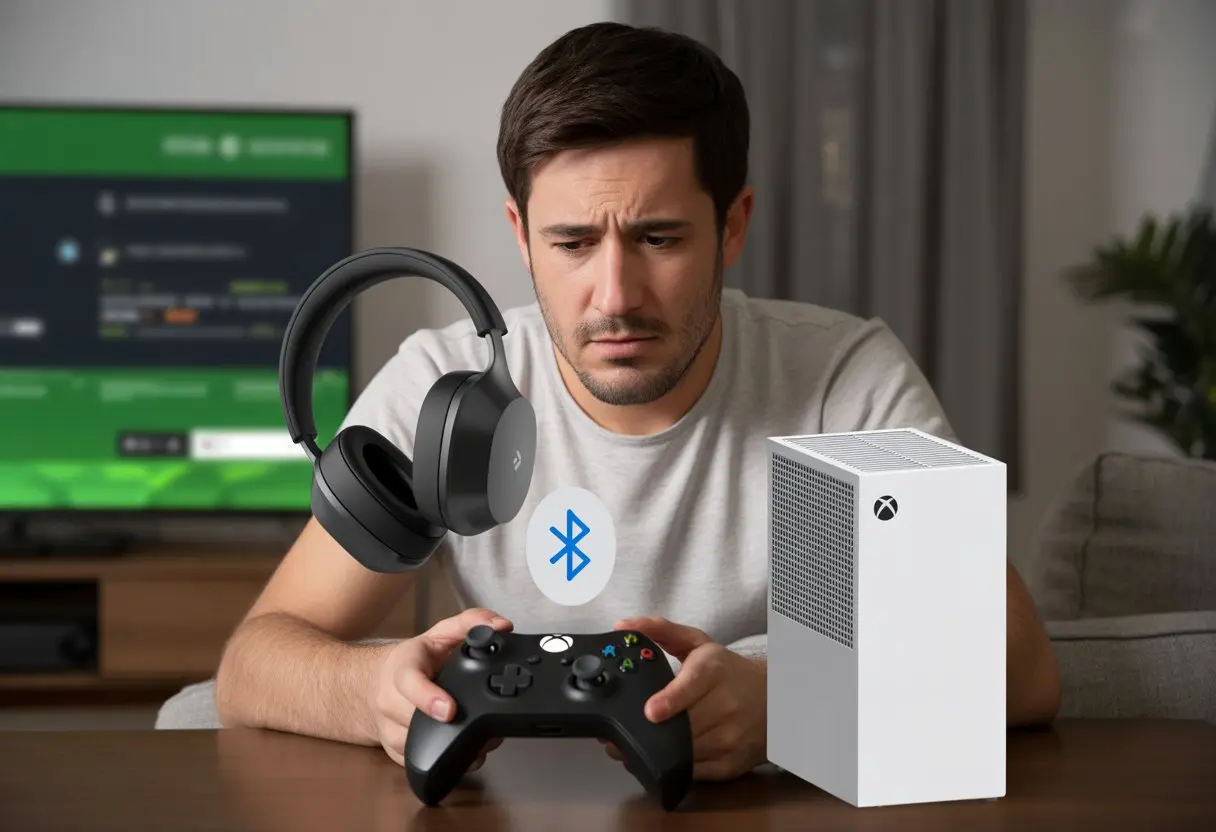
We can’t just hook up our usual wireless headphones and call it a day. Xbox wants us to use its own wireless tech, or it expects us to shell out for special, compatible headsets.
If you’ve tried again and again, only to get silence, you’re definitely not the only one. Xbox consoles get picky, and Bluetooth just doesn’t make the cut.
But don’t grab a wired headset in frustration just yet. Let’s dig into why this happens, what we can actually do, and maybe a few workarounds that could surprise you.
Understanding Bluetooth Limitations on Xbox Consoles
If you’ve tried pairing Bluetooth headphones with an Xbox, you probably felt the sting of defeat. Xbox One and Xbox Series consoles handle audio connections differently than most devices.
There are a few reasons our favorite wireless headphones won’t play nice.
Why Xbox Consoles Don’t Natively Support Bluetooth Headphones
Let’s get straight to it—the Xbox just wasn’t built for ordinary Bluetooth headphones. Both Xbox One and Xbox Series X skipped out on built-in Bluetooth audio support. If you tried pairing headphones the usual way, well, you already know how that ends.
Why’d Microsoft do this? Honestly, it’s because Bluetooth audio can lag, and that messes up gaming. We want sound effects to match what’s happening on screen, right? No one wants to hear an explosion three seconds after it happens.
Bluetooth also struggles with the low-latency and consistent quality that multiplayer games demand. It sounds easy to just add Bluetooth, but Microsoft went a different direction.
Plenty of users have called this “ridiculous”—just check out this Reddit discussion about the lack of Bluetooth on Xbox.
How Xbox Wireless Differs From Regular Bluetooth
Instead of basic Bluetooth, Xbox made its own wireless system: Xbox Wireless. It’s kind of like Bluetooth’s cousin—familiar, but not really in the same club.
Xbox Wireless brings some perks. You get a stable connection, super low lag, and high-quality audio right from the console to your headset.
That’s awesome for real-time gaming and chatting with friends. The catch? Only certain headsets work, so your regular Bluetooth headphones probably won’t cut it.
Some workarounds need extra gear, like an adapter. Microsoft chose this system to keep game audio in sync, but it definitely limits which headphones work. Xbox support pages have lists of compatible headsets, but if you’re using standard Bluetooth headphones, you’ll probably need to look at other ways to connect Bluetooth headphones to your Xbox.
The Pairing Process: Or Lack Thereof
Trying to pair Bluetooth headphones with an Xbox is like looking for Bigfoot—sounds fun, but usually ends with a shrug. Xbox just has its own quirks that make things trickier than they should be.
Common Pairing Process Mistakes
Most of us grab our Bluetooth headset, mash the buttons, and cross our fingers. But the “add a device” routine doesn’t work here. Xbox is just picky about its friends.
Tip: Xbox consoles don’t have standard Bluetooth, so there’s no regular Bluetooth menu to use. Holding down the power button or triggering pairing mode? Nothing happens.
Some of us try USB dongles, only to find our “compatible” headset sits in stubborn silence. If we follow steps meant for Windows or PlayStation, we’ll just get frustrated. Xbox wants its own wireless adapters or headsets made for Xbox.
Most common mistakes?
- Trying to pair through Xbox Bluetooth settings (which don’t exist)
- Expecting any Bluetooth headset to work like on your phone
- Using a generic USB Bluetooth adapter
So if it’s not working, it’s not you—it’s the Xbox.
Why Pairing Mode Doesn’t Work
We wish Xbox would roll out the welcome mat for all Bluetooth headsets. But nope—the console only supports a short list of “Xbox Wireless” devices.
Regular Bluetooth pairing mode is pretty much useless here. Even if you set your headset to pairing mode, the Xbox won’t see it under “add a device.”
The Xbox Wireless headset uses a special wireless signal, not Bluetooth. You have to use the console’s own wireless adapter or a headset made for Xbox.
Most Bluetooth headsets just don’t have the right protocol. Even clever workarounds—like plugging the headset into the controller’s 3.5mm jack—only get you audio, not the mic.
Basically, the standard Bluetooth handshake? Xbox ignores it. If you want real pairing, only “Xbox Wireless” headsets or dongles labeled for Xbox will actually work.
So, leaving your headset in pairing mode all night will just drain the battery (and your patience).
Alternative Ways To Connect Bluetooth Headphones To Xbox
When Xbox gives us the silent treatment, it’s time to get creative. Our headphones can still bring us game audio—with a little help from gadgets or a trusty cable.
Using a Bluetooth Adapter
Xbox doesn’t do Bluetooth, but we can cheat a little. We can use a Bluetooth transmitter that plugs into the Xbox controller’s audio port.
This gadget acts like a translator between the Xbox and our Bluetooth headphones. Just connect the transmitter to the controller’s 3.5mm jack and pair your headphones with it.
The downside? Most Bluetooth adapters only send audio one way. So, you might not be able to use your mic for party chat. Friends won’t hear you yell when someone nabs your loot.
But if you just need game audio, this works surprisingly well. For more details, check out this guide to Bluetooth transmitters with Xbox.
Plugging In With a 3.5mm Audio Jack
If you don’t mind wires, the 3.5mm audio jack saves the day. Most Xbox controllers have a headphone jack underneath.
Plug your Bluetooth headphones in (with the audio cable that came in the box—yeah, that one). This setup gives you audio and lets you use the headset’s mic for party chat.
No adapters, no extra gadgets—just plug and play. Sometimes, the simple fixes are the best, even if it means a few more wires in the living room.
Troubleshooting Connection Issues
Let’s be honest—getting Bluetooth headphones to work with Xbox can feel like convincing two stubborn cats to share a bed. Still, a few practical steps can help us get closer to a solution.
Checking for Firmware Updates
First up, check if your Xbox and headphones have the latest firmware. Outdated firmware can cause connection errors or just weird glitches.
A quick update sometimes fixes everything, even if it means watching a loading bar instead of playing. On Xbox, head to Settings > System > Updates. For headphones, there’s usually a brand app—open it up and look for updates.
If you’re using an Xbox Wireless Headset, there’s a handy troubleshooting guide from Xbox Support. They always say to keep devices updated, and honestly, it makes a difference.
Pro tip: Updates fix bugs and can make your audio sound better. If your sound is cutting out, firmware could be the culprit. Don’t skip this step, even if you’re eager to game.
Diagnosing Hardware Issues
If everything’s updated and still nothing works, it’s time to check the hardware. This part isn’t glamorous, but it’s necessary.
Try your headphones on another device. If they don’t work anywhere, the headphones might be the problem. If they only struggle with Xbox, things get trickier.
Remember, Xbox consoles only support certain wireless models or adapters—not regular Bluetooth headphones. If you keep trying to pair through Bluetooth, you’ll just go in circles.
The official guide to connecting headsets explains which types actually work. If cords, dongles, or batteries seem off, try re-seating or replacing them.
Sometimes a loose USB port or a controller with hidden issues is the culprit. Not glamorous detective work, but hey, your headphones deserve a chance.
When All Else Fails: Getting Help
Sometimes, even after you’ve tried every trick, your Bluetooth headphones just won’t cooperate. At that point, patience is running on fumes.
Contacting Customer Service
When nothing works, it’s probably time to call in the pros. Most big brands like Xbox have customer service reps who’ve heard every Bluetooth disaster you can imagine.
We can reach out by phone, email, or online chat. No need to dress up or even leave the couch.
Before you contact them, grab your headset’s model number and console details. Jot down a quick description of whatever chaos you’ve run into.
This little prep step makes everything go smoother (and honestly, who wants to spend more time on hold?). If you want more troubleshooting tips or step-by-step help, check out the official Xbox Wireless Headset support page.
It might just save you a little frustration—and a lot of waiting.

From a young age, I have always had a big interest in technology, and this blog is an extension of that interest. Through this blog, I hope to provide others with all of the information they need regarding tech options to consider, and things such as compatibility. Some of the different items I will be discussing include headphones, smartwatches, and how to fix common issues.
- Best Aviation Headset To Buy For Student Pilots? (7 Top Picks By Budget) - October 21, 2026
- The Best Rugged And Waterproof Smartwatches - October 21, 2026
- 10 Best Military Smartwatch – Find The Best Tactical Military Watches in 2023 - October 20, 2026
Related Posts: