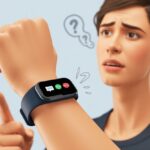
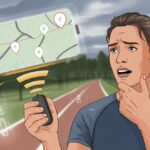
We’ve all been there: you’re ready to crush your run, but your fitness tracker just refuses to connect to GPS.
Most of the time, a weak signal, disabled location settings, or a tracker that needs a quick restart is to blame.
Suddenly, instead of sprinting, you’re waving your wrist around like you’re casting a spell.

Let’s be real—nothing tests your patience like that endless “connecting” message spinning on your screen.
Fixing it can be as simple as letting your phone access your location or waiting for the GPS icon to stop blinking before you start.
When in doubt, poke around in settings or just restart the tracker.
Who doesn’t love a fresh start, right?
Why suffer alone?
Let’s dive into the most common GPS headaches and figure out how to keep our trackers on the right path—so we’re not left jogging in the dark, digitally or otherwise.
Understanding How GPS Works in Fitness Trackers
If you want your walk, run, or bike ride to show up as more than just a random squiggle, GPS has to do its job.
Let’s break down how these trackers know where we are—and why some need a phone buddy to get it done.
How GPS Tracks Your Workouts
When you hit “Start” on your workout, your tracker sends out a digital SOS to satellites zipping around Earth.
Those satellites shoot info back, telling your tracker exactly where you are.
Your tracker uses that data to put you on the map—literally—so you can brag about your route later.
If your tracker can’t find enough satellites—maybe you’re surrounded by tall buildings, thick trees, or just having a rough day—you’ll get spotty or missing GPS data.
That means your epic five-mile run could show up as “ran in circles in the parking lot.”
Patience is key here.
Sometimes it takes a few seconds (or what feels like forever) to get a strong GPS signal.
Differences Between Built-In and Connected GPS
Some trackers handle all the GPS magic themselves.
That’s built-in GPS.
Just strap it on and go—no phone needed.
The tracker handles everything, records your routes, and tracks your pace right there.
Other trackers want a little help from your smartphone.
That’s called connected GPS.
Your tracker piggybacks off your phone’s GPS.
The app on your phone needs location access, or your run could end up looking lost.
For some brands, you have to set location access to “Always” in the app, or else the GPS might not even show up to work, as Google’s Fitbit support mentions.
Here’s a quick table to compare:
| Type | Needs Phone? | Faster Connection? | Uses More Battery? |
|---|---|---|---|
| Built-in GPS | No | Usually Yes | Yes |
| Connected GPS | Yes | Depends on phone | Phone and tracker |
Pick the style that fits your adventure—and your patience for finding satellites.
Common Reasons Your Fitness Tracker Won’t Connect to GPS
Let’s be honest, sometimes your trusty fitness tracker just loves drama.
It decides not to connect to GPS right when you actually care.
Usually, there’s a simple reason hiding behind all the flashing lights and sighs of frustration.
Weak GPS Signal and Signal Obstructions
You’re geared up for your run, but your tracker can’t seem to grab a GPS signal.
Before you rage at the sky, take a look around.
If you’re surrounded by tall buildings, thick trees, or trapped inside, your GPS signal is probably weaker than decaf coffee.
Cloudy weather can make things worse.
Even steep hills can get in the way and block GPS.
If your tracker usually connects outside but struggles near big obstructions, that’s a clue.
To boost signal, you can:
- Move to a clear, open area
- Wait a few moments in one place—no pacing!
- Hold your tracker away from electronics or metal objects
GPS is picky.
If it doesn’t have a clear line to the sky, it won’t play nice.
This is a common headache for many devices, as the Fitbit Community will tell you.
Device Settings That Block GPS
We’ve all tapped “Allow” or “Deny” on our phones without thinking.
Sometimes, we accidentally turn off something our tracker desperately needs.
Battery saver mode, airplane mode, or even Bluetooth being off can stop GPS cold.
Check these quick settings:
| Setting | What to Check |
|---|---|
| Bluetooth | Must be ON for most trackers |
| Battery Saver | Turn OFF—saves battery but kills GPS |
| Airplane Mode | Disable—blocks many signals |
| Tracker Power | Make sure your tracker isn’t dead |
Sync and update your tracker’s app too.
Some brands suggest a quick restart or reset if nothing else works, just like the STATSports support page recommends.
Location Services Not Enabled
This one’s the sneaky ninja of GPS problems.
Without location services turned on, your phone has no idea where you are.
Your tracker can’t do its job if your phone blocks location access.
To check this:
- Open your phone’s Settings.
- Find “Location” (or sometimes “Privacy”).
- Make sure location is ON for both the phone and the tracker’s app.
- Choose “Allow While Using App” for best results.
On some devices, you’ll need to let the app access your precise location—not just the general area.
If your tracker and phone aren’t on speaking terms, location data doesn’t get shared and GPS stays lost, as seen on the Apple support forum.
Software and Device Compatibility Issues
Even the fanciest fitness trackers can refuse to connect to GPS if their software and partners aren’t getting along.
Tiny glitches, outdated apps, or cranky smartphones can ruin your chance at tracking that walk around the block.
Outdated Firmware or Software
When your fitness tracker can’t find GPS, sometimes old firmware is the culprit.
It’s like sending a carrier pigeon instead of a text—it just doesn’t cut it in 2025.
Updating is crucial.
Check if there’s new firmware for your fitness tracker or software for its companion app.
Most brands push updates through their apps or desktop programs like Garmin Express.
Skipping an update might seem harmless, but it’ll catch up with you.
If you keep ignoring those little pop-ups, your tracker could get stuck searching for satellites forever.
Keeping your devices updated can help solve GPS woes before they drive you bananas.
For more on troubleshooting old firmware, check out Garmin’s tips for updating device software.
Fitness App Not Working Properly
The fitness app should be your loyal sidekick, but sometimes it acts up.
Bugs, crashes, and login issues can stop GPS tracking in its tracks.
If your fitness app isn’t working, it might struggle to talk to your tracker or your phone’s GPS chip.
Try closing and reopening the app, logging out and back in, or even reinstalling it.
Don’t forget those app permissions.
If you told your app “no” when it asked for location, it’s not going to find any satellites.
On Android, check the GPS settings for the app.
Even fitness giants like MapMyFitness know about app-based GPS problems.
Trouble With Smartphones and Connectivity
Let’s face it: sometimes the real drama is with your smartphone, not the tracker.
iPhones, Macs, and Androids can all throw a wrench into GPS syncing.
If pairing Bluetooth goes south, restart both devices first.
Checking for smartphone software updates often solves weird issues.
On iPhones and Macs, background app refresh or privacy settings can block GPS for fitness apps.
Androids might need you to clear the app’s cache or double-check the location mode.
It’s smart to keep other Bluetooth gadgets away during setup, since interference is sneaky.
For more on connectivity headaches, check out common connection problems with trackers and phones.
Fixes for Apple Watch GPS Issues
Sometimes your Apple Watch just wants a day off from tracking your run.
When the GPS connection doesn’t work, you need to get hands-on and try a few tricks.
These steps help bring your watch back in line and keep your workouts on track.
Unpair Apple Watch and Pair Again
Let’s be real—sometimes your gadgets just need a clean slate.
If your Apple Watch isn’t connecting to GPS, unpairing and then pairing it again with your iPhone can work wonders.
Here’s what you do:
- Open the Apple Watch app on your iPhone.
- Tap “My Watch,” then select “All Watches.”
- Tap the info button next to your watch and choose Unpair Apple Watch.
Wait for everything to finish, then set it up again by following the on-screen steps.
This process clears out some gremlins and forces your devices to talk to each other again.
Remember to back up your watch data, so you don’t lose track of your steps or those “almost ran a marathon” records.
For many users, this trick has solved stubborn GPS problems.
Reset Fitness Calibration Data
If your running routes look like crooked lines, your Apple Watch might need a reset for its calibration data.
Resetting fitness calibration helps the watch measure distance and pace more accurately by learning how you move.
To do this, open the Apple Watch app, go to Privacy, and tap Reset Fitness Calibration Data.
Poof—old calibration data is gone.
Now, go outside, pick a flat area, and walk or run for at least 20 minutes.
The watch learns your pace and stride, promising better GPS tracking next time.
It can’t read your mind, but this step is the next best thing.
Check GPS And App Permissions
Sometimes, the Apple Watch just needs permission—literally.
If you don’t have the right settings switched on, GPS won’t work, and your workout will look like you never left the couch.
Check that Location Services are enabled on your iPhone.
Head to iPhone Settings > Privacy > Location Services.
Make sure it’s on and that your workout app, like Nike Run Club or Strava, can access location while you use the app.
If the app says “Never,” it’s not tracking anything—not even your heroic five-minute run.
Some users also saw results by turning Location Services off, then back on—old school, but sometimes it works, as troubleshooting guides suggest.
Once you’ve got permissions and settings right, your Apple Watch is ready to find satellites—and maybe those calories you burned.
Troubleshooting Fitness Tracker and App Connection Problems
Sometimes your fitness tracker acts like it’s on a digital coffee break and just refuses to connect to GPS.
There are a few steps that can fix this, mainly by getting your app and devices to talk to each other again.
Reinstall the Fitness App
Let’s face it, fitness apps can get a little quirky, especially after updates or when you switch phones.
If your tracker isn’t connecting, try uninstalling and then reinstalling the fitness app.
This simple move wipes out odd glitches, updates the app to the newest version, and gives everything a fresh start.
Before you delete the app, check if your workout data is synced to the cloud—because losing a week of steps would be tragic.
After reinstalling, you’ll need to log in again, but it’s usually worth it.
Reinstallation gets rid of corrupted files or weird settings.
If you’re still stuck after reinstalling, at least you know the app’s probably not the main problem.
It’s kind of like turning it off and on again, just with a few extra taps.
Checking Bluetooth and Internet Settings
Bluetooth is the invisible link between your phone and fitness tracker, and sometimes it just needs a little nudge.
First, make sure Bluetooth is on—it’s surprisingly easy to forget.
Reboot both the tracker and phone to clear out any connection cobwebs.
Some trackers, like the Sense or Apple Watch, won’t connect if Bluetooth is off or acting up.
If you still see problems, forget the device in your Bluetooth settings and reconnect it.
GPS usually wants a strong internet connection when you start a workout, even if it works offline later.
Double-check that Wi-Fi or mobile data is on, and try stepping outside for a clearer GPS signal.
If all else fails, look for updates for the app or tracker.
New batteries or a full charge can also help, since low power messes with connections.
For more help, check out troubleshooting guides for Apple Watch or Fitbit GPS connection issues.
Sometimes your tech just needs a pep talk—and a strong signal.
Advanced Tips for Reliable GPS and Fitness Data
If your fitness tracker refuses to behave, a few tweaks might save you some hassle (and maybe your last ounce of patience).
Paying attention to device placement and syncing habits can boost your chances of keeping both your steps and your sanity.
Optimize Tracker Placement for Great Signal
Fitness trackers need a direct line to the sky, just like anyone wishing for good weather during a run.
Wearing the tracker on the outside of your wrist (not hidden by sleeves) helps it talk to satellites.
A thick jacket or metal bracelet can turn your device into a frustrated detective with no clues.
If you’re stuck indoors or next to tall buildings, GPS signals can bounce around like you do during a Zumba class.
Open areas, like parks, give more accurate data and less drama.
Before starting workouts, stand still for a moment so your tracker can lock onto satellites faster—no jumping jacks while it’s thinking, please.
If you’re using your phone’s GPS instead, keep your phone close and make sure GPS is turned on.
Set GPS settings to “Always” or “All the time,” especially for Android devices, iPhones, or Fitbits.
Syncing Workout Data Across Devices
There’s nothing like getting home, ready to brag, only to find your workout data is missing.
To keep your computers, smartphones, and Macs in sync, sync regularly.
Use Bluetooth or Wi-Fi—whichever method doesn’t make you want to mute notifications forever.
Exercise apps on both iPhone and Android love to stay up to date.
Install the latest version of your fitness app and your tracker’s software to keep bugs in check.
If syncing takes forever, try restarting both tracker and phone, or toggling Bluetooth off and on.
The “turn it off and on again” trick sometimes still works miracles.
Transferring data across platforms can get tricky.
Sometimes, tracking apps stop recording GPS maps after an update or a settings change, especially with Apple Watches or Wear OS devices.
Double-check permissions after updates, because software can be sneakier than a ninja on a treadmill.
If your gadget just won’t play nice, checking help forums like Apple Community might uncover a solution that saves you another frustrated sigh.
When All Else Fails: Contacting Support or Getting a New Tracker
Sometimes your fitness tracker thinks it’s smarter than you.
You’ve tried every trick—from toggling Bluetooth to waving it over your head like you’re performing a lost fitness ritual.
If your GPS still refuses to cooperate, it might be time for a little human (or upgraded gadget) intervention.
Contacting Device Support
Let’s be real: the device manual rarely solves mysterious GPS issues.
Still, the support team often knows fixes you’d never guess.
Before you become a detective, here’s a checklist for calling or messaging support:
- Have your proof of purchase ready. They’ll want to know you didn’t swipe Grandpa’s tracker.
- Be ready to describe the issue. “The screen turns pink and then mocks me” isn’t as helpful as “GPS won’t connect outdoors.”
- List what you’ve already tried—support loves seeing you’ve done your homework.
- Check if your device still has warranty left.
Many companies prefer chat or email.
Sometimes, they’ll ask for weird details like GPS logs or your favorite jogging trail (kidding, usually).
If you’re lucky, you might get a replacement or get guided through a bizarre combination of button presses that actually fixes everything.
If not, hey, at least you tried!
Considering an Upgrade
Sometimes, gadgets just get old. If our fitness tracker could’ve voted in a few elections by now, it’s probably lagging behind the latest tech.
Frequent GPS dropouts or trouble syncing workouts—stuff Samsung Fit3 owners complain about—usually mean our tracker’s past its prime.
New models bring faster GPS, better fitness tracking, and smoother syncing with our phones.
Upgrading isn’t just about fixing problems. It can give us more accurate steps, improved heart rate monitoring, and even fun extras like guided workouts or new watch faces.
If support can’t really help anymore, maybe it’s time to let our old tracker rest in the “drawer of lost tech” and try something shiny and new.

From a young age, I have always had a big interest in technology, and this blog is an extension of that interest. Through this blog, I hope to provide others with all of the information they need regarding tech options to consider, and things such as compatibility. Some of the different items I will be discussing include headphones, smartwatches, and how to fix common issues.
- Which Smartwatch Can Make Calls Without Phone | User Guide - October 29, 2026
- Fitbit Charge 2: Specifications, Features & Price - October 29, 2026
- Samsung Galaxy Watch 42mm Versus 46mm Compared - October 28, 2026
Related Posts: