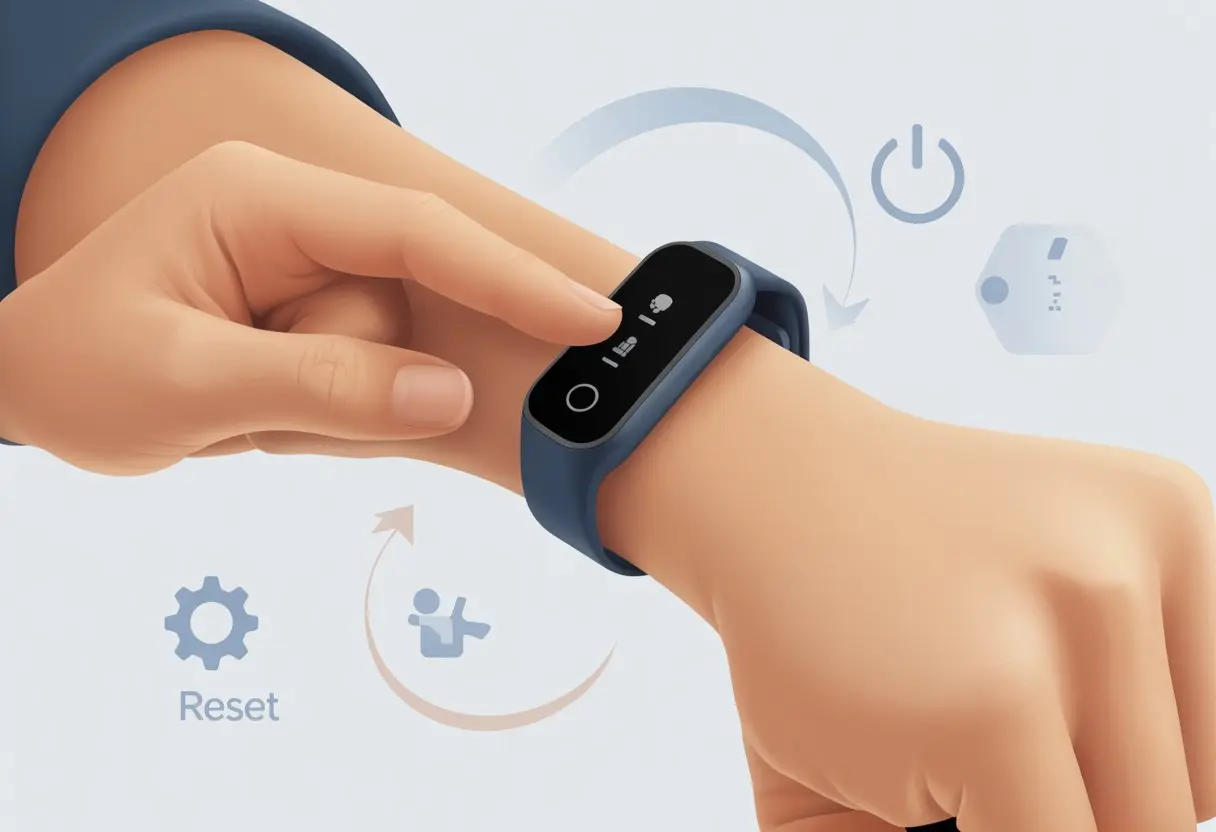
We’ve all had that moment when our fitness tracker just won’t cooperate. Sometimes it acts like it’s finished a marathon without us. Maybe it’s refusing to sync or throwing random glitches, or maybe we’re about to hand it over to someone else. In those cases, a reset is often the only way forward.
To reset most fitness trackers to factory settings, we usually just need to dig up the reset or ‘clear user data’ option in the device settings and follow a few steps on the screen.
Every brand seems to have its own little ritual for this. Some want us to press and hold a button, while others make us swipe around like we’re looking for buried treasure. If we’re stuck, we can usually follow straightforward instructions—like on a Fitbit, where we open Settings, tap Clear User Data, and hold the screen for three seconds.
Honestly, it’s easier than finding our gym shoes on a Monday morning. And a lot less sweaty.
With a few taps (and maybe a sigh), we can wipe the slate clean and get our tracker back in shape. Resetting doesn’t have to be a workout in itself.
Understanding Factory Reset on Fitness Trackers
Sometimes, our fitness trackers just need a fresh start. Maybe they’re acting up, or we want to give them to someone else.
A factory reset wipes out all our data, like erasing a messy whiteboard.
What Is a Factory Reset?
A factory reset brings our fitness tracker back to its original state. It erases all our steps, settings, and even those questionable food logs (goodbye, triple cheeseburger data).
After a reset, the tracker forgets everything—Bluetooth connections, profiles, the whole lot.
It’s basically a digital memory wipe. Turning it off and on again won’t cut it; a factory reset is the big move. We use this when we’re selling the tracker, handing it to family, or fighting off stubborn bugs.
Different trackers have different steps for this. Some want a few button presses, others want us to poke a tiny hole with a paperclip (who knew paperclips would have such a second life?).
Soft Reset vs. Hard Reset
So, what’s the deal with a soft reset versus a hard reset? A soft reset is just turning the device off and back on—a quick nap, really. It helps fix little glitches, like a frozen screen, but keeps our data safe.
A hard reset (or factory reset) wipes everything and puts the device back to square one. If a soft reset is a catnap, a hard reset is full-on amnesia.
Here’s a quick comparison:
Reset Type
What It Does
Data Loss
Typical Use
Soft Reset
Restarts the device
No
Minor issues, freezes
Hard Reset
Removes all user data/settings
Yes
Selling, major glitches
Knowing which reset to use can save us from accidentally erasing our workout victories!
When Should You Reset Your Device?
We don’t need a factory reset for every little hiccup. If syncing fails or the tracker slows down, a soft reset usually does the trick.
But if we’re seeing weird errors, apps keep crashing, or we want to wipe the device before giving it away, then a hard reset is the way to go. If we forget our password or pin, starting fresh with a factory reset makes sense.
Some brands even tell us to factory reset before troubleshooting or returning the device. Just remember, once we hit reset, all personal data disappears.
If we’re only dealing with minor issues, a soft reset is safer and keeps our fitness history. Let’s save the factory reset for when we really need it—or when we’re passing the tracker on to its next adventure.
Preparing to Reset Your Fitness Tracker
Before we say goodbye to all our data, we need to get a few things sorted. We don’t want to lose our activity history, miss out on saved routes, or struggle to connect our device later.
Backup User Data and Activity History
Let’s be honest, nobody wants to lose proof of that day we hit a personal best—or chased the ice cream truck for 15,000 steps!
We should sync our tracker with its app. Devices like Fitbit and Apple Watch send step counts, heart rate, and sleep data to the cloud or our phone.
If we use multiple devices (maybe an iPhone and an Android tablet—no judgment), we need to make sure everything is connected and synced before resetting.
Some apps let us export our activity history. If we want an extra backup, exporting to a file is a good idea. Usually, we can find this in the settings menu under “Export Data” or “Backup & Restore.”
Check for Synced Routes and Tracks
Those hiking and running routes we saved? They can disappear with a factory reset. It’s worth checking—did we save those epic routes somewhere else?
Most fitness apps (like Fitbit and Garmin) sync our routes to our phone or an online account. We can double-check in the app’s “routes” or “tracks” section.
Older trackers sometimes keep tracks only on the device. If that’s the case, a manual sync might be needed. If not, well, maybe the dog will enjoy another walk on that favorite route.
Unpairing from Smartphones and Other Devices
If we reset without unpairing, we might run into Bluetooth issues or wonder why our tracker refuses to connect to a new phone.
We should open the app we use with our tracker and head to device settings. Most have an “Unpair” or “Remove Device” option. For Android and iOS, forgetting the device in Bluetooth settings helps keep things neat.
Unpairing is crucial if we want to set up the tracker again or hand it off to someone else. It saves a lot of trouble with connection issues after the reset.
Step-by-Step Guide: How to Perform a Factory Reset
Resetting a fitness tracker is basically giving it a second chance. We just need to follow the steps carefully, or we might get lost in the menus.
First, we need to tackle the device menus. Most trackers hide the reset option somewhere in the settings.
Usually, we swipe or tap through the home screen until we spot the gear icon labeled Settings.
Inside, we look for options like General, About, or System. It’s a bit of a treasure hunt, honestly.
On some Fitbits, we find the reset option under Settings > About and then Factory Reset. If we get stuck, that tiny instruction booklet (or the manufacturer’s website) might actually help—like this Fitbit guide.
Before we hit reset, let’s double-check that we really want to erase everything. All our data and customizations will disappear, so it’s worth a pause.
Following On-Screen Instructions
After we select the reset option, the device usually asks if we’re really sure. Sometimes it’s a warning, sometimes a confirm button, or even a dramatic countdown (well, sort of).
What do we typically see?
A warning that everything will be deleted.
Buttons or sliders to confirm or cancel.
Maybe a quirky message in case we’re having second thoughts.
We tap or hold as needed. Some trackers want us to press and hold a side button for a few seconds—it always feels longer when we’re nervous.
Once we confirm, the device resets and restarts. That’s it. Time for a deep breath and maybe a quick stretch.
Resetting Through Companion Software
If the tracker refuses to cooperate, we can use the companion software on our phone or computer. Most brands have an app—Fitbit, Garmin Connect, Mi Fit—where we can do the reset behind the scenes.
After opening the app, we connect the device and dig into account or device settings. Look for Remove Device, Erase Data, or Factory Reset.
The app usually guides us through the process, sometimes more patiently than the tracker itself.
If the device doesn’t show up, we might need to plug it in or update the app. Software resets can be a lifesaver when the tracker is acting up.
After this, everything goes back to factory fresh—almost like it just came out of the box.
Resetting Specific Types of Fitness Trackers
Not all fitness trackers are created equal, but resetting them usually isn’t rocket science. Sometimes we poke through settings, sometimes we plug into a computer, and sometimes we just need to call in backup.
Smartwatch Factory Reset Steps
Let’s be real, some smartwatches have more buttons than a 90s remote. To reset, we open the Settings app and find the “System” or “Device” menu.
There’s usually a “Reset” or “Factory Reset” option in there.
When we tap it, the watch warns us that everything’s about to vanish—including those steps from that one epic walk. We confirm, and the device resets itself.
If the screen freezes or menus are stuck, holding down the power button for a while often forces a reset, kind of like how coffee jumpstarts our morning.
Before we hit reset, let’s back up any music, photos, or health info. No one wants to lose their favorite playlist.
Using a Computer or Laptop to Reset
If the buttons just refuse to cooperate or the menus feel impossible, sometimes we have to dig out a computer or laptop. Most fitness trackers came with a charging cable and a stern, probably unread manual from day one.
Plug in the tracker, open the companion app or whatever reset tool the brand wants us to use, and poke around for something like “Device Settings” or “Reset Device.”
Some brands even make us hunt down weird little reset utilities from their website. Why do they always make it a mysterious .exe file? Not exactly confidence-inspiring.
If nothing shows up or the tracker stays invisible, reaching out to customer service by chat or email is usually the next move.
These software resets don’t take long—just a few minutes, usually. Sometimes we need the serial number, so have it ready or prepare to crawl around the living room looking for it.
Notable Examples: Fitbit and Other Brands
Fitbit users, you’re not alone. On many models, we can just go to Settings on the tracker itself. Tap “Clear User Data,” then press and hold the screen or button for a few seconds when prompted.
Fitbit’s official support page has more advice if the device puts up a fight. Other brands usually follow a similar path—dig into Settings, find “System,” and tap “Reset.”
Some trackers like to be different, so checking the manual is never a bad idea. If nothing works, reaching out to customer service might help, but let’s be honest—they’ll probably just ask, “Have you tried turning it off and on again?”
After the Reset: What to Expect
Resetting a fitness tracker wipes everything. User data, activity history, and custom settings—gone. The device acts like it just left the factory.
Re-pairing Your Device
With the tracker reset, it’s time to pair it with our phone or tablet again. Open the tracker’s app (Fitbit, Garmin, or whatever matches our brand) and follow the steps to connect via Bluetooth.
We’ll probably need to pick our model, wait for that little vibration, and maybe type in a pairing code. If you want a visual walkthrough, this Fitbit Luxe reset guide shows the process.
The tracker might want to update its software right away—don’t worry, that’s normal. If pairing fails, try restarting both the tracker and the phone. That classic fix works more often than not.
Restoring Data and Settings
After a reset, the tracker is a blank slate. Old step counts, activity history, and sleep records—just like those gym days we skipped—are gone from the device.
If we’ve synced data to the cloud with the companion app, we can still see some stuff when we log in again. Usually, we can view old activity in the app, but it won’t show up on the tracker itself. We’ll need to set up alarms, notifications, and custom faces all over again.
Honestly, this is a chance to set things up the way we actually want. After a few tweaks, the tracker will feel more “ours” than ever.
Troubleshooting Factory Reset Issues
Sometimes, resetting a fitness tracker isn’t as simple as pressing a button and hoping for the best. Glitches, stubborn devices, and weird errors can turn it into a bit of a headache.
Common Problems and Solutions
We’ve all had that tracker that just won’t listen. One common issue? The device ignores us when we try to reset it. It just sits there, doing nothing.
If this happens, check if the tracker is fully charged. Dead batteries and resets are a bad mix.
Sometimes, trackers freeze or get stuck on the reset screen. Try a soft restart first. For Fitbits, holding the button for a few seconds can help. Many models want us to go into Settings, then select Restart Device—Fitbit’s help guide explains the steps.
If the tracker still won’t cooperate, remove it from the phone’s Bluetooth list and try re-pairing. Sometimes, a fresh connection is all it takes.
When to Contact Customer Service
So, we’ve tried every trick we know, and the tracker just refuses to cooperate. At this point, maybe it’s time to throw in the towel and call in the experts.
Fitbit’s customer service team actually exists for situations like this. They’re ready to help when our tracker decides to have a meltdown.
You can reach out and find live chat or other support options through their customer service portal. I’d suggest jotting down the steps you’ve already tried—no one wants to repeat themselves a dozen times, right?
If your tracker’s still under warranty, customer service might offer a replacement or repair. Honestly, asking for help isn’t giving up—it’s just smart.
Hi, my name is Garrett Jones, and I am a tech enthusiast. I enjoy researching the new tech that has been released, and have a vast knowledge of the best tech to purchase.
From a young age, I have always had a big interest in technology, and this blog is an extension of that interest. Through this blog, I hope to provide others with all of the information they need regarding tech options to consider, and things such as compatibility. Some of the different items I will be discussing include headphones, smartwatches, and how to fix common issues.