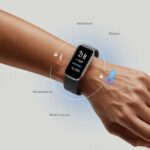
We’ve all been there—ready to crush our hydration goals, only to find our fitness tracker coming up dry on the stats.
We expect our trackers to count every drop, but sometimes the numbers just don’t add up.
Most of the time, our fitness tracker isn’t counting hydration because the watch or app isn’t syncing or the feature isn’t set up quite right.
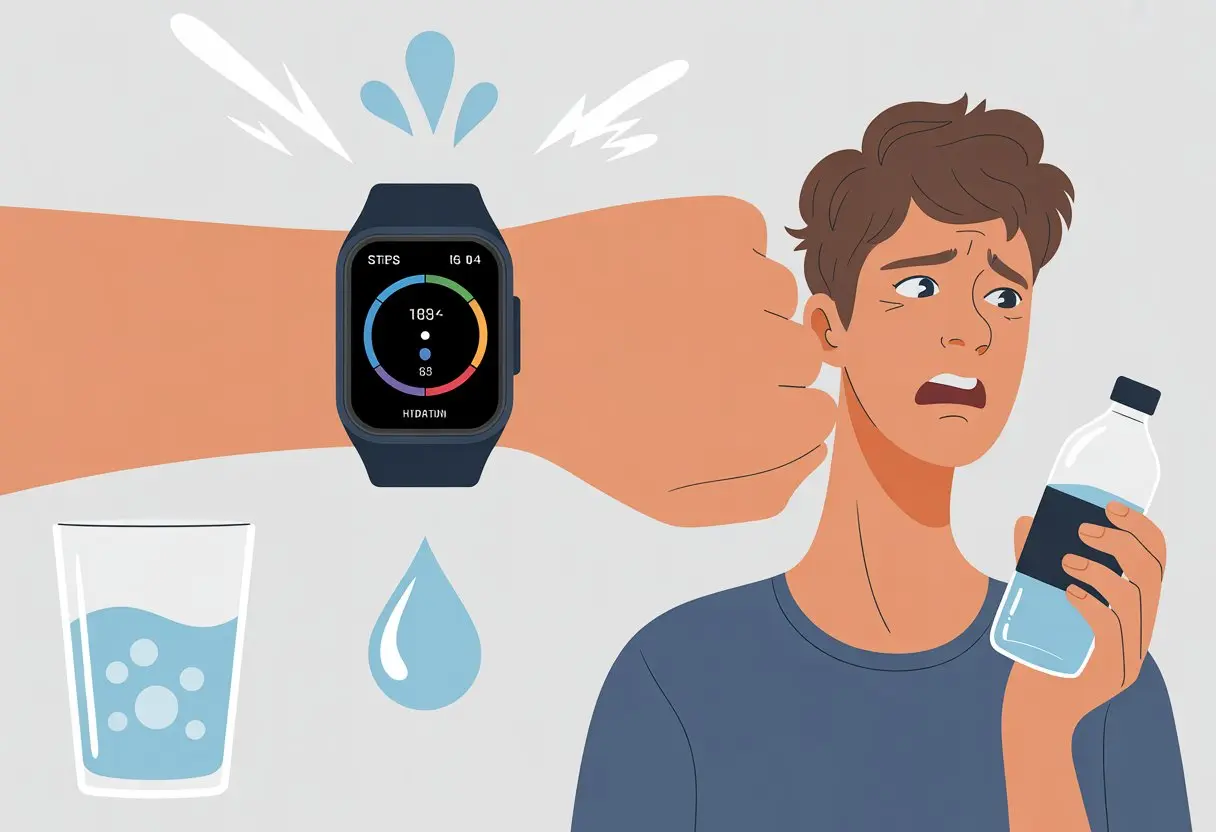
It’s kind of funny how we can log runs, rides, and even our sleep, but getting a simple cup of water to register sometimes feels like rocket science.
Whether we blame Bluetooth, app updates, or the mysterious ways of wearable tech, water tracking can be hit or miss.
So, what’s going on here? Why do these devices seem to track pizza slices better than water glasses?
Let’s dig into why hydration tracking might not be working and what we can do to fix it—before we all dry up like raisins.
How Fitness Trackers Monitor Hydration
If you’ve ever stood in the kitchen chugging water and wondered if your fitness tracker noticed, you’re not alone.
Hydration tracking isn’t magic—these little gadgets depend on us to feed them the right info, the right way, and sometimes, with a gentle reminder or two.
Understanding Hydration Tracking Technology
Hydration trackers don’t read our minds or analyze the sweat dripping off our faces.
Instead, they let us log exactly how much water we drink each day.
We open an app on our phone or use a widget on our fitness watch to enter each glass, bottle, or bucket (hey, no judgment) we gulp down.
For the most part, these trackers keep things simple.
We tell them what we drank, they keep count, and together, we pretend we don’t forget half our sips by lunch.
Some brands let us use their special apps, like the Garmin Hydration Tracking app.
Others rely on watch widgets or phone input.
We also see graphs and progress circles—just to nudge us after that third coffee and no water since breakfast.
Our tracker is part cheerleader, part tattletale.
Fluid Intake and Units of Measure
We need to keep our water intake accurate, so our trackers use different units of measure.
Most let us pick between milliliters (mL), liters (L), ounces (oz), or cups.
If we live anywhere outside the US, odds are we’ll want milliliters, but some of us prefer the classic “giant bottle” system.
Here’s a quick table to help us convert:
| Unit | Equivalent |
|---|---|
| 1 cup | 8 ounces / 237 mL |
| 1 liter | 1000 mL / 33.8 ounces |
| 1 ounce | 29.57 mL |
If we enter “5” in the wrong unit, we could accidentally give ourselves gold-medal hydration status or leave ourselves parched.
So, we always double-check those settings in our hydration app.
Features Like Hydration Glance and Reminders
Some trackers love to keep us on our toes.
They offer features such as hydration glance, which lets us peek at our water progress right on our watch face—no frantic button pressing required.
We also have hydration reminders, perfect for those of us who think Diet Soda counts as water (it doesn’t, but we can dream).
Our tracker might buzz every hour with a gentle nudge that says, “Hey, go drink something that isn’t coffee for once.”
Watches with apps like Garmin’s Hydration Widget really make recording water intake quick and keep our hydration rumors (almost) honest, as long as we don’t ignore them.
Common Reasons Hydration Tracking Isn’t Working
Hydration tracking features on our fitness trackers are incredibly handy, until they suddenly aren’t.
Sometimes, the problem is as simple as a missed setting, other times it’s a sneaky software update we’ve skipped, or maybe just a battery that’s given up on us faster than we gave up on our New Year’s resolutions.
Incorrect Setup or Permissions
Let’s be real—most of us click ‘OK’ on permissions with the hope that everything just works.
But hydration tracking often needs us to give the right app permissions, like access to our health data or Bluetooth so our smart water bottle can do its hydration magic.
If one of these boxes is left unchecked, the tracker can’t log our sips, and we’re left thirsting for better data.
Sometimes, we have to manually activate the hydration widget or glance on our device.
On some trackers, especially Garmins, it won’t show up on the home page unless we enable it in the settings.
If things aren’t syncing, double-check that both the app and our device are allowed to share data.
We should also take a minute to read prompts—yes, even the boring ones—since they sometimes explain what’s missing.
Outdated Fitness Tracker Software
Fitness tracker steps and hydration tracking like to stay trendy, which means they need the latest software.
If we ignore those update notifications, we risk our hydration tracking just… not working.
Old apps can cause syncing errors or even wipe out parts of our data.
Sometimes, the app store is our best friend here.
It’s essential to check for updates in both our tracker’s firmware and the companion smartphone app.
Updating can fix issues where water intake doesn’t show up in our health app or fails to sync between devices.
Even if updates seem frequent, most are important bug fixes or improvements for tracking accuracy.
Skipping updates basically leaves our tracker stuck in the technological Stone Age.
Battery Issues
Nothing ruins our tracking streak faster than a dead battery.
When our fitness tracker or smart water bottle dies, hydration tracking doesn’t just pause—it disappears completely until we plug in that charger.
Low battery levels can also cause weird glitches, like missing steps, hydration entries that vanish into thin air, or syncing failures.
We should make charging a part of our routine, just like brushing our teeth.
If our tracker begins draining the battery unusually fast, that’s often a red flag that the battery is aging or there’s a problem with a recent software update.
Remember, even the fanciest hydration widgets are utterly useless if our device is lifeless.
A tip: Set a daily reminder to check battery levels.
That way, we don’t have to worry about hydration tracking ceasing right after our third glass of water.
Possible Device-Specific Quirks
When our hydration tracker decides to go rogue, device quirks can leave us scratching our heads.
Sometimes the problem is not hydration at all, but how our device and phone gossip behind our backs.
Apple Watch Hydration Tracking Peculiarities
So, we diligently log every glass of water, but sometimes our Apple Watch seems to have developed a selective memory.
There are moments when entries just vanish or refuse to show up in our beloved hydration app.
We may open the app and see perfect hydration stats, only for the next sync to wipe them away.
Often, this issue comes down to how our Apple Watch apps save and sync data.
Third-party hydration apps sometimes need special permissions or fail to update instantly after we slam back another bottle of water.
We should tap the app, give it a sec, and check if it needs a nudge—sometimes it’s just slow, not lost.
Here’s a classic move: our Apple Watch eventually shouts, “Connection lost!” when it’s not hugging our iPhone, making data jumps more like a game of telephone.
If we’re sweaty after the gym and our watch is taking a much-needed breather from Bluetooth, that new water log might never make it home.
Keeping both devices nearby and charged can save us from hydration-tracking drama.
Interactions With iPhone and Health App
Our iPhone likes to pretend it’s the boss.
When Apple Watch apps sync hydration data, everything funnels through the iPhone and then gets pushed to the Health app.
If communication breaks down—say, Bluetooth goes missing in action or the Health app throws a silent tantrum—our numbers may disappear.
Sometimes we forget that each app may need to be told, in plain terms, that it’s allowed to share hydration data.
We should double-check Health app permissions by opening the Health app, finding our hydration tracking app, and happily toggling permissions to “on.”
It’s surprising how many hiccups are caused by background app refresh settings.
We may need to stroll into Settings and let our hydration tracker run wild in the background.
Also, just for kicks, restarting both devices actually works more often than we want to admit.
Nothing like an old-fashioned reboot to jumpstart our high-tech hydration habits.
Physical and Environmental Obstacles
Sometimes, our fitness trackers face more daily challenges than we do at the gym.
From water sneak attacks to clumsy moments, there are plenty of ways hydration tracking can go off the rails.
Waterproof and Water-Resistant Limitations
Let’s be honest: the words “waterproof” and “water-resistant” get thrown around like dodgeballs at recess.
Most fitness trackers are not fully waterproof.
They’re often just water-resistant, which means they can handle hand washing or a light drizzle, but not a dive into the pool.
Tracking hydration gets tricky if water gets inside.
If we swim, shower, or forget our tracker in the rain, moisture can scramble its readings or damage sensors.
The seals protecting our gadgets aren’t invincible, and over time, they might weaken or break down.
We don’t want to trust hydration tracking right after a swim if our device was never really made to be in deep water.
It helps to check manufacturer ratings—like IP67 or IP68—before assuming our tracker is up for a swim.
Here’s a quick guide:
| Rating | Meaning |
|---|---|
| IP67 | Protected against splashes, not swimming |
| IP68 | Can handle some submersion, short term |
Ignoring these limits could send our hydration stats off course faster than we can say “dry off.”
Damage From Swimming or Walking
Who knew daily walks and cannonballs could be so risky for our gadgets?
Repeated swimming can let water sneak into small cracks, especially if the band or seals are worn.
Chlorine and saltwater are notorious troublemakers; they corrode parts we’re hoping will last all year.
Even walking through heavy rain or sweating buckets during a summer hike can be enough for water to find its way in.
Physical bumps, knocks, or dropping our tracker can jar internal parts loose.
If sensors get misaligned or the battery is affected, hydration tracking accuracy could go down the drain.
When we push our fitness trackers beyond their comfort zones, it’s no wonder they sometimes just throw up their digital hands and say, “Nope, not today.”
Sensor Malfunctions or Wear and Tear
Sensors are the real MVPs—until they’re not.
Over time, the sensors on our trackers can start to misbehave.
Dirt, sweat, and the oils from our skin build up, blocking the connection needed for good data.
Sometimes, the issue is just a smudge that needs a quick wipe.
Physical wear and tear is like giving our sensor a slow-motion smackdown every day.
Repeated wet-dry cycles wear down the tracker’s protective coating, making it less accurate.
Occasionally, sensors just give up altogether and stop working after too many swims, showers, or bumpy falls.
If our hydration tracking suddenly looks weird, it might be time to give those sensors a little TLC—or consider that our tracker needs a break.
User Input Issues and Goal Settings
When hydration tracking goes sideways, let’s be honest—it’s usually our fault. We press the wrong buttons, forget to update, or just guess the size of our water bottle. The little things, like the number stamped on the bottle or how much we plan to drink, can leave our tracker just as lost as we are.
Let’s see where we tend to trip up our fitness trackers.
Incorrect Container Sizes
Ever added water with a random mug, thinking it’s a “standard” cup? The tracker wants us to be more precise. If we pick the wrong container size in the app, our water intake numbers get all messed up. One gulp definitely doesn’t fit all.
Garmin, Fitbit, and most fitness apps let us pick or enter the amount per container—like 8 oz, 16 oz, and so on. If we ignore this, our hydration numbers turn into a wild guess. Might as well track how often the cat drinks from the sink.
Not sure about your bottle’s real size? Grab a measuring cup or check the label. Most hydration apps let us customize or pick our usual containers. When we choose the right value, every logged sip actually counts—not as some accidental gallon.
Setting Up Your Daily Hydration Goal
We usually jump in without changing the hydration goal, assuming the default is fine. Most trackers start at 64 ounces (about 2 liters) per day, but that’s just a rough guideline. If we’re sweating it out in hot yoga or just arguing with a stubborn bottle, we probably need more.
To set our daily hydration goal, we head into the app’s settings—usually under “Hydration” or “Water Tracking.” Here, we can bump the number up or down based on age, size, activity, and climate. Some apps even suggest goals using our weight or daily steps, which sounds smart, at least in theory.
Getting this number right actually matters. If it’s too high, we’ll live in the bathroom. If it’s too low, our tracker will throw a party way before we’re properly hydrated.
Forgetting to Log Water Intake
Let’s be real—remembering to log every glass is harder than just drinking it. Our tracker can’t read minds (yet), so it depends on us to enter each drink. If we forget, our stats make us look like dried-up raisins, no matter how much we actually drank.
We get distracted and think we’ll enter it later, but then the drinks vanish into the memory void. Some trackers send reminders, but we swipe them away half the time. Consistency is key, even if it means setting silly alarms or sticking post-its everywhere.
Logging gets easier if we save common container sizes or use quick-add buttons on our watch or phone. Garmin has some solid tips in their hydration tracking guide. If we keep tracking honestly, our hydration stats will finally match reality—no psychic powers required.
Other Functions That Can Interfere With Hydration Tracking
Fitness trackers love multitasking, but sometimes they try to juggle too much and drop the ball. When other features run at the same time, hydration tracking can stumble.
Effects of Heart Rate and Sleep Tracking
When our trackers monitor our heart rate or watch our sleep, they sometimes ignore our water intake. Heart rate sensors use tiny lights and drain battery, and during workouts, that’s often all the device can handle. Hydration tracking gets pushed aside, or it just refuses to work.
Night isn’t much better. When sleep tracking kicks in, our tracker usually enters “do not disturb” mode. Logging water or getting hydration reminders drops down the priority list. That midnight sip? It vanishes, just because our tracker cares more about sleep than our thirst.
Conflicts With Other Apps or Features
Honestly, our trackers act like little smartphones on our wrists. Every new app or widget wants to be the boss. When we add third-party apps or play with notifications, sometimes they fight with the hydration log.
Some trackers won’t sync hydration data until we open the hydration widget, thanks to all the app traffic. If our watch is busy with step challenges or social buzz, hydration tracking might lag, pause, or just forget us. Garmin’s hydration tracking forum has more on these sync headaches.
Quick tip: If hydration tracking acts up, try disabling unused apps or turning off extra notifications for a day. Maybe our water log will finally get the attention it deserves.
Troubleshooting and Repair Tips
Let’s roll up our sleeves and get hydration tracking back on track. From simple restarts to deciding if our device needs a doctor, here’s how we can fix most problems—hopefully without too much drama.
Basic Steps to Fix Hydration Tracking
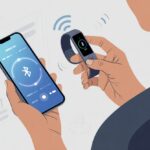
First off, check the basics. Is Bluetooth on? Is our tracker actually paired with our phone, or just pretending? Most hydration apps need both devices connected and close to sync data.
Next, poke around the app. Outdated software can act like a moody teenager—it just won’t cooperate. Update our tracker’s firmware and any related apps. If everything’s up to date and hydration still isn’t syncing, open the hydration widget on the tracker while the app is open on our phone, then wait a minute. Sometimes even tech needs a breather—just like us after stairs.
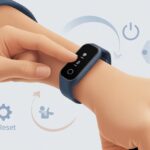
If nothing works, try a classic restart. Turn both devices off and on, then repeat the connection steps. If all else fails, sign out and back into the app or uninstall and reinstall it—sometimes that’s the magic fix.
Checklist:
- Bluetooth turned on
- Devices connected
- App and firmware updated
- Hydration widget open
- Devices restarted
When to Seek Professional Repair
Sometimes your fitness tracker just refuses to cooperate, no matter how many pep talks you give it. If hydration data still won’t track after you’ve tried all the basic steps (and maybe muttered a few “why won’t you work?” complaints), you might have a hardware issue on your hands.
Water sensors break. Buttons get stuck. Some problems just feel out of reach, and honestly, that’s frustrating.
If you see visible damage—like a cracked screen—or if your watch took a swim without being waterproof, that’s a pretty clear sign something’s wrong. When your device just won’t turn on, won’t charge, or the hydration sensor has gone MIA, it’s probably time to call in the repair squad.
Most tracker brands offer customer support, and they can walk you through advanced fixes or help set up a repair. If you’ve still got a valid warranty, don’t hesitate—seriously, use it.
Sometimes, letting a pro handle your stubborn gadget is just the best move. It might even save you from tearing your hair out.

From a young age, I have always had a big interest in technology, and this blog is an extension of that interest. Through this blog, I hope to provide others with all of the information they need regarding tech options to consider, and things such as compatibility. Some of the different items I will be discussing include headphones, smartwatches, and how to fix common issues.
- Best Smartwatch For Messaging And Phone Calls - November 2, 2026
- Samsung Galaxy Watch 4 Bluetooth Versus LTE – Which Model Is Right For You? - November 1, 2026
- What Are The Best Whoop Alternatives? - November 1, 2026
Related Posts: