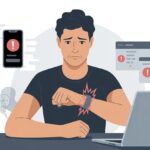
Let’s be real—most of us just want our fitness trackers to count our steps, not randomly power down for a nap. But here we are, ready to get moving, and suddenly our tracker acts like it’s clocking out for the day.
We’ve all felt that frustration—so close to hitting our step goal, and poof, the tracker just shuts down. Sometimes, the battery isn’t even low, but it still decides to quit right when we’re finally motivated.
If your trusty device acts slower than you on a Monday, it’s time to dig into the why.
No matter if we use a Fitbit, Apple Watch, Samsung, or some other brand, knowing the main reasons behind these shutdowns can help us get back on track. The upside? A few simple fixes might be all it takes to get back in action—no tech wizardry needed.
Common Reasons Your Fitness Tracker Keeps Turning Off
Fitness trackers can be, well, a bit dramatic. One minute, they’re counting steps; the next, they decide to shut down. Usually, it comes down to battery, system bugs, or hardware hiccups.
Battery And Charging Issues
Let’s admit it—most of us have ignored that “low battery” warning at least once. When our tracker’s battery drops, it can just power off, even if it claims there’s juice left.
Sometimes, the battery indicator lies to us.
Charging problems can also make us scratch our heads. Loose cables, dirty charging contacts, or a battery that’s just plain tired might be the real reason our tracker checks out mid-jog.
If it keeps shutting off while charging, maybe it needs a little TLC—or just a new cable. It’s worth checking the charger, cleaning the charging contacts, and looking for signs of a weak battery.
Charging overnight or using a decent cable can help too. If you know the battery’s fine but it keeps powering down, maybe the tracker is the problem, not you.
Software Glitches And System Errors
Sometimes, our fitness tracker just has a bad day—a glitchy system can make it turn off for no clear reason. Updates that fail, buggy apps, or random software weirdness can all cause trouble.
When the tracker acts up, try restarting it—just like we reboot our laptop when the Wi-Fi vanishes. A force restart or software update usually sorts out the basic stuff.
If the tracker keeps shutting down, checking for updates should be our go-to. Plenty of users have fixed random shutdowns this way.
If nothing changes after updates and resets, something deeper might be wrong.
Hardware Malfunctions
Sometimes, our device just can’t keep up. If it keeps shutting off even with a good battery and fresh software, hardware might be the culprit.
Loose connections inside, water damage, or a dodgy power button can all make our tracker act up.
Hardware failures don’t happen as often, but they’re still possible. Your tracker might turn off during a sweaty workout, especially if moisture or bumps messed up the inside.
Some devices, like the Fitbit Versa, have a reputation for shutting down even with a full battery—usually needing a trip to the charger to wake up. You can read more about that here.
If it keeps happening, reaching out to support or thinking about a replacement might be the only option.
Troubleshooting Steps For Persistent Power Off Problems
We want our fitness trackers to be as reliable as our favorite sneakers, but sometimes they just don’t cooperate. When random blackouts and stubborn restarts hit, we can try a few steps before giving up.
How To Restart Your Fitness Tracker
Let’s be honest—who hasn’t tried turning something off and on again? For most trackers, press and hold the power button or follow the manual’s steps.
Some trackers need you to hold both the main and side buttons until a logo pops up.
If you’re using a phone like an iPhone, drag the slider, wait half a minute, and power it back on. Even our gadgets need a break sometimes.
Check the battery before you blame the tracker—it’s easy to forget it might just be dead.
Restarting usually fixes random shutdowns or freezes. It’s like hitting reset on a rough day.
Performing A Factory Reset
If a restart didn’t help, it might be time for the dreaded factory reset. This wipes everything—steps, data, even your settings.
Back up anything important if you can. For Fitbits and similar trackers, hold down certain buttons or use the settings menu to find the reset option.
A factory reset erases all calibration and goals, so be ready to start fresh. If you use phone fitness apps, consider resetting or reinstalling those too.
It’s a last resort, but sometimes it’s the only thing that works.
Checking For Updates
Outdated software is like mismatched socks—it might work, but it feels off. Check for firmware updates in the tracker’s app, whether it’s Fitbit, Garmin, or another.
Most apps let you check for updates in the settings.
Updating both the tracker and your phone’s fitness apps can fix bugs that cause shutdowns or syncing issues. Platforms like Healthy 365 sometimes roll out important fixes, so staying updated pays off (more here).
Don’t forget your phone! Restart it and install any updates while you’re at it.
Contacting Customer Support
If your tracker still refuses to cooperate, maybe it’s time to call in the pros. Customer support exists for a reason, and they’ve probably heard it all before.
Have your model number, purchase date, and a quick summary of the problem ready. Sometimes it’s a hardware issue, like a worn-out battery or a busted circuit (details here).
Many companies offer replacements if you’re under warranty. It might not be thrilling, but at least you’ll get some answers.
Software-Related Causes And Fixes
Sometimes, hardware isn’t the villain—software can quietly cause chaos. We should check our apps, device compatibility, and whether updates actually work.
Outdated Or Corrupted Fitness Apps
Let’s be real: fitness apps get cranky when ignored. If our apps lag behind or get buggy, we might notice the tracker turning off for no reason.
It’s not the tracker dodging leg day—the app probably needs some love.
A corrupted app can mess with settings, turn off tracking, or crash out of nowhere. Some users on Google Fit and Fitbit forums found that clearing the cache or data wasn’t enough.
Sometimes, a full reset or reinstall works better.
We should check for updates, clear the app cache, and if all else fails, reinstall the app. An updated app is way more likely to keep up with our workouts—no excuses.
Compatibility With iOS And Android Devices
Compatibility issues are like missing socks—confusing and annoying. Fitness trackers and apps sometimes struggle with the latest or, weirdly, the oldest versions of iOS and Android.
Maybe you just got a new iPhone with iOS 16, and suddenly the app crashes or keeps shutting off. Or maybe your older Android just won’t play nice with new fitness software.
Manufacturers update apps for new systems but sometimes leave older devices behind. Before you give up, check if your phone and fitness apps are both updated and compatible.
App descriptions in the App Store or Google Play usually spell it out.
Reinstalling And Updating The App
Here comes the classic fix—delete and reinstall the app. Whether you’re on iPhone or Android, removing and reinstalling the fitness app can clear up bad data, missed updates, and random bugs.
To fix the iPhone app, delete it, grab it again from the App Store, and sign back in. Same idea for Android.
Don’t forget to reconnect your tracker if needed!
Keeping the app updated also helps prevent weird shutdowns. If you stay on top of updates, your tracker should run smoother, with fewer interruptions—whether you’re running, walking, or just heading to the fridge.
Device-Specific Solutions
Before we blame gremlins or ghosts for our fitness tracker problems, let’s focus on the device itself. Different brands and connections can cause unique headaches, but most issues have simple fixes—if we’re patient enough.
Apple Watch Troubleshooting
Let’s be real—when the Apple Watch bails mid-workout, it almost feels like a betrayal. The quickest way to jolt it back is a force restart: just press and hold both the side button and Digital Crown until you spot the Apple logo.
If the watch refuses to wake up, check for software updates. Outdated software basically knocks these little gadgets out cold. Also, take a look at battery health. Batteries seem to burn out faster than our willpower on a Monday.
If the Watch keeps shutting off with no warning, unpairing and setting it up as new might be the answer. Don’t forget to back up your data first—unless you’re okay losing those hard-earned steps from all those ambitious jogs.
Fitness Tracker Issues With iPhone And iOS Devices
Pairing a fitness tracker with an iPhone should be easy, but sometimes we get stuck in Bluetooth limbo. First, check that fitness tracking is turned on under Settings > Privacy > Motion & Fitness. If it’s off, the Health app just sits there, ignoring every move.
Glitches sneak up on everyone. Usually, toggling Bluetooth off and back on or restarting both devices works. If that flops, uninstall and reinstall the tracking app—clear out its cache and data while you’re at it. Some trackers, like a few Fitbits, will even randomly turn off during use, but a quick restart often revives them.
App permissions matter. The Health app demands them, and if you deny access, it simply refuses to cooperate.
Connecting With Mac And PC
Syncing a tracker to a Mac or PC sometimes feels like teaching your grandma how to use TikTok—possible, but not always smooth. Most trackers play nicer with phones, but syncing to a Mac or PC for backups or updates is still doable.
On a Mac, check that you’ve got the latest macOS updates and any software your fitness device needs. Grab a USB cable that hasn’t given up on life yet. For Windows, update your drivers and only use companion apps from legit sources.
Bluetooth connections between tracker and computer can get flaky, especially if other devices are fighting for attention. If syncing keeps failing, turn off Bluetooth on everything else and just pair one device at a time.
Unpairing And Repairing Devices
Unpairing and repairing a tracker is like giving your gadgets a relationship reset. To unpair an Apple Watch from your iPhone, open the Watch app, tap “My Watch,” hit the “i” next to the device, and pick “Unpair Apple Watch.”
Pairing again is a fresh start. Just follow the usual steps, making sure Bluetooth is on and both devices are close together. If the tracker acts stubborn, restart both gadgets and try again.
Keep your login info nearby; some devices drop their connection to the Health app during the process. After pairing, check your fitness tracking settings. Give the devices a minute—sometimes they just need to catch their breath.
Power Saving And Activity Tracking Settings
If your fitness tracker keeps shutting down mid-workout, the culprit could be hiding in the settings. Power-saving features and activity tracking options have a big say in how long the device stays awake and how well it logs movement.
Low Power Mode Impact
Low power mode is like that friend who brings snacks to the movies to save money—always trying to make things last. Trackers switch to low power mode when the battery’s running low or when you want to stretch the charge.
It does save battery, but it also shuts off some features. This can mean GPS, heart rate monitoring, or even the exercise tracking you actually want during workouts. Sometimes, if the tracker gets too low or cold, it just gives up and stops tracking altogether, especially in longer sessions.
If your device keeps powering off during activities, check the battery saver or power manager menu—some Garmins, for example, hide those settings deep in the menus. Turning off the strictest power-saving options might help the tracker keep up for the whole workout.
Adjusting Activity Tracking Preferences
When workouts don’t show up, it’s time to poke around in the activity tracking settings. Most trackers let you tweak what gets logged and how aggressive the detection is. If auto-tracking or reminders are off, your tracker might decide that your couch pose is cardio and skip logging anything.
Check these preferences in your tracker’s menu. Some models have automatic start and stop features, but they can be a bit moody. Restarting the device or syncing with the companion app sometimes resets things. On Google Fit, stubborn tracking might need clearing the app data or a restart. After you adjust settings, test with a quick walk or a not-so-serious sprint to see if tracking improves.
Move IQ And Intensity Minutes Explained
Some trackers—Garmin, for instance—use tools like Move IQ and intensity minutes to keep tabs on your movement. Move IQ works like a lazy but observant pet, quietly guessing if you’re walking, running, cycling, or climbing stairs, no button presses needed.
Intensity minutes are the tracker’s way of making sure you’re actually moving, not just shuffling to the kitchen. They log when your heart rate goes up or you keep a steady pace. If the tracker shuts off or skips tracking, it won’t count Move IQ events or intensity minutes, so your stats take a hit.
Regularly check that features like Move IQ are on. That way, the tracker catches every heroic dash and even your most ambitious vacuuming.
When It’s Time To Seek Additional Help
Sometimes, all the usual tricks just don’t work. If your fitness tracker keeps powering down, it might be time for bigger guns or to call in some backup—maybe tech support, maybe just a friend who’s good with gadgets.
Using iOS System Recovery Tools
When your fitness tracker pairs with an iPhone, sometimes iOS is the real troublemaker. That’s when you grab iOS system recovery tools. Apple builds in a solution through iTunes or Finder, letting you restore software and (hopefully) squash the bugs. Not exactly fun, but sometimes necessary.
For more options, try third-party tools like TunesKit iOS System Recovery. TunesKit promises a simple fix for weird glitches, frozen screens, and random shutdowns—without deleting your photos or texts. Just follow the steps closely, or you might end up making things worse.
If you go this route, back up your data first. Nobody wants to explain to the group chat why all the cat photos vanished.
Contacting Support Via Email Or Phone
If recovery tools can’t save your tracker, it’s time for human help. Most brands—Fitbit, Apple, you name it—offer support lines and email for these moments.
Emailing support lets you rant about every weird thing your tracker has done since last Tuesday. Phone support is usually faster, but you might wait on hold for a while. Either way, have your device serial number, proof of purchase, and error details ready.
Double-check if your warranty covers random shutdowns before firing off angry emails. Some companies even have online chat, perfect for anyone avoiding phone calls.
Working With Third-Party Solutions
If official support sounds like a 90s hold line, try a third-party repair shop or online service. Some techs know these gadgets better than we know our own kitchen drawers. They can fix stuff that resets and app updates miss.
Always check reviews and pick a service with a solid track record, whether it’s a local shop or a mail-in option. Third-party tools like TunesKit sometimes solve what official apps can’t.
But maybe skip the “guaranteed fix” ads from random people on social media at 2 a.m.—unless you want your tracker to become a stylish paperweight.
Preventing Future Shutdowns
It’s the worst when your tracker dies right as you hit your step goal. To avoid this, keep up with software updates and give the tracker a little regular TLC—cleaning, charging, the basics.
Keeping Software And Apps Updated
Updating isn’t just about new emojis—though we’re not complaining. Old firmware or outdated companion apps can cause all kinds of problems, like random shutdowns after too many buzzes. Check for updates every couple weeks.
Usually, it goes like this:
Open the official app on your phone
Tap into device settings
Look for that “Update Available” banner (it’s like a little holiday for your tracker)
Plug the tracker in so it doesn’t die mid-update
Some trackers update themselves, but it’s worth being nosy and double-checking. Updated software squashes bugs and keeps fitness tracking smooth.
Regular Maintenance Best Practices
Let’s be honest—most of us treat our tracker like it’s invincible. We don’t really think about it until it suddenly stops working.
But honestly, a little care goes a long way. I usually wipe sweat, lotion, and those random crumbs off the sensors and charging ports with a soft cloth.
Here’s a quick plan I like to follow:
Task
How Often
Gentle cleaning
Once a week
Restart device
Every month
Battery check
Before workouts
Try restarting your tracker every month, even if it seems fine. It’s basically a power nap for your gadget.
Don’t let the battery drain all the way down. Keep it charged so you don’t get hit with a surprise shutdown right in the middle of your steps.
Hi, my name is Garrett Jones, and I am a tech enthusiast. I enjoy researching the new tech that has been released, and have a vast knowledge of the best tech to purchase.
From a young age, I have always had a big interest in technology, and this blog is an extension of that interest. Through this blog, I hope to provide others with all of the information they need regarding tech options to consider, and things such as compatibility. Some of the different items I will be discussing include headphones, smartwatches, and how to fix common issues.