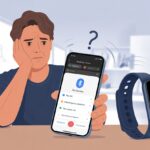
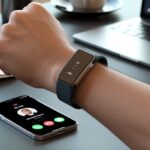
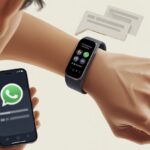
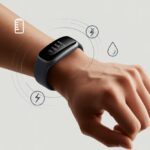
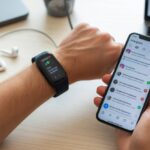
We’ve all stared at our wrists, waiting for a buzz that never comes. Fitness trackers are supposed to be loyal sidekicks, bringing every text and alert right to us.
But sometimes, for reasons that feel almost personal, they just fall silent.

Most of the time, we miss notifications because of something simple—a setting turned off, a syncing issue, or maybe the device just needs a quick restart.
Before we start thinking our fitness trackers are plotting against us, let’s check the basics. Sometimes a quick fix is all we need to get back in the loop.
Let’s figure out why our fitness tracker notifications are playing hide and seek. We really don’t want to miss another step challenge or one of those “move!” reminders when we’ve been sitting too long.
Understanding Fitness Tracker Notifications
We don’t just use fitness trackers for counting steps. They keep us updated with calls, texts, and app alerts.
Notifications help us stay connected without having to check our phones every few minutes.
How Notifications Work
Notifications on our fitness trackers are basically Bluetooth magic. Our trackers use Bluetooth to create a secret club with our phones.
That club lets stuff like calls and messages go straight from our phones to our wrists. If the Bluetooth connection disappears, our alerts vanish too.
Even the fanciest Apple Watch or Fitbit turns silent when it isn’t synced. It’s like our tracker is giving us the cold shoulder.
We have to keep Bluetooth on and enable notifications in both the tracker’s and phone’s settings. If we skip the permissions, our devices just stand there, refusing to pass along messages.
Here’s a quick checklist:
- Bluetooth is on for both devices.
- The fitness tracker is paired (yep, Bluetooth isn’t just for headphones).
- Notification permissions are enabled in both phone and tracker settings.
Types of Notifications
Not all notifications are created equal. Some fitness trackers handle different types better than others.
The main ones include:
| Notification Type | Example |
|---|---|
| Calls | Incoming calls pop up on our wrist. |
| Texts/Messages | SMS, WhatsApp, or iMessage pings. |
| Calendar Reminders | Reminders about that 2 PM meeting. |
| App Alerts | Instagram likes, weather warnings, emails. |
Some trackers only do basic notifications, while others handle more. A basic Garmin might just show texts, but an Apple Watch can do all sorts of alerts and actions.
Our choice of device decides whether we get the full party or just a quiet dinner. Even the best trackers sometimes miss urgent notifications, especially if our phone is out of range or we’ve ignored the app.
Sometimes, updating our notification preferences lets the important stuff through and keeps out the spam. For more about this, check out how notification options vary across devices.
Common Reasons Your Fitness Tracker Ignores You
When our fitness tracker goes silent, we might wonder if we did something wrong. Usually, there’s a simple fix hiding in plain sight—maybe a loose Bluetooth handshake, a stubborn notification setting, or an update that’s just not there yet.
Bluetooth Troubles
Bluetooth is the invisible glue between our phones and fitness bands. But sometimes, even glue dries out.
If our tracker isn’t responding, first check if Bluetooth is actually turned on for both the phone and tracker. Sometimes, the phone just stops talking to the tracker.
Try turning Bluetooth off and back on—a classic “have you tried turning it off and on again?” move. Unpairing and re-pairing the tracker can also help.
Fitbit users should check the Fitbit app, while Garmin folks should look in Garmin Connect. Restarting both devices is usually worth a shot.
If nothing works after all that, something else is probably wrong. But honestly, getting Bluetooth back in line solves most cases.
App Permissions and Notification Settings
Notifications won’t come through if apps don’t have the right permissions. Our trackers are picky—if we haven’t let them manage notifications, we’re out of luck.
On Android, head to Settings > Apps & notifications > Notifications and make sure apps like Fitbit or Garmin Connect can send notifications. Sometimes we need to open the tracker’s app and turn on notifications, or pick which alerts we want.
Some fitness bands hide a “Do Not Disturb” feature in the controls menu. If we turned this on, we’ll get no buzzes, no dings—nothing.
Always open the app and double-check these switches if things seem too quiet. Even the most enthusiastic trackers won’t remind us about calls or texts if we’ve silenced them by accident.
Out-of-Date Firmware or Apps
Firmware is the behind-the-scenes boss telling our fitness tracker how to work. When it’s out-of-date, things get weird fast.
If we haven’t checked for updates in a while, stuff can just stop working. Most trackers let us update them right from their app—like Garmin Connect or Fitbit.
Don’t forget about the phone, either—old Android software can block notifications or have bugs. Keep both the tracker and phone apps current.
A quick tap on “check for updates” can suddenly bring our wrist back to life. It’s funny how a boring update can make our watch start buzzing again.
For more details, check out the steps on the Google Wear OS help page.
Connection Drama: Syncing Your Tracker and Phone
We want our smartwatches and phones to talk like best friends. But sometimes, apps like WhatsApp and Gmail stay way too quiet.
Syncing Issues
Let’s be honest—Bluetooth has its moods. If our fitness tracker isn’t showing notifications, it might be throwing a silent tantrum.
Restart both the phone and tracker. It sounds basic, but it works more often than you’d think.
Check the settings on your phone—Android or not—and make sure notifications are turned on for the apps you care about. We want WhatsApp, Gmail, and everything else to show up on our wrist, not just our phone.
Confirm Bluetooth is on and the tracker is actually connected. Sometimes it claims to be paired but isn’t really paying attention.
Certain apps or trackers (like Fitbit Charge) need special permissions. On Android, we might need to allow notifications through the settings listed in Google’s Wear OS guide.
If nothing else works, try removing and re-pairing the devices. It’s annoying, but it’s a tech support classic for a reason.
Checking Compatibility with Your Smartphone
Compatibility is easy to ignore—until our tracker refuses to cooperate. Some smartwatches or fitness trackers (looking at you, Apple Watch) just don’t play well with every phone.
For example, an Apple Watch really wants an iPhone, not an Android. Trying to get Gmail notifications on a mismatched pair could mean no notifications at all.
Check if your tracker’s app is up to date. Old apps are notorious for causing syncing headaches.
Some fitness trackers, like older Fitbit Charge models, might not support certain apps or message types. So don’t be surprised if WhatsApp keeps ghosting you.
A quick online search or a look at your tracker’s support page can tell you if your device is compatible with the latest operating systems. If not, you may need to update the firmware or accept that some features just aren’t going to work.
Power Moves: Battery and Charging Woes
If our fitness tracker isn’t showing notifications, the battery could be the problem. Battery life issues or charging problems can leave our smartwatch quietly sulking on our wrist, pretending it’s too busy to bother.
Battery Life and Low Power Mode
A drained battery is a big reason we miss notifications. Even our watch needs a break sometimes.
When the power drops, many trackers slip into low power mode. This sneaky mode usually stops notifications, dims the screen, or just saves energy for later.
Some trackers send a low battery warning after syncing, but if we miss it, we’re out of luck. Not all smartwatches bother with a warning, either.
Check battery levels regularly and don’t let them drop to zero. Once the tracker’s dead, it won’t receive or show anything.
Keep an eye on battery indicators. If your notifications suddenly disappear, the device might be begging for a charge.
Charging Tips
Charging a smartwatch seems simple, but sometimes it just won’t cooperate. Use a clean charging cable and the right adapter—otherwise, you might be waiting forever.
Plug it in for at least 30 minutes if the battery hit zero. Sometimes the device just sits there, refusing to power up or sync notifications.
If the tracker still won’t wake up, unplug it, check the ports for dust or grime, reconnect, and try again. Using the wrong dock or a broken cable is like watering a plastic plant—nothing happens.
After a full recharge, most trackers start showing alerts again, ready to bug us about every step. For more tips, check out common charging problems and solutions.
Do Not Disturb and Silent Modes: Silent but Deadly
Sometimes, our fitness trackers ignore us on purpose. The culprit? Sneaky Do Not Disturb or Silent modes that cut off notifications without warning.
Disabling Do Not Disturb
Do Not Disturb mode can turn our trackers into a notification wasteland. When this sneaky feature kicks in, alerts and messages just vanish—sometimes for way too long. I know I’ve forgotten I even enabled it.
Let’s open the controls menu on our tracker or phone. We can check if Do Not Disturb has been quietly running the show. If it’s on, we just need to switch it off and let the alerts flow back in.
Try restarting both the tracker and the phone after making changes. It’s like giving a stubborn vending machine a good shake. Updates sometimes flip these settings back on without warning, so it’s not a bad idea to check now and then.
If we use our fitness device during workouts, some watches automatically enable Do Not Disturb for exercise. That setting can be a little sneaky and block notifications, too. For example, Apple’s community recommends turning off this workout mode and then restarting everything to get alerts working again.
Understanding Notification Preferences
Even with Do Not Disturb off, notification settings can still mess with our tracker. If only certain apps are allowed to send notifications, or if we accidentally muted messages, we might miss important updates.
Let’s head to the notification settings menu. Here’s a quick checklist:
- Check allowed apps: Make sure our fitness and messaging apps can send alerts.
- Silent mode vs Do Not Disturb: Silent mode just mutes sounds, but notifications might still show up. Do Not Disturb usually blocks everything. That difference matters.
- Choose when to silence: Sometimes, we can silence notifications only when the screen is locked, or always, as explained in Apple’s support forum.
On Android, if Do Not Disturb is on, our device simply won’t send notifications for the tracker to display. This Fitbit community post covers the details.
If our tracker seems to be hiding notifications, let’s double-check these preferences. Sometimes, it’s something simple.
Notification Hijackers: App Interference and Customization
Let’s be real, our wrists can turn into a battleground for notifications. Fitness trackers sometimes get caught in the middle, especially when certain apps or settings hijack alerts.
Notification Settings in Third-Party Apps
Apps like WhatsApp and Gmail have their own hidden notification settings. They don’t always cooperate with our tracker. If we’re missing WhatsApp or Gmail notifications, those apps might have notifications set to “silent” or turned off.
Here’s a quick checklist:
- Open the app (like WhatsApp or Gmail)
- Dive into its notification settings
- Make sure alerts, previews, sounds, and badges are all enabled
Some apps let us “Mute chat for 8 hours” or longer. That can totally block wrist notifications, even if our phone is buzzing. If the phone’s system settings show notifications but the tracker doesn’t, it’s worth poking around in the app itself for anything odd.
Prioritizing Which Apps Can Reach Your Wrist
Our wrists have limited space, and we don’t need every promo or group chat lighting it up. Customizing which apps can send notifications helps avoid alert overload.
Open the device settings, look for notifications, and find the app list. Toggle each app—maybe allow calls, but mute game invites—so only the important stuff gets through. On some trackers, we have to adjust this both in the phone’s system settings and in the fitness app.
If alerts for certain apps suddenly disappear, it probably means someone (maybe us, in a fit of frustration) turned them off. Need more help? Some guides for Fitbit or Apple devices walk through fine-tuning what gets through.
When All Else Fails: Troubleshooting Like a Pro
Sometimes, notifications just vanish even when everything seems fine. We’ve all mashed every setting and still see nothing. That’s when we have to get creative with troubleshooting.
Restarting Your Device
Before we dive into drastic fixes, let’s start simple: turn it off and on again. It’s a classic for a reason.
Restart your fitness tracker first. Give it a full power cycle. Most trackers have a restart option in the settings, but if not, holding the power button usually works.
Don’t forget the phone. Sometimes, an app just sulks in the background and refuses to send notifications. Restarting both devices can clear out bugs and stubborn glitches.
A quick restart can reconnect Bluetooth, refresh settings, and save us a lot of time. If nothing shows up after that, it’s time to get a bit more serious.
Factory Reset: Last Resort
Here’s the nuclear option. Factory reset wipes everything—customizations, health data, saved pairs, and any settings we tweaked. It basically brings the device back to day one.
Head into the tracker’s settings and look for “Factory Reset” or “Erase All Data.” Sometimes, a glitch or corrupted file blocks notifications in ways nobody can explain. Resetting usually fixes what reboots and updates miss.
Remember to back up our health data if possible. Some apps sync to the cloud, but not all of them. When ready, take a deep breath, hit that button, and set everything up from scratch. If notifications still don’t work, it’s probably time to contact support or, who knows, check for firmware gremlins.
Beyond Notifications: How Trackers Enhance Your Life
Even when our fitness tracker skips notifications, it’s still working hard to keep us healthy. These little gadgets do a lot more than buzz about texts or calls—they’re like tiny wrist assistants with features we didn’t know we wanted.
Activity Tracking Features
Let’s be honest—sometimes we all need a nudge to get moving. Most activity trackers count steps, track distance, and keep an eye on calories burned. Some even log cycling, swimming, or that wild dash to the fridge.
Many trackers let us set daily step goals, so our wrist cheers us on every time we flail our arms dancing in the living room. Want a fun stat? We can even compare this week’s activities to last week’s.
Here’s a quick look at common features:
| Feature | Benefit |
|---|---|
| Step counting | Tracks progress every day |
| Distance logging | Measures how far we move |
| Calorie counter | Estimates energy burned |
| Custom goals | Keeps us motivated and competitive |
Heart Rate and Health Monitoring
With wrist sensors always watching, it’s tough to sneak in a nap without our tracker noticing. These devices measure our heart rate all day, so we get real-time feedback during workouts—or those moments we almost fainted standing up too fast.
Besides tracking resting and active heart rate, many trackers watch for weird spikes or drops. Some even nudge us to chill out if our heart is racing. Extra features might include monitoring breathing, stress, and sometimes even blood oxygen. It’s like wearing a tiny health coach who never lets us slack off.
Sleep Tracking and Recovery
Honestly, our tracker seems to care more about our bedtime than any parent ever did. These gadgets use sensors to figure out if we’re actually sleeping, tossing around, or just lying there thinking about tomorrow’s snack lineup.
Every morning, it spits out a report with details like how long we slept, how much of it was “deep,” and whether that late-night snack really messed with our rest. Sometimes I wonder if it’s judging me.
Sleep tracking helps us notice patterns and tweak our routines. Some trackers even nudge us to wind down or remind us to get to bed earlier.
If we rack up a few bad nights, the tracker might warn us before grumpy mornings take over. For more on activity tracking and notifications, check out fitness watch with zero notifications and see how settings can really change the experience.

From a young age, I have always had a big interest in technology, and this blog is an extension of that interest. Through this blog, I hope to provide others with all of the information they need regarding tech options to consider, and things such as compatibility. Some of the different items I will be discussing include headphones, smartwatches, and how to fix common issues.
- Best Smartwatch For Messaging And Phone Calls - November 2, 2026
- Samsung Galaxy Watch 4 Bluetooth Versus LTE – Which Model Is Right For You? - November 1, 2026
- What Are The Best Whoop Alternatives? - November 1, 2026