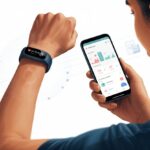
Let’s be real: tracking pool workouts in your head is about as accurate as guessing how many jellybeans are in a jar. That’s why fitness trackers are game-changers. They turn “Did I swim 10 laps, or was it 8?” into solid numbers you can actually trust—and maybe even brag about later.
A fitness tracker tells you how far, how fast, and how many strokes you’re doing in the water, so you finally know if you’re making progress. No more guesswork.

Before you cannonball in, make sure you’re actually using the tracker the right way. Simple things—like setting the pool length or picking the right swim mode—can make a huge difference.
With a good setup, your tracker follows every stroke, splash, and awkward underwater turn. If you want to get serious (or just out-swim your friend), a fitness tracker might be your new poolside coach—as long as it’s truly waterproof. Don’t ask how I learned that lesson!
Swim workouts finally make sense when you’ve got a trusty tracker on your wrist. No more wondering if you’re actually working hard or just floating around thinking about pizza.
We’ll break down how to use a fitness tracker for swimming so you can swim smarter—not just sweatier.
Selecting the Perfect Fitness Tracker for Swimming
Not every fitness tracker is ready for pool life. You’ve got to pay attention to water ratings and features, or you’ll just end up tracking “water damage.”
Water Resistance vs. Waterproof Ratings
Ever dropped your watch in a puddle and thought, “Hey, it’s water resistant, right?” Turns out, jumping into a pool is a whole different story.
Fitness trackers come with water resistance ratings, usually marked as ATM (atmospheres) or depth. For swimming, look for at least 5 ATM (that’s 50 meters deep). That’s the kind that survives actual swim workouts, not just a drizzle.
If you’re planning to channel your inner dolphin, make sure the tracker specifically says it’s safe for swimming. For instance, the Fitbit Charge 6 is water resistant up to 164 feet. Ignore labels like “splashproof.” Look for proof it’s actually tested for pool or open water.
Quick tip:
- 3 ATM (30m): Not enough, unless you’re just splashing in puddles.
- 5 ATM (50m): Good for pool swims and shallow sea dips.
- Over 5 ATM: Great for open water and deeper dives.
Choosing Suitable Features for Pool and Open Water
Let’s be honest, we want a tracker that’s not just waterproof but also smart enough to count our laps (even if it’s only two). Features matter.
The best trackers for swimming recognize your swim automatically, count laps, and even try to guess your stroke. Yes, even that weird one you made up.
Look for trackers with dedicated swim modes or profiles. These give you more accurate swim stats. Some even show distance, duration, heart rate, and stroke type while you’re still in the water.
If you like to swim outside, GPS tracking is a must. It helps you see your route and keeps you from getting lost like a confused duck.
Popular models like the Samsung Fit 3 are budget-friendly and track swim strokes, heart rate, and laps. If you’re into open water swimming, you’ll want features like open water tracking and higher water resistance. Don’t forget to check if the band fits snugly—a loose tracker is just pool litter waiting to happen.
Setting Up Your Fitness Tracker Before You Swim
Before you hit the water, make sure your tracker is actually ready to count your laps and keep your stats honest. Input the correct pool size and pick the right swim mode. Otherwise, you’ll end up with “10,000 meters in 10 minutes” and nobody will believe you.
Inputting Pool Size or Using Custom Size Functions
Pools come in all shapes and sizes—like shoes, but wetter. Enter the pool length into your tracker so it knows how to count your laps and distance.
Most trackers from Polar, Garmin, Apple, and Fitbit let you pick standard sizes like 25 meters, 50 meters, or yards. If your pool is some weird length, check for a custom size option. That way, your stats will actually make sense.
Don’t skip this step. If you do, your tracker will start fibbing. Double-check that the length you put in matches the pool you’re swimming in. For more details, see how to set pool size or custom lengths.
Understanding Swim Modes and Settings
Wearing flip-flops for running? Bad idea. Using the wrong mode for swimming? Same deal.
Your tracker usually has different swim modes—Pool Swim for the gym, Open Water Swim for lakes or oceans. When you pick Pool Swim, you’ll probably need to confirm the pool’s measurements.
Some trackers even have advanced settings for stroke detection and lap counting. Poke around those gear icons and make sure you’ve set things up before you jump in.
And don’t forget water lock mode! It keeps your tracker from thinking you’re trying to send an SOS every time you do a butterfly stroke. For a quick how-to, check out setting swim mode and workouts on different devices.
Using Swim Tracking Features During Workouts
Swimming with a fitness tracker isn’t just about counting laps. These gadgets help you keep an eye on your pace, track how far you’ve gone, and even check your heart rate—without making you look like a total tech nerd.
Tracking Distance and Pace Like a Pro
Once you’re in the pool, your tracker becomes your personal swim coach. Most modern trackers let you pick Pool Swim or Open Water Swim, depending on where you’re splashing around.
For pool workouts, set the pool length before you start. The tracker then knows exactly how far you’re going—no need to do the math in your head.
Here’s what the tracker usually counts:
- Laps: Every push off the wall adds another lap.
- Distance: The tracker uses laps to figure out how far you’ve swum.
- Pace: How fast you’re moving, usually per lap or per 100 meters.
Some smartwatches and even swimming goggles show your stats while you’re still in the water. That means you can adjust on the fly, instead of guessing. Want to see it in action? Check out how to set up swim tracking with the Apple Watch Workout app or peek at FORM Swim Tracker goggles that show stats inside your goggles.
Recording Heart Rate While in the Splash Zone
Let’s be honest, wearing a tracker in the pool feels a little weird at first. But a lot of fitness trackers can check your heart rate while you swim.
The sensors on the back use light to read your pulse—even if your fingers look like raisins.
Here’s the gist:
- Continuous Heart Rate: Some trackers give you minute-by-minute data, even underwater.
- Workout Zones: You can see how often you hit the “pushing it” zone versus the “just floating” zone.
- Data Syncing: After your swim, check your phone for colorful charts showing how your heart pumped through the workout.
Sometimes, water can mess with the sensors, so wear the tracker snugly and make sure it doesn’t spin around. Once you get used to it, tracking your heart rate in the pool is pretty straightforward. For more on which watches support this, check out watches that track swimming sessions.
Mastering Open Water and Pool Swim Functions
Getting the most out of your fitness tracker in the water means understanding GPS-based open water tracking and the different settings for pool swimming. When you know when and how to use each feature, your swim data gets a whole lot more accurate. Plus, you’ll have bragging rights.
Utilizing GPS for Open Water Adventures
When you jump into open water—lakes, oceans, or even that giant puddle after a storm—turn on the GPS. GPS lets your watch track distance, speed, and route, so you’ve got proof you didn’t just float around.
Select the “Open Water Swim” mode on your tracker. This turns on GPS, which can handle changes in direction, choppy waves, and that urge to chase ducks.
Some watches, like the Garmin fenix line, even measure water temperature, so you’ll have evidence when you complain about freezing water.
Start recording once you’re at the water’s edge—not in the parking lot—or your tracker will think your walk was part of the swim. When you finish, check your path on a map and see all your stats.
If your tracker’s swim features are limited, try using the paddleboarding mode—swimmers on Reddit have some clever workarounds for getting the most out of your device.
Switching Between Pool and Open Water Modes
Switching between pool and open water modes feels a bit like deciding whether to swim straight lines or go exploring. When we swim in a pool, our watch uses its accelerometer and counts laps, skipping the GPS entirely.
This setup gives us accurate lengths, strokes, and lap times. Before we start, we really need to set the right pool length (meters or yards) on our watch.
Whether it’s a tiny hotel pool or Olympic-sized, setting the correct length keeps our lap count honest. Polar and other brands let us customize pool length and tweak settings like stroke detection, which is pretty handy. You can dive deeper on the Polar blog.
If we swim both in pools and open water, we should double-check the mode before jumping in. Otherwise, we might end up with a tracker that thinks we’ve teleported hundreds of meters in one lap.
That might get a laugh, but our swim coach probably won’t be impressed.
Mixing up pool and GPS modes can really mess up our stats, so choosing the right one each time matters.
Analyzing and Saving Your Swim Data
When we finish a swim, our tracker fills up with swim data. Understanding and saving this info helps us track progress and make each training session count.
Reviewing Swim Metrics and Stroke Type
Let’s be real—sometimes we just want to hit the showers. But before we do, it’s worth checking out those numbers our tracker magically recorded.
Most fitness trackers show lap count, swim distance, pace, and heart rate almost instantly. Many even try to identify our stroke type.
If our watch claims we swam 50 meters of butterfly while we were clearly flailing at freestyle, something’s off. Watching our stroke count and efficiency can reveal what’s working and what’s… not (looking at you, backstroke).
Pro swim apps like Garmin Connect or Swim.com break down each workout into colorful, easy-to-read charts. We can spot if our pace dropped or if we finally nailed that smooth stroke for a whole session. Want more details? Here’s how fitness trackers analyze swimming data.
Saving and Sharing Workout Results
Once we’ve stared at all the stats, we just need to save them. Most swim tracking apps log our workouts automatically, so we can stop thinking about numbers and get on with drying off.
Apps like Swim.com and MySwimPro let us save data and compare workouts week by week. We can look back and see if we’re actually improving or just taking longer breaks at the wall.
When we have a great session, sharing results with friends or coaches is just a tap away. Many apps let us share workout data or even link accounts—learn more about linking your swim data.
Tip:
- Some trackers let us export swim data into a spreadsheet, so we can make pretty graphs or flex our stats online.
- Sharing might win us bragging rights (and maybe nudge us to swim that extra lap next time).
Taming Timers and Training Tools for Swimmers
Swimmers love their laps, but let’s face it, even seasoned folks can lose track of intervals. With the right setup, our training sessions feel less chaotic and a bit more organized.
Setting Up and Using Interval Timers
Pool clocks? They’re usually impossible to read through foggy goggles. Most of us now rely on interval timers built into watches or smart devices.
Fitness trackers let us set custom intervals for sprints or rest. To set an interval timer, open the swim app on your tracker or watch.
Pick your workout type—maybe 50-meter sprints with 15 seconds rest. The timer buzzes or beeps when it’s time to swim or pause, so we don’t have to guess if we’re stalling or actually resting.
Some trackers let us program different sets, so we can skip the whiteboard covered in messy handwriting. Before hopping in, make sure your device is charged and waterproof. Bonus points if it survives your cannonball.
Leveraging Fitness Trackers for Swim Training
Fitness trackers aren’t just for show—they collect loads of swim stats: distance, lap count, pace, and even stroke rate. Watches like Garmin Vivoactive 4 and FORM swim trackers show live metrics while we swim.
Some advanced trackers record heart rate underwater and track calories burned. This data helps us see when we’re hitting new personal bests—or just pretending to move fast because we forgot snacks.
After a session, syncing data with an app shows graphs, trends, and probably more swim details than we ever expected. The main thing? Training gets smarter, not harder.
Maintaining Your Fitness Tracker After Swimming
We love our fitness trackers, but even waterproof gadgets need a little pampering after a swim. If we want these tiny lifeguards to keep counting our laps, a bit of aftercare makes a difference.
Cleaning and Caring for Waterproof Devices
Just because a tracker says it’s waterproof doesn’t mean it enjoys a crust of pool gunk or salty residue. After each swim, rinse the tracker under fresh, cool water—not the puddle at the pool’s edge, please.
Wipe it down with a soft, lint-free cloth to dry it off. Let’s avoid pencils, toothpicks, or anything sharp—we’re cleaning, not doing surgery.
If the band comes off, removing it makes cleaning easier. A dab of mild soap can help, but keep soap, shampoo, and chlorine away from the charging contacts and sensors.
Leaving a tracker damp or tossing it in a sealed bag just creates a mini sauna. Let’s air-dry it before charging or wearing it again. Our wrists will thank us, especially if we want to avoid those annoying rashes.
Checking for Water Damage After Use
Even the bravest water resistant trackers can have an off day.
After swimming, let’s take a quick look at the device for weird condensation under the screen or weird glitches like a frozen display.
Here’s a simple checklist for spotting trouble:
- Unresponsive buttons—If your tracker ignores you like a moody cat, something might be going on inside.
- Decreased battery life—If it suddenly can’t go the distance, water might’ve sneaked in somewhere.
- Odd display behavior—Flashing lights or random screen flickers? That’s usually a big red flag.
If you notice anything off, don’t charge it—just reach out to customer support.
Your fitness tracker probably won’t win a swim meet, but if you take care of it, it’ll stick with you for plenty more laps.

From a young age, I have always had a big interest in technology, and this blog is an extension of that interest. Through this blog, I hope to provide others with all of the information they need regarding tech options to consider, and things such as compatibility. Some of the different items I will be discussing include headphones, smartwatches, and how to fix common issues.
- Best Smartwatch For Messaging And Phone Calls - November 2, 2026
- Samsung Galaxy Watch 4 Bluetooth Versus LTE – Which Model Is Right For You? - November 1, 2026
- What Are The Best Whoop Alternatives? - November 1, 2026
Related Posts: