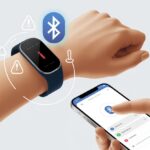
Let’s be real—few things are more annoying than a fitness tracker that just won’t connect to WiFi. We want our steps, heart rate, and sleep scores to beam right to our phones, but sometimes the tracker seems to have its own agenda.
Usually, our fitness tracker skips WiFi because of simple stuff like low battery, network hiccups, or old software.
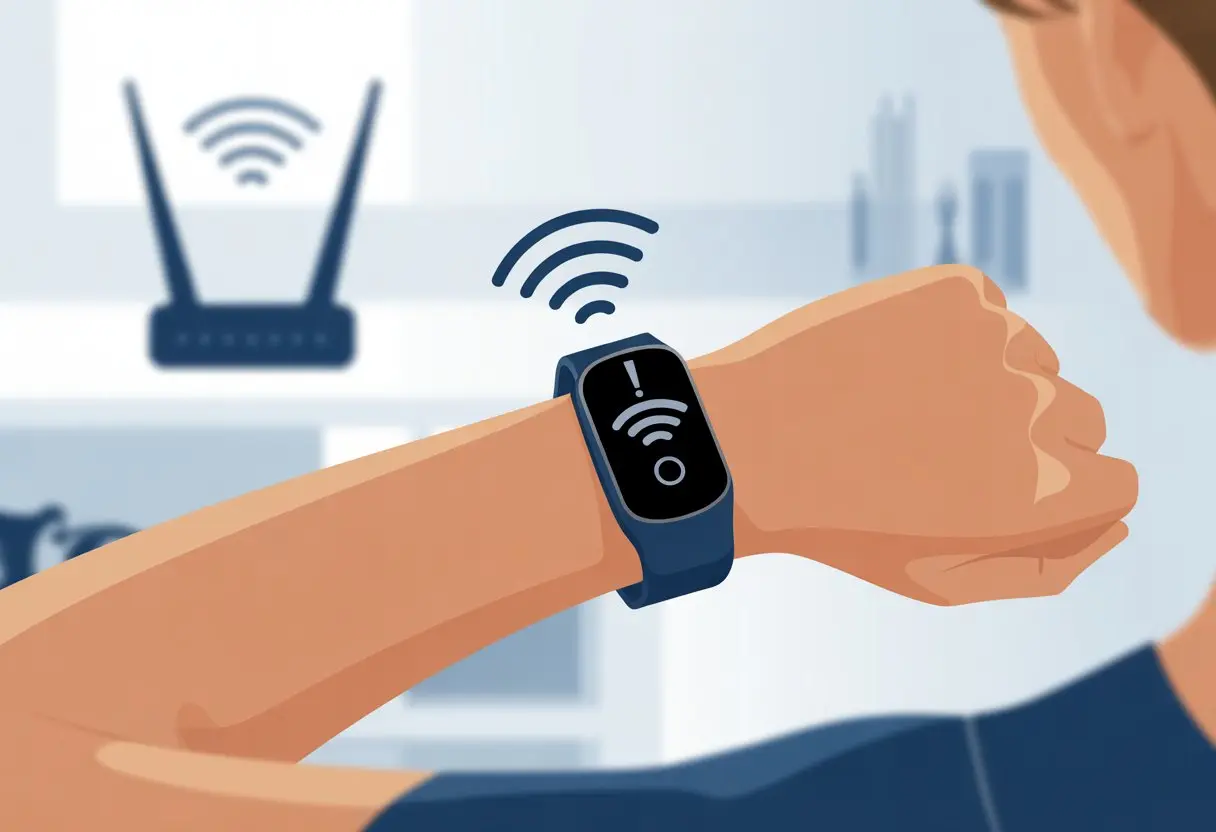
We’ve all tried the classic “turn it off and on again” move, but sometimes that’s just not enough. WiFi headaches can pop up if our phone or wearable isn’t set up right, or if privacy settings block the connection.
If our tracker’s being extra stubborn, there are a few specific things we can try—like restarting the device or double-checking WiFi network settings. Fitbit and Garmin both offer pretty solid tips on this, by the way (Fitbit, Garmin).
WiFi setup shouldn’t feel like a marathon before breakfast. But don’t sweat it—we’re about to lay out why our trackers sometimes ghost us, and how to fix it, so we can get back to counting those steps.
Understanding WiFi Connectivity on Fitness Trackers
Let’s take a closer look at how fitness trackers actually use WiFi. These little gadgets can be confusing, right? We’ll break down how they talk to the internet, what syncing really means, and which trackers actually use WiFi instead of just Bluetooth.
How Fitness Trackers Use WiFi
Honestly, we wish our fitness trackers could read our minds, but they just want to hop on WiFi so they can upload steps, heart rates, and reminders. WiFi lets trackers update software, send workout stats to apps, and even stream music if we’re feeling fancy.
Here’s why WiFi matters:
- Faster data uploads: Stats go straight from our wrist to the cloud, skipping the phone middleman.
- Software updates: Trackers update themselves, which feels a bit like getting a new gadget overnight.
- App syncing: Activities magically show up in apps like Garmin Connect and Fitbit.
If our tracker won’t connect, sometimes it’s just a low battery or being too far from the router (seriously, walls are the enemy). Fitbit actually says WiFi won’t work if the battery drops below 25 percent; the tracker just sits there, pretending we don’t exist. Check out Fitbit’s help page at the Google Help portal for more on that.
Difference Between Syncing and WiFi Connection
We toss around “syncing” and “WiFi connection” like they’re the same, but honestly, they’re not. Syncing usually means the fitness data moves from the tracker to our phone using Bluetooth. That works for short distances—like from our wrist to our pocket.
WiFi connection, though, lets the tracker talk directly to the internet. We get perks like faster uploads, downloading music (looking at you, Fitbit Sense), and software updates right from our network.
Not every tracker likes WiFi, though. Some only want to sync via Bluetooth, or they ignore WiFi when the battery’s low (again, Fitbit’s battery policy).
Quick cheat sheet:
- Bluetooth Sync: Short range, uses phone, usually slower.
- WiFi Connection: Longer range, skips the phone, can be quicker.
Common WiFi-Compatible Fitness Trackers
Not all trackers are created equal—some are just way cooler about WiFi. The all-stars usually include Fitbit models (like Versa, Sense, and Ionic), plus some from Garmin and Apple.
Here’s a quick table with the main players:
| Fitness Tracker | WiFi? | Fun Fact |
|---|---|---|
| Fitbit Sense | Yes | Streams music, updates |
| Fitbit Versa 3 | Yes | Faster syncing |
| Garmin Venu 2 | Yes | Supports updates via WiFi |
| Apple Watch Series 9 | Yes | Streams podcasts/music |
| Fitbit Inspire 3 | No | Bluetooth only |
When our tracker has WiFi, we get more freedom from our phone and less waiting around. Some models stick with Bluetooth syncing, though, and make us rely on our phones like it’s 2013.
If our tracker supports WiFi but still refuses to connect, it’s usually time for a reboot or a battery check (which is way more common than we’d like). Fitbit’s Google Help guide covers this, too.
Top Reasons Your Fitness Tracker Refuses to Connect to WiFi
Let’s be real—tech can be moody, and fitness trackers are no exception. When ours won’t connect to WiFi, it’s usually one of a few usual suspects.
Incorrect Wi-Fi Network or Password
WiFi issues love to hide in plain sight. Sometimes we accidentally pick the wrong WiFi network. Other times, our thumbs betray us and we type the password wrong.
Special characters, typos, or even a stray space can keep us locked out, even if we’re sure we typed it right. Trackers also get tripped up by networks that need a separate login screen or have weird names.
Sticking with a simple network name and password helps—think “Home_WiFi” instead of “Extremely$ecure!2025.” If we’re still stuck, it’s worth double-checking which network we’re using. Our tracker could be searching for the cafe WiFi from last weekend.
For stubborn problems, a quick restart or even a full reset of the tracker can work wonders.
Outdated Firmware or Apps
Fitness trackers want to stay up to date, just like us. If we’ve ignored those update notifications, our tracker might just refuse to connect to WiFi. Old software can’t always talk to the router, even if it looks like it should.
Let’s check for the latest software on both the tracker and the app we use to manage it. Sometimes, updating the phone app is just as important as updating the device itself.
Keeping things current helps avoid WiFi headaches and random glitches.
Low Battery or Charging Issues
Fitness trackers need power to behave. When the battery’s low, they start acting up or shut off WiFi to save juice. Plugging in with a bad charging cable or a flaky USB port means the tracker might not actually charge, even if the screen says it is.
It’s a good idea to check the battery level before doing anything else. If it’s low, try charging with a different cable or port in case the originals are the problem.
Once we’ve got enough power, our tracker is way more likely to connect and get back to work—kind of like us after a cup of coffee.
Troubleshooting Steps for WiFi Connection Problems
We all want our trackers to play nice with WiFi, but sometimes they just refuse. Let’s look at why that happens and what we can try before giving up in frustration.
Double-Check WiFi Network Details
First, let’s make sure we’re not trying to connect to our neighbor’s WiFi (no matter how tempting “FBI_Surveillance_Van” looks). On our tracker, open WiFi settings and pick the right network.
Passwords can trip us up. It’s easy to type an “I” instead of an “l”—don’t let that happen to us! Watch for uppercase letters, symbols, and sneaky spaces.
Some trackers only connect to 2.4 GHz networks, not the fancier 5 GHz ones. We should check which frequency we’re using. If we’re not sure, try connecting our phone and see if it finds the home WiFi, too.
If everything still looks right and it’s not working, maybe it’s a compatibility thing. Garmin’s WiFi troubleshooting guide has more tips.
Restart or Reset the Fitness Tracker
When in doubt, just turn it off and back on. That trick fixes more than we like to admit, even with fitness trackers.
Hold the power button, turn it off, count to ten (or hum something), and switch it back on.
Still stuck? Try a reset. Heads up: a full reset might wipe some data or settings, so only do this if the regular restart doesn’t help. Most trackers have a reset option in the settings menu.
Sometimes, the pairing between our tracker and phone gets weird. If Bluetooth is acting up, try unpairing and repairing after the reset. This move actually solves more problems than you’d think, especially with WiFi. Fitbit’s WiFi troubleshooting tips are a good resource.
Move Closer to Your Router (Yes, Really)
Let’s not try connecting to WiFi from the backyard, the garage, or the basement three walls away from the router. WiFi signals aren’t superheroes—they can’t leap through brick, metal, or the neighbor’s aquarium.
For the best shot, stand close to the router with the tracker in hand. Fewer barriers mean a stronger, more reliable signal, and less chance of dropped connections during setup or updates.
If the tracker connects fine near the router but not farther away, maybe our signal strength just isn’t up to snuff. A WiFi extender or moving the router might help.
Check Bandwidth and Transfer Speed
If our WiFi is crawling, the tracker will struggle to connect—or drop off halfway through syncing. Devices on weak networks or fighting for bandwidth with a dozen other gadgets won’t upload data fast.
Try unplugging a few devices hogging the WiFi and pause any big downloads. If everyone at home is streaming or gaming, our tracker might have to wait its turn (and that could take a while).
Running an internet speed test can help us figure out if things are slow. If speeds keep dropping, give the router a restart for a quick boost. Garmin’s outdoor wearable WiFi troubleshooting has more details if you want to dive deeper.
Device Compatibility and App Issues
Trying to get a fitness tracker to connect to WiFi? Sometimes it feels like teaching a goldfish to use a smartphone. We usually run into two big obstacles: device compatibility and those sneaky app settings that pretend to be simple—until they’re not.
We have to make sure our devices actually get along, and it’s worth double-checking that our apps aren’t quietly sabotaging our healthy plans.
iPhone and iPad Pairing Pitfalls
When we’re using iPhones and iPads, even a tiny software mismatch can throw a wrench in things. If our iOS is outdated, our tracker might just stare blankly, as if we’re speaking another language.
Updating to the latest iOS before connecting anything saves a lot of headaches.
Bluetooth causes its own drama. Our tracker might show up in Bluetooth settings, but that doesn’t always mean it’s truly “connected.” If it’s being difficult, head to Settings, find the device, tap it, and hit “Forget This Device.”
A quick restart after that? It’s surprisingly effective.
Location settings sneak up on us, too. Some fitness trackers demand access to our location services, even if it feels unnecessary. It’s a little weird granting permission to track our every move, but this time, it’s honestly for our own good.
Fitbit App and Garmin Connect App Settings
Let’s talk about fitness apps—the real masterminds here. Both the Fitbit app and Garmin Connect app hide a few switches that can totally ruin our WiFi party.
If we change our WiFi password and forget to update it inside the app, our tracker just sits there, lost.
Not all WiFi networks are equal, unfortunately. Many trackers, including some Fitbits, only connect to certain networks—usually 2.4GHz. We have to add the right network in the Fitbit app or Garmin Express. Otherwise, we’re just typing passwords for no reason.
Mixing up usernames or passwords happens to the best of us. If we get those wrong, our tracker just refuses to sync. Sometimes, uninstalling and reinstalling the app works wonders, as Fitbit users mention in this Fitbit Community topic. It’s not as painful as it sounds.
When Bluetooth Confuses Everything
Fitness trackers sometimes act like they’re on a secret mission. They get tangled up between Bluetooth and WiFi, and suddenly, nothing wants to connect.
Let’s look at how Bluetooth can turn a simple setup into an Olympic sport.
Bluetooth vs. WiFi: The Epic Showdown
Bluetooth and WiFi both want to be the star, but they do very different things. Bluetooth is that chatty neighbor who’s always popping by for a quick hello. It handles close-range, one-on-one connections—like syncing our tracker with our phones or earbuds.
WiFi, though, is the reliable friend who connects us to the internet—great for updates and downloading apps.
Here’s the catch: most trackers use Bluetooth for daily business. When we expect WiFi to take over, Bluetooth sometimes refuses to step aside. This diva behavior creates confusion, and suddenly our step graphs stop loading.
We should keep this in mind:
| Feature | Bluetooth | WiFi |
|---|---|---|
| Range | Short—few feet/meters | Long—whole house |
| Used For | Syncing, notifications | Internet, updates |
| Connection | One device at a time | Many devices together |
So, sometimes it’s not a WiFi problem at all. Our trackers might just be fighting a Bluetooth battle we can’t even see.
Dealing With Bluetooth Settings
Bluetooth settings are like gremlins—touch them the wrong way and chaos erupts. Turning Bluetooth off and back on fixes more problems than we’d like to admit.
Restarting both our phone and tracker often sorts out stubborn connections. If our smartwatch refuses to talk to the phone, sometimes we have to “forget” the device and pair it up again, like a nervous first date.
Running Bluetooth and WiFi at the same time can cause interference. The signals cross, and suddenly nothing syncs. It’s tempting to throw everything out the window (please don’t). Clearing the app cache or updating the tracker’s firmware sometimes brings things back to normal.
You’ll find more tips in this guide on fixing smartwatch Bluetooth problems.
Syncing and Steps Data Over Bluetooth
Most fitness trackers depend on Bluetooth to sync steps and other data to our phones. When Bluetooth drops the ball, our health app ends up as empty as our New Year’s resolutions by February.
No connection means no updates—no steps, no sleep, just empty charts.
Syncing gets especially stubborn if either device moves out of range or the connection goes to sleep. Even if WiFi is working, if Bluetooth isn’t, we’re out of luck.
Here are some tricks that help:
- Make sure Bluetooth is on (seriously, it happens)
- Keep devices close
- Restart both devices
- Check for app and firmware updates
- Try the “forget and re-pair” move
Step data relies more on Bluetooth than we’d think. Before blaming WiFi, give Bluetooth a pep talk.
Advanced Solutions and Third-Party Connections
Some days, fitness trackers act like stubborn cats—doing the opposite of what we want. When the basics don’t work, it’s time for advanced moves like syncing software and setting up music. We’re in this together.
Garmin Express and Software Tools
Ever feel like your tracker just stares blankly, refusing to connect to WiFi? Garmin Express can swoop in and save the day.
Install Garmin Express on your computer, connect your tracker with a USB cable, and suddenly you’ve got a command center for syncing, updates, and troubleshooting.
If your tracker seems shy about WiFi, a firmware update through Garmin Express often solves things.
Antivirus programs and firewalls sometimes block Garmin Express. Turning them off briefly can help. If nothing works, tech support is always there to listen to our tales of WiFi woe.
Linking with Third-Party Music Providers
No playlist, no motivation—at least, that’s what we tell ourselves on slow mornings. If you like to run or walk with Spotify or another music provider, getting connected is a must.
Usually, we link our music accounts using the tracker’s app, which walks us through step by step. Some apps ask for logins or permission to share data, so keep passwords handy and watch for pop-ups.
If our tracker throws a WiFi tantrum, double-check both the internet and Bluetooth connections. Sometimes, resetting the music link in the app does the trick, and we’re back to running, walking, or dancing like no one’s watching.
Preventing Future WiFi Tantrums
We all know the pain of a fitness tracker WiFi meltdown right before an evening walk. A few simple habits can help us rescue our step counts and keep our heart rate stats moving in the right direction.
Keep Firmware and Apps Updated
Keeping our Fitbit or other fitness tracker updated is like flossing—nobody loves it, but it makes life better. Updates fix bugs, patch security holes, and zap WiFi gremlins.
Most brands push updates regularly, so when the “Update Now?” prompt shows up, just say yes. We can usually check for updates in the app’s settings menu.
Updating our phone’s operating system helps, too. Skipping these can make apps cranky and less likely to sync over WiFi. Auto-update is our friend.
If we let our software get old, our tracker might refuse to sync, lose data, or even go silent during a workout. Staying up to date is the best way to avoid the dreaded WiFi silent treatment.
Maintain Reliable Internet Connection
Our tracker can’t phone home if our internet connection is asleep. When WiFi hiccups, the device drops the network and gives us that “Can’t Connect” message.
Test internet speed and reboot the router if things feel sluggish.
Weak signals or slow download speeds cause most WiFi issues. If our internet is spotty, the tracker may not download necessary updates or sync workouts properly. Placing the charging dock and tracker closer to the router helps.
If you just changed your WiFi name or password, reconnect the tracker right away. Sometimes, a simple restart perks up both the network and the device. If nothing else works, unplug the router for a minute—it’s old-school, but it works.
Proper Charging and Power Management
Our trackers can get dramatic when they’re tired—low battery will just stop WiFi syncing, even if your internet’s perfect.
If you keep a steady charging routine, your data keeps flowing and the step counts stay accurate.
A weak battery slows down syncing, especially for things like heart rate data. Sometimes, syncing doesn’t happen at all.
Try to charge your Fitbit once a day, especially after a tough workout. Most devices flash battery warnings—don’t ignore them, unless you want your WiFi to sulk.
Some trackers have power-saving modes, and those can shut off WiFi just to save battery. Take a look at your settings to see if power-saving is blocking updates or syncs.
When your device’s fully charged, it’s just happier and way less likely to throw a tantrum right after your seventh lap around the block.

From a young age, I have always had a big interest in technology, and this blog is an extension of that interest. Through this blog, I hope to provide others with all of the information they need regarding tech options to consider, and things such as compatibility. Some of the different items I will be discussing include headphones, smartwatches, and how to fix common issues.
- Which Smartwatch Can Make Calls Without Phone | User Guide - October 29, 2026
- Fitbit Charge 2: Specifications, Features & Price - October 29, 2026
- Samsung Galaxy Watch 42mm Versus 46mm Compared - October 28, 2026
Related Posts: