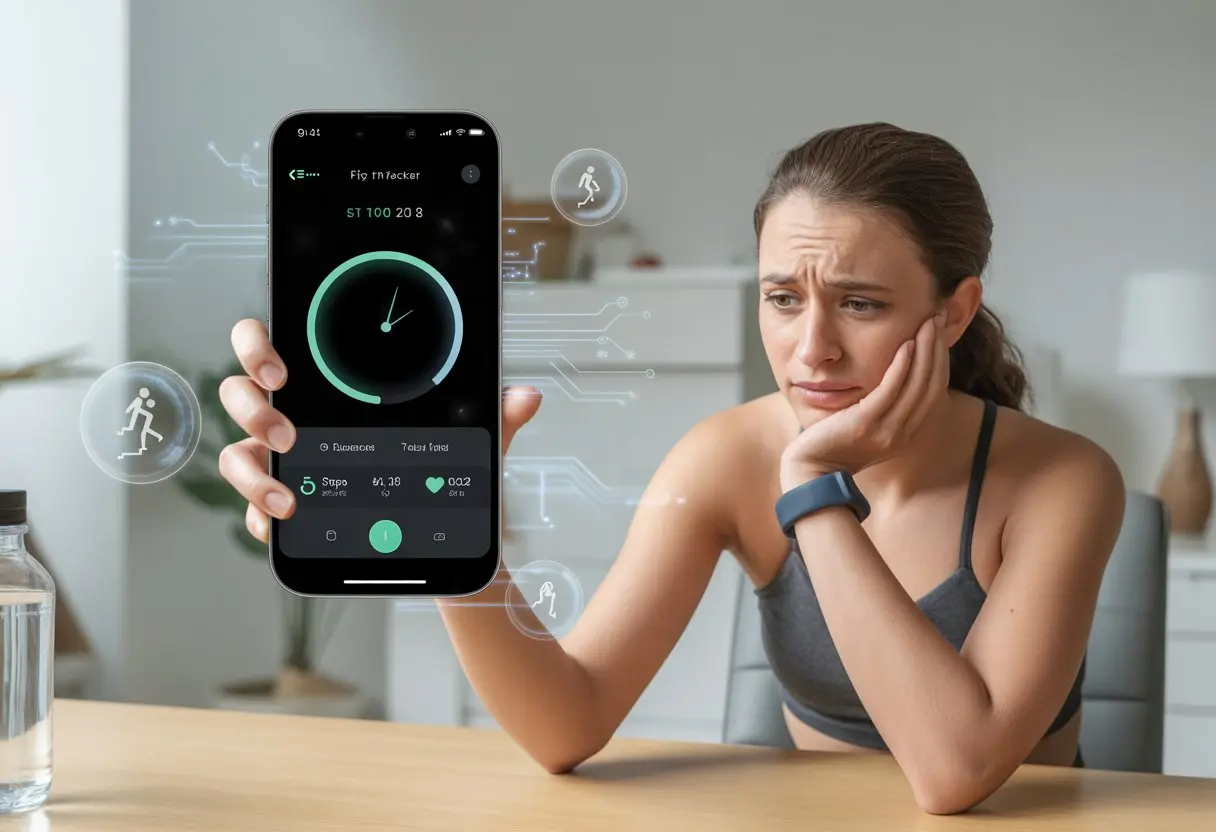
We’ve all been there—ready to log another salad or chase a new personal record, and then our fitness tracker app just… freezes. Sometimes it feels like the app’s just had enough. Usually, apps freeze because of software bugs, outdated versions, or too much data piling up behind the scenes. We close and reopen, reinstall, maybe even just stare at the screen, silently pleading for it to work.
It’s definitely not just us. Tons of users complain about fitness apps freezing, especially when checking nutrition info or exercise details. Sometimes, we end up restarting the app again and again just to get it working for another five minutes, like people mention on the MyFitnessPal Community.
If our app can’t keep up with our daily routines, at least we know we’re not alone.
So what’s actually happening behind that frozen screen? Let’s dig into why these apps keep glitching out and what we can try to get back to tracking our steps—without wanting to hurl our phones across the room.
Understanding Why Your Fitness Tracker App Freezes
Ever found yourself stuck on a frozen screen, feeling the frustration rise? We sure have. Let’s talk about what really makes fitness tracking apps grind to a halt, leaving us stranded with our steps stuck at “2.”
Common Causes of Freezing
Fitness tracker apps can freeze for all sorts of reasons. The biggest offender? When the app tries to handle too much data at once (kind of like us at a salad bar, piling on the toppings).
If we track intense workouts, lots of metrics, or have a backlog of health data, the app can get overwhelmed.
Outdated software is another classic problem. Old versions get tripped up by new features or recent compatibility changes.
Sometimes, it’s the phone or watch itself—too many open apps or low memory can bog everything down.
Freezing and crashing often happen after updates. Many users say their fitness apps freeze since update, especially when flipping between screens like activity and nutrients.
Restarting the app, clearing the cache, or—if we’re feeling bold—reinstalling it can help.
App and Device Compatibility
It’d be great if every app and device got along, but that’s just wishful thinking. Some apps run better on certain devices.
If we try to use the newest fitness app on an ancient iPhone or an Android that hasn’t seen an update in years, we’re asking for trouble.
Even new devices can have issues. Differences in hardware or software sometimes cause freezing.
An app might work fine on one smartwatch brand but freeze on another. Fitness tracker apps can be picky—they want all the latest permissions, too, and get “stage fright” if they don’t have them.
Using third-party accessories, like Bluetooth heart-rate monitors, can also mess things up if they don’t play nice with the app. Compatibility issues usually show up as glitches, lag, or screens freezing longer than our willpower at 6 a.m.
The Role of Operating Systems
Our fitness tracker app and our phone’s operating system (OS) have to work together, but sometimes they just don’t.
When we update our Android or iPhone, the OS changes a bunch of stuff behind the scenes. If the app hasn’t kept up, it might freeze, crash, or just disappear (kind of like our motivation some mornings).
Sometimes, everything works until the next OS update, and then—bam!—exercise tracking freezes mid-run.
It’s smart to check for both app and OS updates regularly. If things go sideways, restarting the device or reinstalling the app might save the day (or at least delay the next meltdown).
Device-Related Problems That Cause Freezing
Sometimes our fitness tracker apps act up and leave us sweating for all the wrong reasons. Usually, the main culprits are our own devices and how we use (or abuse) them—from pushing them too hard to letting them overheat.
Performance Limitations of Smartphones and Computers
Let’s be real: our smartphones and computers can only handle so much before they start begging for mercy.
If our devices are old or running low on storage, they slow down and fitness tracker apps freeze more often. Budget Androids or aging PCs especially struggle with newer, heavier apps.
Even newer gadgets can get bogged down if we load them up with photos, run low on free memory, or skip software updates.
If our phone’s storage is almost full, even sending a text can feel like running a marathon. Clearing out unused apps and files can actually make a big difference.
Even Macs and newer iPhones can start stuttering if we overload them with demanding apps. It’s not just about the age—it’s how much we expect our devices to juggle at once.
When our tech runs out of steam, fitness tracker apps can freeze up in no time.
Impact of Running Too Many Background Apps
We might love multitasking, but our gadgets? Not so much.
Having a bunch of background apps open is one of the top reasons for freezing. If we’ve got streaming, messaging, and music apps running alongside our fitness tracker, it’s no wonder things slow to a crawl.
Android phones especially seem touchy about this, often locking up when too many apps are running or memory gets low.
Keeping more than just our workout app open is a quick way to push the system over the edge.
Smartphones and computers need some breathing room. If we close background apps, most fitness tracker apps run smoother.
It’s like clearing the living room before doing jumping jacks—more space, fewer crashes.
When Electronics Just Need a Break
Like us after a tough workout, sometimes our electronics just need a timeout.
Leaving our phones, tablets, or computers on for days without a restart can make them freeze up. Letting them go for days on end is just asking for weird glitches and slowdowns.
A quick restart can work wonders for both phones and computers. Even the big tech companies recommend the classic “turn it off and back on again”—because, honestly, it works.
If our app keeps freezing, a full reboot is often the fastest fix.
Electronics can also get grumpy if they’re overheating. If our phone feels hot, it’s time for a break.
Sometimes, our devices need a cool-down, just like us after a sweaty HIIT class.
Connectivity Issues and Their Role
Fitness tracker apps love to blame our phones, but sometimes the real problem is the connection. The app, our device, and the world around us all play a part in those annoying freezes.
Bluetooth Blues: When Your App Loses Connection
Let’s just admit it—Bluetooth can be moody. One minute we’re nailing our step goal, and the next, the app’s just frozen.
Most trackers rely on Bluetooth to send workout data from the wearable to our phones. If the Bluetooth signal drops out (thanks, concrete walls, crowded rooms, or just plain bad luck), syncing can freeze up in a flash.
Bluetooth can also get confused if we’ve got too many devices connected. Headphones, speakers, smartwatches—they all compete for attention.
The more gadgets we connect, the higher the odds our fitness app will freeze up like a laptop from the ’90s.
Restarting Bluetooth, disconnecting extra devices, and keeping our phone close to the tracker helps. Sometimes, turning everything off and back on is the only thing that works.
WiFi and LTE: The Dynamic Duo or Dubious Duds?
When Bluetooth steps aside, WiFi and LTE take over. Fitness apps often need internet to load maps, save stats, and show off those fancy graphs.
But slow or spotty WiFi can totally ruin our momentum, making the app stutter or freeze mid-run. LTE can help, but only if we’ve actually got a signal.
Switching between WiFi and LTE while using the app can make it freak out and freeze. Public networks (like that sketchy coffee shop WiFi) can make things worse, especially if the connection keeps dropping.
A strong, stable internet connection is key for smooth tracking. If speed tests are slower than a lazy Sunday, it’s probably time to switch networks or just stick to LTE when we’re out and about.
GPS Glitches and Freezes
GPS is the star when it comes to mapping our runs, but even stars have off days.
Dense trees, tall buildings, and tunnels can make GPS signals vanish. If the app can’t lock onto our location, it might freeze or just not record anything.
Sometimes, our phone’s GPS settings or battery-saving modes dial down accuracy to save power. We end up paying for it when the app loses track of us, thinking we’re running laps in the living room.
Setting location services to high accuracy and avoiding signal blockers can help keep our data (and us) on track.
Problematic Updates and Buggy Software
App updates are supposed to make things better, but sometimes they just make everything worse. When our fitness tracker suddenly freezes, we probably have buggy software, out-of-date devices, or trouble brought on by big-name companies.
Dealing with Troublemaking App Updates
We all know the drill: an update pops up, we hit “install,” and suddenly our fitness tracker app is stuck. It’s not just us.
Plenty of users say that after a new release, apps like MyFitnessPal and Fitbit sometimes freeze at the worst possible moments.
Developers push out new features, and sometimes bugs sneak in. Maybe that fancy new graph crashes the app, or maybe the update only got tested on the latest devices.
Either way, we end up force-quitting and reinstalling more than actually tracking steps. Community forums are full of people dealing with freezing issues after an update.
Best move? Check for known problems before updating, and maybe wait a bit before installing the latest version if we’re feeling cautious.
Old vs. New: Is Your Device Up To Date?
Sometimes, it’s not just the app that needs a refresh. Our Android device or Apple Watch needs regular software updates to keep up with the latest apps.
If our device is too old, the newest app version might not work well, making everything slow down or freeze.
Running outdated operating systems means missing bug fixes and improvements. But jumping on a software update the minute it drops can sometimes break app compatibility.
It’s a balancing act. We want new features—but not new problems.
The safest bet? Go for updates that aren’t too old, but not brand new either. And always back up our data, just in case.
Bugs From Software Companies: Thanks (But No Thanks), Microsoft and Apple
We can’t ignore the big players here. Microsoft and Apple, you’re definitely on the list.
Every time they roll out a major update, our apps sometimes start acting up in the weirdest ways. That supposedly harmless patch? Suddenly, we’re watching a parade of bugs on our devices.
One day, our fitness app works fine. Next day, it freezes after a system update. People have even reported Apple Fitness+ workouts freezing after a watch update.
Microsoft has its own history with app chaos, especially for anyone syncing with Windows. It’s a headache.
We’re left waiting for app developers to scramble for a fix, while our step count just sits there at zero. Thanks for the ride, tech giants. Maybe just double-check things next time before sending us on a bug hunt.
App Overload: Too Much of a Good Thing
Phones try their best, but we often push them to their limits. When we run too many apps, our fitness trackers can freeze, stutter, or crash right when we’re about to log that last push-up.
It’s basically a gym overcrowded with people—everyone’s fighting over dumbbells and nobody’s making progress.
Having Too Many Apps Competing for Attention
Imagine this: we’ve got the fitness tracker open, Spotify blasting, messages popping up, and, for some reason, a weather radar running in the background. That’s a lot for any phone or tablet to handle.
When we run a bunch of apps at once, our devices get overwhelmed and run out of memory. The fitness app often ends up at the back of the line, freezing or crashing.
Too many apps can overload the system CPU, making everything laggy. Experts say overloading the system slows things down when apps fight for resources like kids fighting over pizza.
Some devices warn us, but usually, our app just throws a digital tantrum. If our tracker keeps freezing, it’s probably time to cut back on multitasking.
Open Sesame: Closing Unwanted Apps
There’s a simple fix, but it slips our minds all the time. Closing unwanted background apps is basically telling the extra guests to leave so our fitness app can breathe.
We should swipe away or force-close apps we’re not using. Here’s how:
Android: Hit the square or overview button, then swipe apps away.
iOS: Double-tap the home button or swipe up, then flick those apps off.
When we keep only the essentials open, our fitness tracker finally gets the space and power it needs. This quick cleanup can stop freezing problems and sometimes makes everything else run smoother.
Apps always seem to freeze at the worst possible moments. When our fitness tracker locks up, we need a plan to get things moving again.
Restarting, using special modes, or giving the app a fresh start can usually do the trick.
Restart, Reboot, and Repeat
First step—let’s turn our devices off and back on. It sounds basic, but you’d be surprised how often it works.
Our phones and watches need a break too, just like we do after a workout. Try closing the app completely and reopening it.
If it’s still frozen, power off the whole device. This clears out those tiny software hiccups that block the app.
On trackers like the Apple Watch, a simple restart can fix things right away, as people mention in Apple forums.
If nothing changes after a reboot, it’s time to move on.
Try Safe Mode: Not Just for Superheroes
Some devices offer a special setting called “safe mode.” It’s not quite a cape, but it helps stop apps from misbehaving.
In safe mode, only the essentials run. We can turn it on by pressing and holding the power button, then holding the “Restart” or “Power Off” option until safe mode pops up.
Now, we can open our fitness app without all the extra software causing trouble. If the tracker works in safe mode, another app is probably the culprit.
After testing, just restart the device to go back to normal.
Standard Repair: Uninstall and Reinstall
If nothing else works, we can delete the fitness app and reinstall it from the store. It’s like a mini spring cleaning for our tech.
First, delete the app from the device. Then grab it again from the App Store or Google Play.
Don’t forget your login info, or you’ll end up sweating just to get back in. Lots of users say uninstalling and reinstalling fixes stubborn freezing issues, even on apps like Fitbit and Stryd, as seen in this Fitbit support thread.
With a little patience and a few taps, our fitness tracker usually comes back to life.
When Customer Support Becomes Your Best Friend
Sometimes, fitness apps freeze at the worst moments—like right after a workout or during a calorie count. The fastest fix might be reaching out for help, hopefully without losing our minds.
How to Reach Out Without Rage-Tweeting
We’ve all wanted to yell at our screens when tech fails us. But shouting into the void doesn’t help.
A calm, clear message gets better results every time. Here’s what actually works:
Gather details before contacting support. Snap a screenshot or jot down error messages.
Check the app’s Help section for known problems and updates.
Get your device info ready—support loves knowing what phone we’re using.
Instead of rage-tweeting, a well-written message saves time and stress. We’re more likely to get real help, not just a copy-paste reply.
Using Email and Support Chat for Help
Email lets us send details, screenshots, and step-by-step breakdowns of what’s going wrong. Most fitness tracker apps have a “Contact Us” link or support email in the app or on their website.
Support chat is quicker, but sometimes it feels like they’re just reading from a script. Still, a chat agent can walk us through basics like clearing cache or logging out and back in.
Both options beat guessing what’s wrong with a frozen app. For best results, be polite and specific.
Give the support team a clear picture so they can focus on fixing the problem, not just sending generic advice.
Advanced Troubleshooting for Persistent Problems
Sometimes, fitness tracker apps test our patience more than leg day. We can still fight back with a few advanced moves.
Let’s check out some tricks for those stubborn issues—like app freezes that make us want to throw our phones across the room (please don’t).
Checking for Device-Specific Glitches
Our devices can be dramatic. On Apple Watch, sometimes the fitness app or the iPhone connection just freezes, and suddenly our workout vanishes.
To fix this, restart both the watch and the phone. Tech likes fresh starts too, apparently. If things are still stuck, make sure you’ve updated to the latest operating system and app version.
Android devices have their quirks as well. Sometimes, clearing the app cache or data helps. Here’s how: Go to Settings > Apps > Your fitness app > Storage > Clear Cache.
If that fails, try reinstalling. Some users still have issues after reinstalling, as seen in MyFitnessPal app freezing.
If nothing works, we’re probably dealing with a temporary bug. Hopefully, someone at the app company is working on it.
Diagnosing Third-Party App Conflicts
Sometimes, our fitness app and other apps just don’t get along. Third-party apps can cause problems, especially those with permissions for location, fitness data, or notifications.
Bluetooth apps, battery savers, and alarm clocks can be troublemakers. To test for conflicts, restart in safe mode—this disables most third-party apps.
If the fitness tracker works in safe mode, another app is probably the cause. Exit safe mode, then disable or uninstall recent apps one by one until things work.
It’s not glamorous, but hey, someone’s got to play tech detective.
When All Else Fails: Exploring Alternative Solutions
Sometimes, no matter how many times we restart or threaten our phones, our favorite fitness tracker app just refuses to work. Luckily, we’ve still got options.
Let’s look at a few creative ways to keep tracking our progress—without losing our sanity or our data.
Trying the App on Different Devices
If our app keeps freezing on one device, it might work better elsewhere. Sometimes, using the tracker app on a different phone, tablet, or even a Mac can give us a break.
If you have an Apple Watch or iPad, syncing to those can help avoid annoying crashes.
Here’s a quick rundown:
Device
App Performance Potential
Notes
iPhone
Usually stable
Update to the latest iOS for best results.
iPad
Good
Larger screen, but check if it’s supported.
Mac
Moderate
Some apps have web versions for Mac.
TV
Limited
Most fitness apps don’t work on TV.
Trying the app on more than one device can show if the problem is with the device, the app, or just our luck.
Switching to Another Fitness Tracker
If our app just won’t play nice, maybe it’s time to switch. There are tons of fitness tracker apps out there—Fitbit, MyFitnessPal, Apple Fitness, Google Fit, and more.
Switching doesn’t mean losing all our hard work. Most major apps let us export and import our data.
Compatibility: Make sure it works on your favorite devices.
Features: Check if it tracks steps, heart rate, and the workouts you care about.
Switching might feel scary, but at least we’ll spend less time staring at a frozen loading screen.
Celebrity Guest Appearances: Will Siri Help?
Sometimes, when nothing else works, maybe it’s worth calling in backup from our digital assistants. Siri can log workouts, set reminders, or open up fitness apps for us—no need to fumble with the phone.
Just say, “Hey Siri, start a workout,” and suddenly you feel a little more tech-savvy. Siri pops up everywhere these days: iPhone, Mac, even Apple TV.
Although, let’s be honest, we’re not seeing Siri doing burpees on the big screen anytime soon. If the fitness app keeps freezing, Siri shortcuts let us jump right to logging a workout or checking our steps.
It’s not exactly like having a personal trainer, but hey, at least we’re not completely alone—even if our phone sometimes seems way smarter than we are.
Hi, my name is Garrett Jones, and I am a tech enthusiast. I enjoy researching the new tech that has been released, and have a vast knowledge of the best tech to purchase.
From a young age, I have always had a big interest in technology, and this blog is an extension of that interest. Through this blog, I hope to provide others with all of the information they need regarding tech options to consider, and things such as compatibility. Some of the different items I will be discussing include headphones, smartwatches, and how to fix common issues.