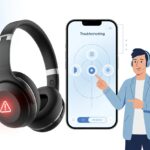
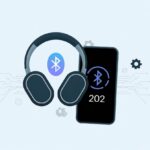
Bluetooth headphones are amazing—until Error Code 504 barges in and kills the vibe. Silence can feel way more dramatic than any bass drop. If you’re left wondering what on earth just happened, trust me, you’re not the only one.

The fastest way to fix Bluetooth error code 504? Restart your headphones and update or reinstall the Bluetooth drivers on your device. Sometimes, resetting the Bluetooth connection is the only thing that finally gets the music going again.
For those of us who just want our playlist back, let’s dive in and give Error 504 the boot.
Understanding Bluetooth Headphones Error Code 504
Bluetooth headphones feel like magic—right up until they throw a weird error just as we hit play. Error code 504? It’s usually a connection hiccup that stops us in our tracks.
Luckily, it doesn’t mean the end of our playlists.
What Does Error Code 504 Mean?
Error code 504 is basically the awkward third wheel at our Bluetooth party. It usually pops up when our headphones and device can’t finish their connection handshake. Think of it as a digital “nope” sign—pairing failed, connection stalled.
We run into this code for a bunch of reasons: mismatched security keys, a weak signal, device timeouts, or just plain software bugs. Sometimes, our device is just being dramatic and wants us to turn it off and on again.
Other times, one device expects a pairing code but the other doesn’t show it. Some headphones pretend they have a display—even when they don’t. Windows gets confused by this and throws up pairing trouble, as you can see in this Microsoft discussion.
So, when error 504 pops up, it’s basically a small digital tantrum over missing info or instructions.
Devices Commonly Affected by Code 504
Let’s call out the culprits. Code 504 loves to mess with our headphones—especially wireless and truly wireless earbuds. Price doesn’t matter; it’s an equal-opportunity annoyance.
Laptops and smartphones from every brand can get hit with this error when trying to connect to Bluetooth headphones. Older Bluetooth versions (before Bluetooth 5.0) seem to have more issues.
Budget and no-name headphone brands? They’re especially prone to this, thanks to questionable quality control. Even the big brands aren’t totally safe.
Windows PCs get the worst of it, especially when pairing headphones that pretend to have a screen for codes. Android and iOS devices can run into this too, just not as often.
If your device has confusing menus or hidden pairing options, well, you might meet error 504 soon. For more about common Bluetooth connection headaches, check out this AudioChamps guide.
Immediate Solutions to Fix Error Code 504
Sometimes Bluetooth headphones throw up error code 504 just to get our attention. Good news: most fixes are quick and don’t need a deep dive into the user manual. No need to pretend we know what “Bluetooth stack” means.
Quick Restart and Reconnection Tricks
Let’s be honest—rebooting is the MVP here. Restarting both our headphones and the device we want to connect to clears out odd glitches, almost like shaking crumbs out of the couch.
How to reboot like a pro:
- Turn off your Bluetooth headphones.
- Wait about 5-10 seconds (maybe take a breath).
- Turn them back on.
Next, remove the headphones from your device’s Bluetooth list. Head to your phone or computer’s Bluetooth settings, find your headphones, and hit “Forget” or “Remove.” Then reconnect like it’s a brand-new friendship.
Usually, a fresh connection gets rid of error code 504.
If that doesn’t work, restart your phone or computer, too. Sometimes, the more reboots, the better.
Checking Bluetooth Device Power and Proximity
Bluetooth headphones won’t do much if the battery’s dead. Low power can cause all kinds of connection errors, including error code 504.
Make sure both your headphones and device are charged up. Dead batteries always ruin the fun.
Distance matters, too. Keep headphones and your device within 3-10 feet (1-3 meters) for a strong connection. If you wander too far or put a bunch of walls in the way, the signal gets weak.
Too many Bluetooth gadgets nearby can also mess things up. Turn off the extras you’re not using.
Here’s a quick checklist:
- Charge both headphones and device.
- Move barriers out of the way.
- Turn off unused Bluetooth devices nearby.
Activating Pairing Mode Correctly
Pairing mode is the secret handshake for Bluetooth headphones. If we mess up a step, our headphones might not show up—or worse, we end up connecting to the neighbor’s speaker.
Check the instruction manual or the box for pairing steps. Most headphones need you to hold down the power button for a few seconds until a light blinks (usually blue and red, but sometimes they get creative).
Pairing tips:
- Start with headphones off.
- Press and hold the pairing button until the indicator blinks.
- Open Bluetooth settings on your phone or computer, and select your headphones when they pop up.
If your headphones don’t show up, try again or restart both devices. Sometimes, you just have to keep at it—or take a snack break.
Advanced Troubleshooting on Windows 11
Honestly, Bluetooth error 504 is about as welcome as a mosquito at a picnic. Fixing it sometimes means rolling up your sleeves and poking around in Windows 11 settings and drivers. Not glamorous, but hey, it works.
Updating Bluetooth Drivers the Not-So-Boring Way
Let’s not just stare at the screen hoping it’ll magically fix itself. Outdated or messy Bluetooth drivers can cause all sorts of chaos and weird error codes.
Open Settings > Update & Security > Windows Update and check for updates. If Windows 11 finds Bluetooth driver updates, install them.
If that doesn’t help, head to your laptop or Bluetooth dongle manufacturer’s website and grab the latest Bluetooth drivers. Most brands have a support page for driver downloads.
Updating drivers helps Windows 11 and device manager handle Bluetooth functionality better. For step-by-step help, Microsoft has a Bluetooth problem guide.
Tweaking Device Manager Without Losing Your Sanity
Device Manager can feel like a junk drawer, but it’s where we can actually fix Bluetooth stuff. Press Win + X and pick Device Manager—don’t get lost in the icons.
Look for “Bluetooth,” expand it, and right-click your Bluetooth adapter. Try updating the driver (even if you just did—it’s Windows, who knows), or uninstall it, restart, and let Windows 11 reinstall the driver.
Checklist:
- Is the adapter disabled? Right-click and enable it.
- Are other devices fighting for control? Disconnect extras.
- Still stuck? Run the Bluetooth troubleshooter in Settings.
Windows 11 loves hiding fixes in plain sight, so sometimes just poking around here saves a lot of headaches. More tips are in this Bluetooth connection issues guide.
Solving Persistent Bluetooth Connectivity Issues
Stubborn Bluetooth connections can really test your patience. Dropped headphones and interference are a shared struggle, but there are fixes that actually work.
Avoiding Bluetooth Interference (and Exorcising Gremlins)
When our headphones cut out, it sometimes feels like gremlins are messing with us. In reality, Bluetooth devices clash with microwaves, Wi-Fi routers, and crowded rooms full of electronics.
Let’s channel our inner ghostbusters:
- Keep Bluetooth headphones and devices away from microwaves and thick walls.
- Place your phone or laptop as close as possible to the headphones.
- Turn off other unused Bluetooth gadgets to clear the airwaves.
Still getting interference? Try switching your Wi-Fi to the 5GHz band. Most Bluetooth signals use 2.4GHz, so this can help reduce traffic jams.
Sometimes, just resetting your headphones—or your device—can kick out those connection goblins. For more interference-busting tips, check out this Bluetooth troubleshooting guide.
Handling Frequent Disconnections Like a Pro
Frequent disconnections feel like getting stuck in a bad sitcom. To get things back on track, start by updating Bluetooth drivers. On Windows, you can update drivers or run System File Checker to fix broken files.
Here’s your disconnection-fighting checklist:
- Restart both headphones and device.
- Re-pair the headphones—delete the old connection and add them again.
- Check if you’ve hit the max number of paired devices—some models have limits.
- Still nothing? A factory reset for the headphones can clear up any software sulks.
If nothing helps, hardware problems like a dying battery or worn-out parts could be the culprit. Sometimes, it’s time for a pro to take a look.
Prevention and Best Practices for Bluetooth Headphones
To keep Bluetooth headphones running smooth and dodge annoying error codes, two things matter most: updates and battery management.
Those tiny earbuds have more brains than our old calculators, and they definitely work better when they’re not running on fumes.
Keeping Software and Drivers Up to Date
Outdated firmware is basically Bluetooth’s way of saying, “Nice try, but nope.” Manufacturers keep rolling out updates, and usually, they sneak in bug fixes or performance tweaks we didn’t even realize we needed.
If we’re still running our headphones on their original software, it’s like watching a movie on VHS—doable, but why put ourselves through that?
Here’s what we should do:
- Check for headphone firmware updates regularly using the official app or website.
- Update our device’s Bluetooth drivers, especially after system updates.
After an update, restart both devices. Turning things off and back on actually works more often than we’d like to admit.
Firmware updates don’t just squash bugs—they sometimes add new features or solve weird connection problems. Skipping them is like walking past free pizza at a party. Who does that?
For more info on Bluetooth security and updates, have a look at the Guide to Bluetooth Security.
Managing Battery Levels and Power Settings
Low battery is the arch-nemesis of Bluetooth connectivity. When our headphones are running low, we start seeing random disconnects, strange errors, or that dreaded error code 504.
It’s best to keep those charge levels up. I mean, would you take a road trip with an empty gas tank?
Here’s the battery routine that actually works:
- Charge headphones fully before long use.
- Pay attention to low battery warnings—not just the annoying beeps!
- Don’t let headphones and devices sit for weeks without charging. That’s just asking for trouble.
Managing our Bluetooth settings helps too. Turning Bluetooth off when we’re not using it saves battery and keeps random devices from trying to pair.
If our headphones have a power-saving mode, maybe we should actually use it. It’s not just there for decoration, right?
Keeping both the headphones and the connected device charged and managed means fewer interruptions. Unless we’re head banging to rock, we really don’t need the extra headaches.
When All Else Fails: Reaching Out for Expert Help
Sometimes our Bluetooth headphones just refuse to cooperate, no matter how many tricks we try. At some point, we might need to call in the experts or dive into the wild world of Internet forums for help with error code 504.
Contacting Manufacturer Support (Without Tears)
Honestly, calling tech support feels about as fun as stepping on LEGOs. But sometimes, the manufacturer can get us answers faster than we expect, especially when our Bluetooth devices go rogue.
Before reaching out, grab the essentials: headphone model, proof of purchase (if it’s not lost in a drawer somewhere), and a quick list of what we’ve already tried.
Most brands offer online chat or email support now, so if talking on the phone isn’t our thing, we’ve got options. Some companies also keep their support pages up to date with guides for stubborn pairing or error code 504 headaches.
Patience really helps. Support usually asks us to restart everything—sometimes more than once—but following their steps might reveal a fix we missed. If they can’t help, there might be a warranty option for repair or replacement.
Community Forums and Peer Solutions
If you’ve spent so long on hold with support that you could’ve knit a sweater, it’s probably time for Plan B: community forums.
These places are gold mines. Headphone users there have already seen every error code under the sun—including that annoying 504.
You’ll find step-by-step fixes on sites like Reddit, official brand forums, and even technology advice blogs. Sometimes, users share funny stories about surviving Bluetooth chaos.
Try searching for your exact headphone model and error code. Someone’s likely already posted a solution, maybe with a rant or two.
When you ask for help, mention what you’ve already tried. Peer helpers really appreciate details.
Oh, and if you can, toss in a screenshot or a photo. Sometimes a picture of that flashing red light gets the point across way better than words ever could.

From a young age, I have always had a big interest in technology, and this blog is an extension of that interest. Through this blog, I hope to provide others with all of the information they need regarding tech options to consider, and things such as compatibility. Some of the different items I will be discussing include headphones, smartwatches, and how to fix common issues.
- Bluetooth Headphones Error Code 504 Solution: Because Your Music Deserves Fewer Drama Queens - October 9, 2026
- Why do my Bluetooth headphones keep beeping? The Mysterious Symphony of Wireless Annoyance Explained - October 8, 2026
- How to use Bluetooth headphones with a drone remote Without Looking Like a Confused DJ - October 8, 2026
Related Posts: