Who hasn’t felt the urge to launch their Bluetooth headphones across the room after seeing error code 203? It’s like the devices are speaking in riddles, and we’re left out of the loop. One minute we’re ready to hit play, the next our Bluetooth gear acts like it’s never met us.
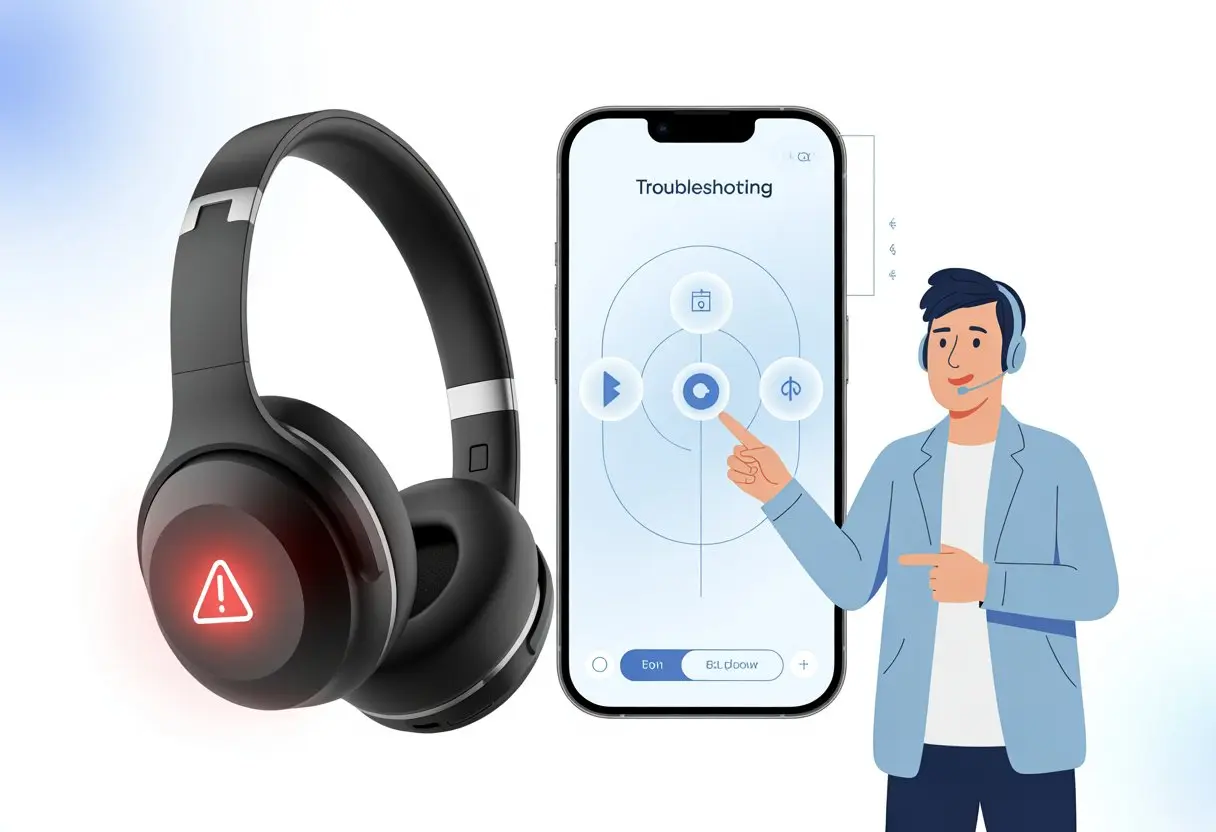
The quick fix for Bluetooth headphones error code 203 is usually to restart both the headphones and the Bluetooth device, then try repairing them. Sometimes, a bit of patience and, let’s be honest, some good-natured yelling gets things working again. If you’re lost, you’ll find plenty more tips in community forums like this helpful thread.
Let’s take a breath and dig into the real fixes—hopefully keeping our headphones (and nerves) intact.
Understanding Bluetooth Headphones Error Code 203
We’ve all been there—Bluetooth headphones just refuse to connect and suddenly flash that cryptic “error 203.” Before we blame cosmic forces or our pets, let’s figure out what’s actually going on.
What Causes Error Code 203?
Error code 203 usually pops up when our headphones and device just aren’t seeing eye to eye. Most of the time, it’s because the Bluetooth driver is outdated, missing, or maybe even corrupted. Sometimes Windows decides to be difficult and just won’t recognize our headphones.
Conflicting connections can also mess things up—maybe we tried to pair too many devices, or there’s interference from other electronics. A dying battery can trigger error 203 as well. Software updates sometimes scramble Bluetooth settings, leaving us frustrated. If we’re constantly rebooting, it might be time to update those drivers.
Common Symptoms and Warnings
Error code 203 doesn’t exactly sneak up on us. We’ll usually get pop-ups like “Pairing Failed” or “Can’t Connect.” Sometimes Windows just flashes 203 at us and expects us to decode it.
Our headphones might not show up on the available devices list, even after we’ve hammered the refresh button. Or maybe they seem to pair, but the sound stubbornly keeps coming from the computer speakers. Annoying beeps or flashing lights are often our headphones’ way of waving a flag. As with most Bluetooth issues, a little patience—and maybe a snack—often helps. For more on these problems, Microsoft’s support page has some solid troubleshooting tips at Fix Bluetooth problems in Windows – Microsoft Support.
Initial Troubleshooting Steps
Before panic sets in, let’s start with some basic checks. These first steps sound simple, but skipping them can make us waste time on something we could’ve fixed in seconds.
Check Battery Level First
Let’s be real—dead headphones won’t connect to anything. We should check if our Bluetooth headphones have enough battery. Most have an LED that blinks red when it’s time to charge. Some models play a warning tone, too.
Plug the headphones in and let them charge for at least 15 minutes if possible. Low battery can cause random error codes or connection drops. Many headphones just won’t pair at all when the battery’s low.
If our headphones don’t have a screen, the companion app on our phone can be a lifesaver. Some phones show the battery level next to the Bluetooth device name. We don’t want to go through a dozen troubleshooting steps just to realize the battery was dead.
Verify Pairing Mode On Your Headphones
Pairing mode is like a secret handshake between our headphones and our device. If the headphones aren’t in pairing mode, our phone or laptop won’t spot them. Usually, holding down the power button for a few seconds does the trick—a light flashes or a voice tells us they’re ready.
It’s worth checking the manual, no shame in that. Some models use a different button or a double-tap to enter pairing mode. Skipping this is like expecting a dog to fetch without throwing the ball.
If our device still can’t find the headphones, we should remove them from any old device they were paired with. For detailed steps, check this Bluetooth pairing guide.
Ensure Bluetooth is Switched On and Off (Yes, Really)
We know—turning it off and on again is old advice. But hey, it works more often than we’d like to admit. Switch Bluetooth off, wait a few seconds, then turn it back on. This can clear up minor glitches.
If we paired the headphones before, removing them from the paired devices list and re-pairing can help. It’s like a digital handshake reset. Some devices just need a quick reset to get back on track.
Interference from other wireless gadgets can cause problems, too. Shutting down extra devices might help. Keeping that Bluetooth toggle handy never hurts—sometimes the simplest trick is the one that works.
Inspecting Your Bluetooth Settings Like a Detective
To fix error code 203, we need to dig around in our Bluetooth settings like a detective. The clues are usually hiding in Windows’ menus, just waiting for us to spot them.
Open Bluetooth Settings in Windows 10 and Windows 11
First things first, let’s open Bluetooth settings. Hit Windows key + I to get to Settings. In Windows 10, click Devices and then Bluetooth & other devices. For Windows 11, it’s Bluetooth & devices right on the sidebar.
Let’s double-check that Bluetooth is actually on. It’s easy to miss—sometimes the PC likes to turn it off for no good reason. The network icon in the taskbar can also show a tiny Bluetooth symbol. If it’s missing, that’s our first clue.
If the Bluetooth toggle is grayed out or gone, we might need to update drivers or restart the computer. Not glamorous, but it works. For more details, check out this guide to fixing Bluetooth in Windows.
Remove and Re-Add Your Headphones
Let’s see if our headphones are listed in Bluetooth & other devices. If they’re there but not working, click the device and choose Remove device. This clears things up.
Now it’s time to re-pair the headphones. Hit Add device, put the headphones in pairing mode (usually holding a button until a light blinks), and wait for them to show up. Click, connect, and with luck, problem solved.
If things still don’t work, restarting both the computer and the headphones can help. Sometimes, a little nudge gets stubborn devices talking again. For more help, check these steps for removing and re-adding Bluetooth headphones.
Is Your Device Manager Hiding Something?
Sometimes, computers hide the very clues we need. Let’s poke around in Device Manager and see if there’s a Bluetooth issue lurking.
Locate Bluetooth Devices in Device Manager
Open Device Manager by right-clicking Start and choosing “Device Manager.” Look for the Bluetooth section. If it’s missing, check under “Other devices” or “Unknown devices.”
If we spot a “Bluetooth Adapter” or “Bluetooth HID Device,” we’re getting somewhere. Still nothing? Go to “View” and select “Show hidden devices.” Sometimes the computer hides things for no clear reason.
We might see a bunch of Bluetooth gadgets or just a lonely adapter. If it all looks right, maybe treat yourself to a cookie.
Check for Error Icons or Warnings
Now, let’s look for trouble signs. In Device Manager, error icons are the computer’s way of waving a flag. A yellow triangle or red X next to a Bluetooth device means something’s up.
Click on the unhappy device and check its properties for error codes. Error code 203 might show up here, demanding attention. These icons are actually helpful—they point us straight to the problem.
If you see that yellow warning, try reinstalling the driver or scanning for hardware changes. That often wakes Bluetooth up and saves us from another round of frustration.
Fixing Bluetooth Driver Issues
When Bluetooth headphones show error code 203, often it’s the drivers or adapter causing the trouble. We can dig in with a few clicks, a bit of patience, and maybe a snack to keep things sane.
Update Bluetooth Drivers Without Losing Your Mind
Let’s be real—updating Bluetooth drivers isn’t exactly thrilling. Still, sometimes it’s the only thing that’ll bring order to the chaos.
First, open Device Manager. Hit Windows + X and scroll through the menu until you see Device Manager.
Once you’re in, hunt for Bluetooth. Find your Bluetooth adapter—it might say Intel, Realtek, Broadcom, or just “Bluetooth”—and right-click it.
Click Update driver, then pick Search automatically for drivers. This lets Windows dig around for a fresher version.
If Windows finds a new Bluetooth driver, it’ll install it for you. If not, you’ll want to check the manufacturer’s website, since Windows sometimes holds out on updates.
Outdated drivers often cause those annoying Bluetooth driver errors. Keeping Bluetooth drivers current can really save you a lot of troubleshooting (and maybe your sanity).
Reinstall Bluetooth Adapter Drivers
If updating doesn’t do the trick, it’s time to try reinstalling the Bluetooth driver. Don’t worry, you won’t need a helmet—maybe just some patience.
Go back to Device Manager and right-click your Bluetooth adapter again. This time, choose Uninstall device.
A pop-up might ask if you’re sure. Click “Yes” and let it vanish. After that, reboot your computer.
Windows should spot the Bluetooth adapter and reinstall its driver automatically.
If the adapter doesn’t show up like it’s supposed to, click Action > Scan for hardware changes at the top of Device Manager. This tells your computer to look for missing drivers.
If Windows still refuses to cooperate, grab the latest driver from the manufacturer’s website and install it yourself. For step-by-step help, here’s a guide to fixing Bluetooth driver errors.
Other Crucial Bluetooth Troubleshooting Tactics
Bluetooth headphones sometimes just won’t play nice, and it’s honestly frustrating. Good news: a few simple tricks can solve a lot of these connection headaches, and you don’t need a tech degree to try them.
Run Bluetooth Troubleshooter for Quick Fixes
Believe it or not, Windows has a built-in troubleshooter that tries to fix Bluetooth issues for you. The Bluetooth troubleshooter can save you a lot of hassle.
Here’s what to do:
- Open the Settings app by pressing Win + I.
- Go to System > Troubleshoot > Other troubleshooters (or just search for “troubleshoot”).
- Find Bluetooth and click Run.
The troubleshooter checks your settings, drivers, and other usual suspects. It’s especially handy if your headphones keep disconnecting or refuse to pair.
If it finds a problem, it fixes it for you—no guesswork needed. For more info, check the official Microsoft Support page on fixing Bluetooth problems.
Restart Bluetooth Support Service (No, You Won’t Break Anything)
Sometimes Bluetooth just needs a little push. The Bluetooth Support Service helps Windows handle all Bluetooth activity.
If it gets stuck, your headphones might ghost you. Here’s how to restart it:
- Press Win + R, type services.msc, and hit Enter.
- Scroll down to Bluetooth Support Service.
- Right-click and choose Restart.
Restarting this service doesn’t erase your devices or mess up your settings. It’s more like nudging Bluetooth awake.
Once you’ve done this, try to connect your headphones again. Sometimes this solves issues that the troubleshooter can’t touch.
If your headphones start working, hey, you just fixed it—no soldering iron required.
Environmental and Connection Checks
Before you blame your headphones or curse Bluetooth, check your internet and connection settings first. Sometimes, fixing Error Code 203 is all about the basics.
Check Internet Connection (It’s Always the Wi-Fi, Right?)
We’ve all blamed Bluetooth when the real villain was the Wi-Fi. While Bluetooth doesn’t need the internet to pair, devices—especially Windows PCs—might need to go online to fetch drivers or troubleshoot.
If your computer can’t hop online for updates, Bluetooth connections might not work right.
Quick check:
- Open a browser and visit any website.
- If you see a “You’re offline” message, well, there’s your answer.
- Try restarting your router or checking cables if nothing loads.
Switching between Wi-Fi networks on a laptop can also mess with Bluetooth pairing. Sometimes your computer just gets confused juggling connections.
For more on fixing these issues, check out the Microsoft Support page for Bluetooth problems.
Disable Airplane Mode Accidentally (Or On Purpose)
Airplane Mode is a lifesaver on flights, but if you (or your cat) turned it on by mistake, Bluetooth shuts down quietly with Wi-Fi.
Look at your taskbar or notification center. Spot the little airplane icon? Airplane Mode is probably on.
Here’s how to fix it:
- Tap the airplane icon and toggle it off.
- On some Windows devices, go to Settings → Network & Internet → Airplane mode and switch it off there.
Once it’s off, Bluetooth and Wi-Fi should come back to life.
A surprising number of Bluetooth problems start here. If your headphones won’t connect, toggling Airplane Mode might be all you need.
For step-by-step help, check this Bluetooth troubleshooting guide.
Don’t Forget to Update Windows
Before you start blaming your Bluetooth headphones, make sure your Windows system is actually up to date. Sometimes the fix is sitting in a Windows update, just waiting for you to click it.
Steps to Update Windows 10 and Windows 11
Let’s not get stuck with system updates from the Stone Age. For both Windows 10 and Windows 11, open the Settings app by pressing Windows key + I.
Find Update & Security (or Windows Update in Windows 11).
Click Check for updates. If Windows finds something new, don’t ignore it—hit Download and let it work.
These updates can fix driver errors, squash bugs, and sometimes even revive broken Bluetooth connections, according to Microsoft’s support guide.
Once updates finish, restart your computer like the responsible adult you are (even if “Remind Me Later” is tempting). You might get lucky and see those Bluetooth headphone errors vanish.
When All Else Fails: Call for Backup
Sometimes, no amount of button mashing or restarts will make that stubborn error code 203 disappear. At that point, it’s probably time to ask for help—or maybe start looking for something shiny and new.
Contacting Support or Considering Replacement
First off, let’s just bite the bullet and reach out to support. Most bluetooth headphone brands actually have a support team—probably running on too much coffee—ready to help us figure things out.
Before you contact them, grab your device model, purchase date, and a description of what’s going wrong. Don’t skip the awkward details like, “I tried turning it off and on six times.” They’ve heard it all.
Some companies let you chat live, send an email, or even call a real human. If your bluetooth device is still under warranty, definitely mention it. That can speed things up or maybe even land you a free repair or replacement.
But if every tech support step just leads to more confusing jargon, and those headphones keep flashing error code 203, maybe it’s time to give up and start hunting for a new pair with a long battery life. Honestly, some models claim up to 40 hours of playtime.
We all deserve to enjoy our music without error codes ruining the vibe.

From a young age, I have always had a big interest in technology, and this blog is an extension of that interest. Through this blog, I hope to provide others with all of the information they need regarding tech options to consider, and things such as compatibility. Some of the different items I will be discussing include headphones, smartwatches, and how to fix common issues.
- The Best Rugged And Waterproof Smartwatches - October 21, 2026
- 10 Best Military Smartwatch – Find The Best Tactical Military Watches in 2023 - October 20, 2026
- Are Wired Headphones Safer Than Bluetooth? A Friendly Guide - October 20, 2026
Related Posts: