We’ve all been there—ready to check out our hard-earned steps, only to find our fitness tracker and phone are giving each other the silent treatment. Syncing issues make us wonder if we really did that morning run, or if our watch just decided to take a nap instead.
Most of the time, syncing problems happen because of a weak Bluetooth connection, outdated apps, or getting logged out of our accounts.
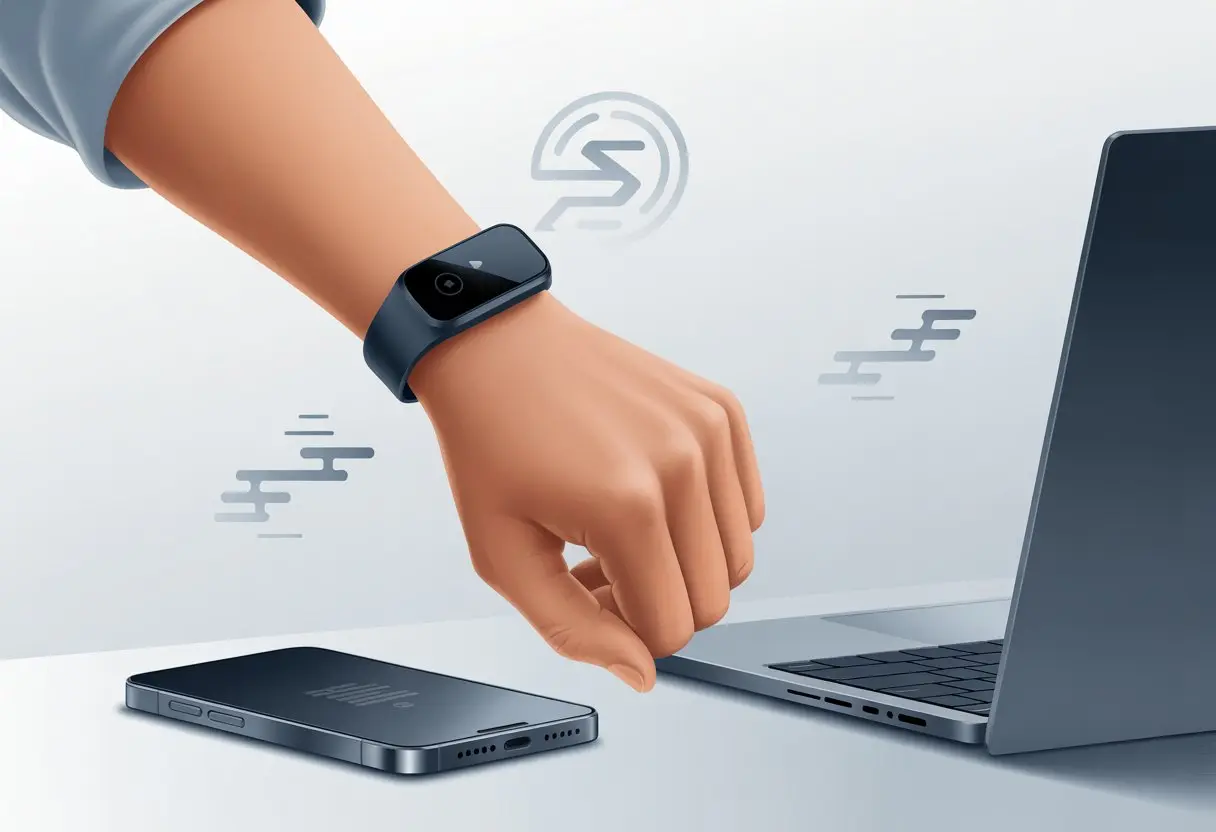
It’s honestly frustrating when our stats don’t show up and our effort feels wasted. Sometimes, trackers just need a restart, and other times, a sneaky Bluetooth device messes up the connection.
In some cases, we simply need to sign back into our account. You’ll see this pop up in online discussions, like this Apple Fitness Plus sync issue and Fitbit syncing problems.
So, before we panic and assume our tracker just moved out, let’s check some simple reasons our devices aren’t syncing—and see how we can get our fitness data back where it belongs.
Common Reasons Your Fitness Tracker Isn’t Syncing
Let’s be real—when our fitness trackers stop syncing, it feels like technology is out to get us. Usually, though, the issue is more about simple errors than some weird technical mystery.
Bluetooth Connection Issues
Our fitness trackers and phones talk to each other through Bluetooth. If the Bluetooth setting is off or both devices aren’t close enough, syncing fails faster than our motivation on a rainy Monday.
Bluetooth connections can get confused. If our fitness app isn’t working, the first thing to check is whether Bluetooth is even turned on for both devices.
Try turning Bluetooth off and then back on—sometimes it just needs that little push.
Other times, another device nearby might already be connected to our fitness tracker, leaving our phone out in the cold. We should disconnect unnecessary devices and reconnect just the tracker.
In rare cases, restarting both devices or resetting network settings clears up stubborn Bluetooth problems. For more on Bluetooth issues, see this guide about smartwatch syncing problems.
Compatibility with Devices and Operating Systems
Nothing stings quite like buying a new fitness tracker and realizing it won’t work with our phone. Big brands push out updates a lot, and older operating systems sometimes get left behind.
If our phone or tracker runs on an outdated operating system, syncing just won’t work right. We should keep both our tracker and phone updated with the latest software.
Some features only work on certain devices or software versions, so it’s smart to double-check what’s supported.
Before buying or updating anything, it’s worth checking the compatibility list in the app or on the device’s website. No one wants a tracker that only syncs with a pager.
App Permissions and Settings
Fitness apps can get pretty picky about permissions. If we ignore those popups, syncing can grind to a halt.
The app might need access to Bluetooth, location, motion data, and background app refresh.
Let’s not let privacy settings ruin the fun. We should check the app settings and make sure all necessary permissions are enabled.
If the app can’t run in the background, syncing might stall out, as explained in this helpful piece on device syncing.
We should also double-check notification and battery settings. Some phones love saving battery by shutting down apps, which sounds great until our steps disappear.
Troubleshooting Steps for Fixing Syncing Issues
Sometimes, our fitness trackers act like they have a mind of their own. If our steps, calories, or rings aren’t showing up, it doesn’t mean we should just give up.
Most syncing problems can be solved with a few practical moves—no sweat required.
Restart Your Fitness Tracker and Devices
Let’s start simple. When in doubt, just restart everything.
Turning our tracker and phone off and back on can work wonders. This resets any weird glitches that crept in during the last midnight update.
A quick restart does a few things:
- Refreshes Bluetooth connections.
- Wakes up lazy background processes.
- Reminds our tech who’s actually in charge (hint: it’s us).
If we use an Apple Watch, we should restart both the watch and iPhone, especially after an iOS update.
Sometimes the app just needs a timeout to start behaving. Honestly, if Tech Support had a motto, it’d be “Have you tried turning it off and on again?”
Unpair and Re-Pair Devices
If restarting doesn’t cut it, let’s take it up a notch. Sometimes devices need a clean slate—a fresh start for our fitness friendship.
That’s where unpairing and re-pairing come in.
On most trackers, we go into Bluetooth settings, forget or remove the tracker, then pair it again like it’s brand new.
With Apple Watch, unpairing is basically a breakup, and pairing is the reunion we didn’t know we needed.
This trick often fixes hidden Bluetooth issues or permissions problems. After this, don’t forget to enable fitness tracking and check if syncing issues finally vanish.
For a step-by-step guide, see this Bluetooth unpairing walkthrough.
Reinstall the Fitness App
When the gadgets themselves don’t seem to be the problem, the fitness app might be the real culprit.
Sometimes updates or bugs make our apps forget how to talk to our trackers. In this case, it’s time for the old uninstall-and-reinstall routine.
We delete the fitness app from our phone, which wipes out buggy or corrupted data. When we reinstall, it’s a clean start—like a mental reset after a cheat meal.
Make sure to reenable fitness tracking and let the app know it’s got one job: sync those steps.
If problems keep coming back, try resetting fitness calibration data or toggling data sharing in Apple Health settings. For more details, check out this guide on fixing fitness app sync issues.
Brand-Specific Syncing Solutions
Every fitness tracker has its own quirks. Sometimes, our gadgets just need a little encouragement before they decide to cooperate.
Whether we’re dealing with a stubborn Fitbit, an Apple Watch with attitude, or a Garmin that only responds to patience, the right steps can save us hours of headache.
Syncing Fitbit Devices with the Fitbit App
When it comes to syncing Fitbit devices, Bluetooth really runs the show. First, we check that Bluetooth is on and our Fitbit is charged. A dead battery just turns our tracker into a fancy wristband.
If we spot the dreaded “tracker not found” message, try turning Bluetooth off and back on again.
Sometimes, unpairing and re-pairing the device does the trick. Restarting both the Fitbit and our phone can clear up mysterious syncing issues.
If nothing’s working, uninstalling and reinstalling the Fitbit app is like giving everything a fresh start. Sometimes, that’s really all it takes.
You can find more steps for fixing these problems in this discussion on Fitbit syncing problems.
Syncing Data with Apple Watch and iPhone
When our Apple Watch refuses to sync with our iPhone, first check if both devices have enough charge.
Apple recommends that we use Settings to turn Bluetooth off and on again—apparently, doing it from Control Center just isn’t enough.
Force quitting (not just closing) both the Watch and Fitness apps can help too.
If the data still won’t sync, restarting both devices might do the trick.
Don’t forget: sometimes, unpairing and pairing the Apple Watch again is what finally works. Our gadgets need a timeout now and then, just like we do.
Apple users have gone through these steps in more detail in this Apple Support Community thread.
Resolving Garmin Connect Syncing Problems
Syncing with Garmin Connect sometimes feels like we’re solving a riddle.
First, check if we’re logged into the correct account on both the Garmin device and the Garmin Connect app.
Then, make sure our phone’s Bluetooth is working and the Garmin device is nearby.
Occasionally, syncing fails because the app or device isn’t updated. Always check for updates for both.
If things still aren’t working, uninstalling and reinstalling the Garmin Connect app can clear up lingering problems.
Restarting our Garmin device and our phone gives them a fresh start. If all else fails, Garmin’s support site or their team is a solid backup.
Checking App and Account Configurations
Let’s make sure our fitness tracker and our apps actually recognize each other. Syncing falls apart when our settings get mixed up or our software gets left behind—kind of like us on leg day.
Verifying Account Settings
First, check if we’re even logged in to the right account.
If we have multiple email addresses, sometimes we log in with the wrong one—hello, mystery data! We should open our fitness app and look at our account info.
On Fitbit, for example, head to the profile section and make sure it matches the one linked to our tracker.
If something looks off, logging out and back in can help. Accidentally connecting to the wrong account can stop syncing in its tracks.
For Apple users, double-check that we’re signed in to our Apple ID on all devices. A random sign-out after an update can sneak by and mess up syncing.
If we spot that, re-signing in usually fixes things—plenty of people mention this on Apple community forums.
Updating Fitness Apps from App Stores
Running an old app version can break syncing faster than we lose motivation for early morning runs. We should head over to the App Store or the Google Play Store and poke around for updates.
Most fitness apps—like Fitbit—roll out regular fixes that squash weird bugs, so staying updated matters. If we spot any updates, let’s install them and then maybe restart our phones as a little victory lap.
Outdated apps just don’t play nice with new devices, and they love causing syncing drama for no good reason. If updating the app doesn’t help, deleting and reinstalling can give it a fresh start.
It’s kind of like handing our fitness app a quick nap and a cup of coffee. But hey, don’t forget the login details, or we’ll end up locked out, which is a workout all its own.
Understanding What Data Is or Isn’t Syncing
Sometimes our fitness trackers act like moody teenagers who just don’t want to share. Not all data syncs, and figuring out what’s hiding helps us fix things without losing our sanity.
Workout and Heart Rate Data
Let’s start with the action heroes—workout data and heart rate. These are usually the first things to disappear when syncing acts up.
We might notice that yesterday’s epic walk shows up on the tracker but vanishes from our app. Workout data covers steps, calories burned, run distances, and those minutes we pretended to enjoy cardio.
Heart rate readings can ghost us too, leaving gaps in health graphs or missing blips. If our tracker refuses to share every move with our phone, maybe the Bluetooth connection is weak or the app’s just being cranky.
Some Apple users say turning on settings like “Motion and Fitness” and making sure auto-switch is enabled can help syncing for both workouts and heart rate data. If nothing else works, a good old device restart can sometimes scare the tracker into behaving.
Fitness Goals and Progress
Now, let’s talk about fitness goals and progress. These are supposed to remind us of our ambition (and guilt us when we skip leg day).
Sometimes we hit our daily step goals, but the app still calls us lazy. Or we crush the weekly heart target, but the stats just refuse to update.
Goals and progress don’t always sync across devices, especially if we use more than one tracker or app. Some trackers get confused about which device we’re using, so our latest achievements don’t make the jump to our other screens.
We should check if fitness goals are supported by all our apps and if we’ve given permission for health data syncing. If our tracker still won’t share the good news, it might be time to double-check app permissions or reset sync settings—just to remind our devices that teamwork matters, even if they forget sometimes.
When to Call the Pros: Getting Support
Sometimes, even after all our troubleshooting, we’re left scratching our heads. When our fitness tracker acts like a stubborn toddler, it’s time to call in backup.
Contacting Tech Support
Let’s be real: we’ve all spent too long poking at our devices, hoping for a miracle. When syncing just won’t work, tech support becomes our best friend.
Most fitness tracker brands offer customer service hotlines, live chat, or email help. We should jot down our device model, software version, and a list of everything we’ve already tried.
Support staff have seen it all, from trackers that went swimming in the laundry to ones stuck at zero steps. Reaching out is easy—many companies have online guides and contact info ready for us.
Some even offer support 24/7, so we can get help after a midnight run—or snack. If we’re lucky, there’s also remote troubleshooting, where an agent walks us through fixes step by step.
Learning from Verified Experts and Quality Processes
Not all advice is worth following. Directions from random internet strangers can sometimes make things worse—like turning our tracker into a pricey bracelet.
That’s where verified experts save the day. These tech pros have special training from device makers, and they use proven, step-by-step checks to find the real problem.
We can usually reach verified experts by starting a support ticket or using official customer forums. These folks sometimes use a multi-step expert quality process to spot sneaky syncing issues we’ve missed.
Some companies even promise round-the-clock access to their teams. It’s like having our own tech rescue squad always on standby, coffee in hand, ready to debug.
The Bright Side: Why You Shouldn’t Panic
Let’s face it—when our fitness trackers stop syncing, it feels like the world is ending. The truth? These hiccups are way more common in the world of consumer electronics than we think.
With a little know-how and some patience, we can keep tracking our steps and smashing our health goals.
Consumer Electronics Quirks and Fixes
We all know fitness trackers have a mind of their own sometimes. One minute, they’re counting every step, and the next, they act like we haven’t moved all week.
Thankfully, most syncing issues come down to simple things:
- Bluetooth not enabled
- App or tracker needs restarting
- Software updates waiting to install
Instead of calling a home repair pro (which is tempting), we can try these steps:
- Restart our devices.
- Make sure Bluetooth is turned on and off again.
- Check if our fitness app needs an update.
- Disconnect and re-pair the fitness tracker.
Most major brands deal with this issue all the time, so their support pages are packed with troubleshooting help. Fitbit users can try easy syncing fixes, and Apple Watch owners can check their settings for quick repairs.
Maintaining Your Health and Fitness Routine
Sometimes syncing just doesn’t work, but honestly, that doesn’t mean we have to lose our momentum with health and fitness. Our bodies still remember every workout, even if the tracker decides to forget.
If the tech lets us down, we can jot down our steps or activities in a notebook. I find that sticking to the same walking route or favorite workout makes it easier to guess how much we’ve done, even when devices glitch.
A syncing hiccup? It’s just a tiny setback for anyone serious about their health. Motivation and a bit of stubbornness can get us to our goals—no fancy gadgets needed. At the end of the day, we’re the ones calling the shots, not those unpredictable step counters.

From a young age, I have always had a big interest in technology, and this blog is an extension of that interest. Through this blog, I hope to provide others with all of the information they need regarding tech options to consider, and things such as compatibility. Some of the different items I will be discussing include headphones, smartwatches, and how to fix common issues.
Related Posts: