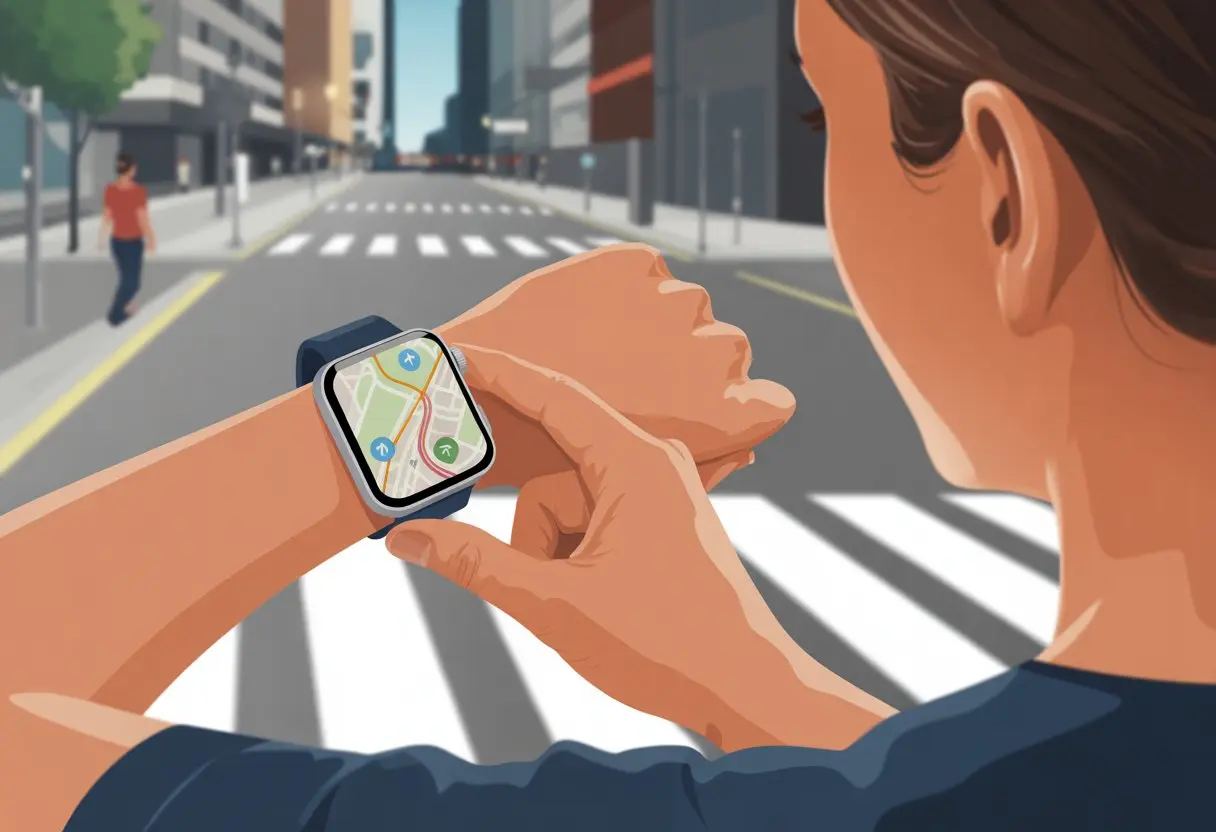
Let’s be real—most of us have wandered around, squinting at street signs that might as well be in another language. That’s when a trusty smartwatch saves the day, guiding us without making us look like we’re totally lost. With a smartwatch, we get navigation right on our wrists, so grabbing turn-by-turn directions is easy—and our hands stay free for, well, coffee or a high-five.
No more juggling phones, maps, and whatever else we’re carrying that day. These little devices bring GPS navigation, real-time location tracking, and even buzz our wrists when it’s time to turn, so we actually get where we’re going. Setting up navigation is way easier than folding a paper map, and it gives us a reason to check our smartwatch for more than just the time.
Let’s dive into how to use a smartwatch for navigation and see why these gadgets make getting around less stressful—and honestly, kind of cool.
Getting Started With Smartwatch Navigation
To get our smartwatch ready for navigation, we need to update it, pair it with our phone, and turn on all the location services. A few quick steps and we’re ready to follow trails, city blocks, or even just find where we parked.
Setting Up Your Device
First, let’s unbox the smartwatch—unless we already tore it open (hey, excitement happens). We press and hold the power button until the screen lights up.
Once it’s on, we pick a language, set the time, and connect to Wi-Fi if needed. Devices like Samsung Galaxy Watch or Wear OS models usually show instructions right on the screen.
Before we get carried away, let’s check for software updates. Updates mean better navigation features and fewer weird bugs. Nobody wants their watch to get lost in its own menus.
Pairing With Your Smartphone
Now it’s time for our smartwatch and smartphone to become best friends over Bluetooth. We open the smartwatch’s companion app on our phone—Galaxy Wearable for Samsung, Wear OS for others.
We make sure Bluetooth is on for both devices. Our watch should pop up in the app’s list, then we tap it and follow the prompts. Sometimes, we confirm a code so we don’t accidentally pair with the neighbor’s TV.
Pairing brings extra perks—like notifications on our wrist and using Bluetooth headphones for music or navigation cues. Phone connectivity really makes the magic happen.
Enabling GPS and Connectivity
To use navigation, we need to enable GPS. Usually, we find this under “Location” or “GPS” in settings. Some smartwatches use connected GPS, grabbing the phone’s GPS to save battery.
On Android and Wear OS, it’s important to give location permissions to both the watch and the phone app. If we forget, we might just wander in circles—which is great for step counts, but not for getting anywhere.
We can also turn on Wi-Fi and mobile data (if our watch has it) for smoother updates to maps and routes. If our watch supports it, we should try navigation with Bluetooth headphones so we can hear directions without talking to our wrist in public.
Essential Navigation Features Explained
None of us want to get lost on purpose, right? Let’s check that our smartwatches have the right features. Whether we’re hiking, searching for pizza, or just trying to get home, these features really help.
Using Maps and Directions
Smartwatches with navigation show built-in maps and directions. We can see our location on a tiny map—no need to look like we’re lost in the 1980s.
Some watches let us search for places, drop pins, or pick routes before we even leave. Many pair with navigation apps for real-time data, so we avoid ending up at that weird statue again.
While navigating, we get visual cues—arrows, colored trails, or bold lines. Turn instructions help us stay on track, even if we’re not exactly geography experts.
A digital compass on our wrist points us in the right direction—no North Star needed. We see cardinal directions right on the display, so we can actually answer when someone asks, “Which way’s east?”
Waypoints let us mark cool spots—trail starts, park benches, or snack stashes. Later, we just tap to have our watch guide us back.
Some models beep or buzz if we stray off the path, saving us from those “Oops, wrong way” moments. The compass and waypoints combo is perfect for hiking, biking, or just finding our way back from the coffee shop.
Turn-By-Turn Navigation
Turn-by-turn navigation feels like having a friendly co-pilot on our wrist. As we walk or ride, our smartwatch pops up directions step by step.
We see messages like “Turn left in 50 meters” or “U-turn ahead,” but no bossy GPS voice. This is great for city streets or winding trails.
Some watches vibrate at every turn, so we don’t miss cues while we’re chatting or daydreaming. Since info updates in real time, we get notified if we wander off course, and the watch quickly recalculates.
Nobody wants to get lost or bored staring at their wrist. Customizing navigation on our smartwatch saves time and sanity. A bit of setup makes wandering more fun and less frustrating.
Adjusting Navigation Settings
Fine-tuning navigation settings is a good place to start. Most smartwatches let us pick walking, biking, or driving modes, which means fewer “recalculating…” moments in the mud.
We can usually change map orientation—north up, or the way we’re facing. Adjusting brightness helps us see in sunlight but not drain the battery too fast.
Vibration cues come in handy when it’s noisy. Some watches even announce directions with voice, which is perfect if we like pretending we’re secret agents. Devices using Google’s navigation features often have these settings in their menus.
Watch Face Navigation Shortcuts
Shortcut icons on the watch face mean we’re just a tap away from maps, compass, or saved routes. Custom watch faces from Garmin or Wear OS let us pick which shortcuts show up.
Maybe we want a tiny map icon right up front. No more hunting through menus just to find north.
We can add battery life, altitude, or step count so we’re never surprised. Watches with Connect IQ features or similar platforms let us load up the home screen with widgets—a sports map here, a compass there, maybe a weather radar for a little drama. It’s kind of like decorating a tiny, useful Christmas tree.
Installing Third-Party Navigation Apps
If the built-in features feel lacking, it’s time to check out third-party navigation apps. Stores like Connect IQ or Google Play let us grab new apps for hiking, cycling, or city exploring.
These apps bring offline maps, turn-by-turn directions, and sometimes live location sharing. We just need to make sure the app fits our watch model.
Some apps add topo maps, voice prompts, or public transit info. If we want more, some apps sync with our phone or cloud for saved places. Permissions matter—nobody wants a navigation app snooping on our grocery list.
Trying different apps helps us find the one that fits our travel style. And, yeah, it’s fine to pick one just because the icon looks cool.
Fitness Activities and Navigation
When we hit the road, track, or pool, our smartwatches do more than count steps. With navigation built in, we can follow routes, record workouts, and avoid getting lost—even if we’re distracted by, say, squirrels.
Using Navigation for Running
Going for a run with smartwatch navigation is like having a tiny, very enthusiastic coach on our wrist. We can set running routes on the watch or sync routes from our favorite apps.
This helps us dodge the neighbor’s angry chihuahua—or just break out of the same old park loop. Turn-by-turn navigation lets us pick a new path and get guided left, right, or straight, all while dodging potholes.
Some watches give us vibration or sound cues, so we don’t have to stare at our wrists every few seconds. Tracking distance, pace, and calories burned is as simple as starting a workout.
With detailed activity tracking, we know where we went and how we did. And honestly, our watch probably cheers (silently) every time we beat our best mile.
Cycling Routes and Mapping
Cycling with smartwatch navigation? It’s like we’ve gone from “lost tourist” to “bike-riding navigator.” We can map out long rides ahead of time or just pick a popular route we found online.
Our watch keeps us on track, so we don’t end up in a goat field or somehow at a lemonade stand in the next county.
Real-time GPS tracking means we stop less often to check our phones. The watch flashes up a route map, guides us through turns, and even warns us if we’re about to miss that sneaky shortcut around the giant hill—let’s call that “hill dodging mode.”
Some models let us download maps, so if we lose data, it’s not the end of the world.
With detailed cycling stats, we check our speed, cadence, and elevation right on our wrist.
If we feel like bragging about our best climb, the stats are ready to impress (or annoy) our friends.
Swimming With Navigation Support
Swimming workouts used to mean counting laps in our heads and forgetting if we were on lap six or maybe sixty. Now, with navigation support in smartwatches, we track pool swims automatically.
We just start a “pool swim” activity, and the watch records distance, stroke type, and lap splits—no complaints about chlorine.
Outdoor swimmers get to level up with built-in GPS. The watch tracks our route through open water, recording both distance and location.
We can see if we swam a straight line or veered off course like a confused duck.
After we towel off, many smartwatches let us review our swim maps on a paired phone.
This helps us figure out why we drifted so far—the current, the waves, or maybe just a sudden urge to chase a fish.
Tracking and Recording Your Journey
If we want our smartwatch to do more than buzz every hour and show the time, we can unlock a bunch of tracking features. With the right settings and a little practice, our watch records trips, helps us review data, and even lets us show off our best routes online.
Recording Activities
First things first—let’s get our smartwatch to actually remember our adventures. Most GPS smartwatches come loaded with activity options: walking, running, biking, even hiking if we’re feeling bold.
We pick an activity and enable GPS tracking, usually under “Location” or “GPS” settings. When we hit start, the watch tracks our route, distance, and speed as we move.
Some watches show the route in real time, so we don’t get lost in our own neighborhood. On more ambitious hikes, smartwatches like Garmin’s help us navigate, set waypoints, or save locations, and even retrace our steps if we wander off-trail.
Just remember to hit “stop” when we’re done—unless we want a 12-hour workout on our record because we forgot.
Evaluating Your Activity Data
After our sweat-drenched adventure, we get to overanalyze everything. Our smartwatch stores personal records, which we find in activity logs or through partner apps.
A few taps later, we see steps taken, calories burned, and average pace. For those who love calendars, many watches lay out our activities day-by-day so we can spot trends (or nap-day gaps).
Some smartwatches hand out activity alerts—like when we break our record for “slowest 5K of the month.” Third-party apps like Strava help us dig deeper, compare with friends, and join virtual challenges.
Exporting and Sharing Routes
If we’re feeling generous—or just want digital applause—we can export our routes and share them with friends or on social media. Most smartwatches sync with their own apps, or with broader platforms like Strava.
Sharing usually just means picking the activity, tapping “export,” and choosing a file format like GPX or FIT.
We can upload these files to mapping websites or even send the route to a friend’s calendar. Just double-check privacy settings; no one needs to know about our secret ice cream detour.
Staying Connected and Safe
With smartwatches, we stay in touch without constantly grabbing our phones. We also get a little help staying safe and tracking our health, all from a tiny screen on our wrist.
Accessing Notifications on the Go
Let’s admit it—digging for our phone in a crowd looks ridiculous. With a smartwatch, notifications pop up right on our wrist.
We get messages, calls, and app alerts instantly—perfect for when our hands are full of groceries, dogs, or just regret.
Most smartwatches connect to our phones with Bluetooth or Wi-Fi. This sync means we don’t miss important notifications, texts from mom, or reminders to stand up and stretch.
If we use a fitness app, the watch shows our progress at a glance—no awkward pocket searches needed.
For privacy lovers, some smartwatches let us control which notifications show up. That way, our pizza orders stay between us and the delivery driver.
Emergency and Safety Features
We’ve all had moments where a superhero rescue would be nice, and modern smartwatches do their best. Many models have emergency SOS buttons—press one, and the watch alerts our chosen contacts instantly.
This comes in handy for parents keeping track of kids, as mentioned in this article about GPS watches with SOS and location alerts.
Some watches use geo-fencing tools. We set a virtual boundary, and the watch notifies us if we—or our little wanderers—stray too far.
Location sharing lets friends or family track us, so there’s no hiding when we’re “almost there” but actually two blocks away.
Other safety features include fall detection and direct emergency call abilities. We can get help quickly, often without even touching our phone.
So yeah, smartwatches are kind of like having a polite, tiny bodyguard.
Syncing With Health Tracking Apps
Our wrists have basically become personal health coaches, minus the whistle. With heart rate monitors, stress tracking, and even a pulse oximeter, we keep tabs on our well-being as we wander the city, trails, or mall.
Health data from the watch usually syncs right to our favorite apps. We can watch our heart rate and know if our fitness walk is healthy exercise—or just us running late for the bus.
Heart rate variability gives us insight into our stress, and some smartwatches nudge us to take deep breaths when we’re about to launch the next family group text.
Here’s a quick table of health features:
Feature
Why It Matters
Heart Rate Monitor
Tracks activity & stress
Pulse Oximeter
Measures blood oxygen
Stress Tracking
Reminds us we need to chill
Step Counter
Proof we moved today
Syncing keeps our health data updated on our phone and wrist, making us look like responsible adults—at least until the pizza tracker notification pops up.
Power Management Tips for Navigators
Let’s face it—adventures don’t pause for a low battery warning. If we want our smartwatch to last all day, we need good power habits and the right settings.
Even a smartwatch would love a nap, but it doesn’t get one when we’re using GPS every three minutes.
Maximizing Battery Life While Navigating
Keeping our smartwatch alive on long trips means making some tough choices—like deciding which features we actually need. We should turn down screen brightness, switch off always-on display, and only light up the screen when we really need it.
Setting the screen timeout short helps, too.
Disabling extra sensors, like the heart rate monitor or Wi-Fi, can add hours to our battery life. Some models let us squeeze out a lot more time by turning off Wi-Fi and Bluetooth when we’re just using GPS.
Choosing simpler map faces and limiting notifications helps, since vibrations and pop-ups drain the battery. Updating our smartwatch’s software keeps power-hungry bugs away.
Don’t forget a portable charger—that backup boost is just good planning.
When we turn on battery saver mode, our watch automatically tweaks settings like screen brightness, turns off non-essential sensors, and slows down app updates.
The nice thing? We don’t have to guess what to turn off; the watch just handles it. On some models, we even pick which features get paused.
If we know we’ll be on the move for a while, turning on these modes before we start navigation helps the battery last a lot longer.
We usually find these settings in the system menu or quick menu. With just a swipe and a tap, we tell our watch to focus on what matters—keeping navigation running, not sending social media alerts.
Using battery saver mode means we explore more and recharge less.
Troubleshooting Smartwatch Navigation
Even the smartest smartwatches can have a bad day when we ask them to play tour guide. From stubborn GPS chips to confused maps, navigation problems can leave us wandering in circles.
Common Navigation Issues
Let’s be honest—things can go sideways fast when we’re using our smartwatch for directions. Sometimes maps don’t update, or the location is just plain wrong.
Maybe our watch gets a little too attached to our phone and refuses to navigate solo.
Power-saving mode sneaks up on us. When it’s on, it can freeze maps or stop location tracking.
We should always check if this mode is causing trouble. It also helps to keep our smartwatch connected to the official app for a few minutes before starting our trek; this often helps it lock onto our location, according to this Moto Watch support guide.
If things still don’t work, a quick restart can work wonders—just like rebooting a grumpy laptop.
And don’t forget updates! Out-of-date software can make even the fanciest watch lose its sense of direction.
When GPS Goes on a Coffee Break
There’s nothing quite like watching our GPS icon go on a coffee break right when we need it. If GPS stops working, check if we’re indoors or surrounded by tall buildings—the signal likes a clear sky.
Try stepping outside and waiting a few minutes. If the problem keeps happening, make sure the watch band isn’t blocking the GPS antenna (it happens).
Also, check that location services are turned on both on our phone and our watch.
This isn’t just a Samsung thing—Garmin, Apple, and others run into it too. Regular updates can prevent our GPS from taking unscheduled breaks.
If all else fails, a restart or reset can sometimes wake up that lazy GPS. For more detailed tips, the Samsung GPS troubleshooting page lays it out step-by-step.
Finding Help and Support
When your usual troubleshooting tricks just don’t cut it, you might need to call in some backup. Most companies, like Garmin, actually offer a pretty decent support center and keep their owner’s manuals online.
If you want to talk to a real person, try live chat or just call customer support. Sometimes you really need an expert—services like JustAnswer can connect you with people who’ve probably seen your exact issue before.
Reddit isn’t only about memes and jokes. You’ll find some surprisingly solid crowdsourced advice for smartwatch navigation issues, like in this navigation thread.
Keep your model info close before reaching out for help. It’ll save you from a lot of back-and-forth.
Honestly, downloading the owner’s manual right onto your phone is a smart move. Those troubleshooting tables might just bail you out when you’re stuck on the go.
Hi, my name is Garrett Jones, and I am a tech enthusiast. I enjoy researching the new tech that has been released, and have a vast knowledge of the best tech to purchase.
From a young age, I have always had a big interest in technology, and this blog is an extension of that interest. Through this blog, I hope to provide others with all of the information they need regarding tech options to consider, and things such as compatibility. Some of the different items I will be discussing include headphones, smartwatches, and how to fix common issues.