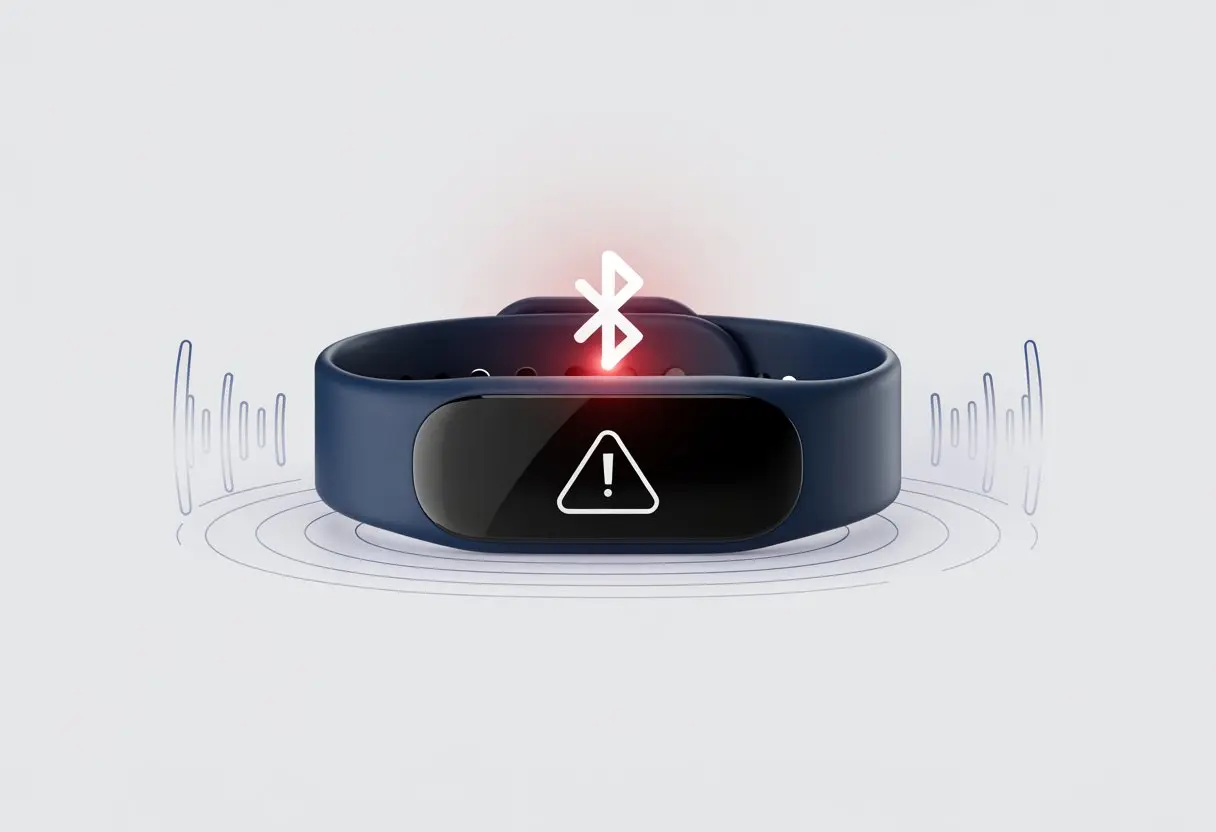
We’ve all been there—one minute we’re checking our steps, and the next, our fitness tracker decides it’s taking a break, flashing Bluetooth error code 45 like it wants to star in a soap opera. Suddenly, syncing data feels about as likely as running a marathon backwards.
Bluetooth error code 45 pops up when our device (like a fitness tracker) isn’t connected to the computer—usually because Windows can’t see it or thinks we’ve yanked it out.
This error isn’t picky. It likes to appear out of nowhere—sometimes right after a restart that seemed innocent enough.
We can all agree, nothing kills motivation like trying to connect our tracker and getting nothing but error codes and cryptic icons. Still, with a little know-how, we can put that code 45 back in its place and get our fitness data moving again.
What Is Bluetooth Error Code 45?
Bluetooth error code 45 pops up when our computer gets tired of looking for a device that won’t show up. It’s the digital version of someone leaving us on read.
This annoying issue leaves us with disconnected Bluetooth devices and a lot of head-scratching.
Definition and Message of Error Code 45
Code 45 is a hardware error. The message usually says, “Currently, this hardware device is not connected to the computer. (Code 45).”
Basically, our computer thinks the device just packed up and left the system.
This error loves to appear after plugging in or unplugging a device, especially if we’re in a hurry. Code 45 isn’t subtle—Windows is basically shouting, “Hey, where did your Bluetooth device go?”
If our connection drops or the device vanishes, this error often follows right after.
The message just means the device isn’t recognized right now. It doesn’t usually mean it’s broken forever—just missing for the moment.
If we’re lucky, plugging the device back in can make Code 45 disappear like a sock lost in the laundry.
Relationship Between Code 45 and Bluetooth Devices
Bluetooth and Code 45 have a relationship status that’s definitely “It’s complicated.” When this error appears, it usually means our Bluetooth devices aren’t talking to the computer—maybe the device is physically disconnected, or Windows just stopped recognizing it.
Some of us get Code 45 after a system update or a restart. Sometimes, it’s driver issues, outdated firmware, or a Bluetooth dongle that just doesn’t want to commit.
Devices like wireless headphones, smartwatches, and fitness trackers are all guilty of these disappearing acts that trigger Code 45.
This error especially loves to haunt us if we move our Bluetooth dongle between USB ports or it gets bumped around. Even a loose connection can make Windows throw up its hands and show error code 45.
When we run into Bluetooth error code 45, our fitness tracker is basically saying, “Hey, I can’t find your device!” This can happen because of connection issues, driver glitches, hardware malfunctions, or something weird with Windows updates.
Let’s break down these suspects and see which one is ruining our daily step streak.
Physical Connection Issues
Even though most Bluetooth devices are wireless, hardware still matters. If our fitness tracker isn’t charged or the battery is loose, it might ignore us.
Sometimes, the USB Bluetooth adapter (the little thing we plug in) isn’t seated right. Even a tiny wiggle can make Windows act like the device just left.
We’ve all tried unplugging and plugging it back in, hoping for a miracle.
In other cases, internal Bluetooth chips can get knocked loose if we’ve dropped our laptop a few too many times.
Device drivers are the translators between our fitness tracker and Windows. If they’re old, rusty, or broken, our devices might stop talking to each other.
We might not even see a Bluetooth option in the settings—no blue slider, no little icon, and definitely no syncing those workout stats.
A corrupted or missing driver means Windows can’t do its job. Instead, it flashes error code 45 and leaves us hanging.
Sometimes, Windows says our driver is up to date, but it’s not telling the whole truth—manufacturers release updates on their own sites, so manual checking helps.
Try updating, reinstalling, or rolling back drivers if we’ve changed something recently.
If a driver is really fried, sometimes deleting it in Device Manager and restarting is all we can do.
Hardware Faults and Malfunctioning Devices
Faulty hardware is the party crasher here. If our fitness tracker’s Bluetooth radio is dead or the computer’s Bluetooth chip is done, we’re out of luck.
Electronics just sometimes decide to retire early.
Common signs include missing Bluetooth options, stubborn error messages, or the dreaded gray icon in Device Manager.
Even a perfect-looking tracker could secretly have a dead internal chip.
Windows keeps showing code 45 because it thinks the hardware device is not connected, and sometimes it’s right.
If we have another fitness tracker or Bluetooth device, swapping it in to see if it works can tell us if our original device is toast.
If not, it might be time to start shopping for an upgrade.
Windows Update Conflicts
Nothing strikes fear like a fresh Windows update. Sometimes, after installing updates, Bluetooth support just disappears.
Settings menus go blank, and our tracker ghosts us for days.
These conflicts happen when Windows includes generic drivers that don’t play nice with our device.
While Windows thinks it’s being helpful, sometimes it swaps out a working driver for a problematic one.
Running the Windows Update troubleshooter, uninstalling the last update, or grabbing the latest manufacturer drivers can help.
If nothing works, we might end up uninstalling updates, rolling back drivers, and frantically searching for a fix.
Diagnosing the Code 45 Error
We all know the moment—the fitness tracker won’t connect, and instead of counting steps, we’re counting error messages. To crack the mystery of Bluetooth error code 45, we need to use some handy tools in Windows.
Let’s use Device Manager, the Hardware and Devices Troubleshooter, and maybe some magic with system files to see what’s really going on.
Checking Device Status in Device Manager
Let’s jump into Device Manager, where all our gadgets’ secrets are hiding. Press Windows + X and pick Device Manager from the menu.
Find our Bluetooth device—it might hide under “Bluetooth” or “Other devices.” If you see a yellow exclamation mark or “Currently, this hardware device is not connected to the computer (Code 45),” our tracker is not living its best life.
Right-click on the device and check its Properties. Look at the Device Status box; this is where Windows gives its blunt, brutally honest feedback.
If Code 45 shows here, Windows just doesn’t see the device plugged in. It’s not a software fight; the computer thinks we’ve unplugged it, even if it’s just taking a break.
For more on why Code 45 appears in Device Manager, see this Microsoft guide.
Running the Hardware and Devices Troubleshooter
Now, let’s let Windows do some detective work. The Hardware and Devices Troubleshooter is like the bloodhound of the system.
Press Windows + R, type msdt.exe -id DeviceDiagnostic, and hit Enter.
Click Next and let the tool sniff out issues. It looks for missing drivers, disconnected gadgets, and other weirdness under the hood.
Windows might suggest fixes like “Reconnect your device” or “Try reinstalling the driver.” Sometimes it works in a few clicks—and sometimes we get nothing but a shrug.
If our tracker still refuses to sync, corrupted system files might be the next suspect. System files can go bad for all sorts of reasons, like failed updates or mischievous software.
When this happens, Windows might forget how to talk to our device, leading to Code 45.
To check for corrupted files, open the Command Prompt as administrator (type cmd in the Start menu, right-click, and pick “Run as administrator”). Then enter: sfc /scannow
This tool will search for missing or corrupted files and replace them if it can. The scan might take a while, so maybe now’s a good time for a quick jog—old-school style—until Windows sorts itself out.
Step-by-Step Solutions to Fix Bluetooth Error Code 45
Bluetooth error code 45 means our fitness tracker isn’t connected to our computer. It often pops up in Device Manager when Windows “forgets” there’s a device for us to use.
Luckily, we can usually fix this with a few surprisingly easy steps and minimal frustration.
Reconnecting the Bluetooth Device
Alright, let’s play matchmaker and get your fitness tracker and computer chatting again. If you’ve got it plugged in with a USB, just unplug and plug it back in.
For wireless connections, try toggling Bluetooth off and on in your settings. Sometimes, this little reset is all it takes.
If that doesn’t help, go ahead and remove the fitness tracker from your paired devices list, then add it back. You’ll find this option in Bluetooth settings under “Devices.”
Honestly, it feels a bit like breaking up and immediately swiping right on your ex, but hey, sometimes your computer just needs a reminder.
This step helps Windows notice your Bluetooth device and set up a fresh connection. That alone fixes error code 45 for a lot of people.
If you want more details, drivereasy.com explains the process pretty clearly.
Updating or Reinstalling Device Drivers
If reconnecting didn’t help, your device drivers could be the culprit. Think of device drivers as translators—they let Windows and your tracker speak the same language.
When they’re outdated or just plain cranky, code 45 loves to make an appearance.
To update your drivers, open Device Manager (just type “Device Manager” in the Start menu and hit Enter). Find your Bluetooth device under “Bluetooth.”
Right-click the device and choose “Update driver.” Pick “Search automatically for drivers” and let Windows do its thing.
If updating feels like shouting into the void, try uninstalling the driver instead. Right-click, select “Uninstall device,” then restart your computer.
After rebooting, Windows should reinstall the right driver, hopefully sending code 45 packing for good. If you want step-by-step help, check out auslogics.com or intel.com.
Using the Scan for Hardware Changes Feature
If Windows still ignores your Bluetooth device, it’s time to use the “Scan for hardware changes” feature in Device Manager. Have you ever wanted to just poke Windows and ask, “Did you even look?”
Open Device Manager again, click “Action” in the menu bar, and select “Scan for hardware changes.” Windows will look for new or missing devices and try to reinstall the right driver.
If your tracker suddenly shows up, you’ll know Windows just needed a gentle nudge. This trick helps Windows detect lost or disabled devices and often fixes error code 45, as ubackup.com explains.
Advanced Diagnostic and Repair Tools
When your fitness tracker’s Bluetooth throws out Code 45 and nothing else works, it’s time to dig deeper. Advanced Windows tools help fix hidden problems, from system file damage to real hardware issues.
Running SFC and DISM Scans
Sometimes, Windows just gets mixed up and your system files go missing in action. The System File Checker (SFC) can help.
Open Command Prompt as Administrator and type sfc /scannow. This command scans for corrupted or missing system files and tries to fix them.
If SFC doesn’t solve it, don’t give up! Deployment Image Servicing and Management (DISM) is your backup. Use this command: DISM /Online /Cleanup-Image /RestoreHealth
DISM checks for deeper Windows problems and can fix what SFC can’t. Always run SFC again after DISM, just to be sure.
SFC: Scans and repairs system files
DISM scan: Fixes Windows image and deeper system errors
With these, your computer gets a solid tune-up and might finally see your Bluetooth device again. For more details, check this Device Manager error troubleshooting guide.
Using CHKDSK to Check for Hardware Errors
If the problem still won’t budge, it might be time for CHKDSK—that’s Check Disk. CHKDSK checks your hard drive for errors that mess with hardware connections, including Bluetooth.
Run it from Command Prompt with: chkdsk /f
You might need to restart your PC, so save your work first.
CHKDSK can find and fix drive problems that SFC or DISM missed. Sometimes, Code 45 pops up because your hard drive is having a bad day.
Here’s how to do it:
Open Command Prompt as admin
Type chkdsk /f and press Enter
Restart if prompted
If this fixes the error, your fitness tracker and your sanity could both be saved. For extra tips, check out hardware error advice here.
Permanent Solutions and When to Replace Hardware
Fitness tracker Bluetooth error code 45 isn’t always a minor glitch. Sometimes, it hints at deeper hardware problems. We all need to know when to keep tinkering and when it’s time to consider replacing faulty parts.
Dealing With Persistent Hardware Issues
If your fitness tracker keeps flashing that annoying “hardware device is not connected” message, it’s time to get serious.
Start by ruling out the basics. Unplug and reconnect your tracker, reboot both devices, and update your drivers.
If those don’t work, you might be facing a stubborn hardware issue. Windows’ Hardware Troubleshooter sometimes helps, but not always.
Try uninstalling the device in Device Manager and let Windows reinstall it.
Here’s a quick checklist:
Update Bluetooth drivers
Try a different USB port or charger
Run built-in system diagnostics
If you’re still stuck with error code 45 after all that, maybe your tracker is just having a laugh at your expense.
Recognizing When Physical Replacement Is Necessary
Sometimes, no matter how much we try—smooth talk, frantic clicking, you name it—our fitness tracker just won’t cooperate. If you see connection issues on several computers or your device always pops up as not connected to the computer, that’s a pretty clear warning sign.
You might spot visible damage too, like a bent USB pin or exposed wires. If you catch even a faint whiff of burning electronics, well, you probably know what that means.
If your other Bluetooth gadgets work just fine, your PC probably isn’t the problem. At that point, what’s left?
Honestly, there’s no point in wasting more time or emotional energy. If your device keeps throwing code 45 at you after every fix you can think of, it’s probably easier (and better for your sanity) to just get a new tracker that won’t leave you hanging.
Hi, my name is Garrett Jones, and I am a tech enthusiast. I enjoy researching the new tech that has been released, and have a vast knowledge of the best tech to purchase.
From a young age, I have always had a big interest in technology, and this blog is an extension of that interest. Through this blog, I hope to provide others with all of the information they need regarding tech options to consider, and things such as compatibility. Some of the different items I will be discussing include headphones, smartwatches, and how to fix common issues.