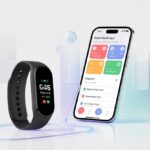
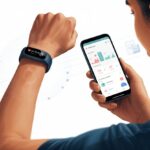
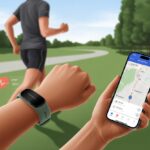
Let’s be real—nobody wants to carry around a sweaty notebook just to track steps. That’s where fitness trackers and Samsung Health come in, making it way easier (and honestly, more fun) to log our steps, workouts, sleep, and even how much water we drink.
To get your fitness tracker working with Samsung Health, just connect the device in the app’s settings. It’s really not complicated.
A few taps, and suddenly our gadgets are syncing, sharing health info, and turning random numbers into actual insights. That way, we can spend more time moving and less time guessing if we really hit 10,000 steps—or if the cat ran off with our watch again.
Millions use Samsung Health daily to check their progress and maybe flex a little in those step contests. Ready to see how easy it is to make your tracker and Samsung Health work together? No sweatbands needed.
Getting Started with Fitness Trackers and Samsung Health
Getting started with a fitness tracker and Samsung Health isn’t nearly as hard as building IKEA furniture. All we need is the right device, the right app, and a little patience to get those steps counted.
Compatible Fitness Trackers
Not every fitness tracker gets along with Samsung Health. The app works best with Samsung’s own Galaxy Watch and Gear Fit models.
If you like options, some Wear OS wearables—think certain Fossil, Ticwatch, and Skagen watches—also sync pretty well.
Using a Fitbit Charge 2? Sorry, no direct syncing—Fitbit sticks to its own app. If you’re on iOS, you can download Samsung Health, but it connects best with Samsung and Android devices.
A full list of what works lives on the Samsung Health page. When in doubt, Samsung-to-Samsung is usually the safest bet.
Downloading and Installing Samsung Health
First, grab the Samsung Health app on your phone. Android users, head to the Google Play Store. iPhone folks, it’s in the Apple App Store.
Install it, open the app, and sign in with a Samsung account. If you don’t have one, you can make it right there.
You’ll need to enter some basic info—gender, age, height. Don’t fudge it; the app uses this for accurate tracking.
Setting Up Permissions
Samsung Health needs permission to read and write health data. The app will ask for access to sensors (like heart rate and steps), storage, and sometimes location.
If you skip these, the app won’t track your fitness, and missing steps is just sad.
On Android, go to Settings > Apps > Samsung Health > Permissions. It’s just a few toggles.
On iOS, you’ll set permissions the first time, but you can always tweak them in Settings. If you want to sync with other health apps like Google Fit or Health Connect, make sure you allow that too.
It’s less hassle than a doctor’s office, but just as important for getting the results you want.
Pairing Your Fitness Tracker with Samsung Health
Syncing your fitness tracker with Samsung Health is basically a must if you want to see your stats add up. Whether you’re on Android, iOS, or rocking a Galaxy Watch, keeping things connected means your data stays straight.
Connecting on Android Devices
Pairing a tracker to Samsung Health on Android is usually a breeze—unless Bluetooth decides to mess with you. Download Samsung Health from the Play Store, open it, and tap More in the menu.
Look for Accessories and search for your device. It should pop up pretty quickly.
Select your tracker, confirm the connection, and grant the permissions that show up. If you miss one, syncing just won’t happen.
If Bluetooth is acting up, try toggling it off and on. Still nothing? Restart the phone. Most Samsung trackers will start syncing steps, calories, and sleep data almost instantly.
You can check stats on your tracker or in Samsung Health—whatever’s easier before your first cup of coffee.
Syncing with iOS
Things are a little quirkier here. Samsung Health prefers Android, but some trackers do play nice with iOS.
Download Samsung Health from the App Store. Samsung’s own trackers are your best bet.
Open the app, sign in, and find Accessories. If your tracker is compatible, it’ll show up.
Tap to connect, and run through the usual Bluetooth and health data permissions.
Heads up: iOS syncing sometimes skips advanced features. Step counts and basic stats are safe, but don’t expect every bell and whistle. If you want to double-check, the Samsung Health support page has the latest info.
Using Galaxy Watch and Wear OS Devices
If you’ve got a Galaxy Watch or a Wear OS device, syncing just feels smoother. First, pair the watch to your phone with the Galaxy Wearable app (for Galaxy Watch) or the Wear OS app (for others).
Once paired, open Samsung Health on both the watch and phone. They’ll start sharing data like workout minutes and heart rate.
There’s often an auto-sync option, so you won’t have to remember to do it each morning.
If your tracker asks for updates, go ahead and let it update before pairing. Sometimes a stubborn Galaxy Watch just needs a quick update and a retry.
Once everything’s paired, your activity, sleep, and more will flow into Samsung Health, ready for you to check—or ignore on lazy days.
Tracking Daily Activities in Samsung Health
Samsung Health makes it easy to keep tabs on your daily movement—steps, heart rate, blood oxygen, and even that questionable yoga pose you tried. It’s a solid way to see if you’re moving enough, not just making trips to the fridge.
Monitoring Step Counts
Step counts in Samsung Health aren’t just numbers—they’re like little nudges to take the stairs instead. The app logs steps automatically as you go about your day.
You’ll see a bar graph of your activity, so skipping leg day is tough to hide.
Set step goals and, when you hit them, the app gives you a digital high five. You can compare daily and weekly numbers to stay motivated.
Every step—even those midnight snack runs—gets tracked. For more details, check Samsung’s support page.
Recording Heart Rate and SpO2 Data
Your fitness tracker tracks more than just your legs—it keeps an eye on your heart and blood oxygen too. With a compatible device, Samsung Health measures your heart rate and SpO2 all day.
Whenever your heart’s pounding—maybe from excitement or too much coffee—you can check your numbers in the app.
Graphs show trends, so you can spot if stress or caffeine is driving your heart rate. You’ll also get alerts if readings go outside the normal range.
SpO2 tracking helps you see if your lungs are keeping up during exercise or sleep. It’s handy, even if you’re not an athlete.
Logging Workouts and Exercise Types
Logging workouts is where Samsung Health really shines. You can pick from tons of exercise types—walking, running, swimming, cycling, and more.
To track a workout, pick the type on your phone or watch and hit go. The app logs duration, calories, and pace.
You can create routines, track intervals, and set personal records. Want to track your runs better? The app has features for tracking runs and sprints.
All your workout data gets saved, so you can see your progress over time. The stats don’t lie, and Samsung Health keeps it all for you.
Using GPS and Advanced Features
If you want more than just step counts, GPS and advanced features make fitness trackers way more interesting. You can measure cycling distance, map your route, and track outdoor workouts with real numbers.
Enabling GPS Data
Let’s be honest—if you’re sweating through a run but your tracker says you’re “walking” in circles, that’s just annoying. For real accuracy, turn on GPS in Samsung Health and your device.
Look for the little location pin icon before you start, so you know GPS is on.
Some trackers use your phone’s GPS; others have built-in GPS. Just don’t forget to turn it on—nothing’s worse than realizing your epic ride didn’t get logged. For more on managing trackers in Samsung Health, Samsung’s got a quick guide.
Tracking Cycling and Outdoor Activities
Cycling totally counts as an outdoor adventure, and Samsung Health actually treats it that way—even if we sometimes forget to. When we pick “Cycling” or any other outdoor workout, the app fires up GPS and spits out stats like distance, speed, and our winding path on a map.
That’s pretty cool, right?
It keeps a log of our route, so we can show off those wild detours.
It tracks elevation changes, which exposes when we “accidentally” picked the steepest hill.
To get rolling, we just:
Open Samsung Health.
Tap “Cycling” (or whatever activity we’re feeling).
Hit Start and double-check that GPS icon is glowing.
If everything’s working, our phone or Galaxy watch will follow every pedal and turn—even the weird ones, like chasing after a duck. For a full walkthrough, there’s a guide on GPS tracking with Samsung Health.
Integrating Third-Party Apps with Samsung Health
Trying to figure out which fitness apps play nice with Samsung Health? Sometimes it feels harder than doing burpees before coffee. Some apps connect directly, but others need a little creative problem-solving. We poked around, so you don’t have to.
Syncing with Fitbit and Fitbit Charge 2
Wouldn’t it be awesome if Samsung Health just synced with Fitbit or the old Fitbit Charge 2? Tracking steps and sleep would be a breeze. But Fitbit, unlike that friend who shows up everywhere, doesn’t mingle with Samsung Health.
Here’s the thing—Samsung Health won’t sync natively with Fitbit devices. There’s no built-in way to connect your Fitbit account or your Fitbit Charge 2. So, our Fitbit data just won’t stroll into Samsung Health on its own.
If we’re determined to get Fitbit steps into Samsung Health, we’ll need a third-party bridge app like Health Sync. These apps basically act as translators, shuttling data between our Fitbit and Samsung Health accounts. The setup can get a little fiddly and might test our patience, but it’s doable if we want all our stats together.
For now, we’ll just have to picture Fitbit and Samsung Health awkwardly ignoring each other at the party. Or, you know, try an Android workaround.
Connecting Endomondo and Other Health Apps
Endomondo used to let us connect with Samsung Health, but it retired back in 2020. So, syncing workouts from there is off the table. Guess we’ll have to reminisce about those old stats another time.
Luckily, Samsung Health still syncs with plenty of other health apps, like MapMyFitness and MyFitnessPal. To link them, here’s what usually works:
Open the third-party app
Find the “Apps & Devices” section
Tap Samsung Health
Follow the prompts to connect
If you’re dying to get your MapMyFitness data into Samsung Health, the steps are pretty straightforward. Not every app is on the list, but Samsung Health does connect with several big names. That way, sharing calorie counts, exercise, and steps doesn’t have to be a hassle.
Troubleshooting and Tips for Smooth Syncing
Syncing a fitness tracker with Samsung Health keeps us motivated—when it works, anyway. Sometimes the connection drops or our steps disappear, and it feels like the tracker’s just being dramatic. Let’s look at a few ways to keep everything running smoothly.
Common Connection Issues
When a fitness tracker and phone won’t sync, it’s about as annoying as untangling headphones. Usually, wireless issues or outdated apps are to blame. Before panicking, we should check that Bluetooth is on for both devices.
If Bluetooth is working but the tracker still refuses to play nice, a restart for both the tracker and phone can work wonders. We should always install the latest version of Samsung Health. Updates can fix a lot of things.
If problems stick around, try forgetting the Bluetooth connection and re-pairing the tracker. Double-check that both devices are on the same Wi-Fi or cellular network—it really helps. Samsung’s got more tips for syncing right here, if we need backup.
Preserving Battery Life
Nothing kills syncing faster than a dead tracker or a phone running on fumes. To keep our gadgets alive, dim the screen, shut down background apps, and cut back on unnecessary notifications. Fitness trackers love to ping us about everything, but our patience (and battery) can’t keep up.
Power-saving mode on our phone sometimes messes with syncing, so we try to keep both the phone and tracker charged above 20%. Syncing data while plugged in is always a safe bet. For trackers with heart rate or GPS, only turn those on when we really need them. Less is more—especially if it means we won’t end up hunting for a charger in the middle of a run.
Maintaining Data Accuracy
Let’s be honest—if our step count says we ran a marathon but we only wandered to the fridge, something’s way off.
Wearing a fitness tracker snugly—not so tight it leaves a mark, but not flopping around—can really make a difference.
I always try to wipe sweat or dirt off the sensors. If I don’t, the tracker just starts guessing instead of actually measuring.
I make sure to sync my tracker with Samsung Health every day. That way, the data stays fresh and the app has a better shot at catching mistakes.
It’s worth double-checking settings like activity type and stride length. Those tiny details can seriously mess with accuracy.
If workouts refuse to sync, sometimes a quick refresh fixes it. If not, I’ll poke around in helpful forums—this Reddit discussion is a good place to start.
Hi, my name is Garrett Jones, and I am a tech enthusiast. I enjoy researching the new tech that has been released, and have a vast knowledge of the best tech to purchase.
From a young age, I have always had a big interest in technology, and this blog is an extension of that interest. Through this blog, I hope to provide others with all of the information they need regarding tech options to consider, and things such as compatibility. Some of the different items I will be discussing include headphones, smartwatches, and how to fix common issues.